
Configure Attendance
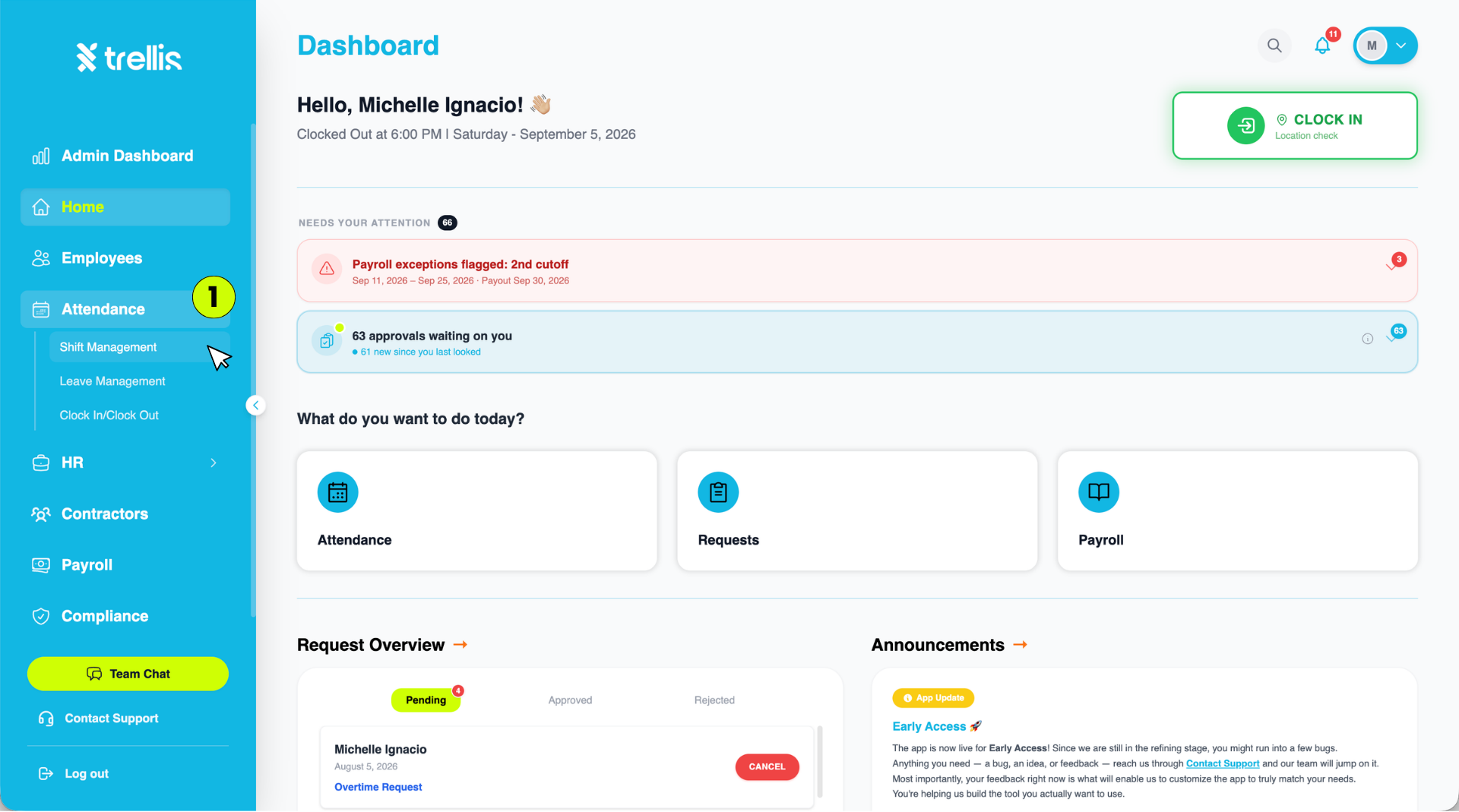
From the sidebar, click "Attendance" to expand the menu, then select "Shift Management."
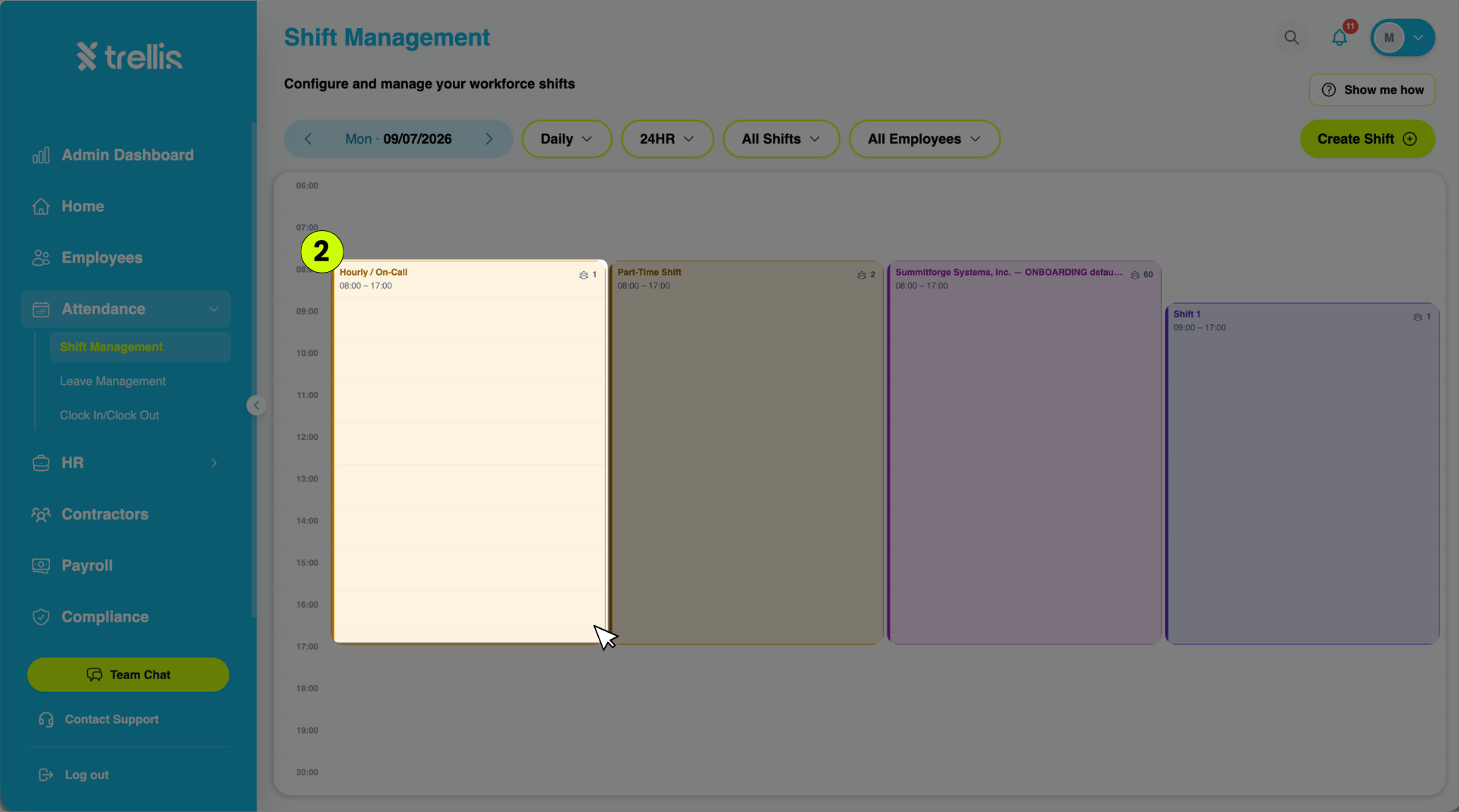
On the Shift Management page, click into the shift column you want to configure (e.g., "Hourly / On-Call").
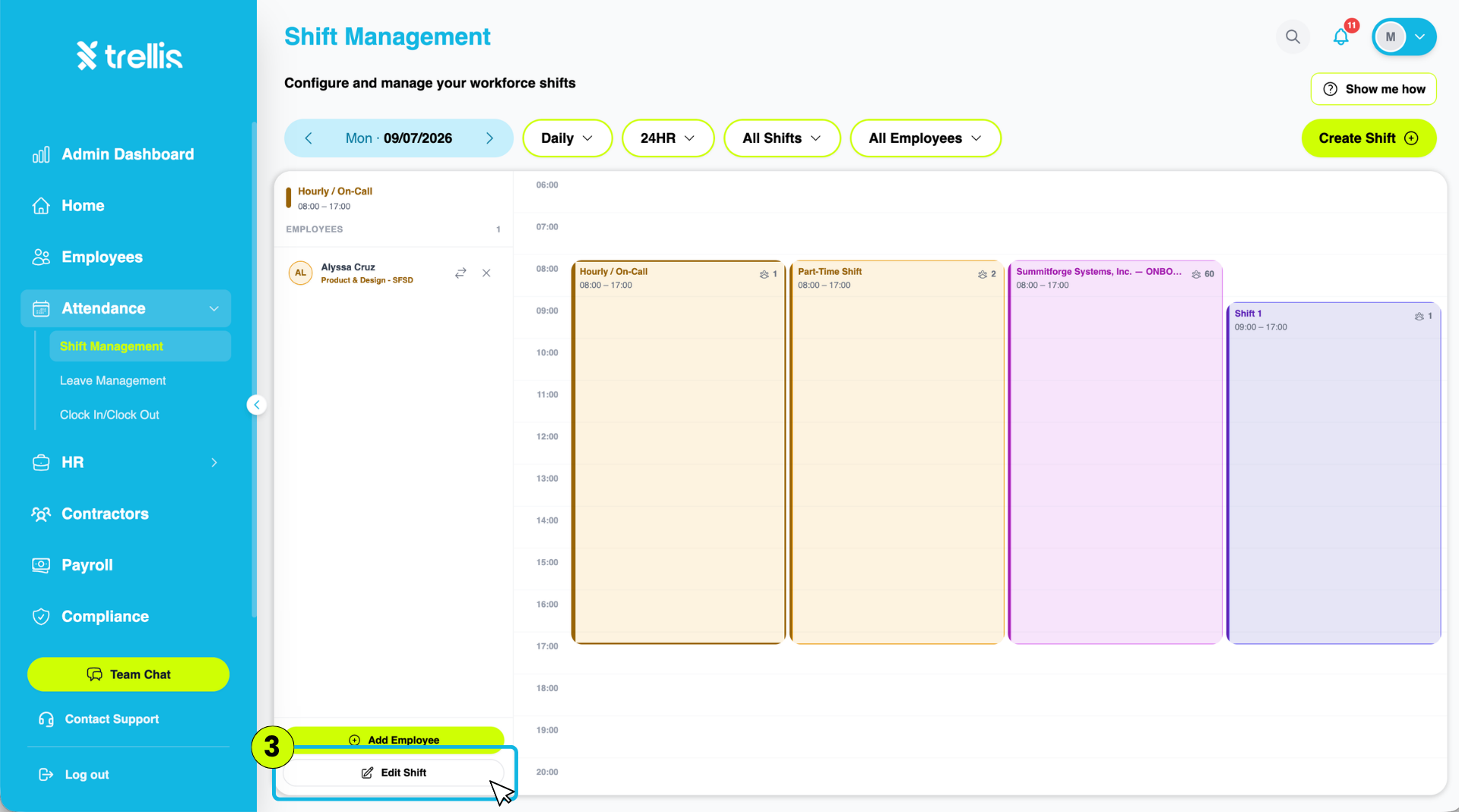
In the panel that appears on the left, click "Edit Shift" at the bottom.
The "Edit Shift" window will appear (Step 1 of 2). Configure the schedule settings, then click "Next."
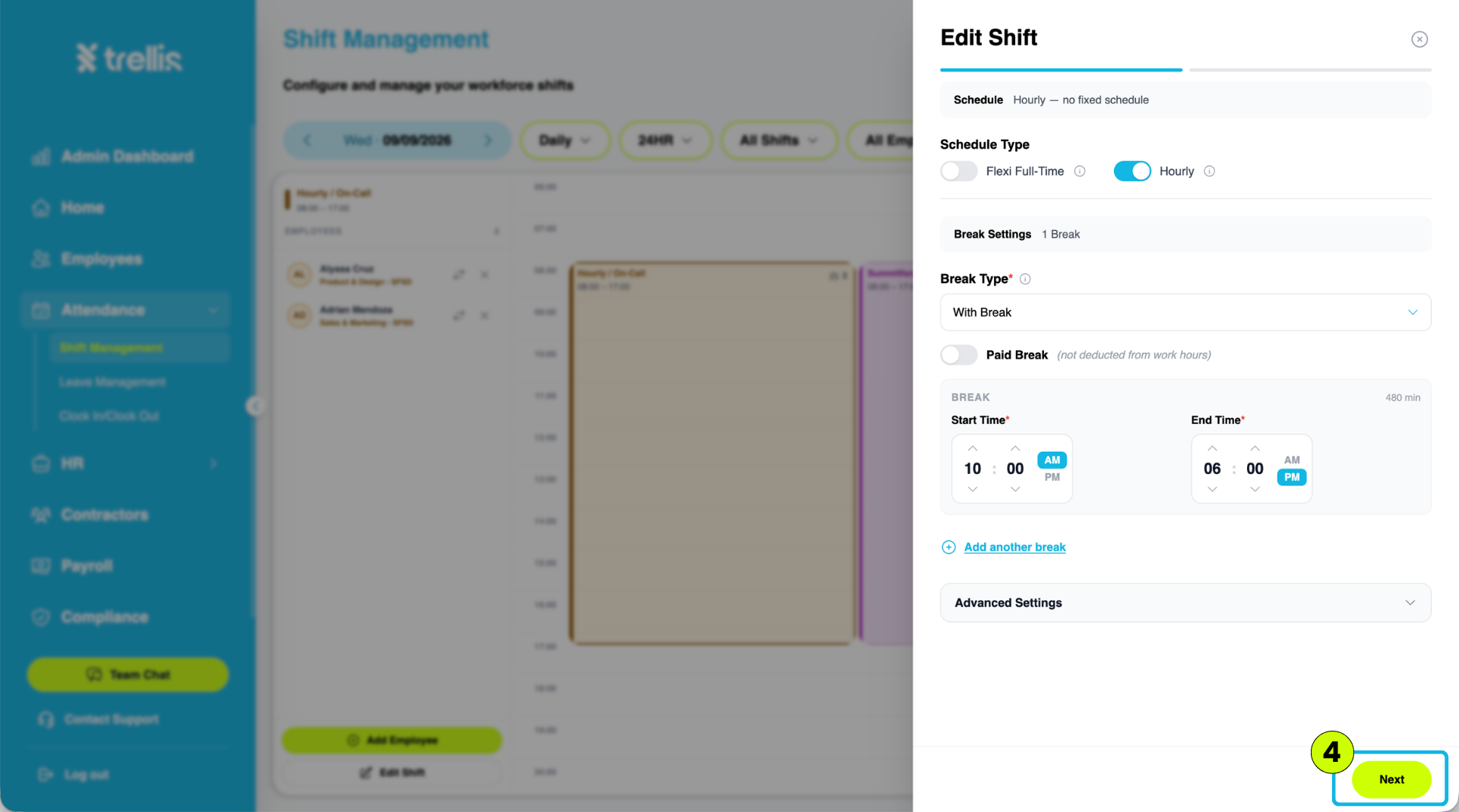
Schedule Type — toggle between "Flexi Full-Time" or "Hourly"
Break Settings — set the number of breaks
Break Type — select "With Break" or "No Break" from the dropdown
Paid Break — toggle on if the break should not be deducted from work hours
Break Start Time / End Time — set the time range for the break
Click "Add another break" if additional breaks are needed
Expand "Advanced Settings" for further configuration options
On Step 2, review the employees affected by the change, then click "Assign" to confirm.
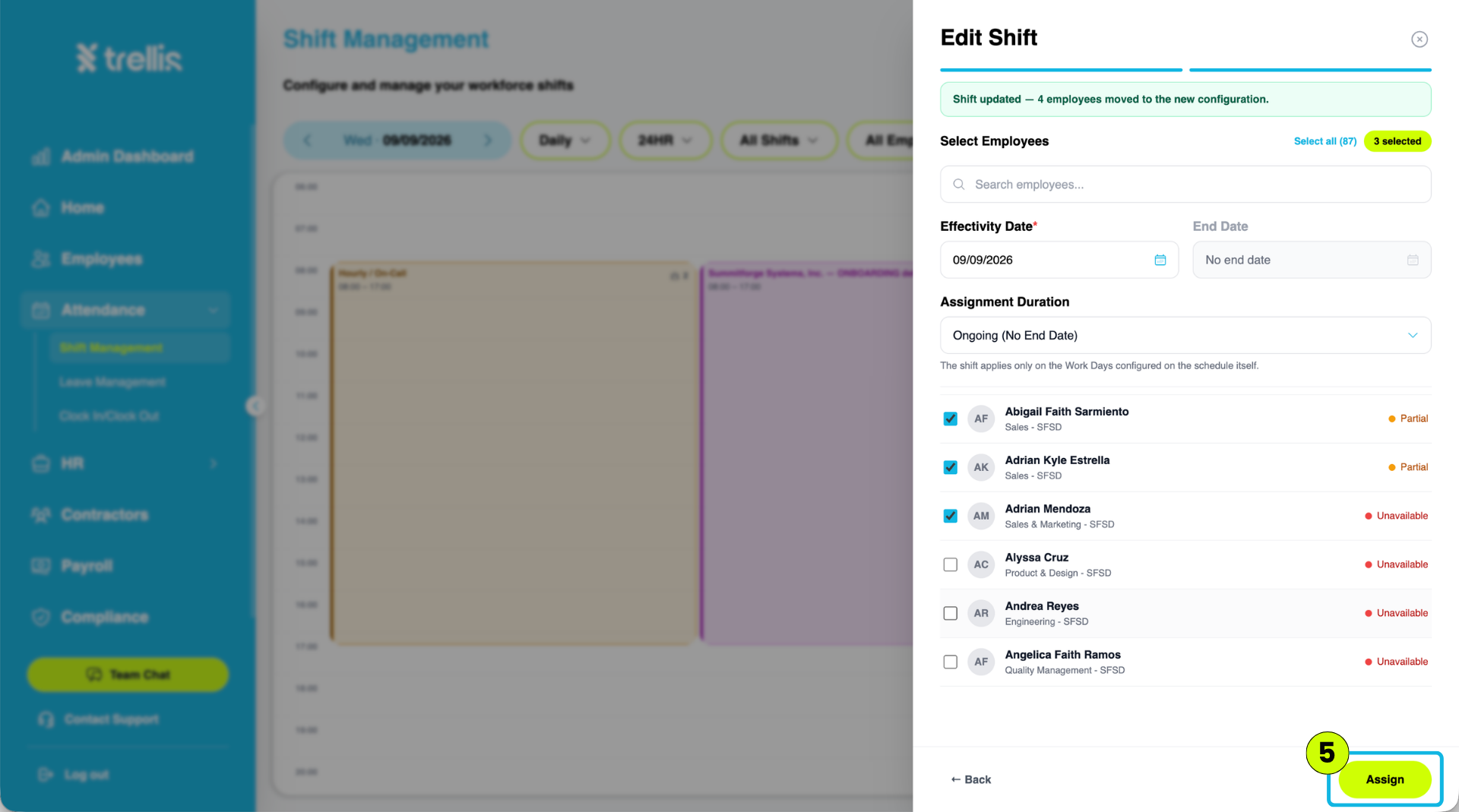
A confirmation banner will show how many employees were moved to the new configuration
Select Employees — check off which employees this configuration should apply to
Effectivity Date and End Date — set when the updated configuration takes effect
Assignment Duration — defaults to "Ongoing (No End Date)"