
Find guides, answers, and step-by-step instructions for using trellis PH.
Explore guides based on what you need to manage in trellis PH.
Everything you need to know about Customization.
How to manage employees
Everything you need to know about Getting Started.
Everything you need to know about Payroll.
Everything you need to know about Requests & Approvals.
Everything you need to know about Time & Attendance.
Everything you need to know about Troubleshooting.
Answers to common questions
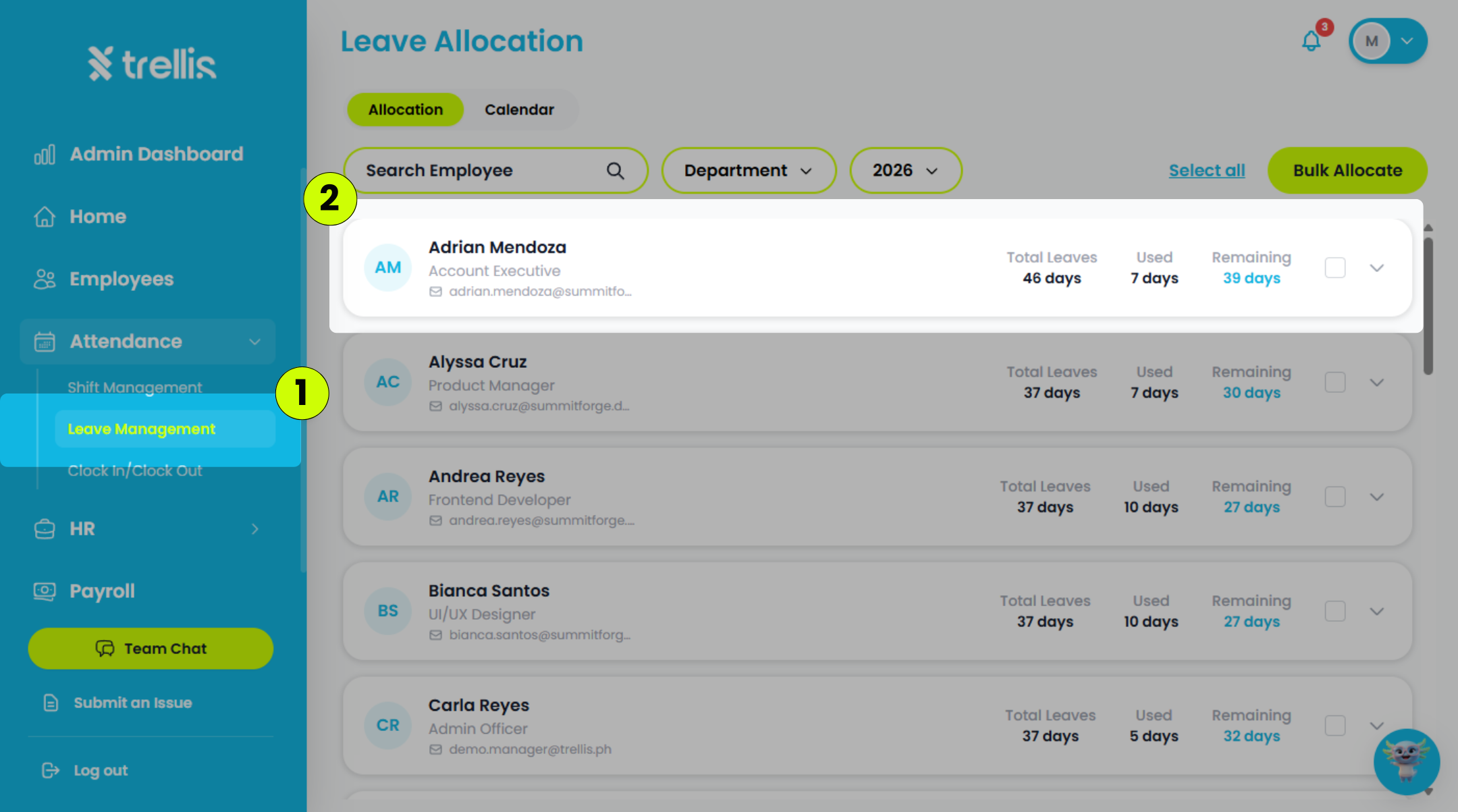
From the sidebar, click "Attendance", then select "Leave Management."
Click the employee you want to allocate leave to.
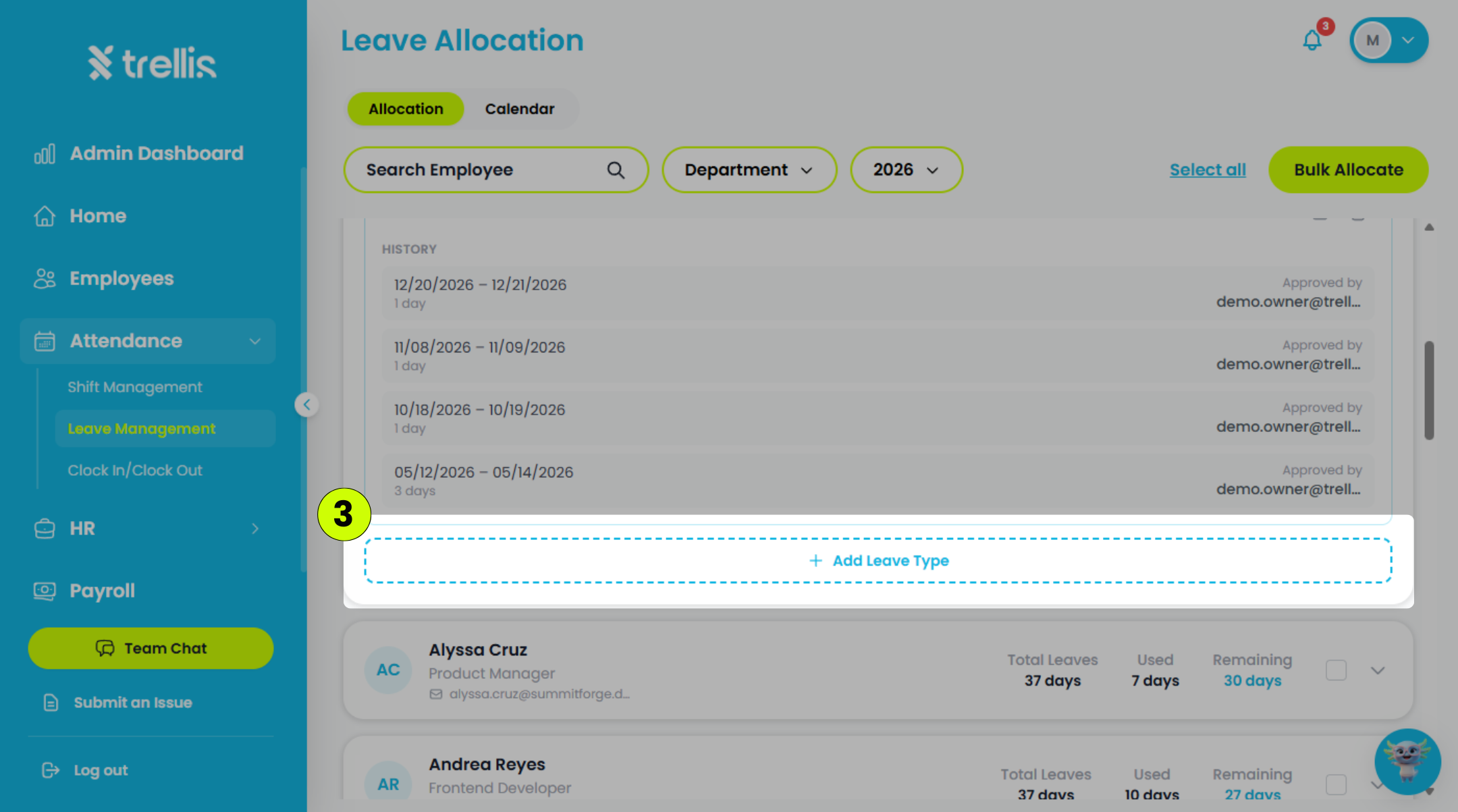
Scroll down to the employee you want to update, then click "Add Leave Type."
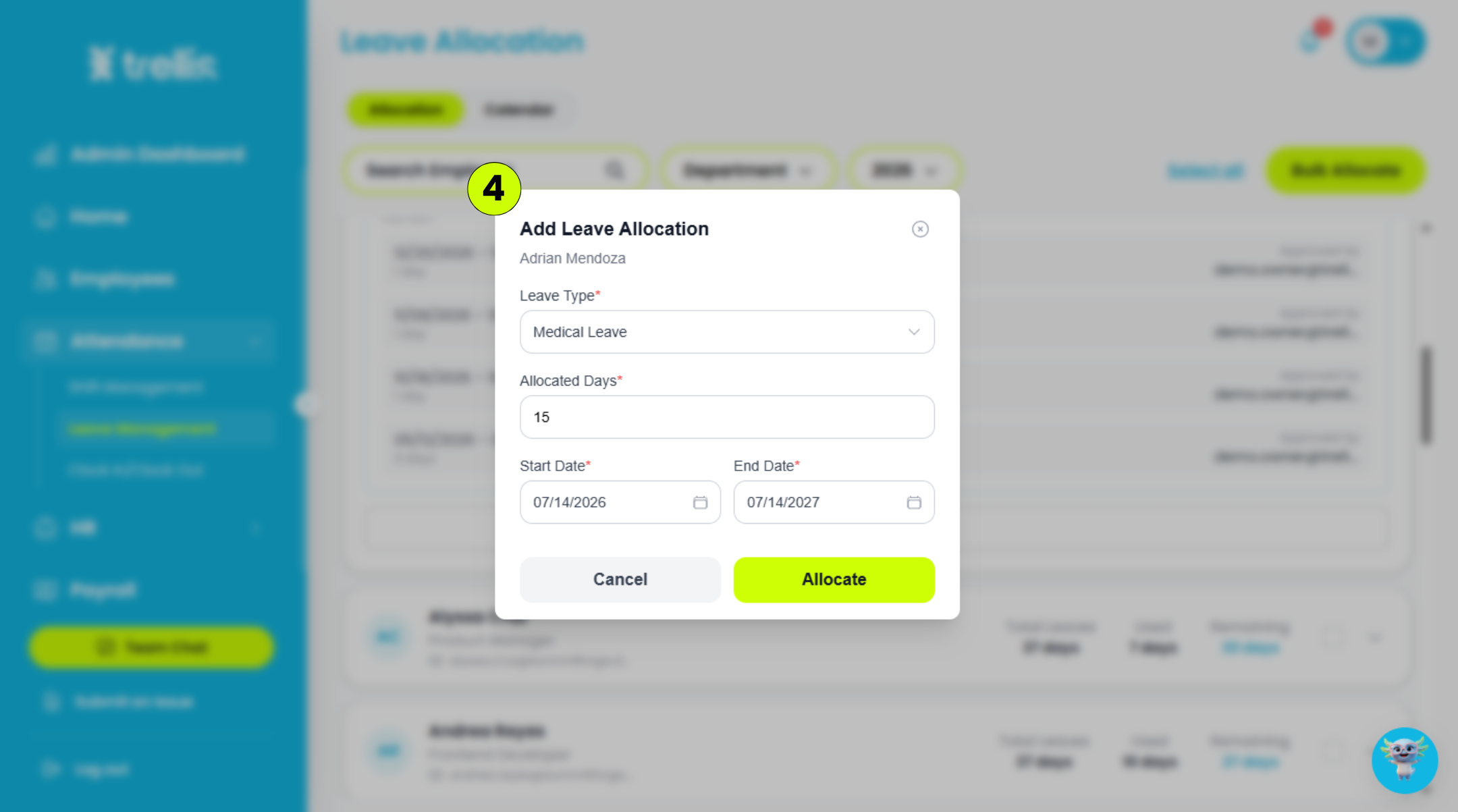
Fill in the required information, then click "Allocate".
Leave Type – The category of leave being allocated (e.g., Vacation Leave, Sick Leave).
Allocated Days – The total number of leave days assigned to the employee.
Start Date – The date when the leave allocation becomes effective.
End Date – The date when the leave allocation expires.
 Read the full guide →
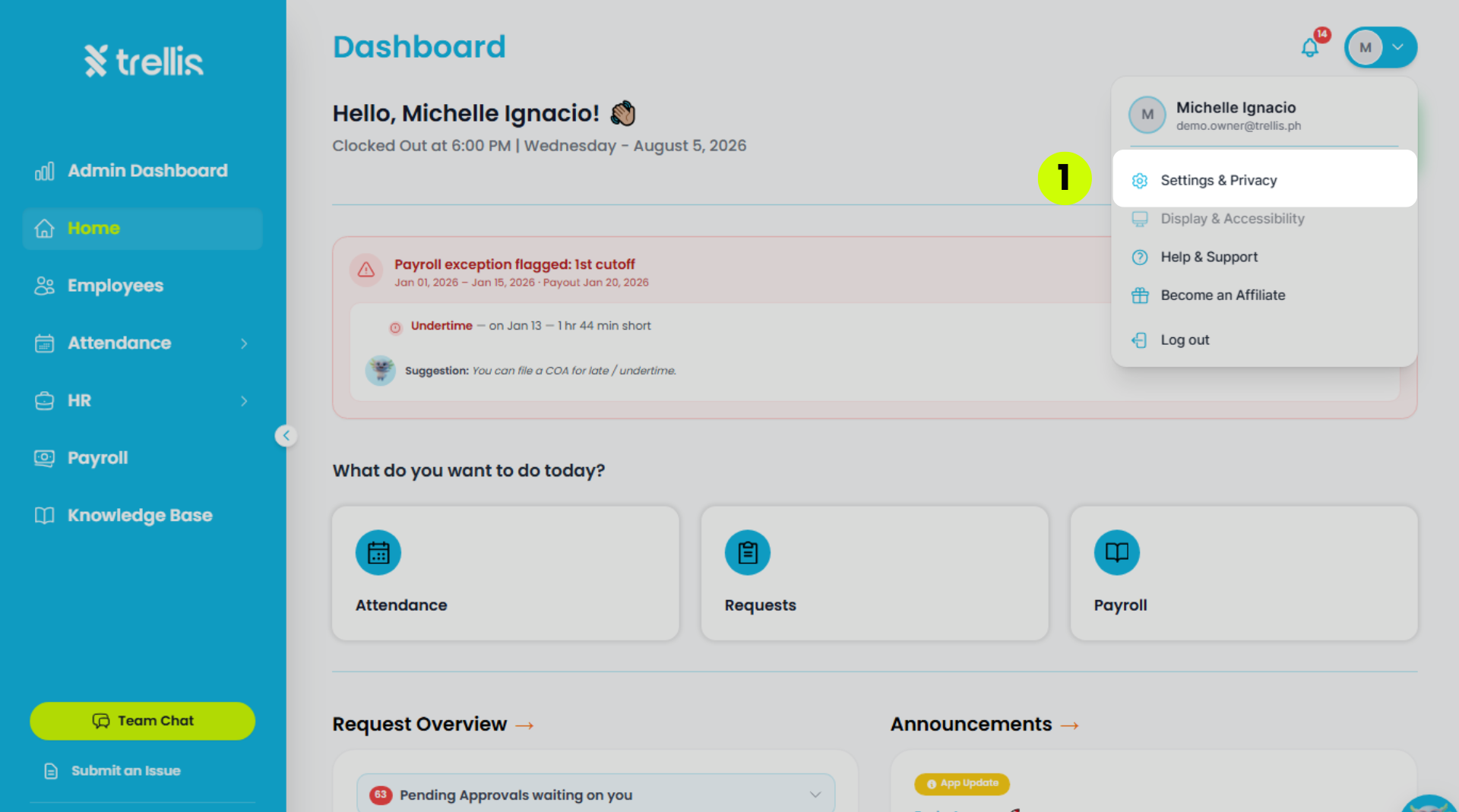
Click your profile icon at the top right corner of the dashboard, then select "Settings & Privacy."
On the sidebar, click “Security” to expand the menu.
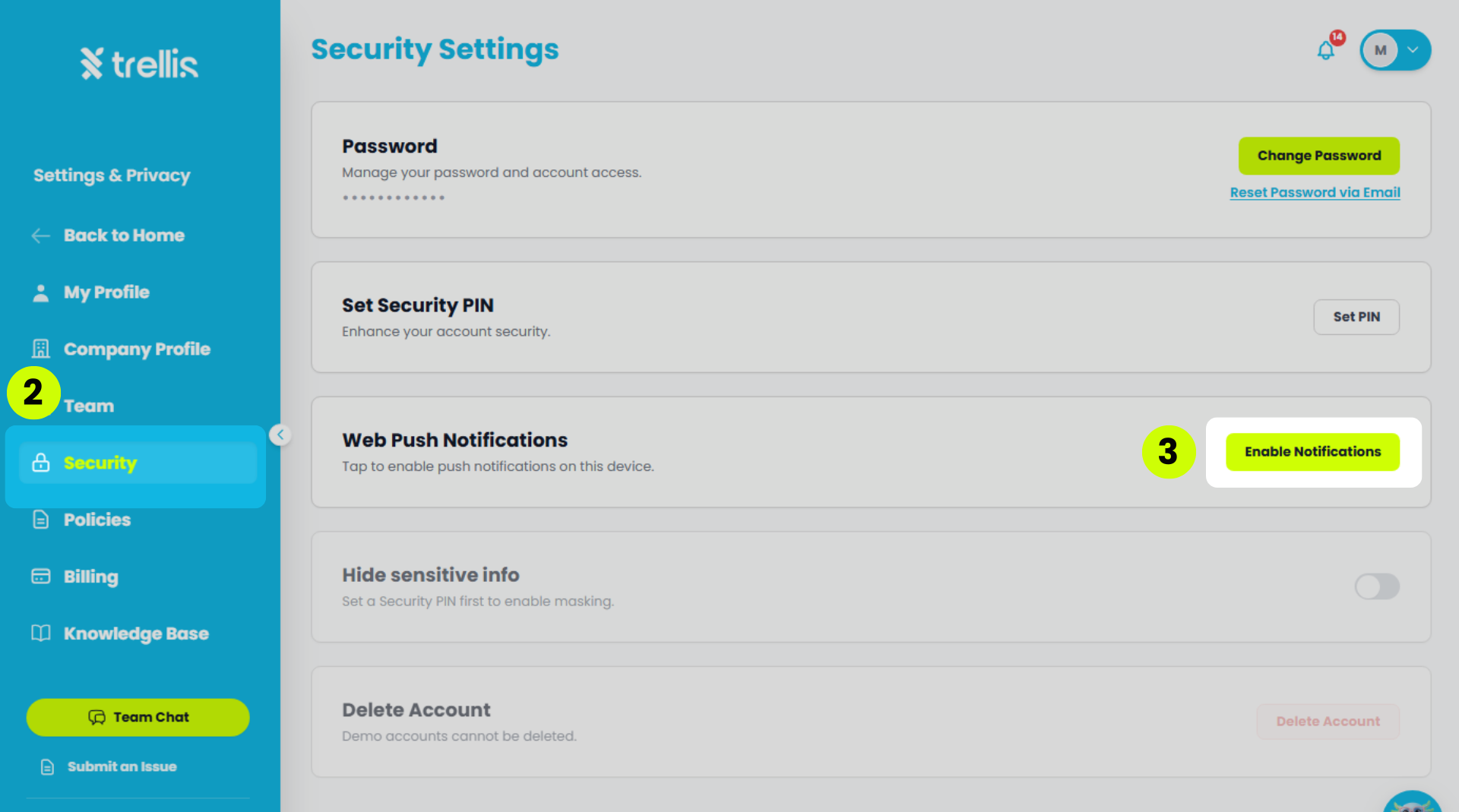
Press the "Enable Notifications" button next to “Web Push Notifications”.
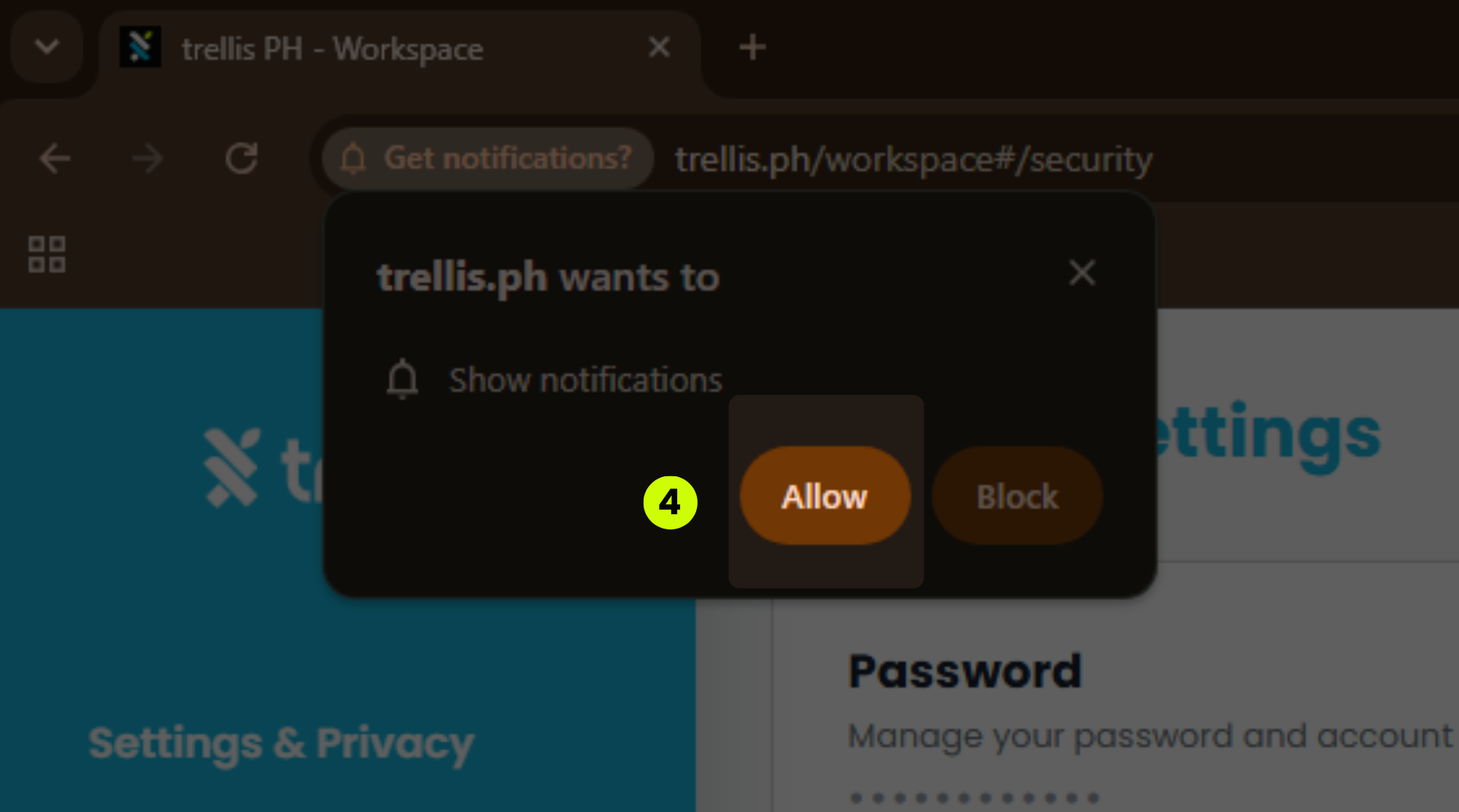
A browser prompt will appear asking if you want to allow trellis.ph to show notifications. Click "Allow" to enable push notifications on your device.
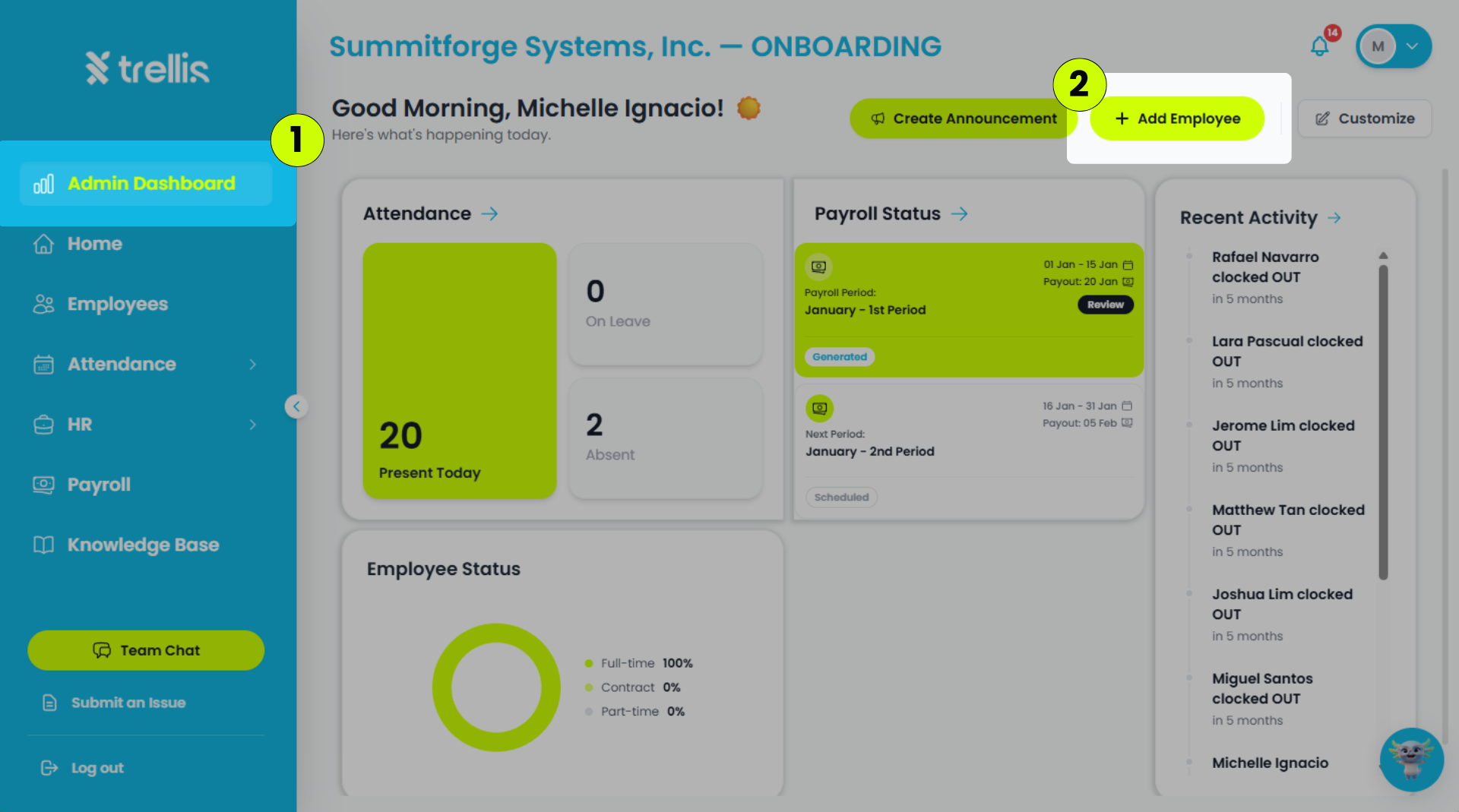
From the sidebar, click "Admin Dashboard."
On the Admin Dashboard page, click "Add Employee."
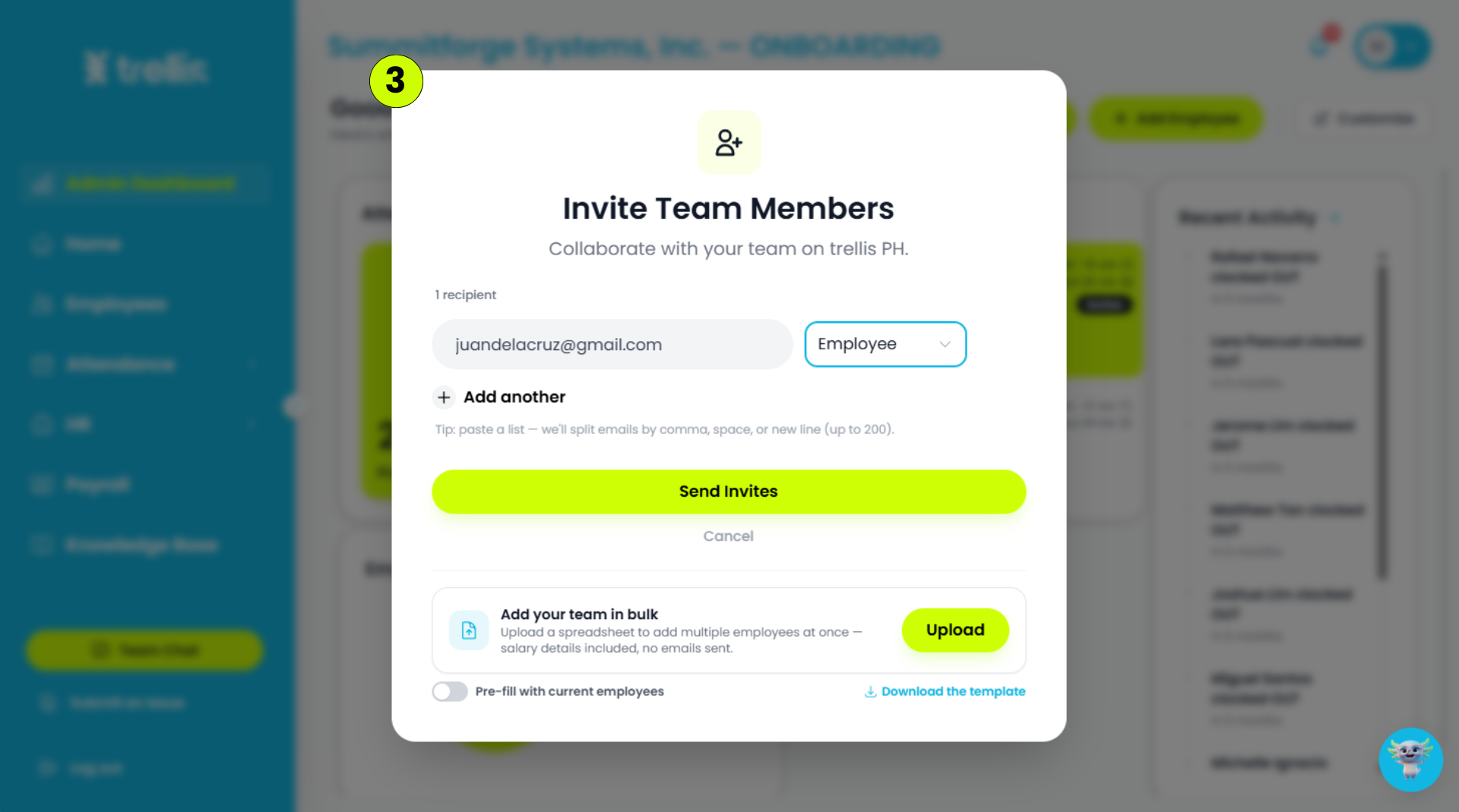
Enter the employee's email address, select a role, then click "Send Invites."
 Read the full guide →
From the sidebar, click “Attendance” to expand the menu, then select “Shift Management”.
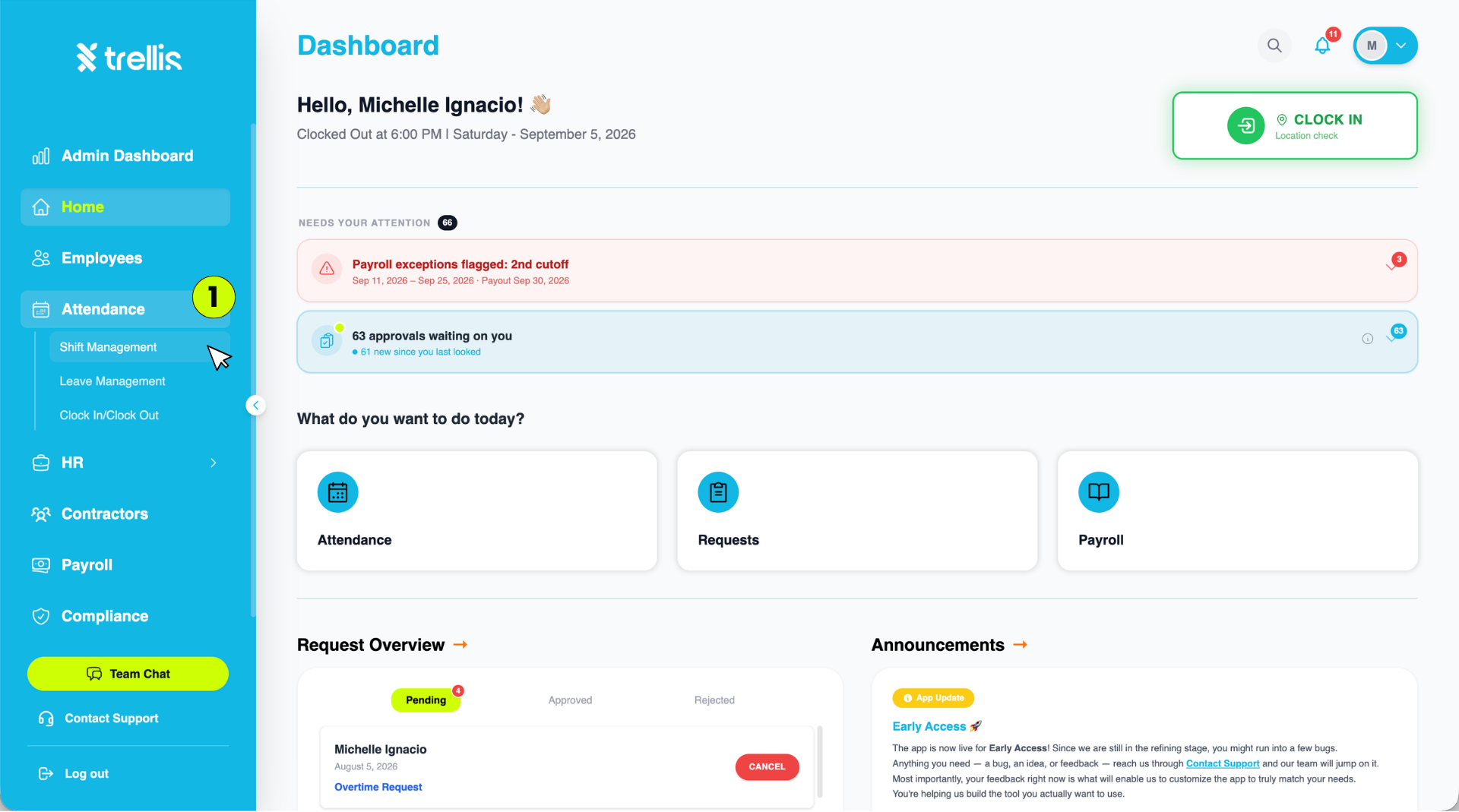
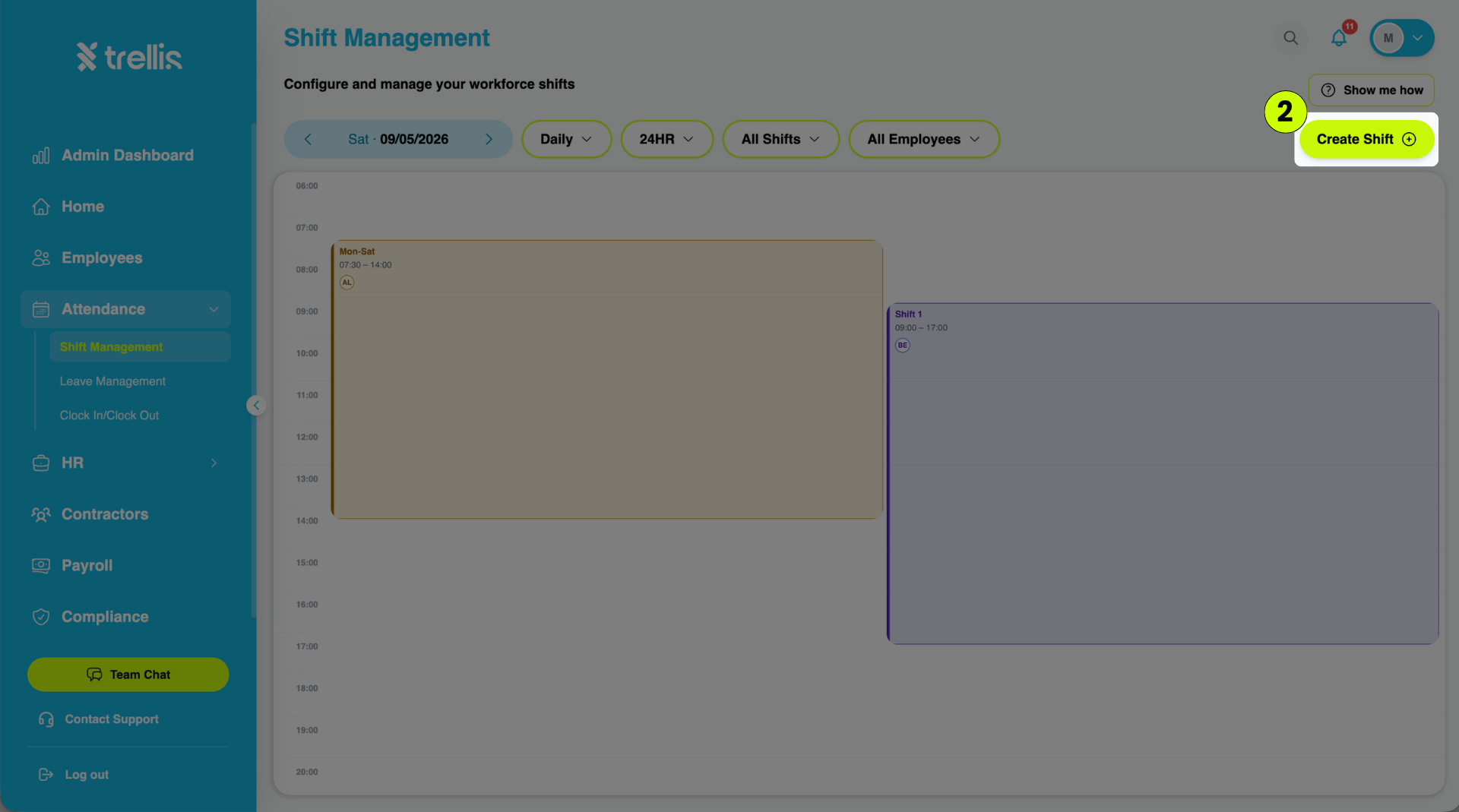
On the Shift Management page, click the “Create Shift” button at the top-right corner.
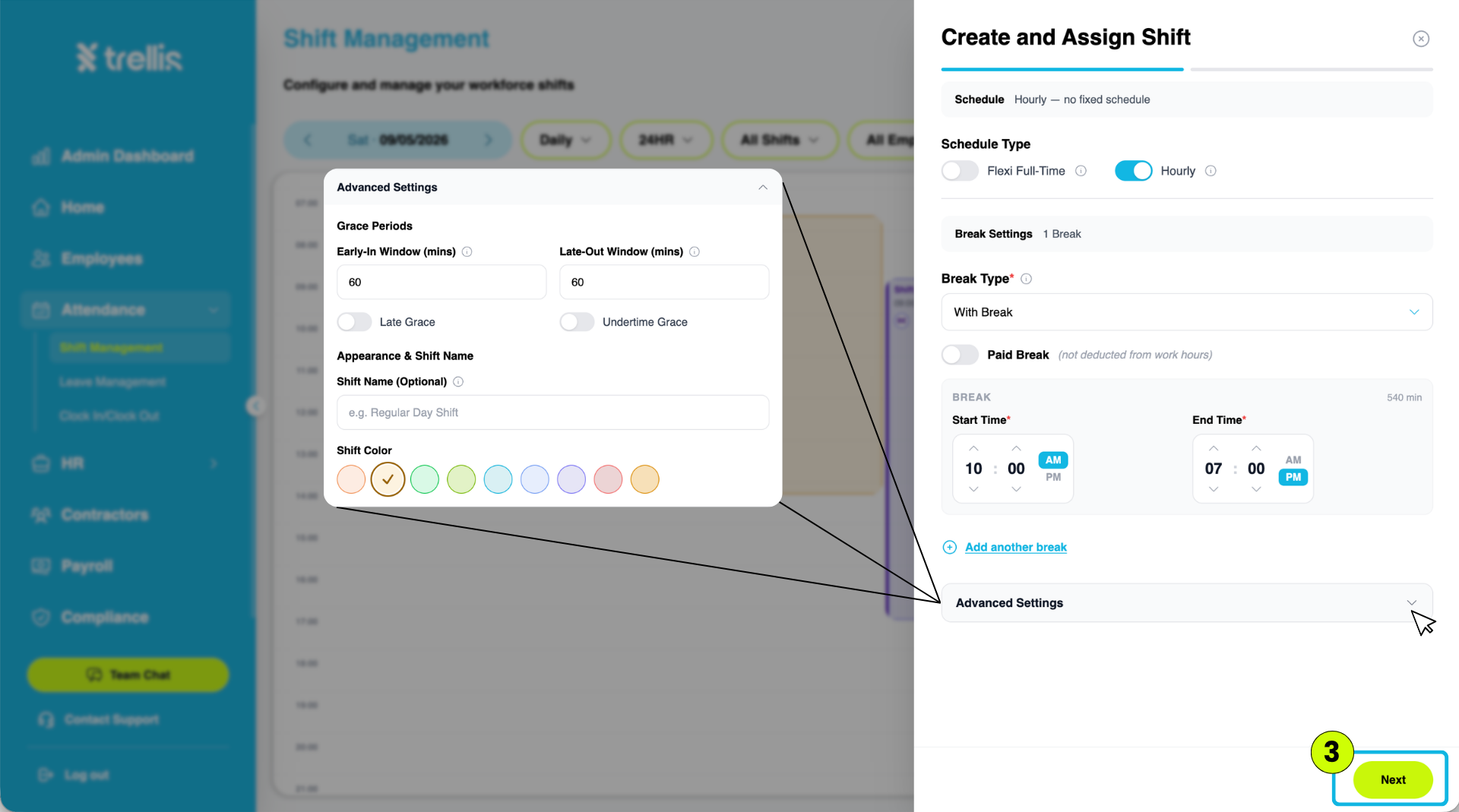
The “Create and Assign Shift” window will appear. Configure the shift details, including the schedule type, break settings, and advanced settings. Once finished, click “Next”.
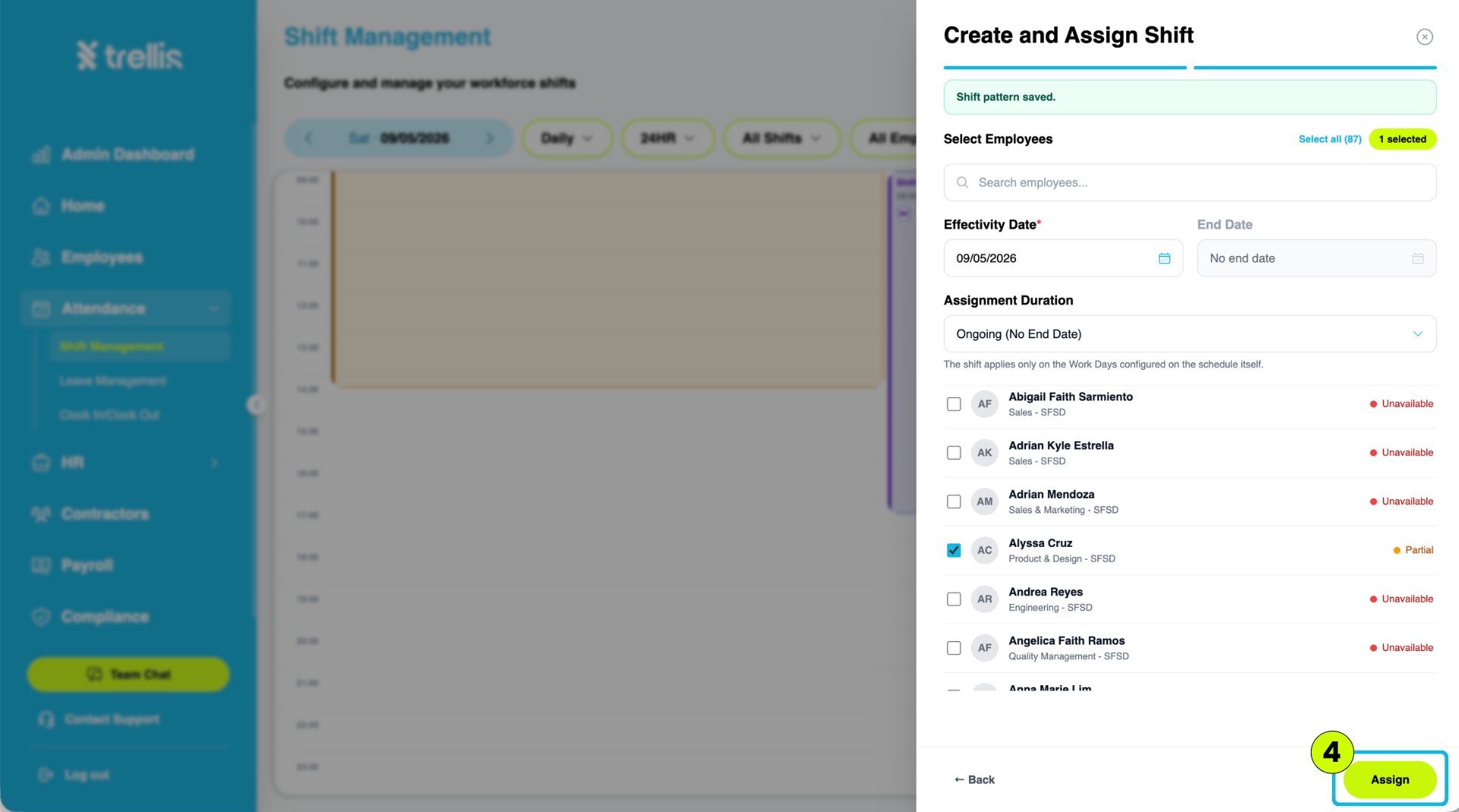
Select the employee(s) who will be assigned to the shift. Set the Effectivity Date and Assignment Duration, then click “Assign”.
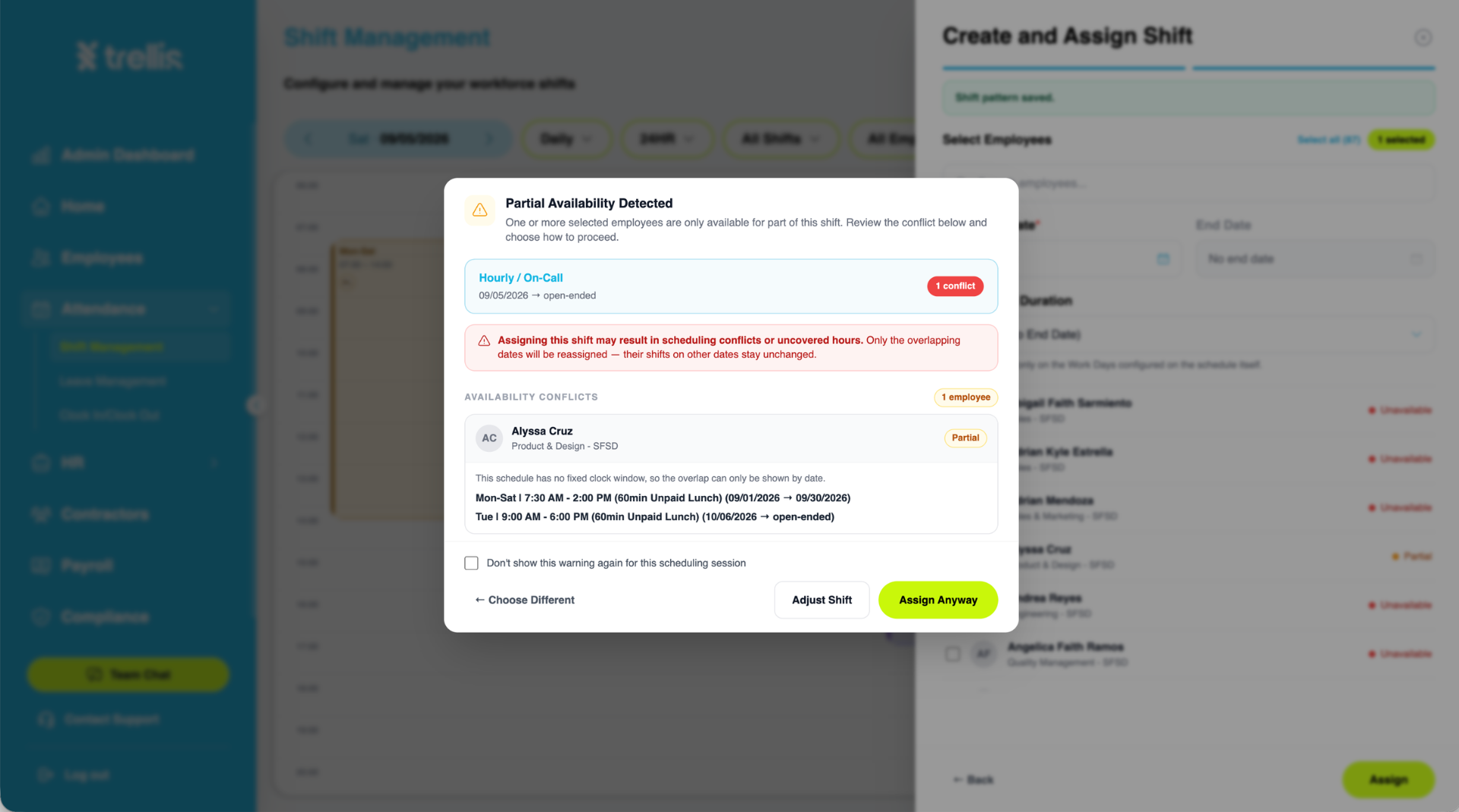
If an availability conflict is detected, a warning will appear. Review the conflict and choose “Adjust Shift” to make changes or “Assign Anyway” to proceed with the assignment.
 Read the full guide →
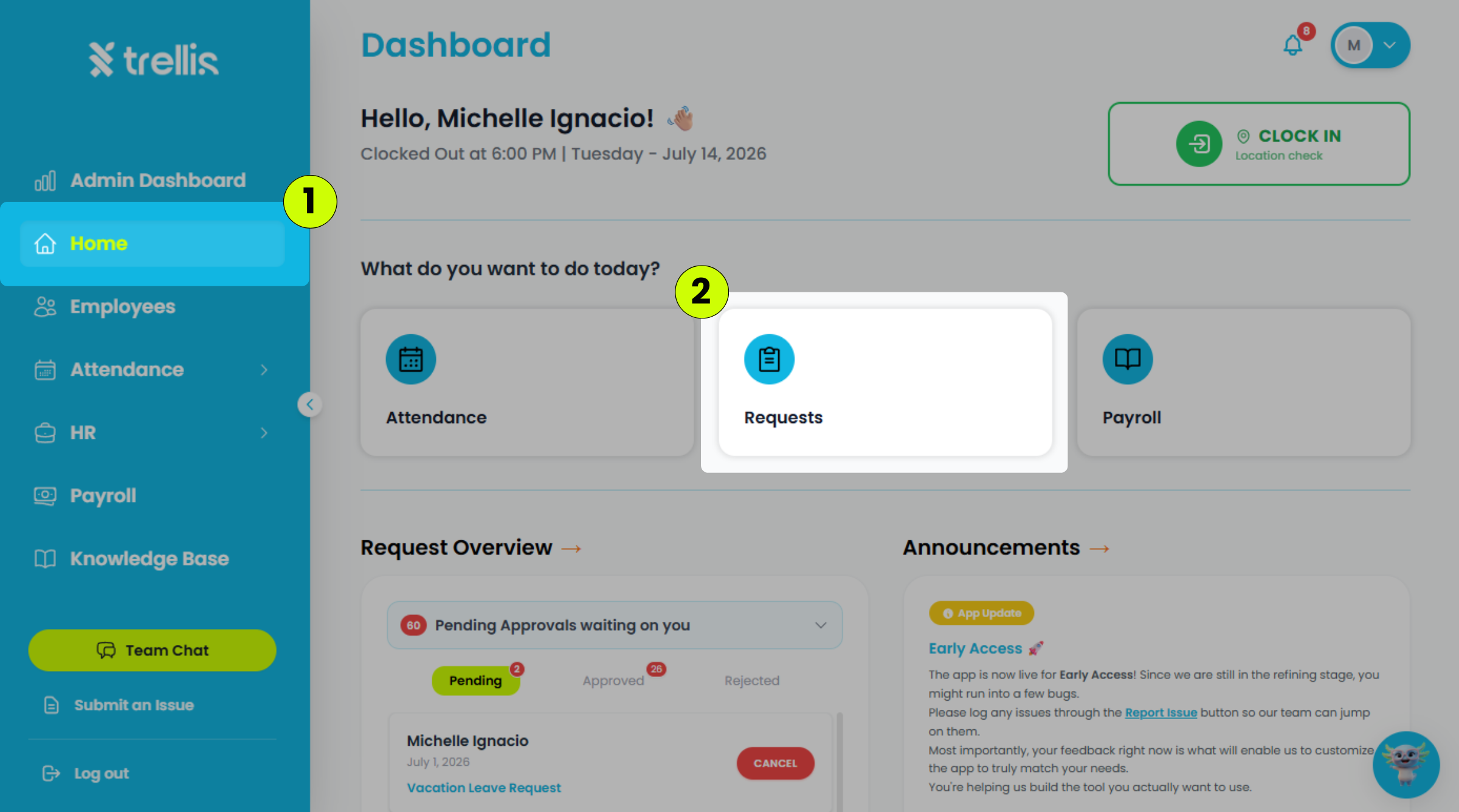
From the sidebar, click "Home."
On the Dashboard, click "Requests."
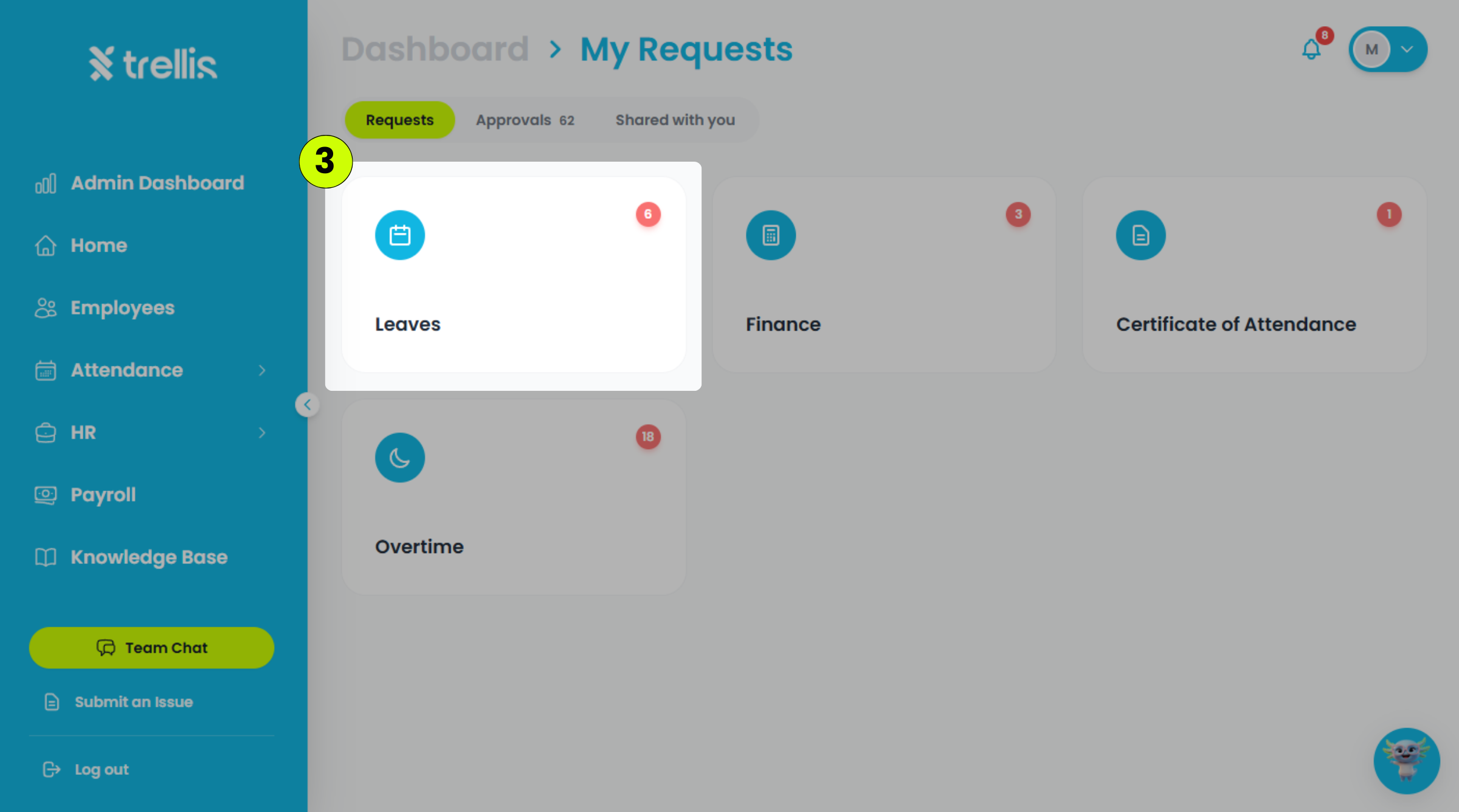
On the Requests page, click "Leaves."
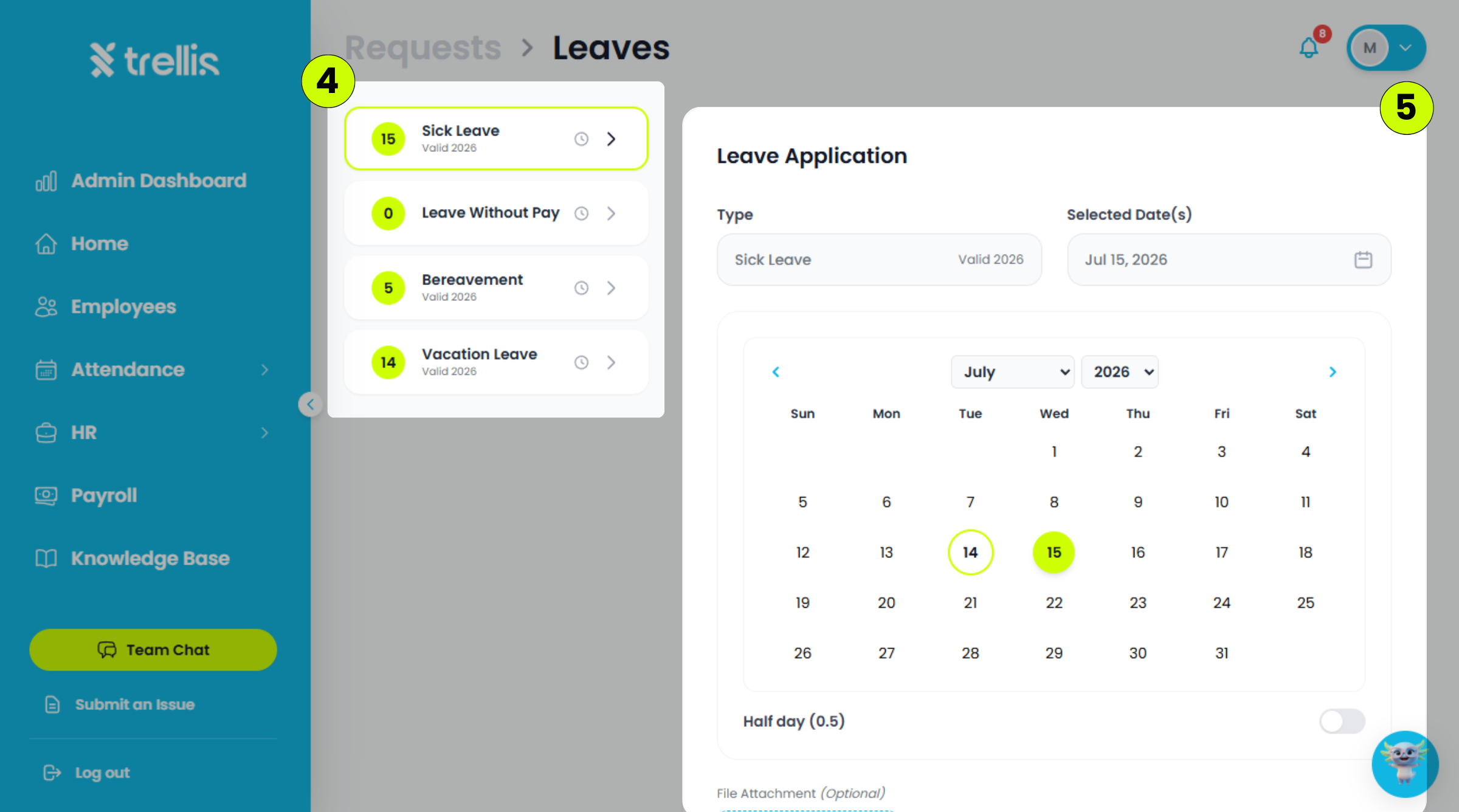
Select the leave type you want to apply for.
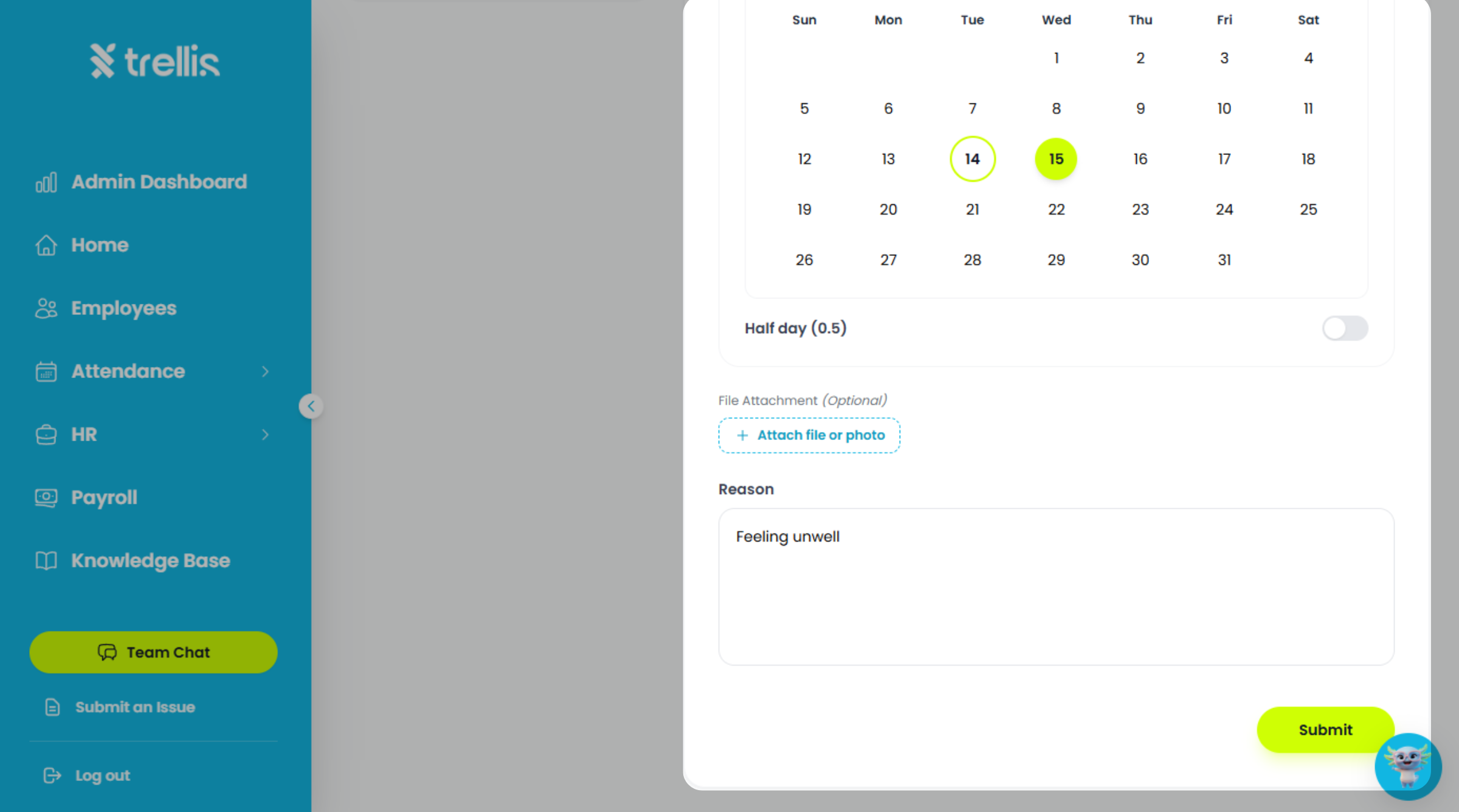
Fill in the following information, then click "Submit."
Selected Date(s) – The date or date range for your leave.
Half Day – Enable this option if you are applying for a half-day leave.
File Attachment (Optional) – Upload any supporting document, if needed.
Reason – Enter the reason for your leave application.
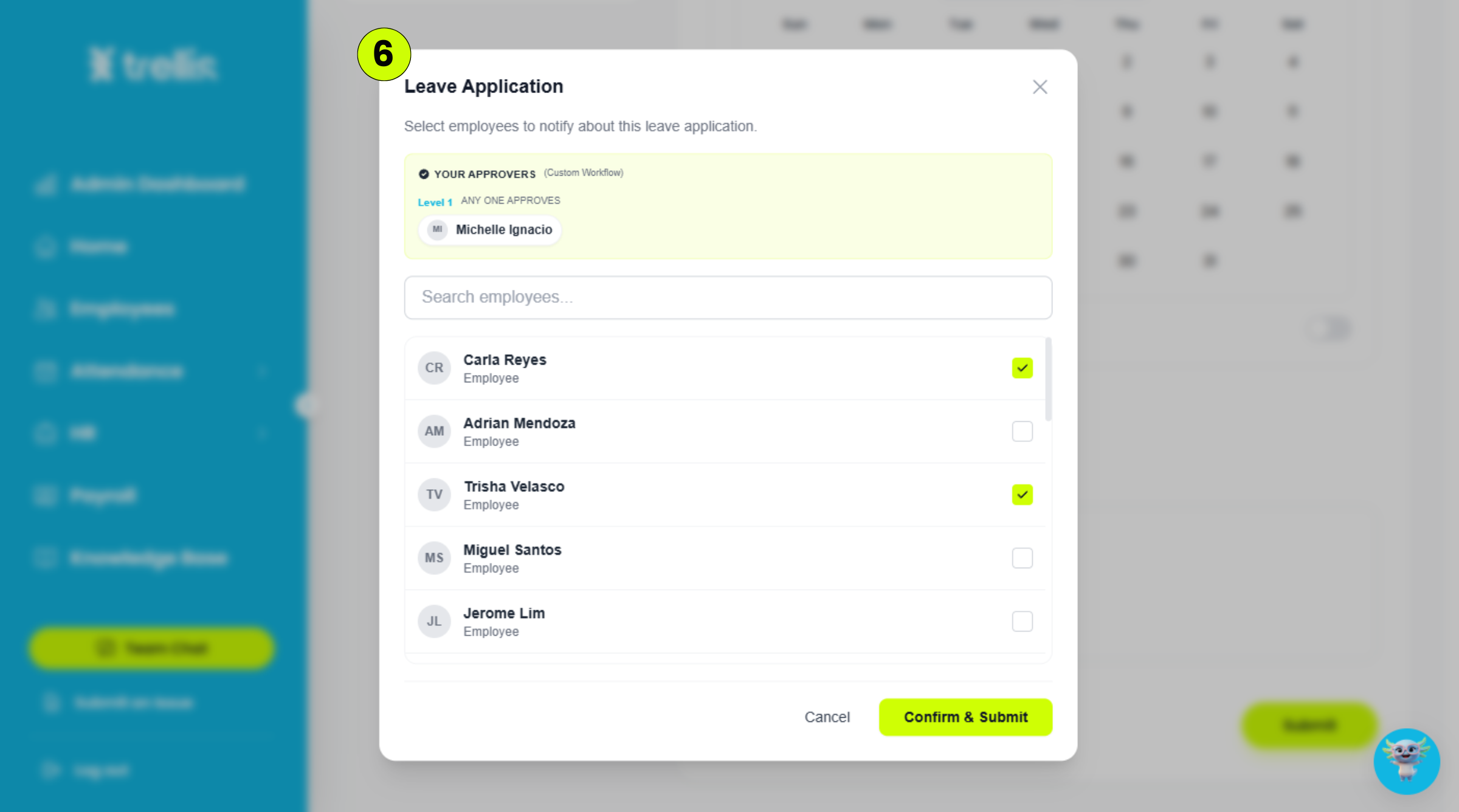
Select the employees you want to notify, then click "Confirm & Submit."
 Read the full guide →
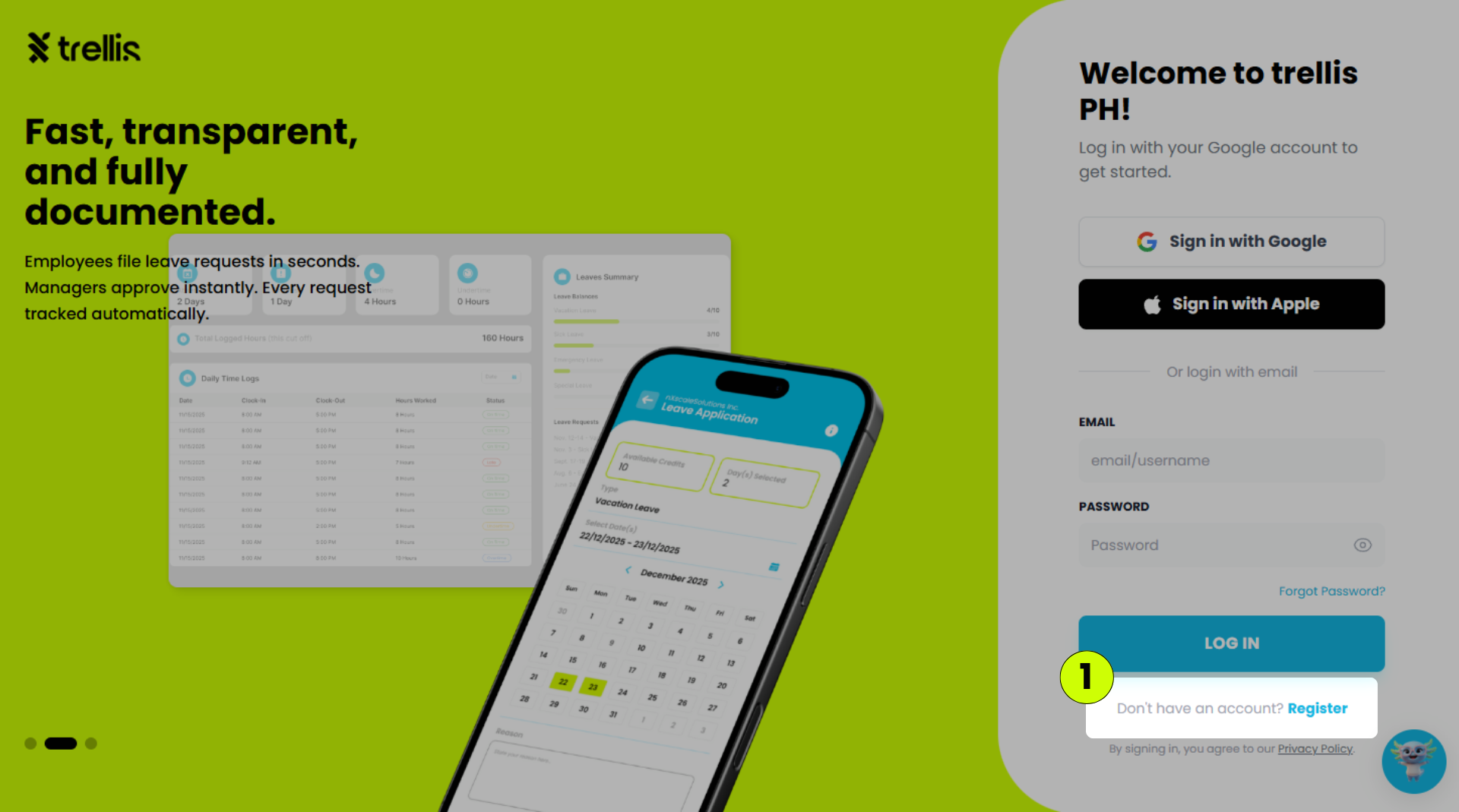
On the login page, click "Register" at the bottom.
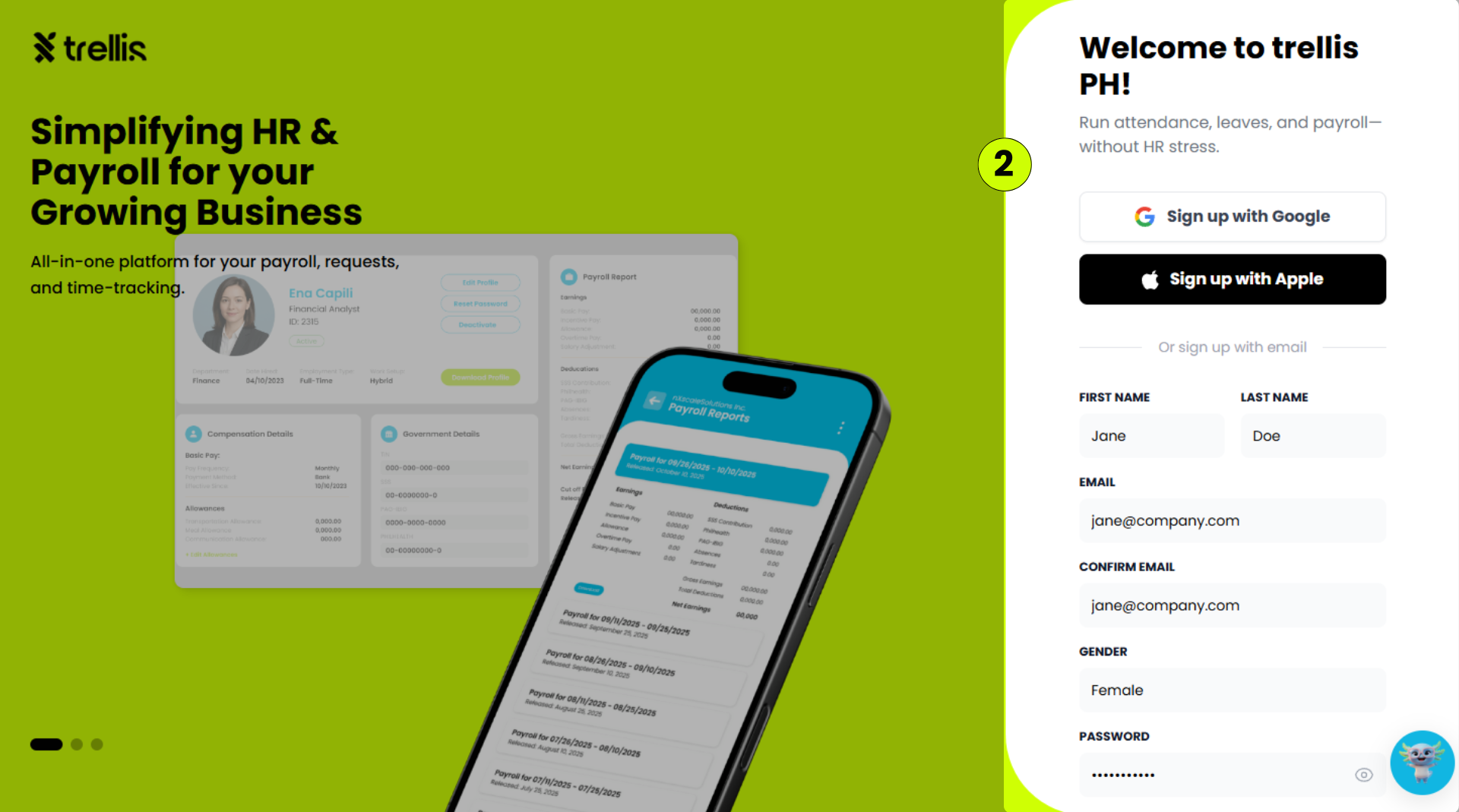
Choose your preferred registration method:
Click "Sign up with Google" or "Sign up with Apple" to register using your existing account.
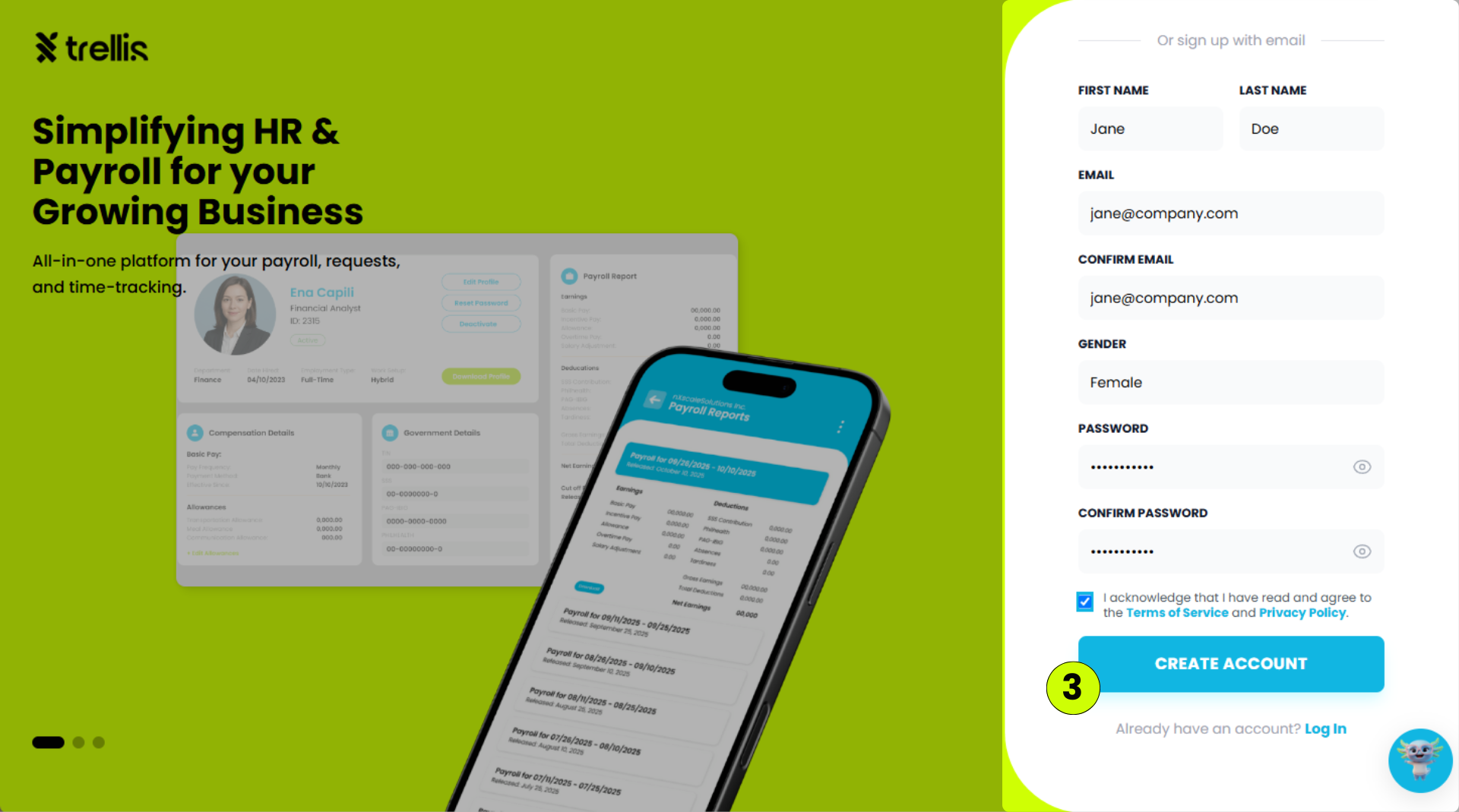
Or fill out the registration form with your First Name, Last Name, Email, Confirm Email, Gender, Password, and Confirm Password.
Read and accept the Terms of Service and Privacy Policy, then click "Create Account."
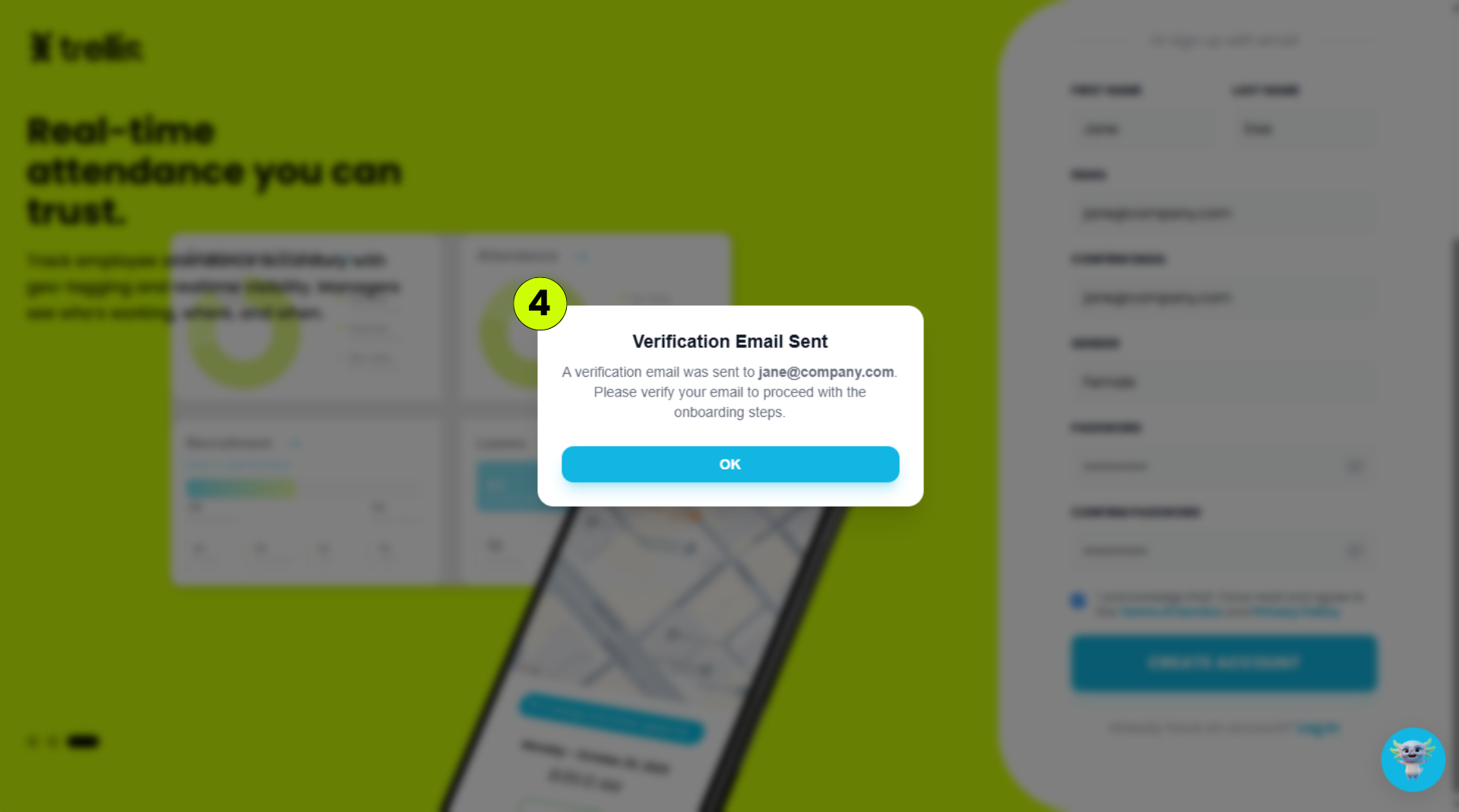
A verification email will be sent to your registered email address. Open the email and follow the instructions to verify your account.
 Read the full guide →
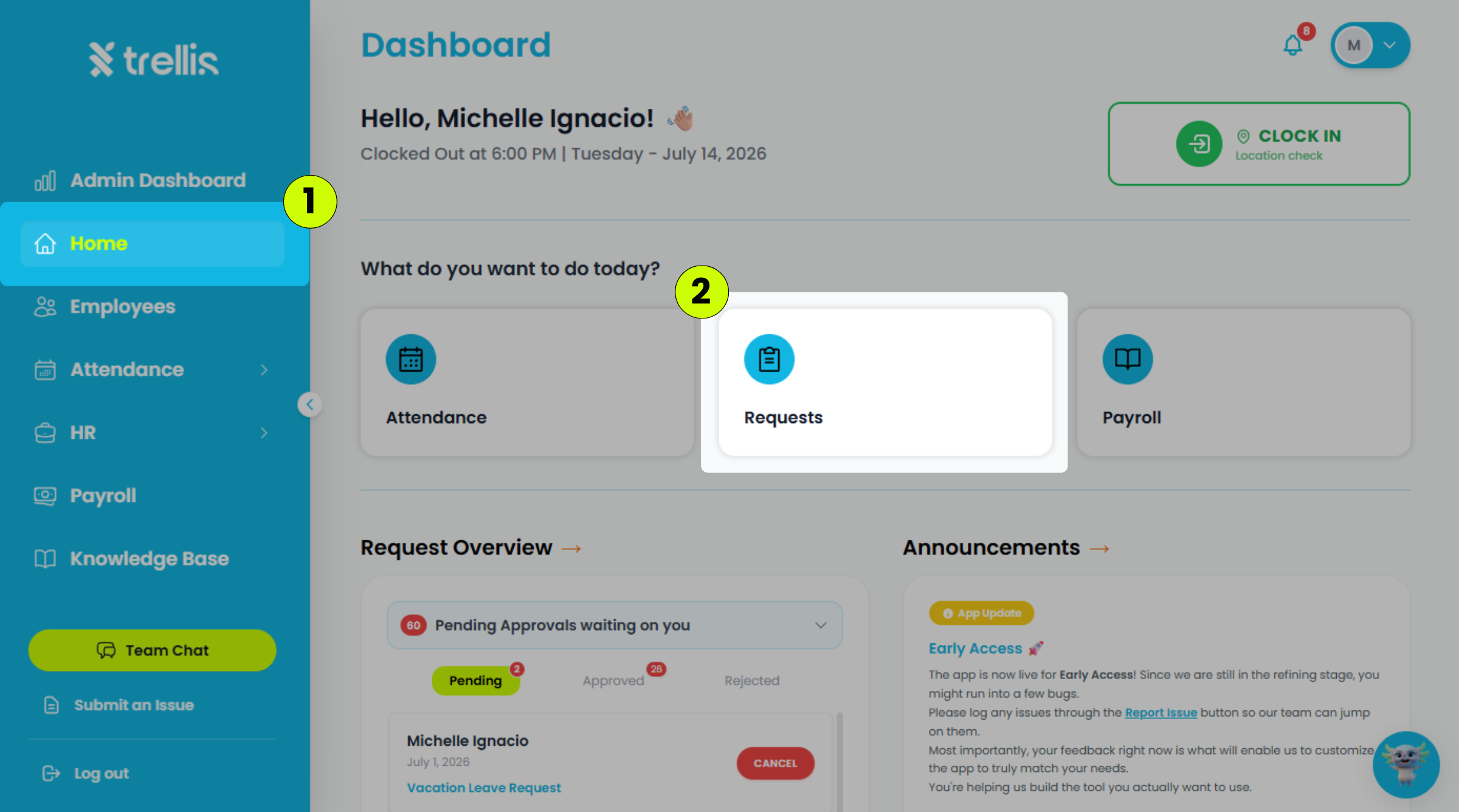
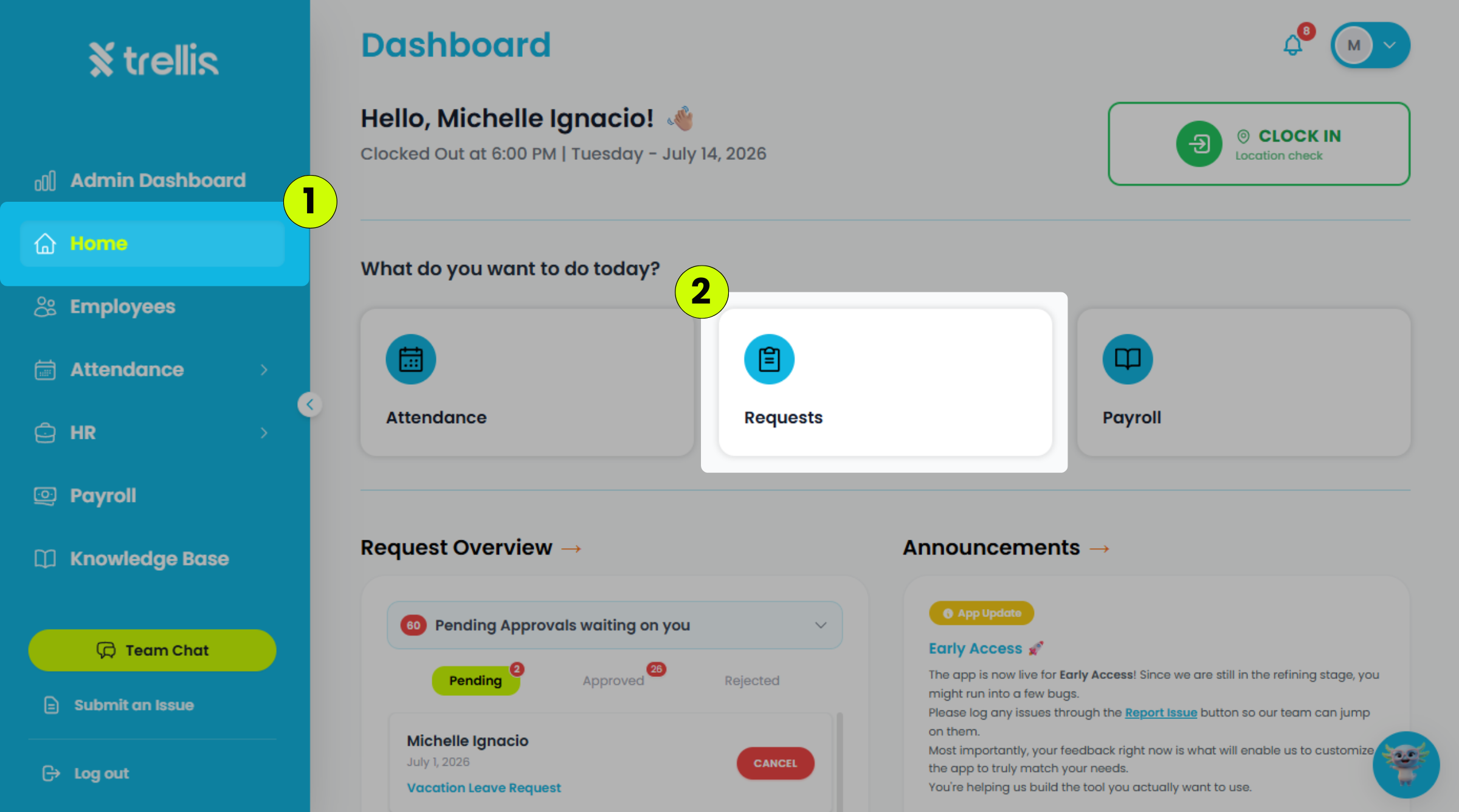
From the sidebar, click "Home."
On the Dashboard, click "Requests."
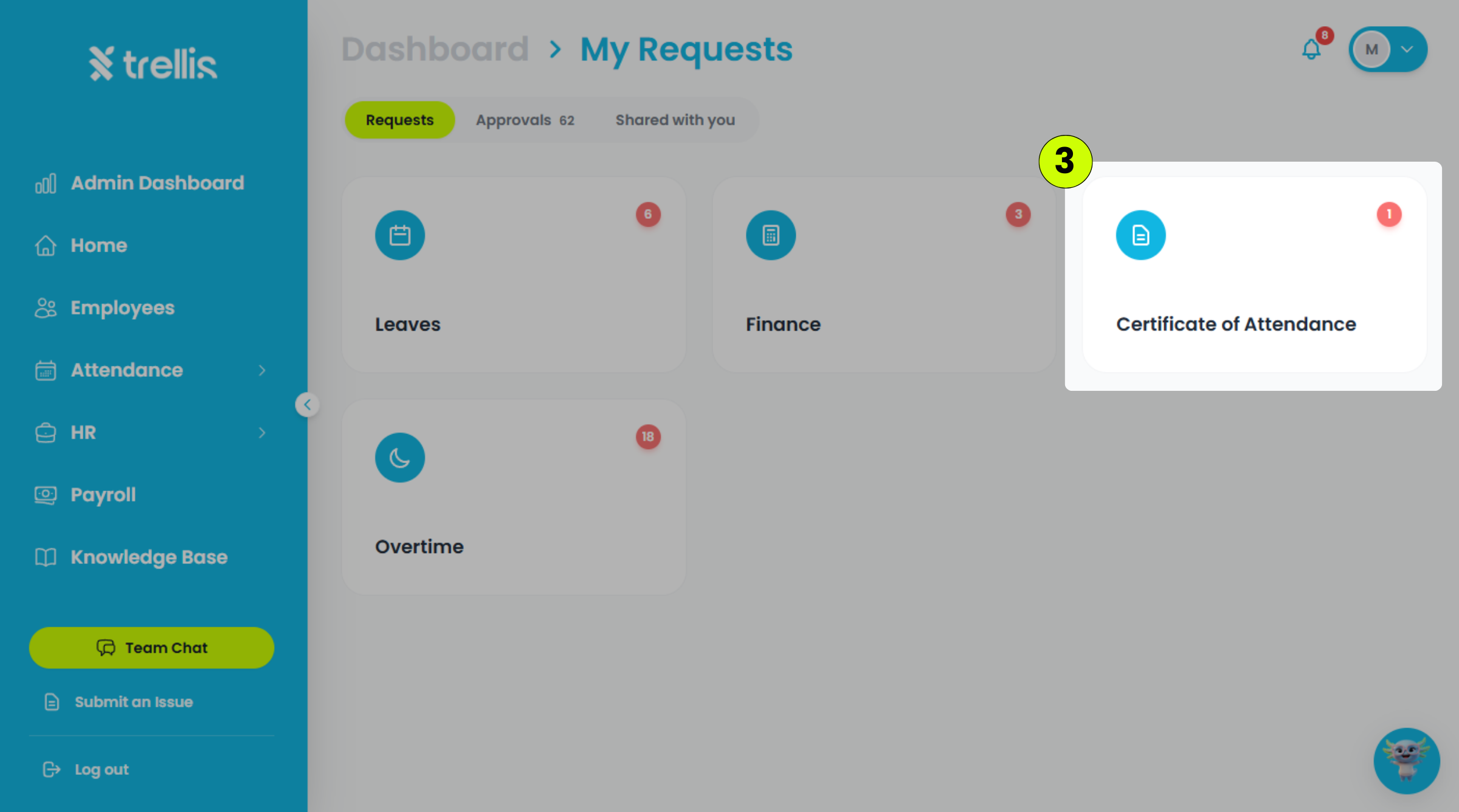
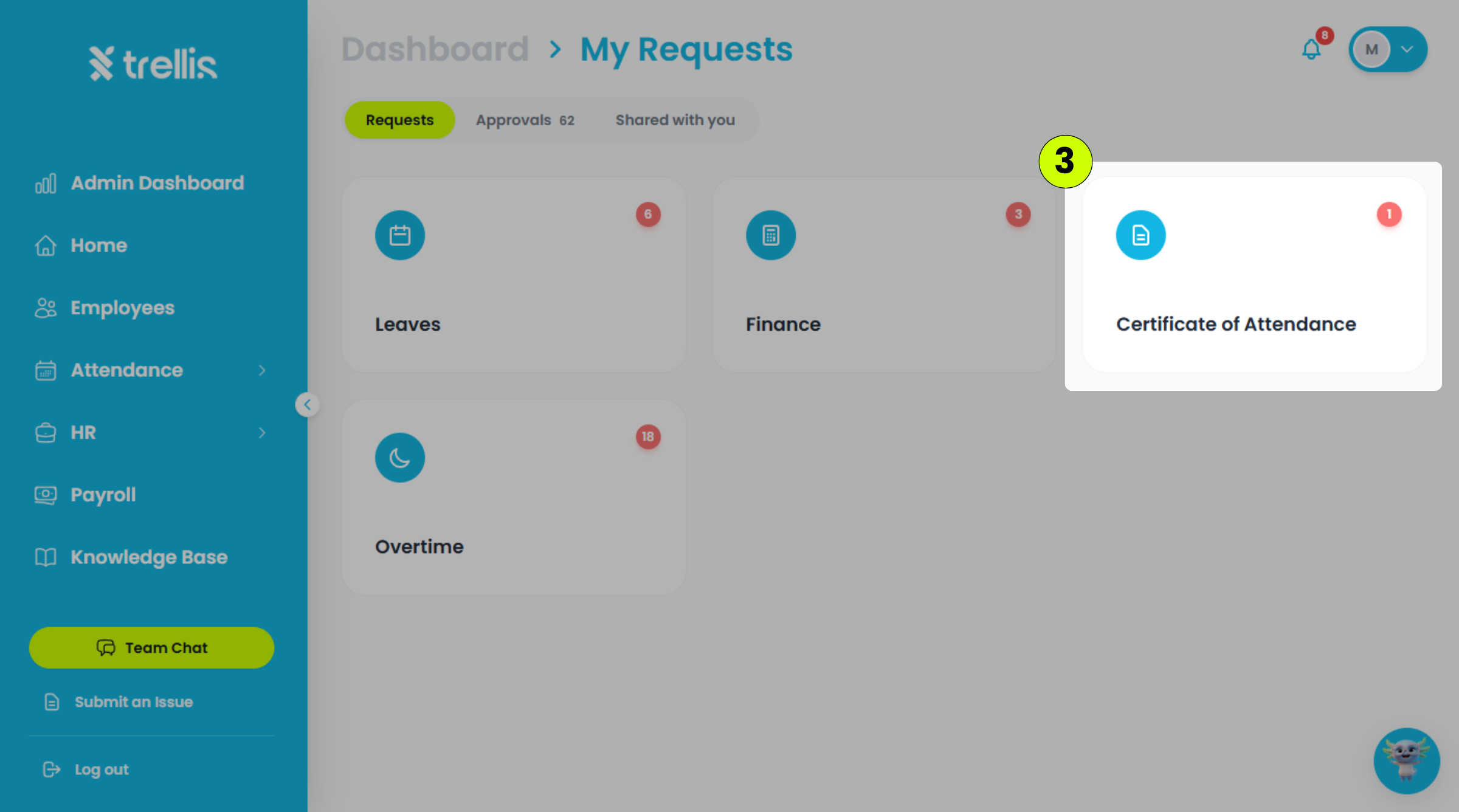
On the Requests page, click "Certificate of Attendance."
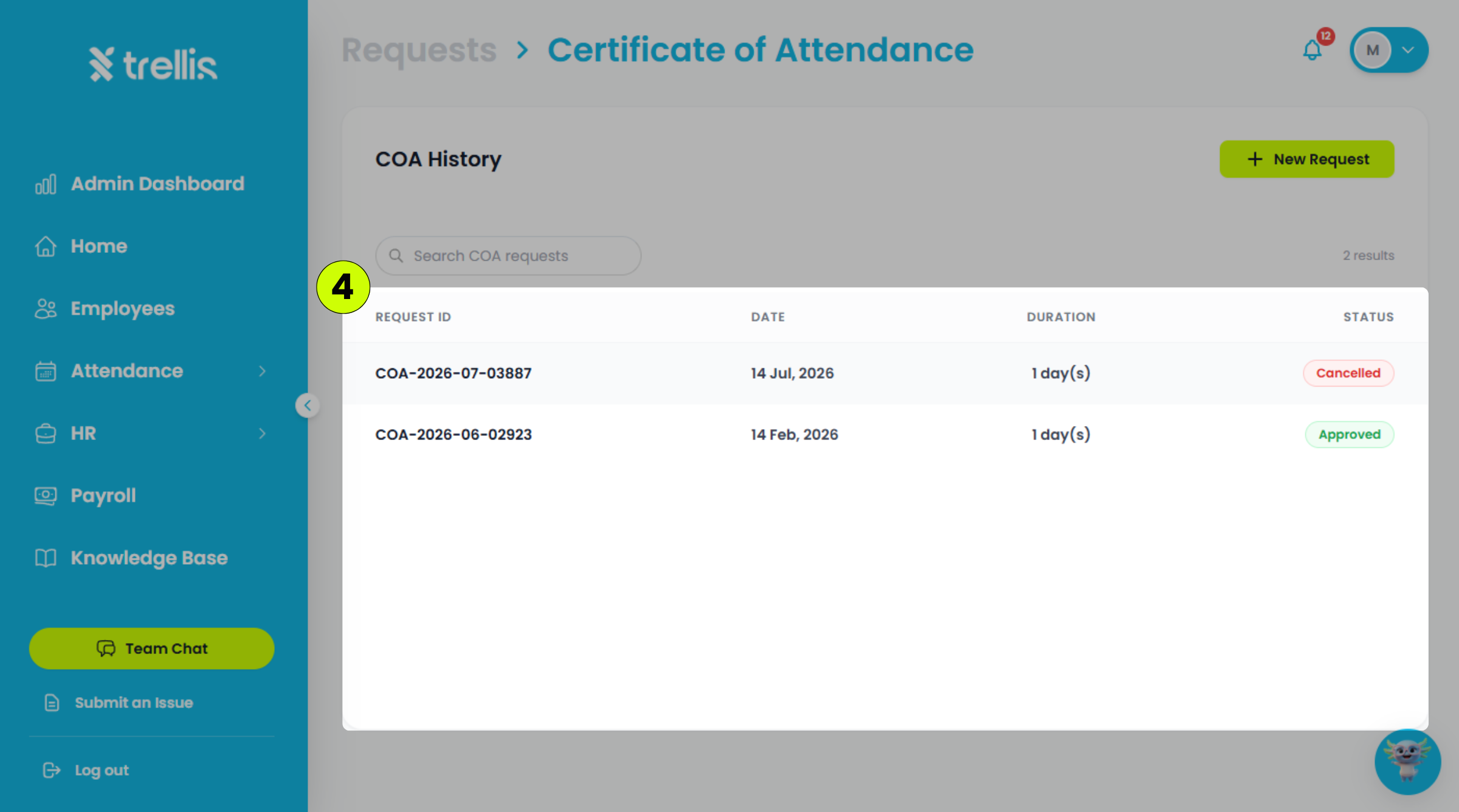
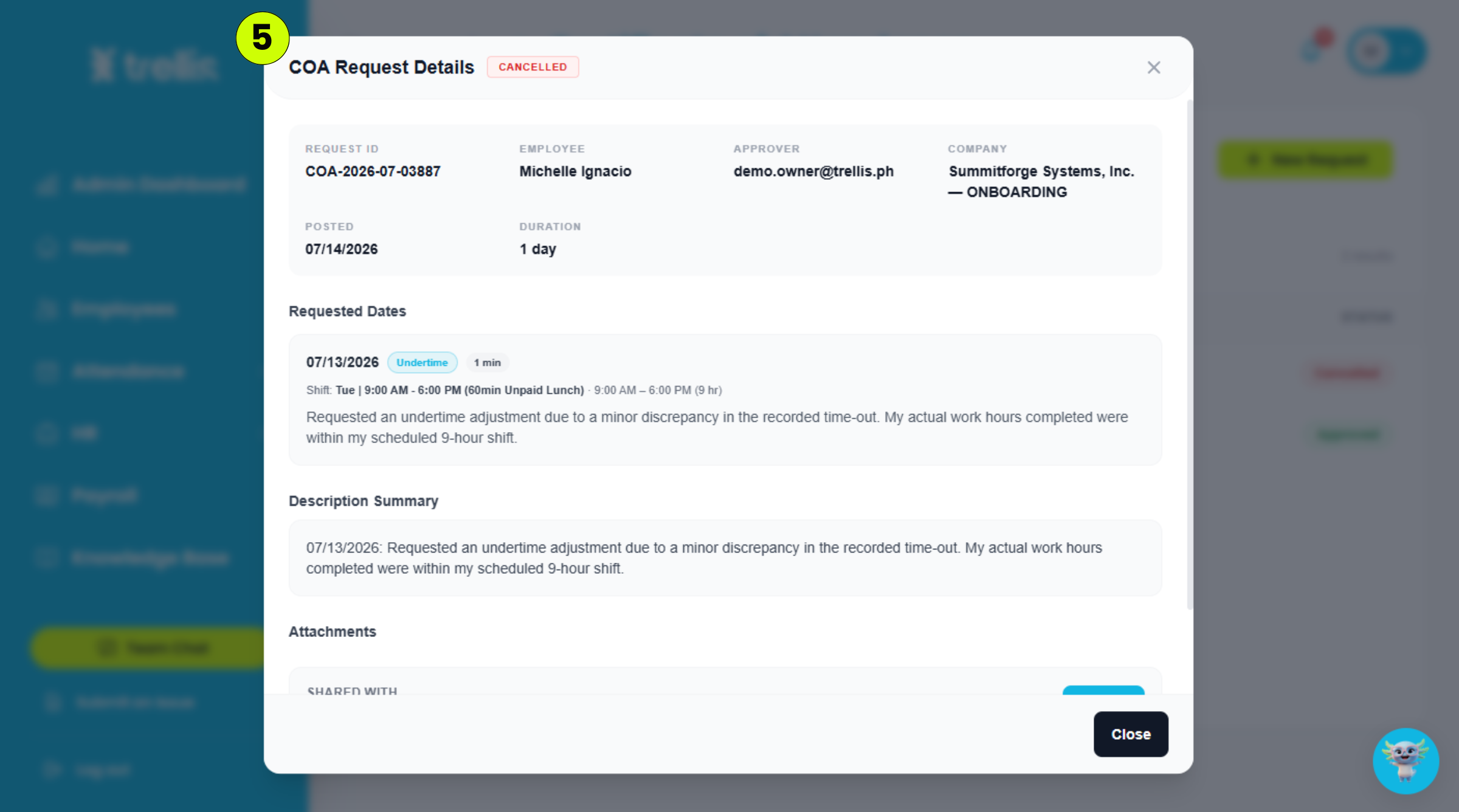
Select the COA request you want to view.
The COA Request Details window will appear, displaying the request details, requested date, status, reason, and any attached files.
 Read the full guide →
Choose your preferred login method:
Click "Sign in with Google" or "Sign in with Apple" to sign in using your existing account.
Or enter your Email and Password.
Click "Log In."
.png) Read the full guide →
Read the full guide →From the sidebar, click "Home."
On the Dashboard, click "Requests."
On the Requests page, click "Certificate of Attendance."
Click "New Request."
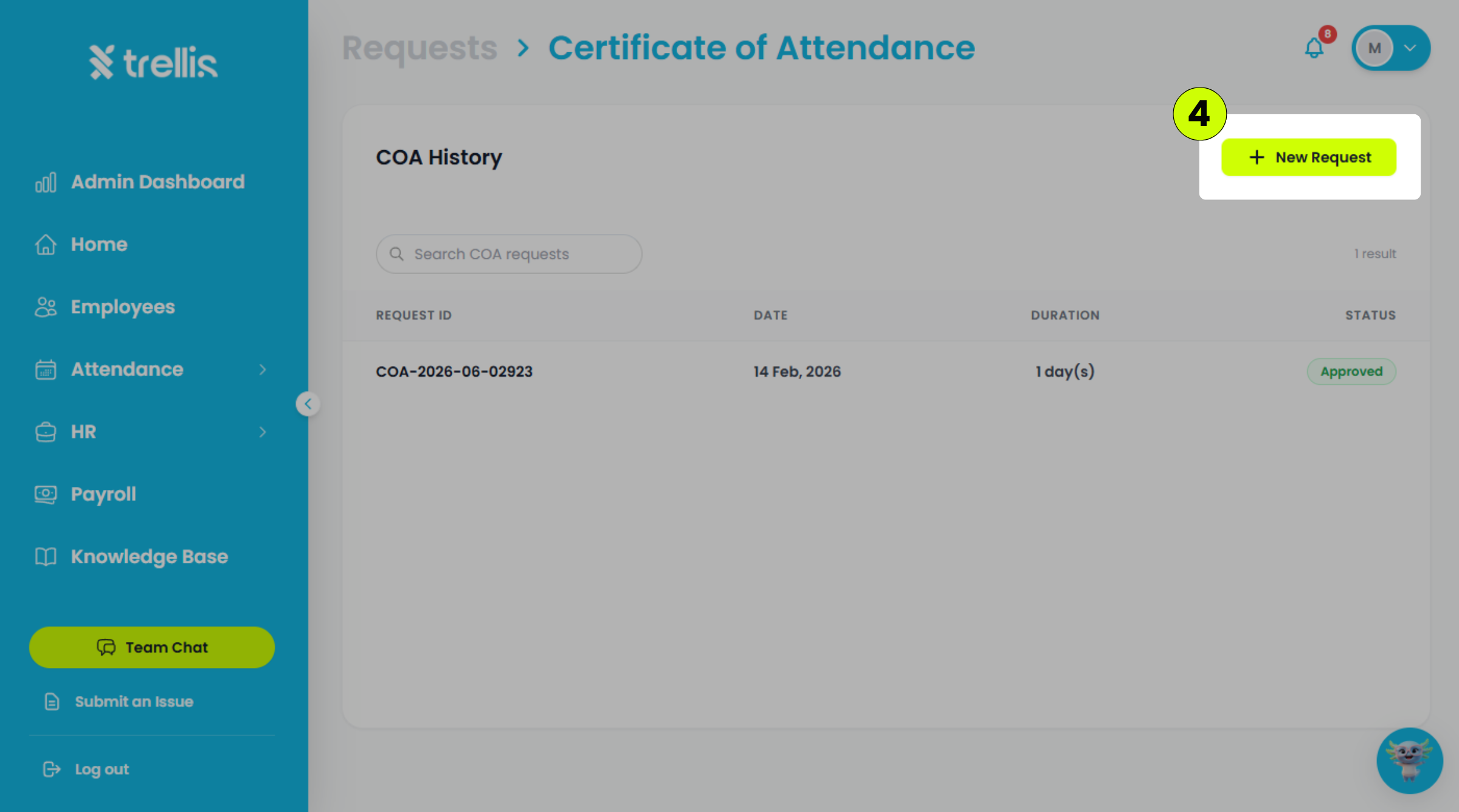
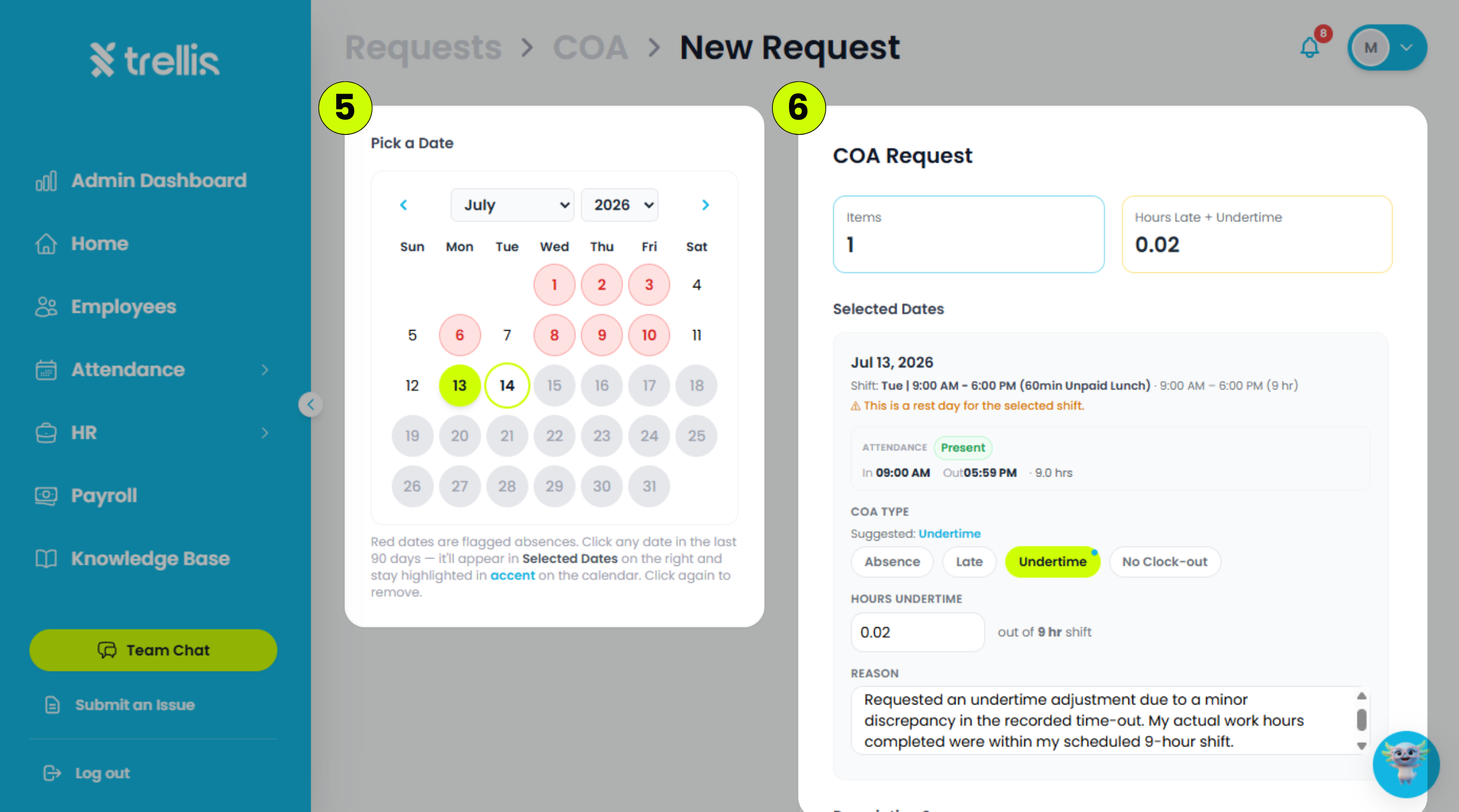
Select the date you want to file a COA request.
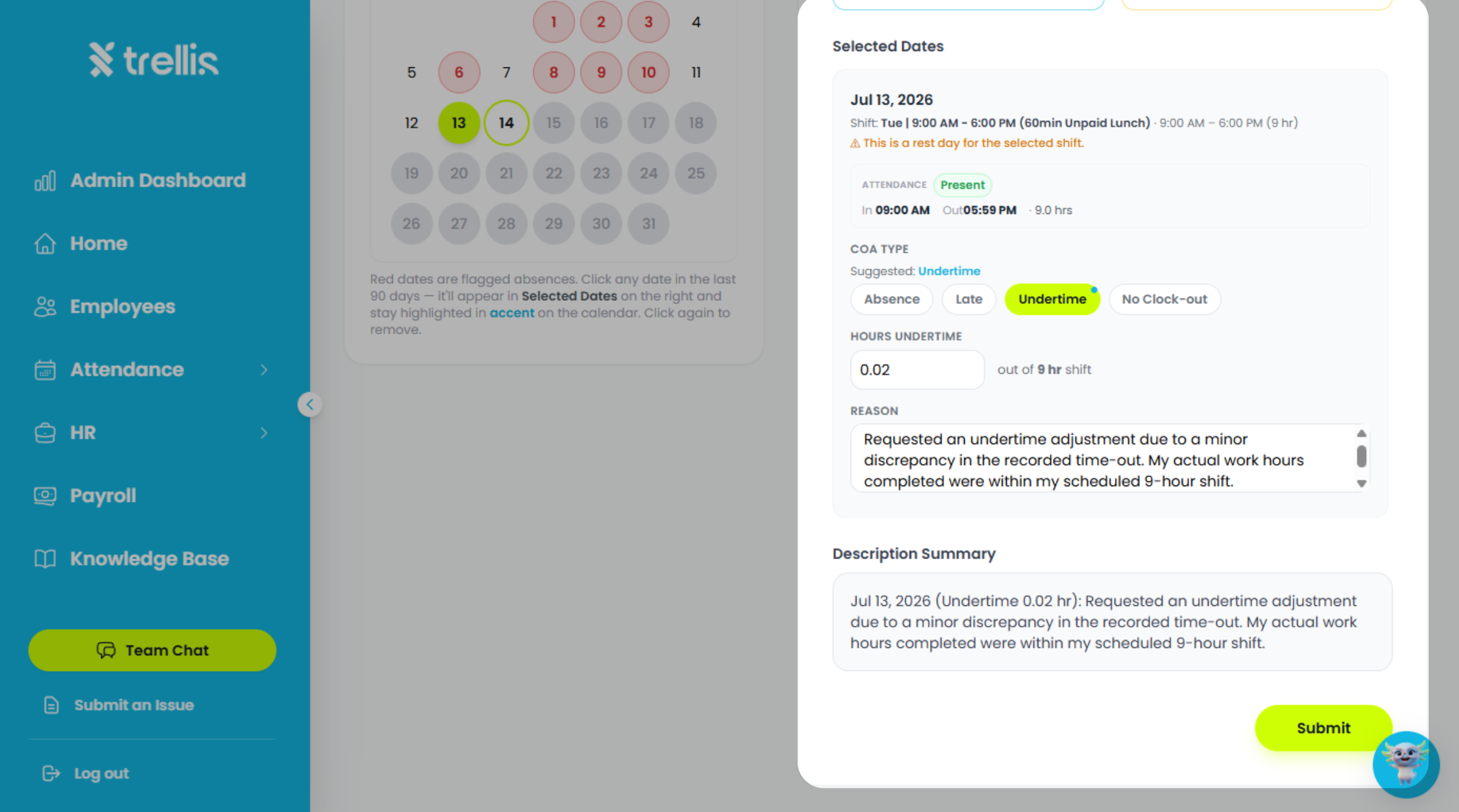
Fill in the following information, then click "Submit."
COA Type – The type of certificate you are requesting.
Reason – The reason for requesting the certificate.
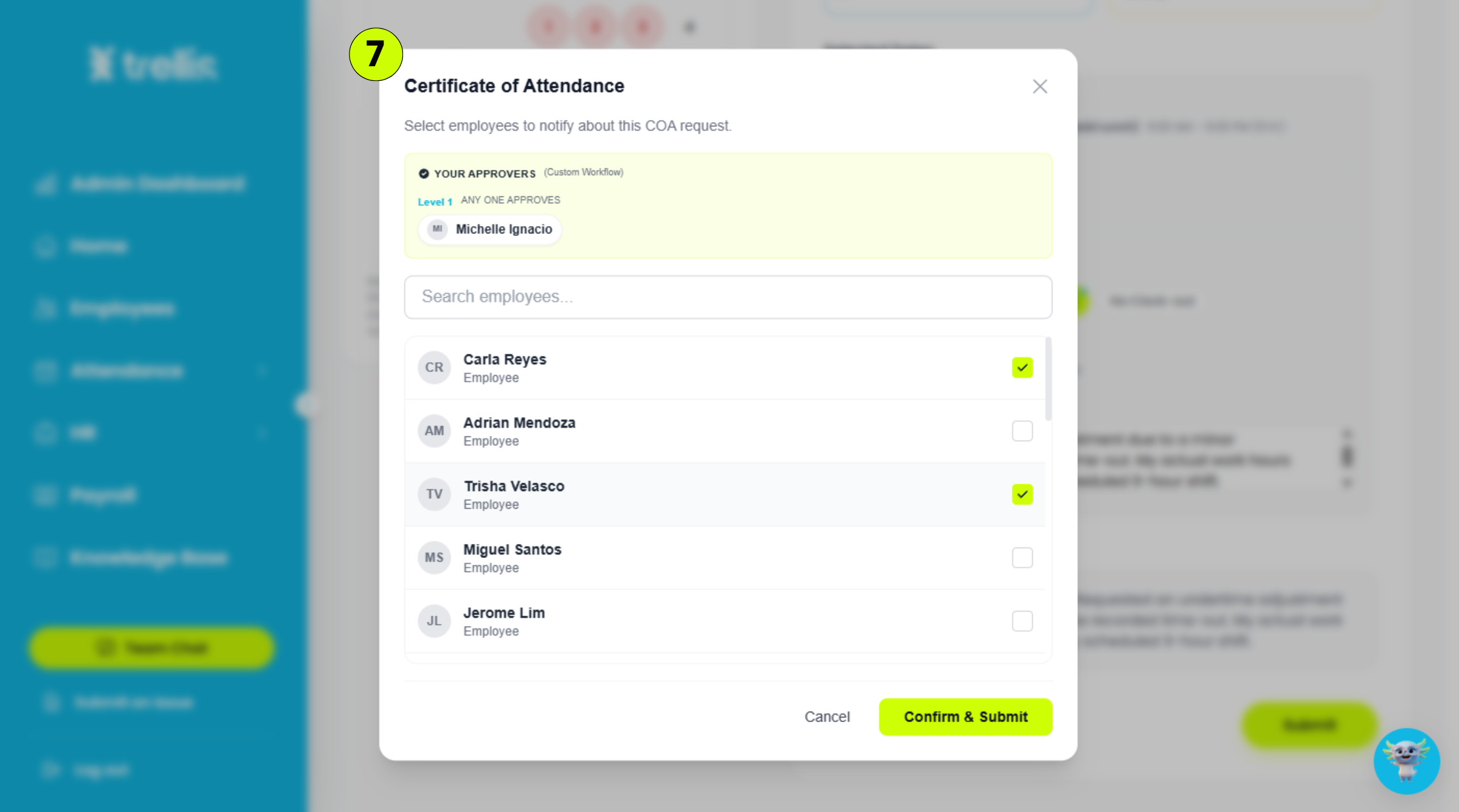
Select the employees you want to notify, then click "Confirm & Submit."
 Read the full guide →
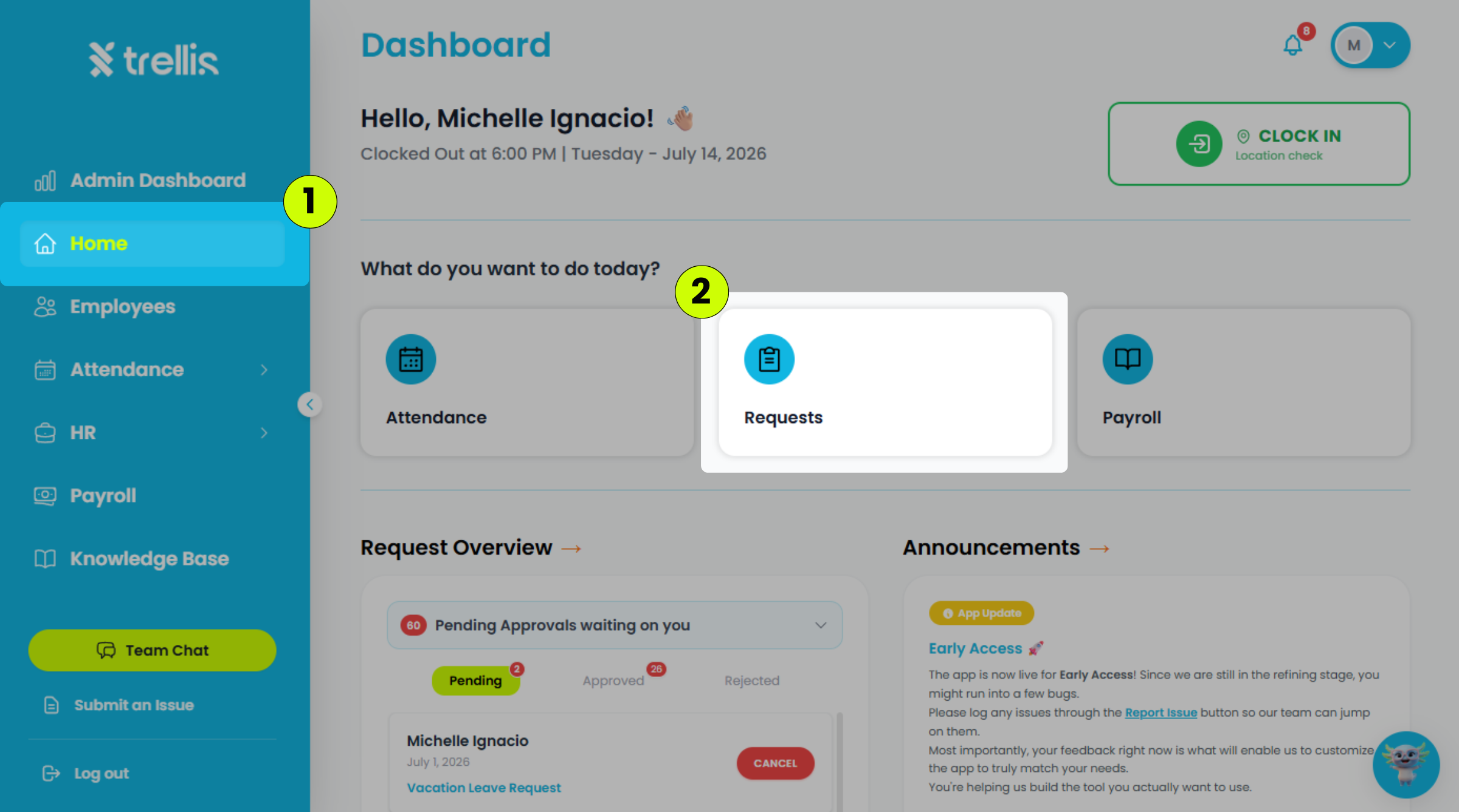
From the sidebar, click "Home."
On the Dashboard, click "Requests."
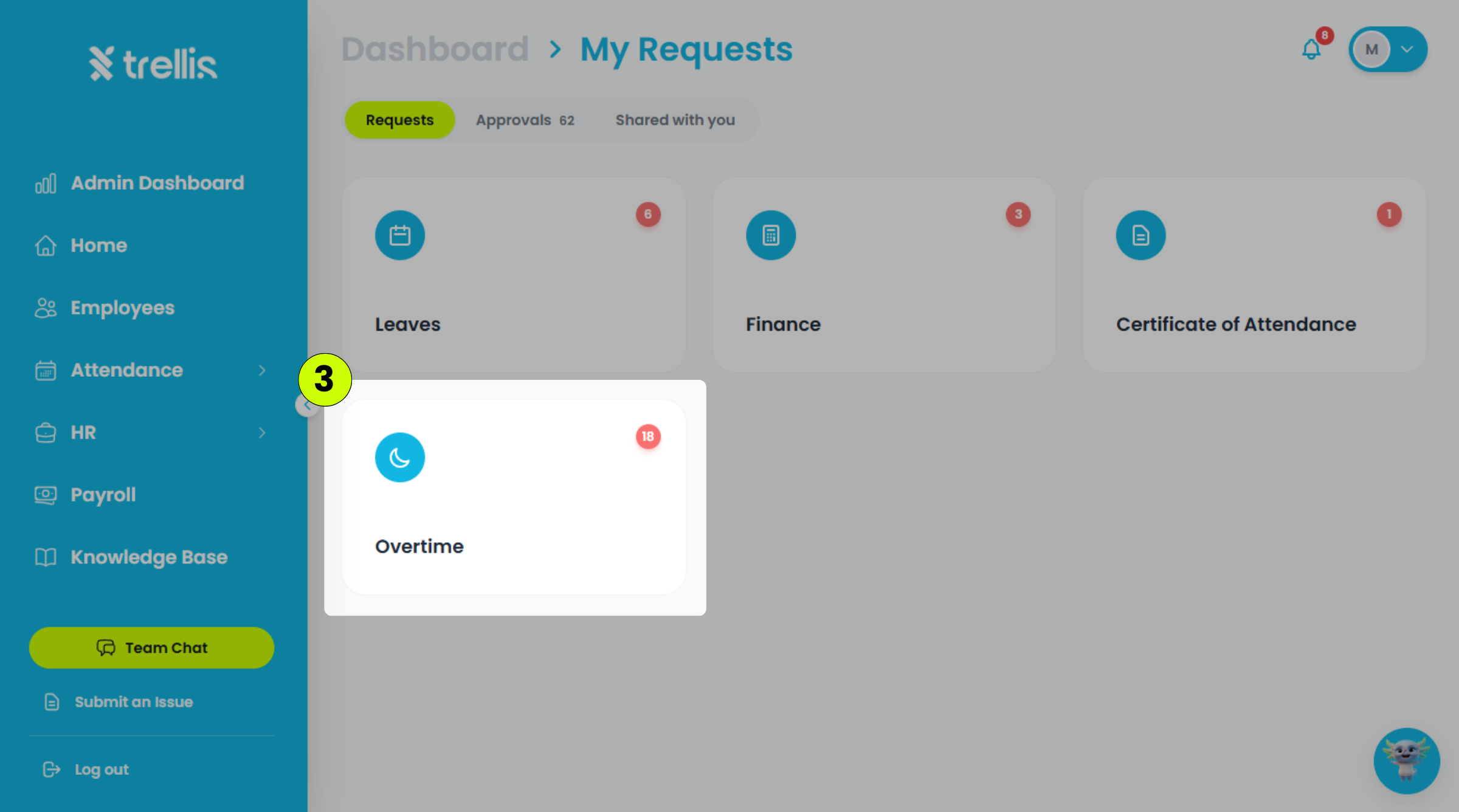
On the Requests page, click "Overtime."
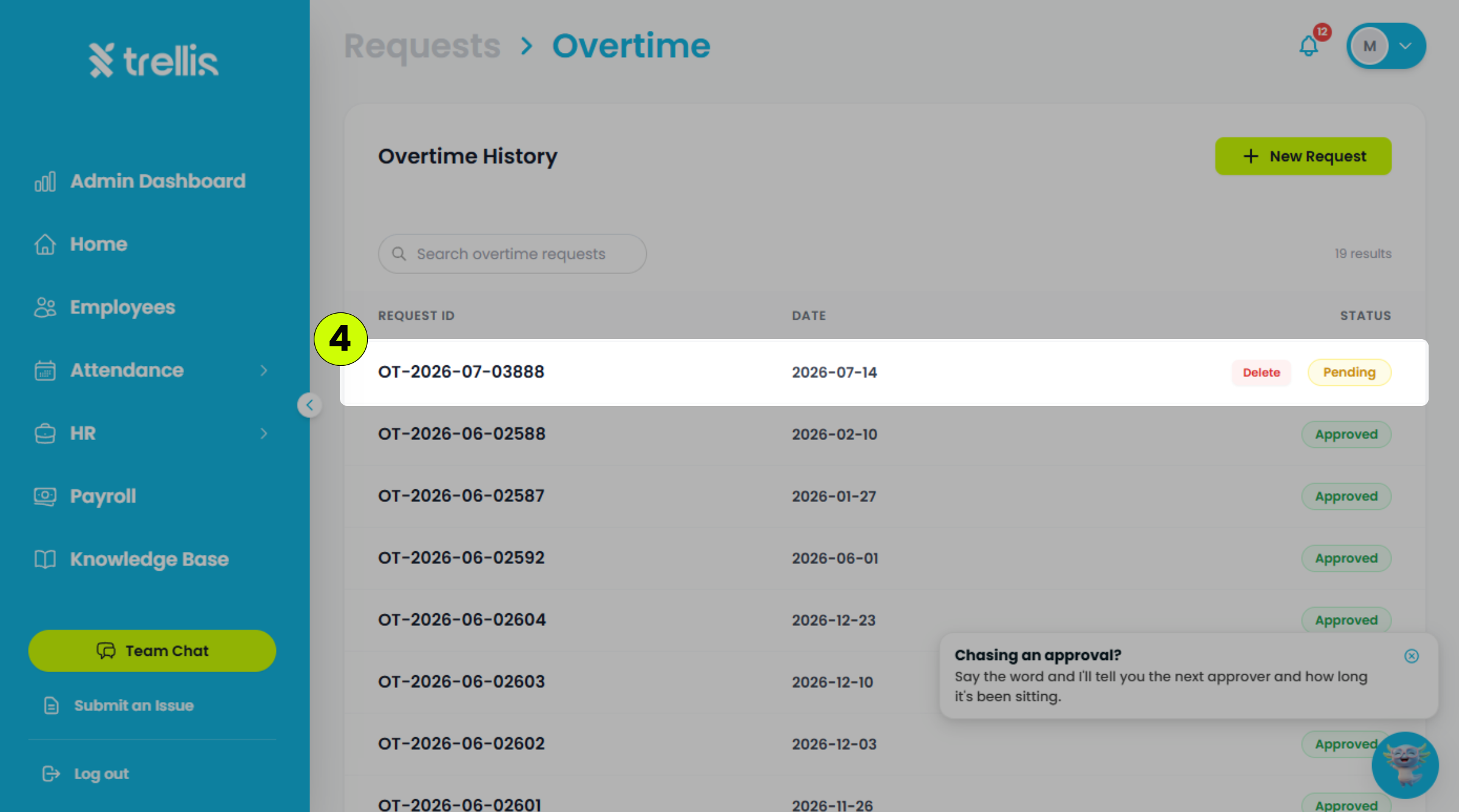
Locate the overtime request you want to delete, then click "Delete."
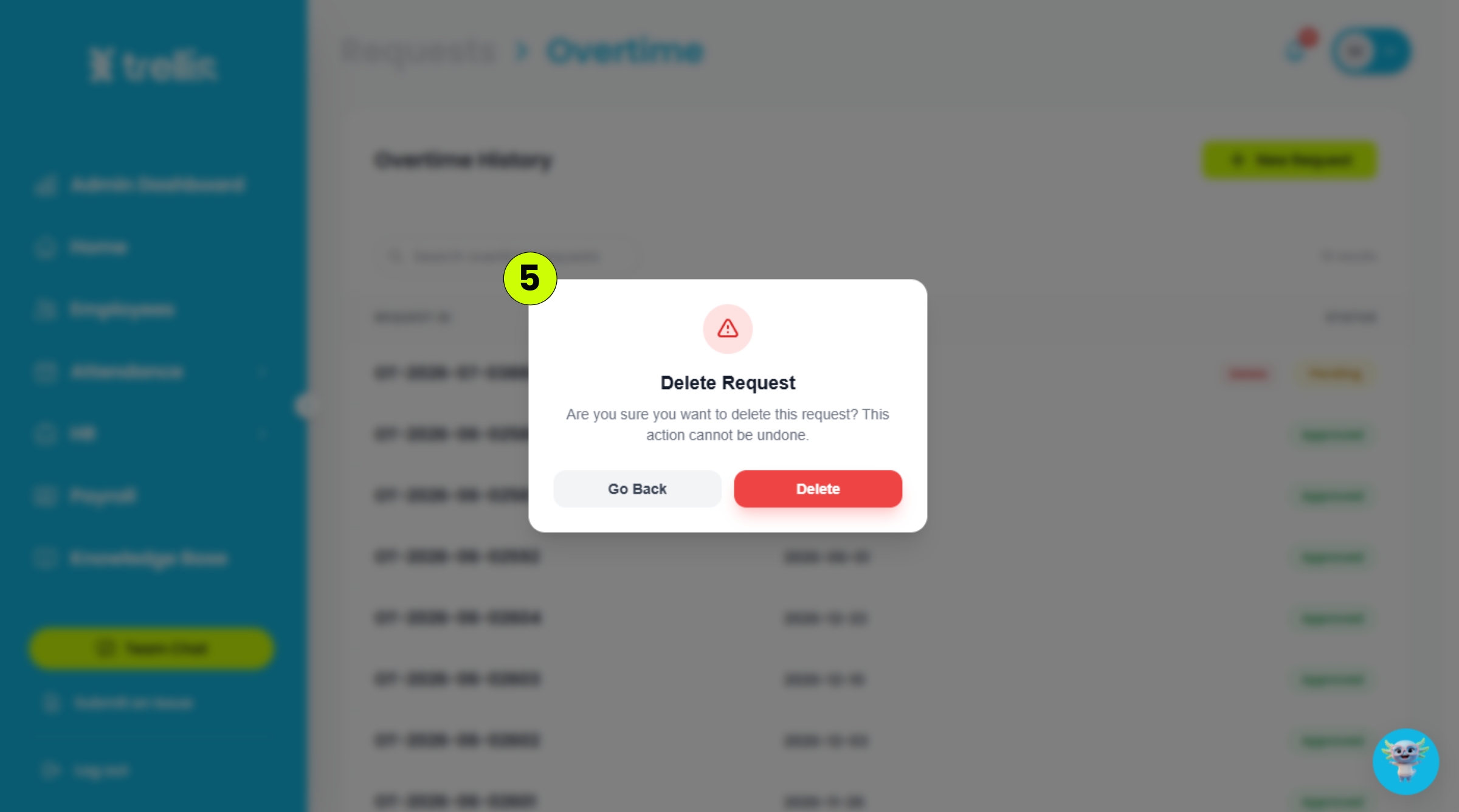
Click "Delete" again to confirm the deletion.
 Read the full guide →
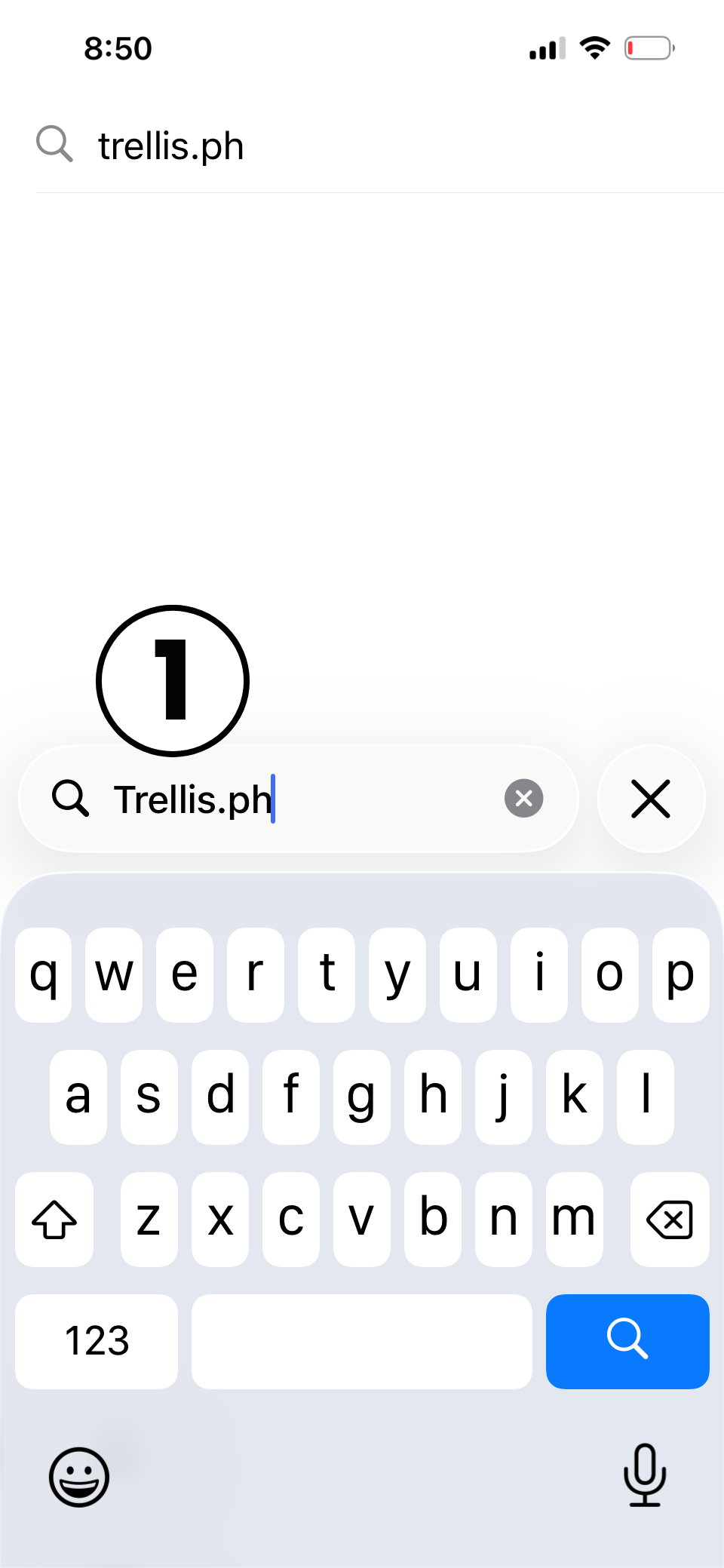
Open the App Store on your mobile device and search for "trellis PH" in the search bar.
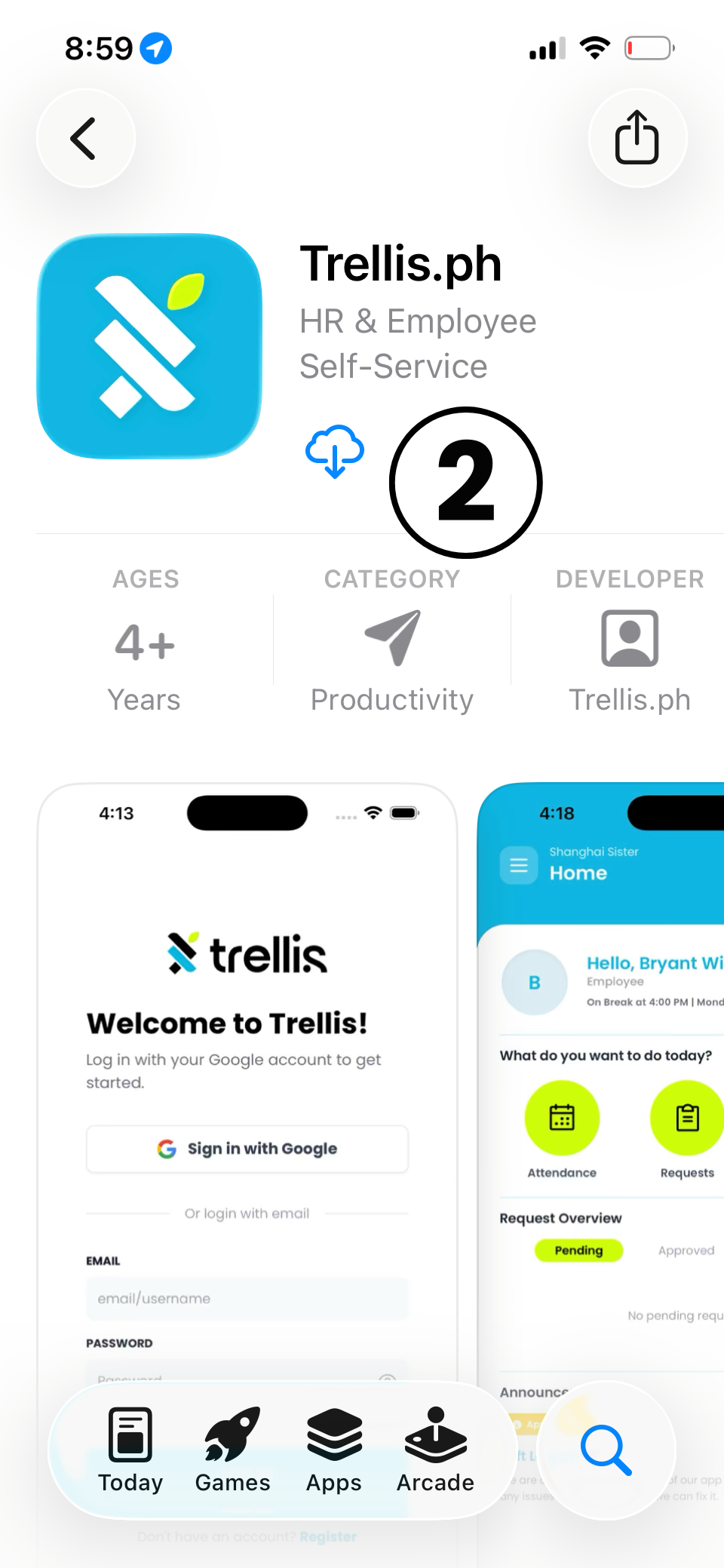
Tap the download icon to install the "trellis PH — HR & Employee Self-Service” app on your device.
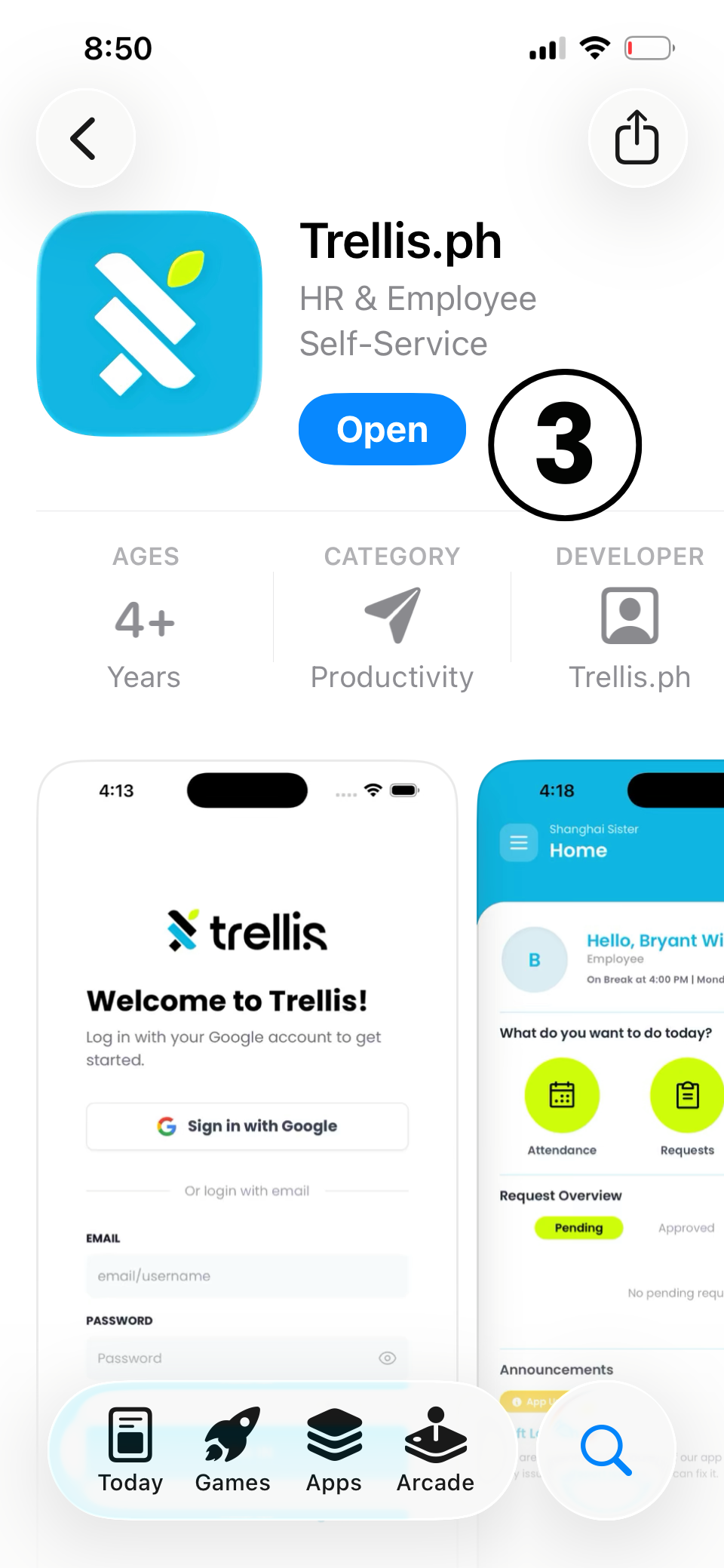
Once the download is complete, tap "Open" to launch the app.
 Read the full guide →
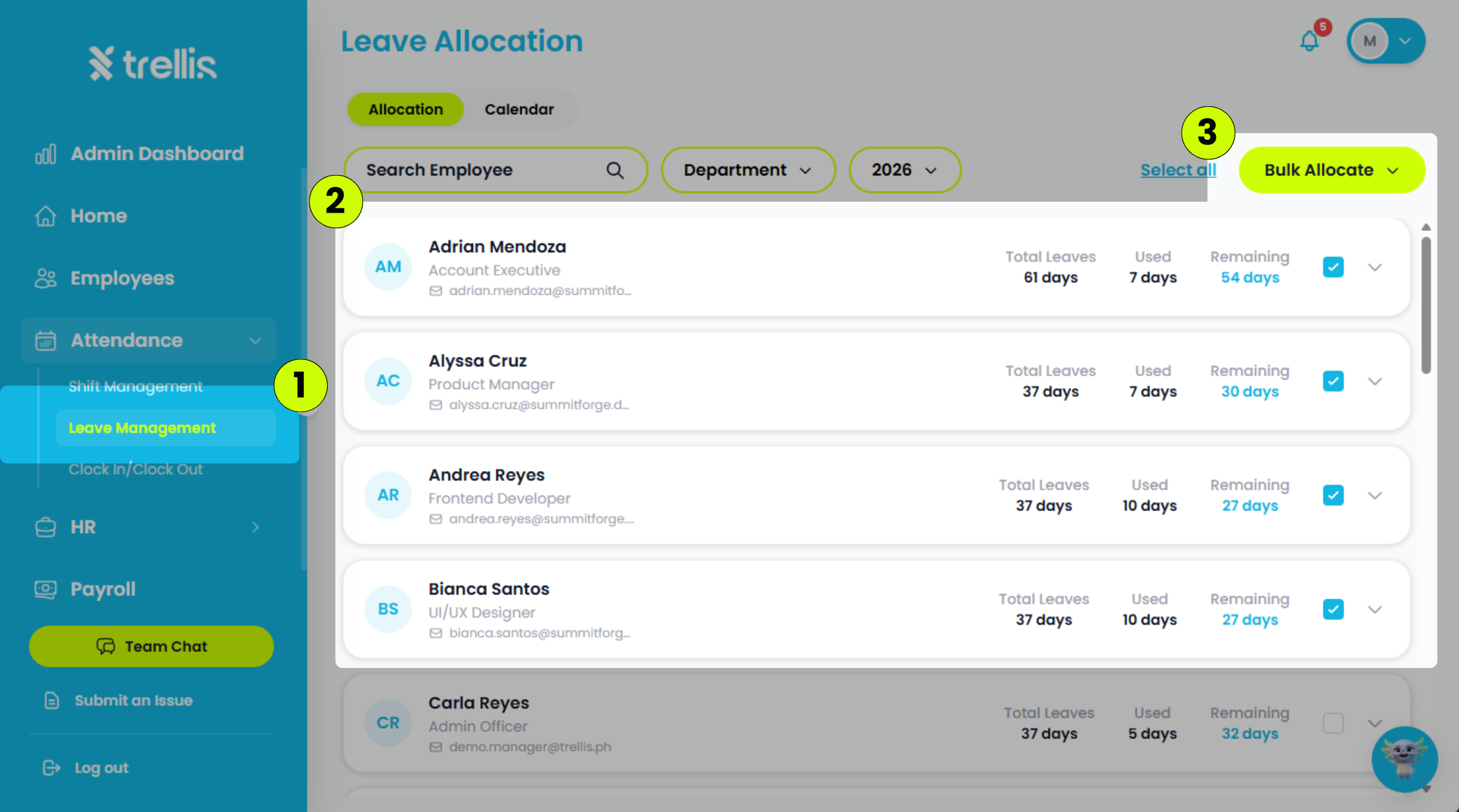
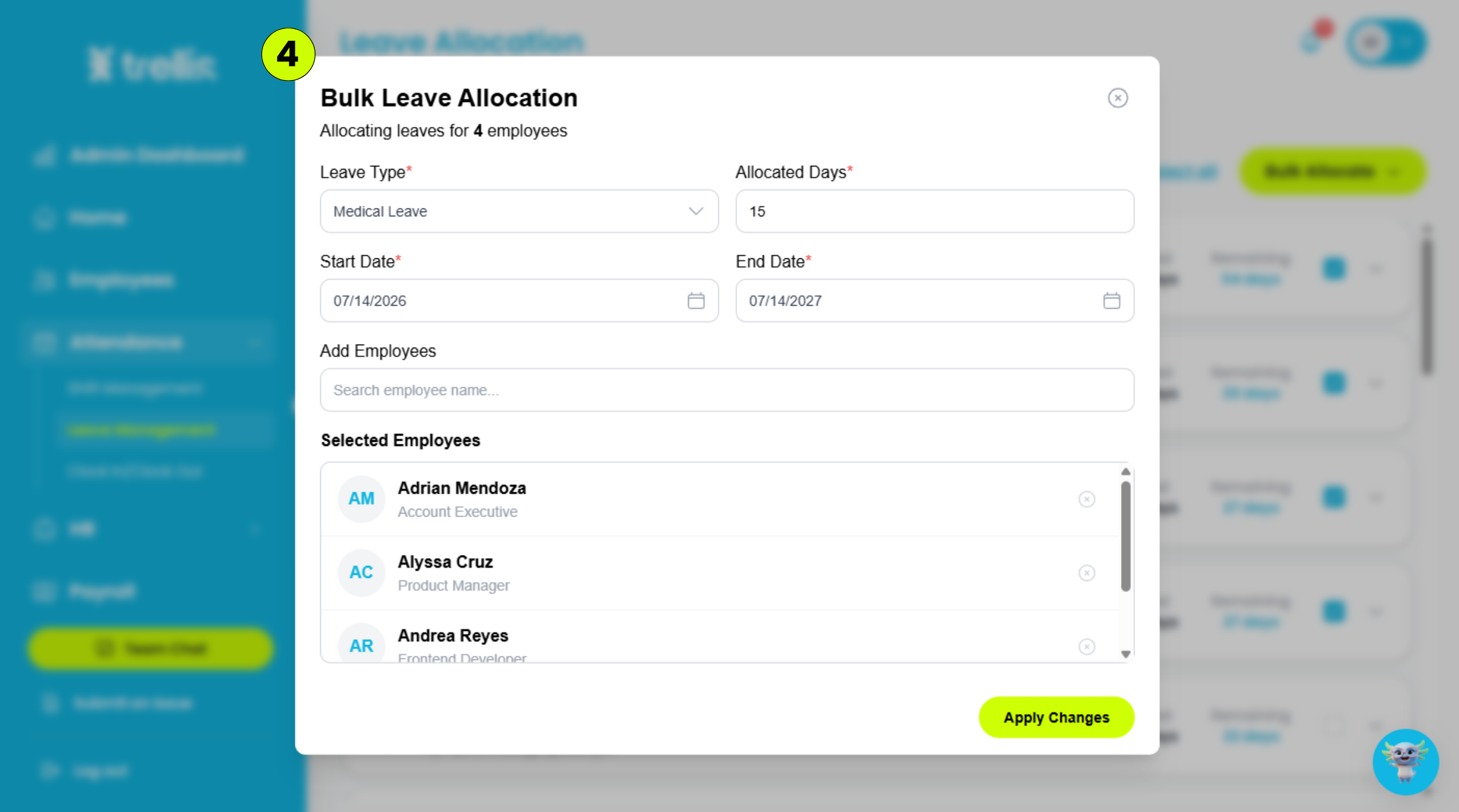
From the sidebar, click "Attendance", then select "Leave Management."
Select the checkboxes beside the employees you want to include in the bulk allocation.
Click "Bulk Allocate."
Fill in the following information, then click "Apply Changes."
Leave Type – The type of leave to allocate.
Allocated Days – The number of leave days to allocate.
Start Date – The date when the leave allocation becomes effective.
End Date – The date when the leave allocation expires.
Add Employees – Search for and add more employees to the allocation, if needed.
 Read the full guide →
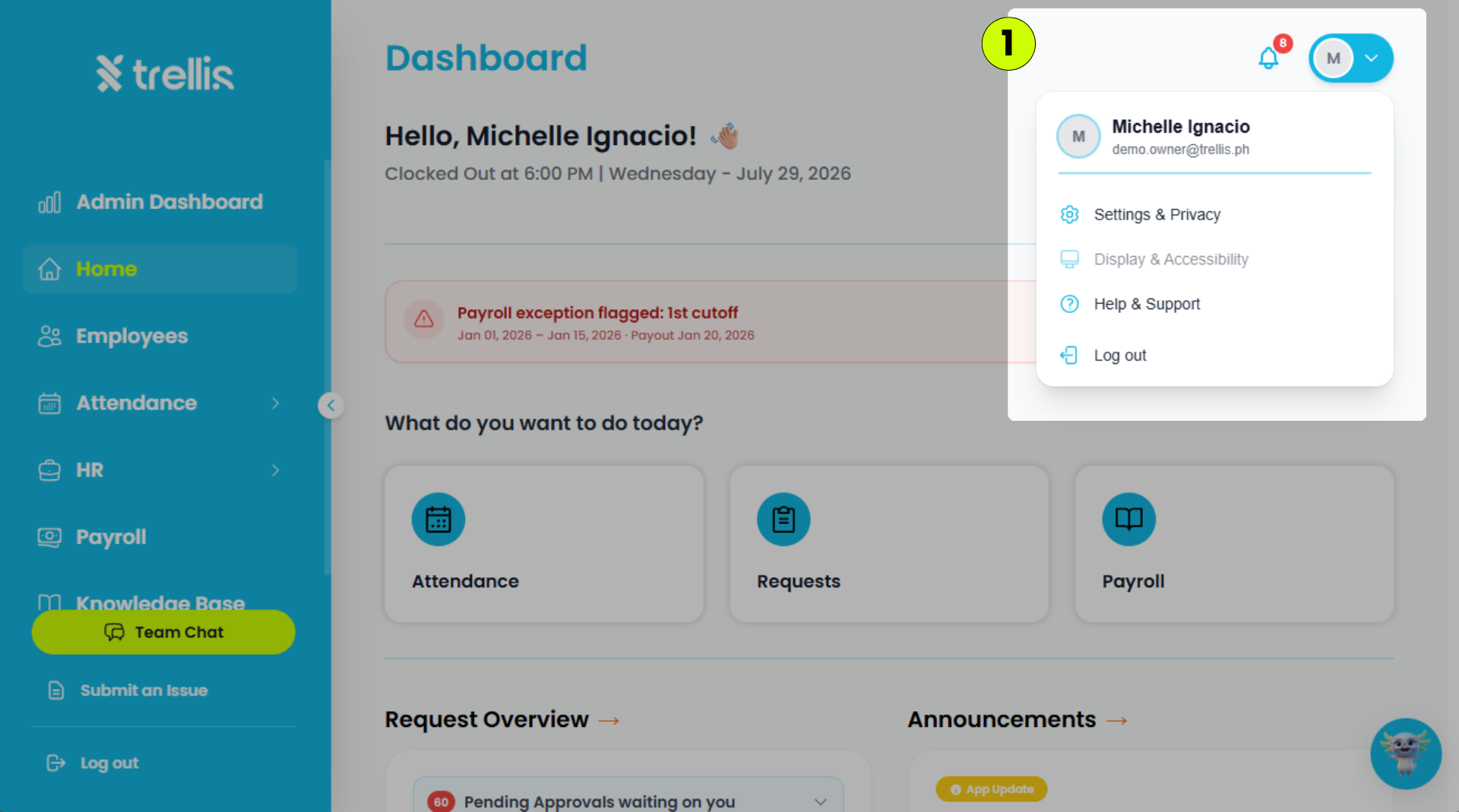
Click your profile icon in the top-right corner, then select "Settings & Privacy."
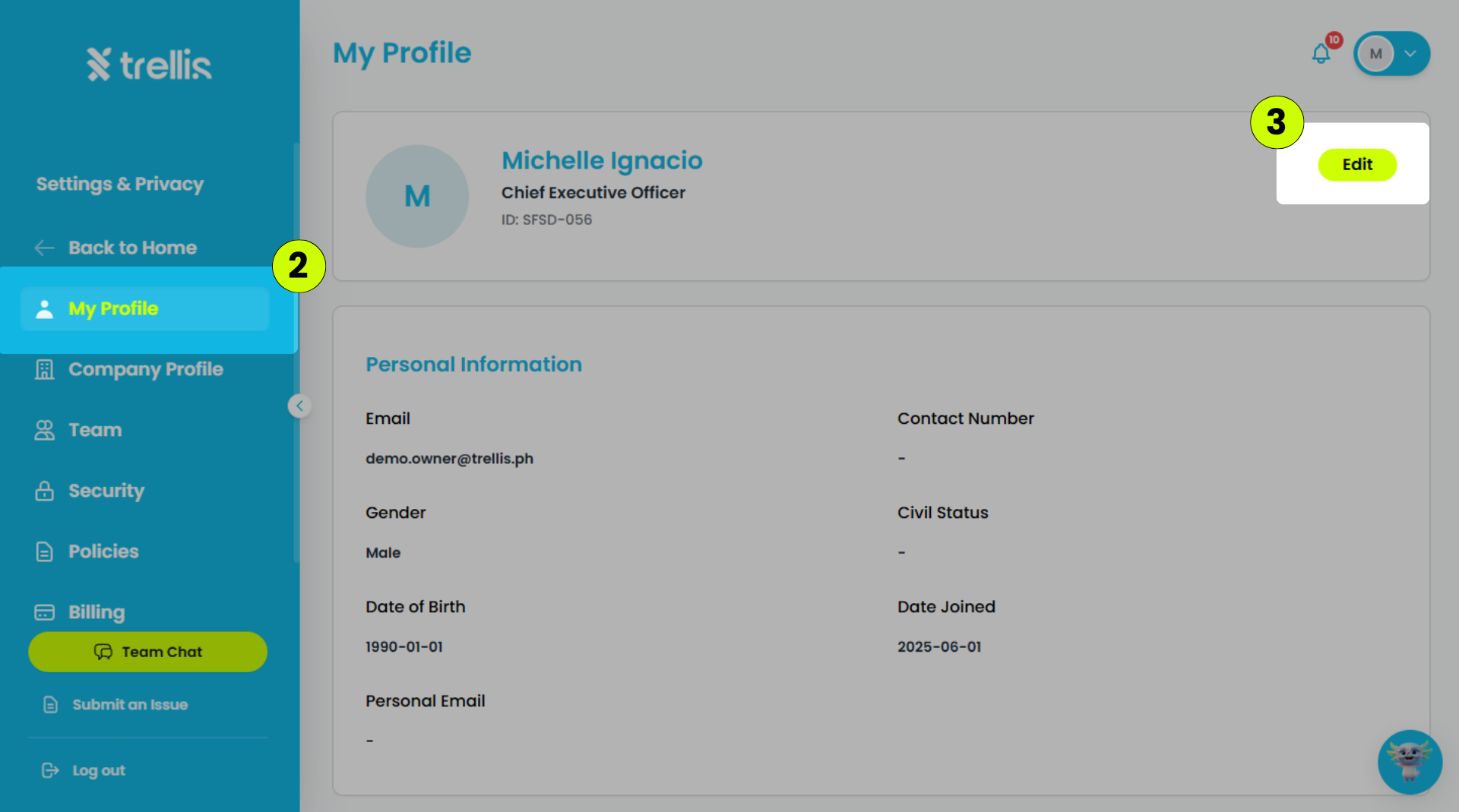
Click the "My Profile" in menu tab.
On the My Profile page, click "Edit."
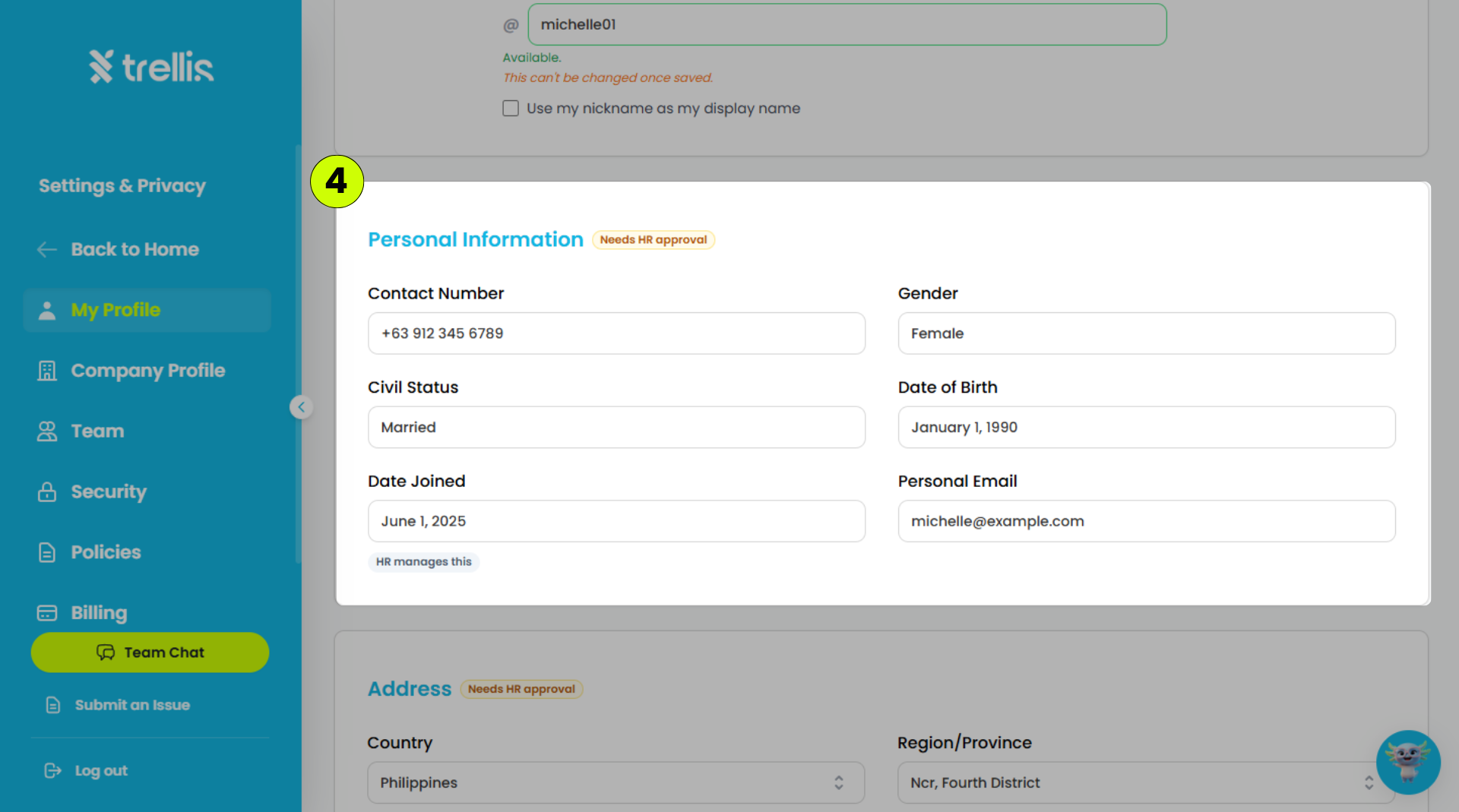
Update the following sections:
Personal Information
Address
Government Details
Emergency Contact
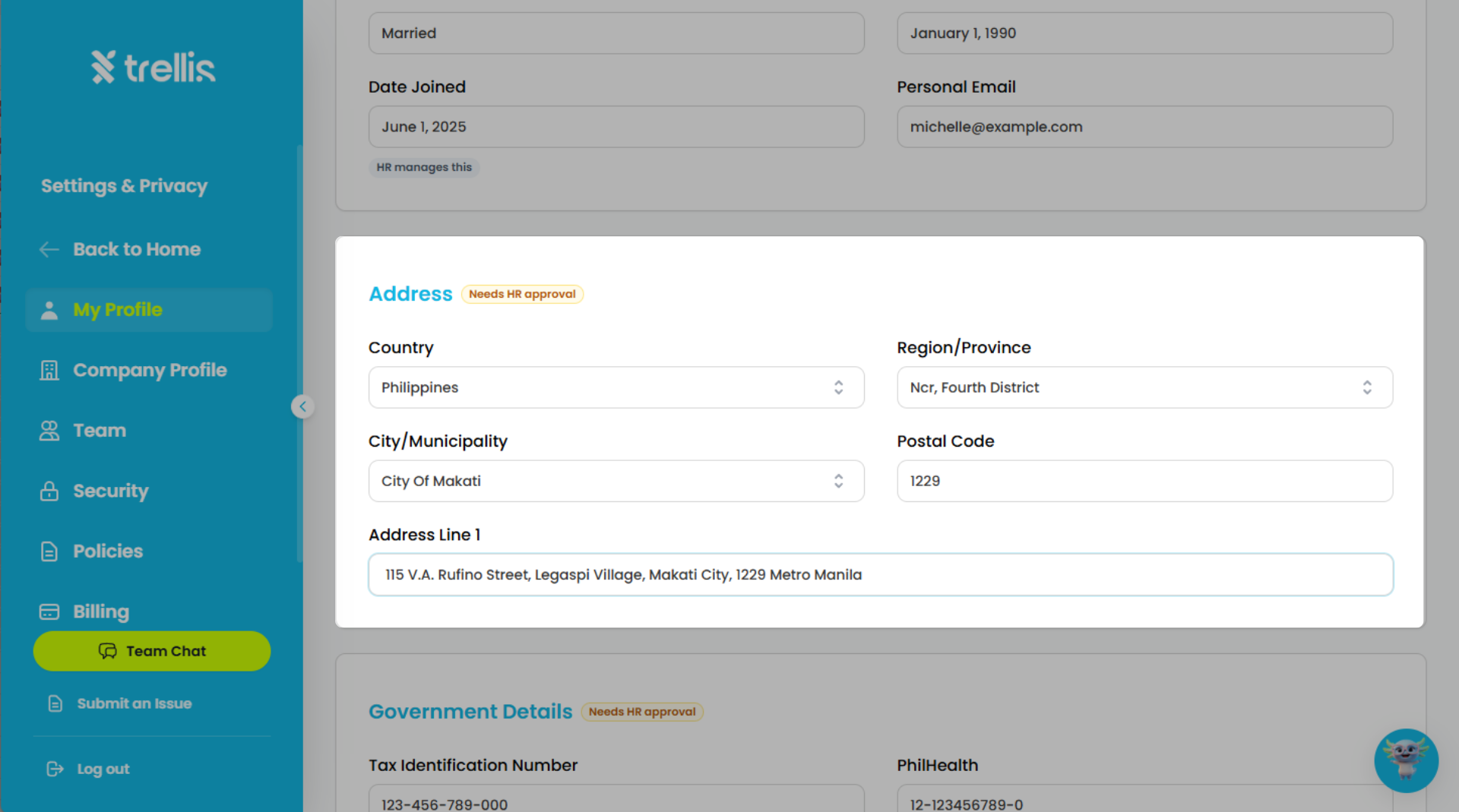
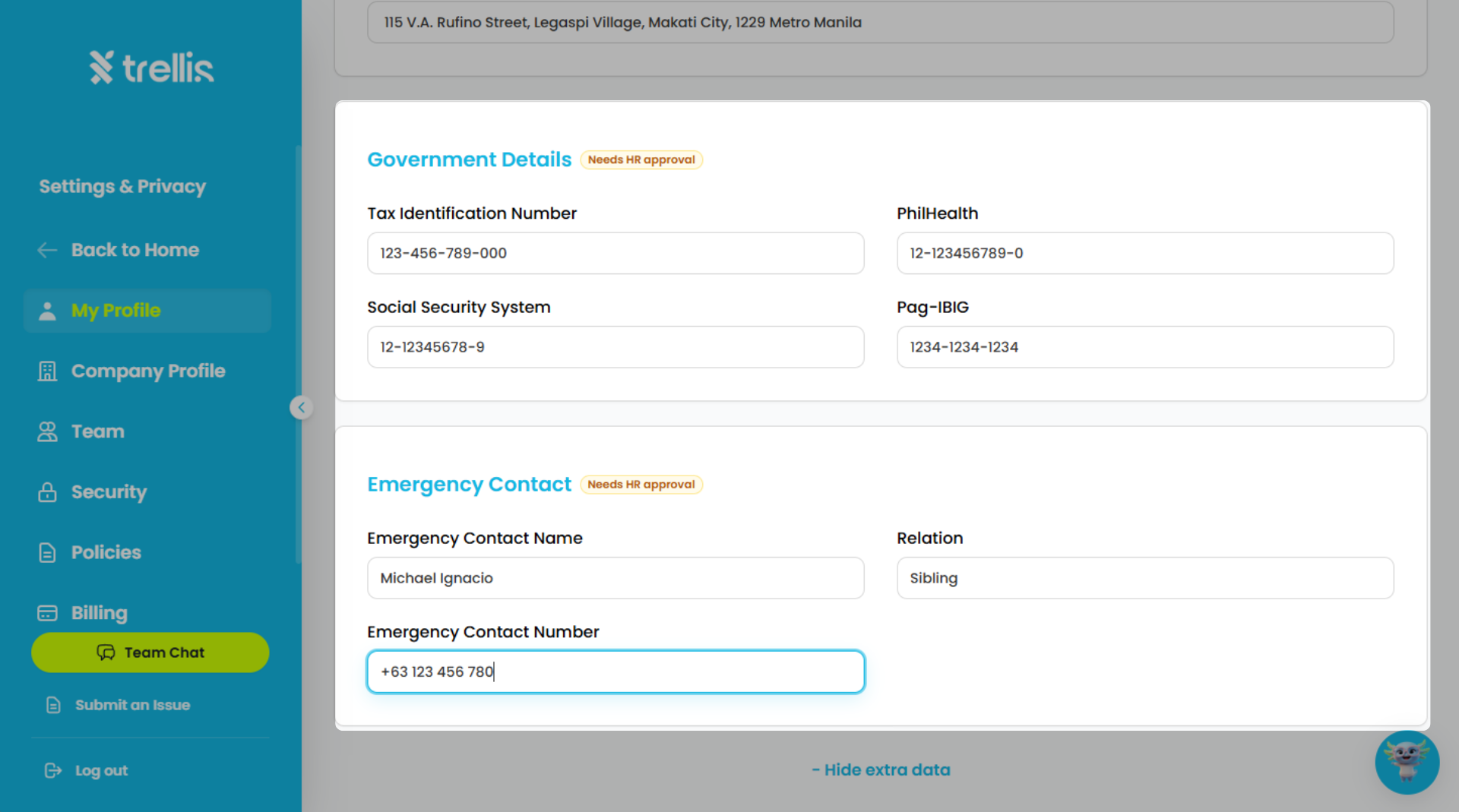
Update your name information, then click "Save."
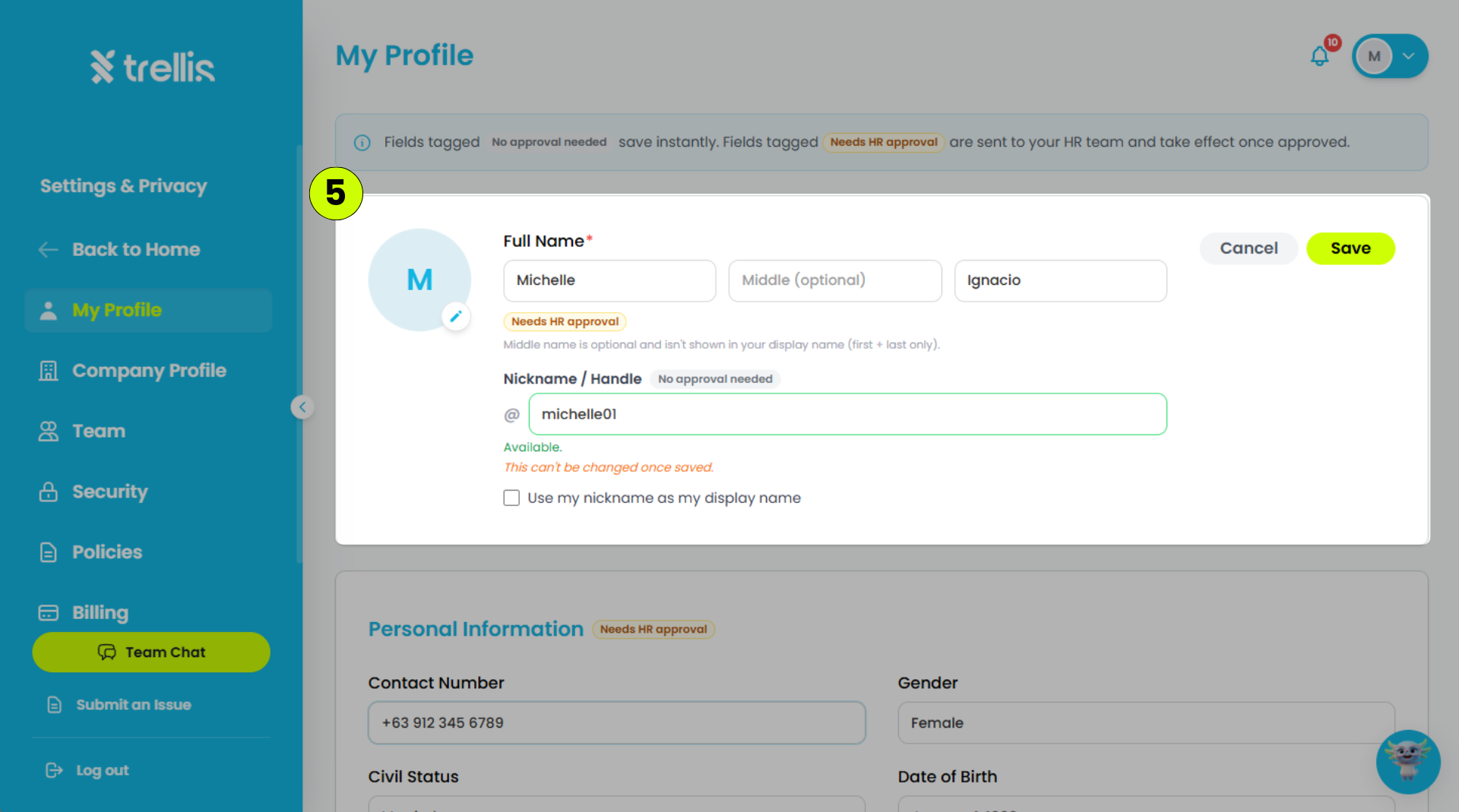
Wait for HR to review and approve your profile updates.
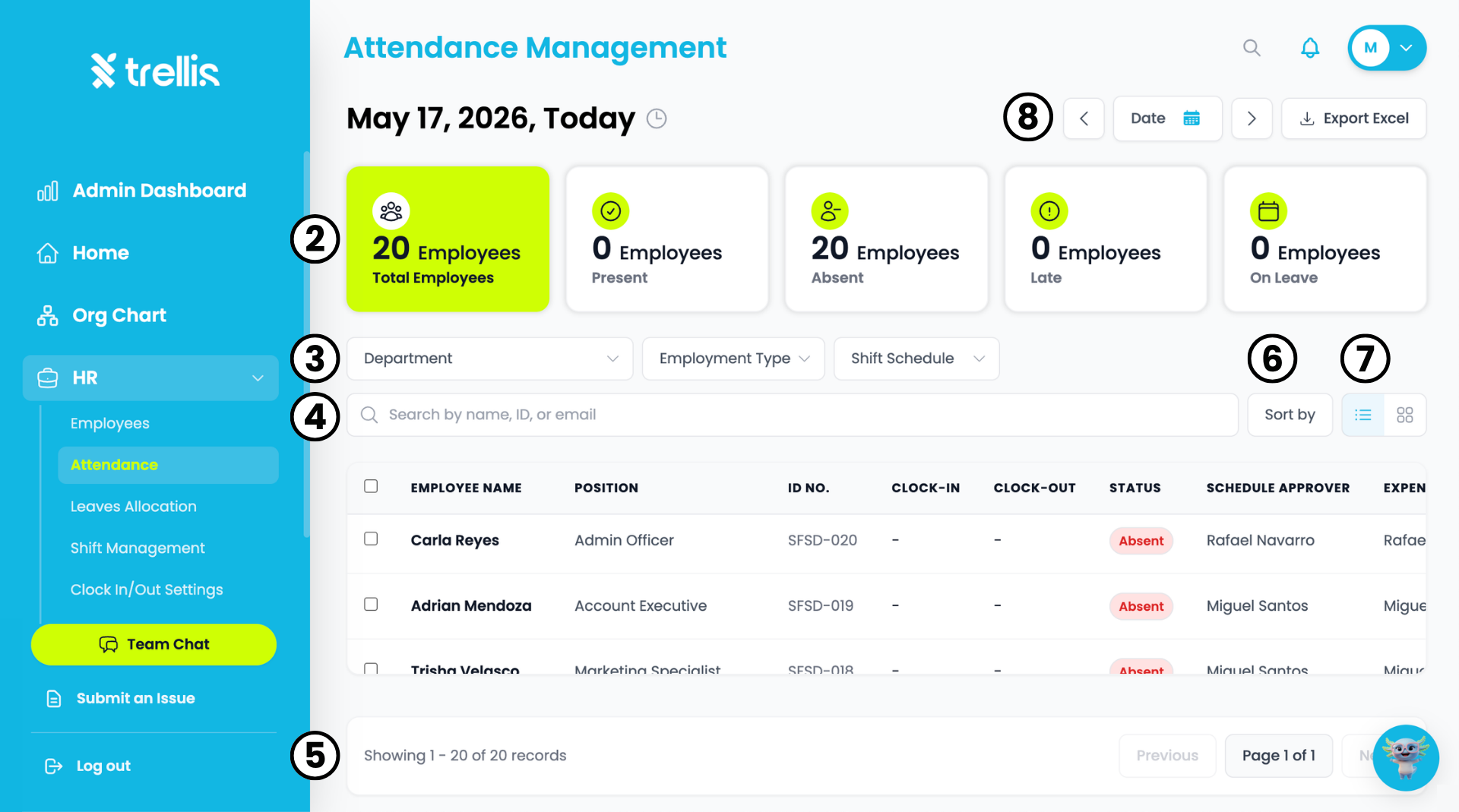
From the sidebar, click "HR" to expand the menu, then select "Attendance."
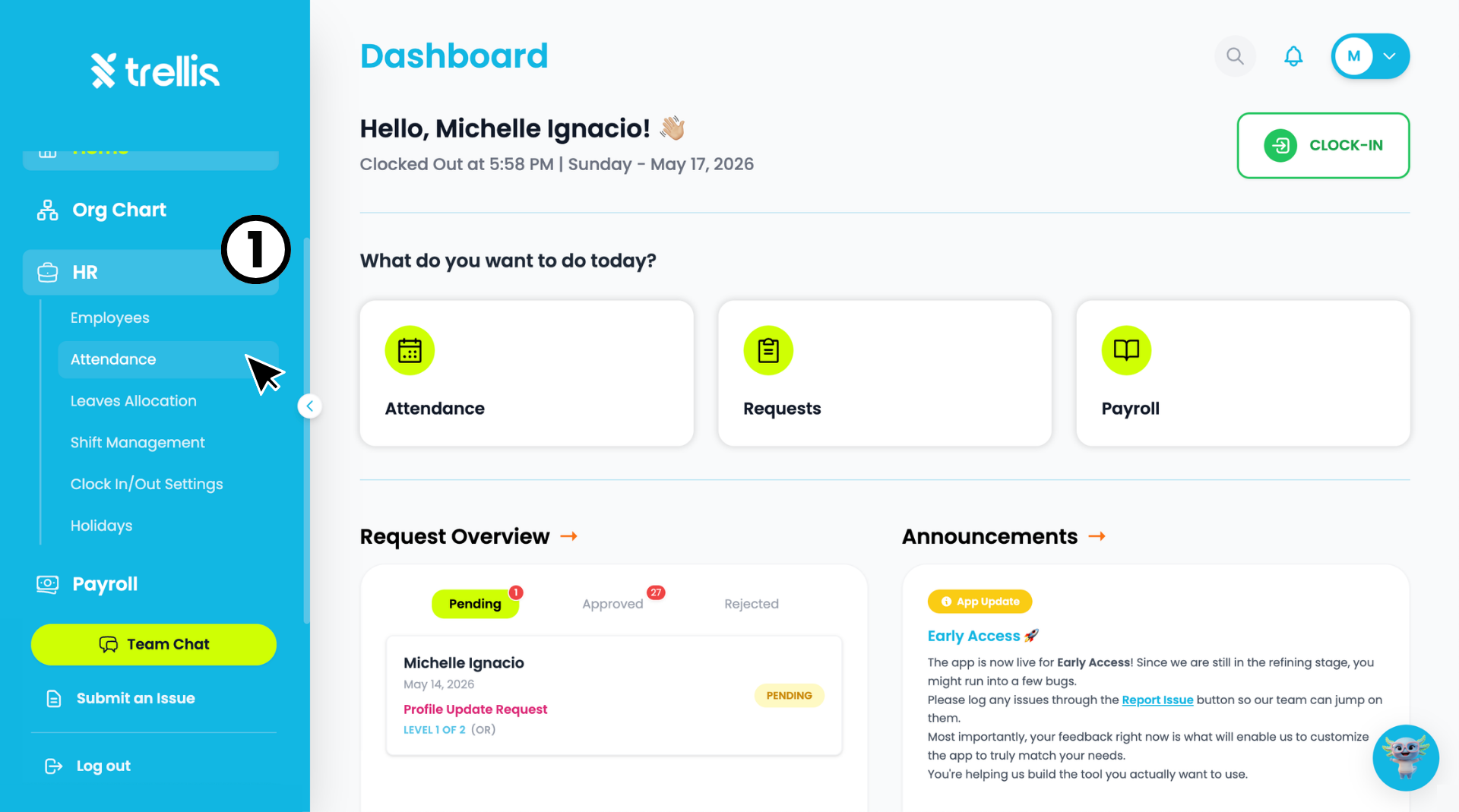
You will be directed to the "Attendance Management" page. At the top you will see a summary of your team's attendance status including "Total Employees", "Present", "Absent", "Late", and "On Leave".
Use the "Department", "Employment Type", and "Shift Schedule" filters to narrow down the attendance list.
Use the "Search bar" to look up a specific employee by name, ID, or email.
The table below shows all employee attendance records. Use the pagination at the bottom to navigate through pages.
Use "Sort by" to reorder the list based on your preference.
Toggle between list view and grid view using the view icons beside the sort button.
Use the date navigation arrows to browse attendance by date, or click "Export Excel" to download the records.
 Read the full guide →
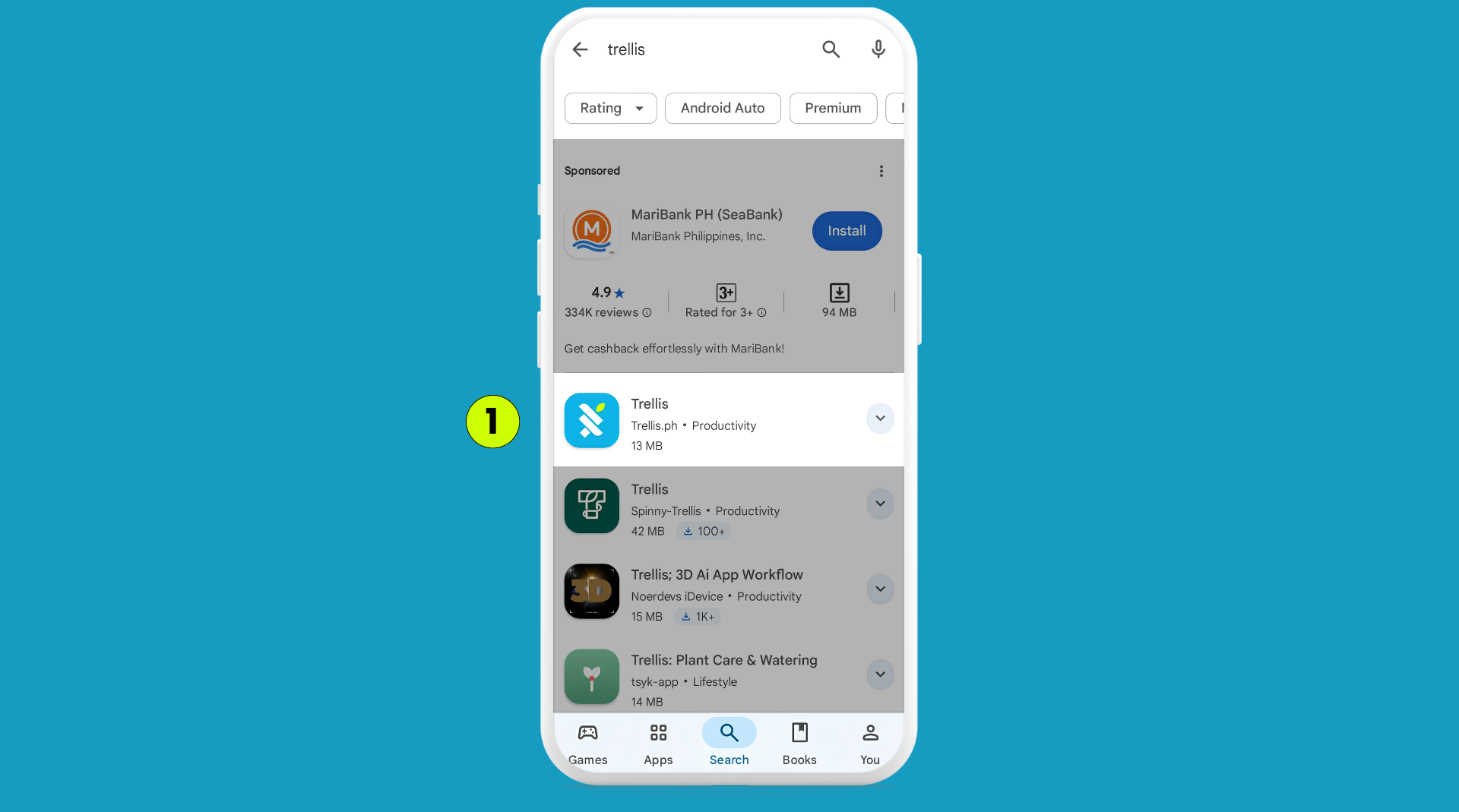
Open the Google Play Store, then search for "Trellis."
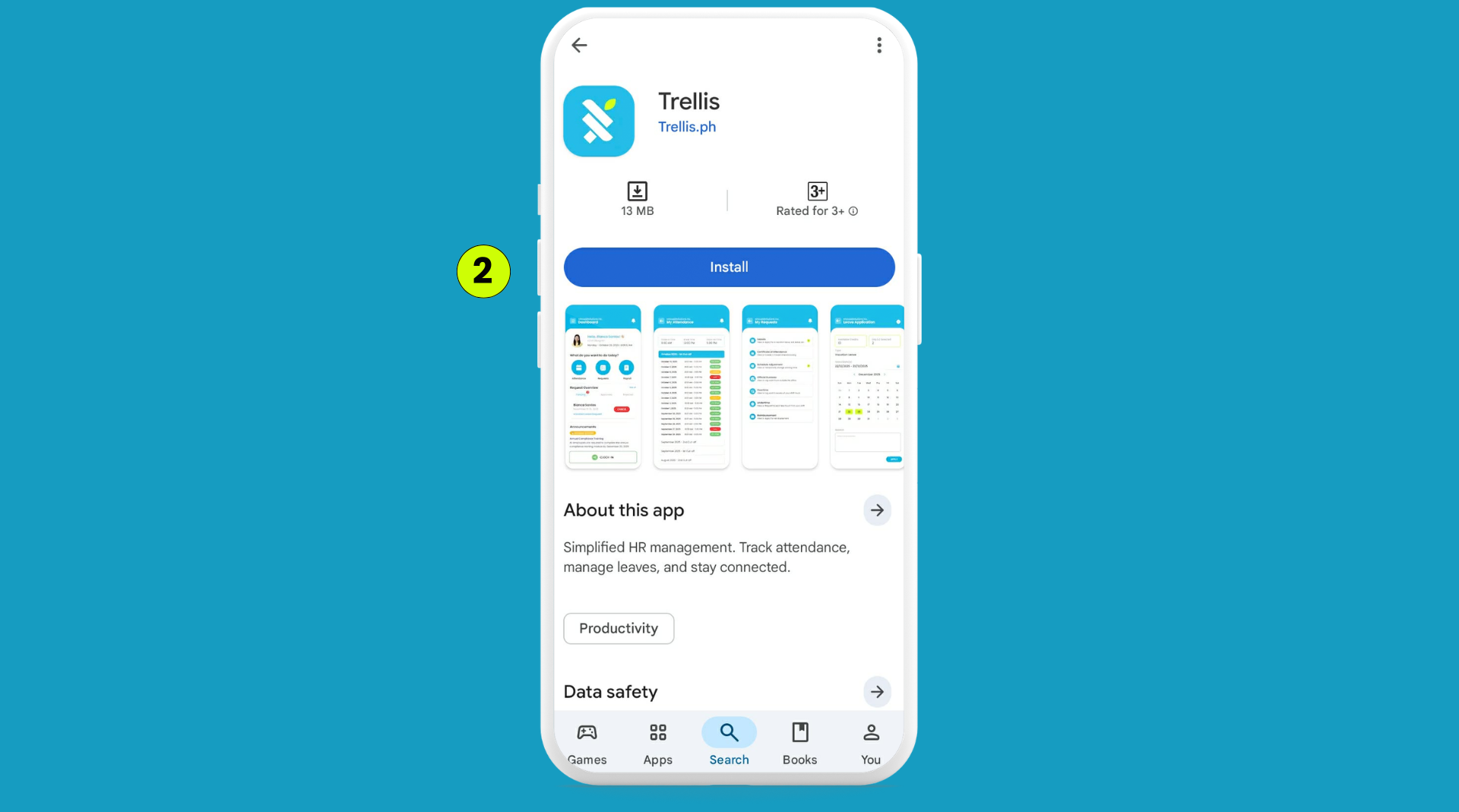
Select the Trellis app, then tap "Install."
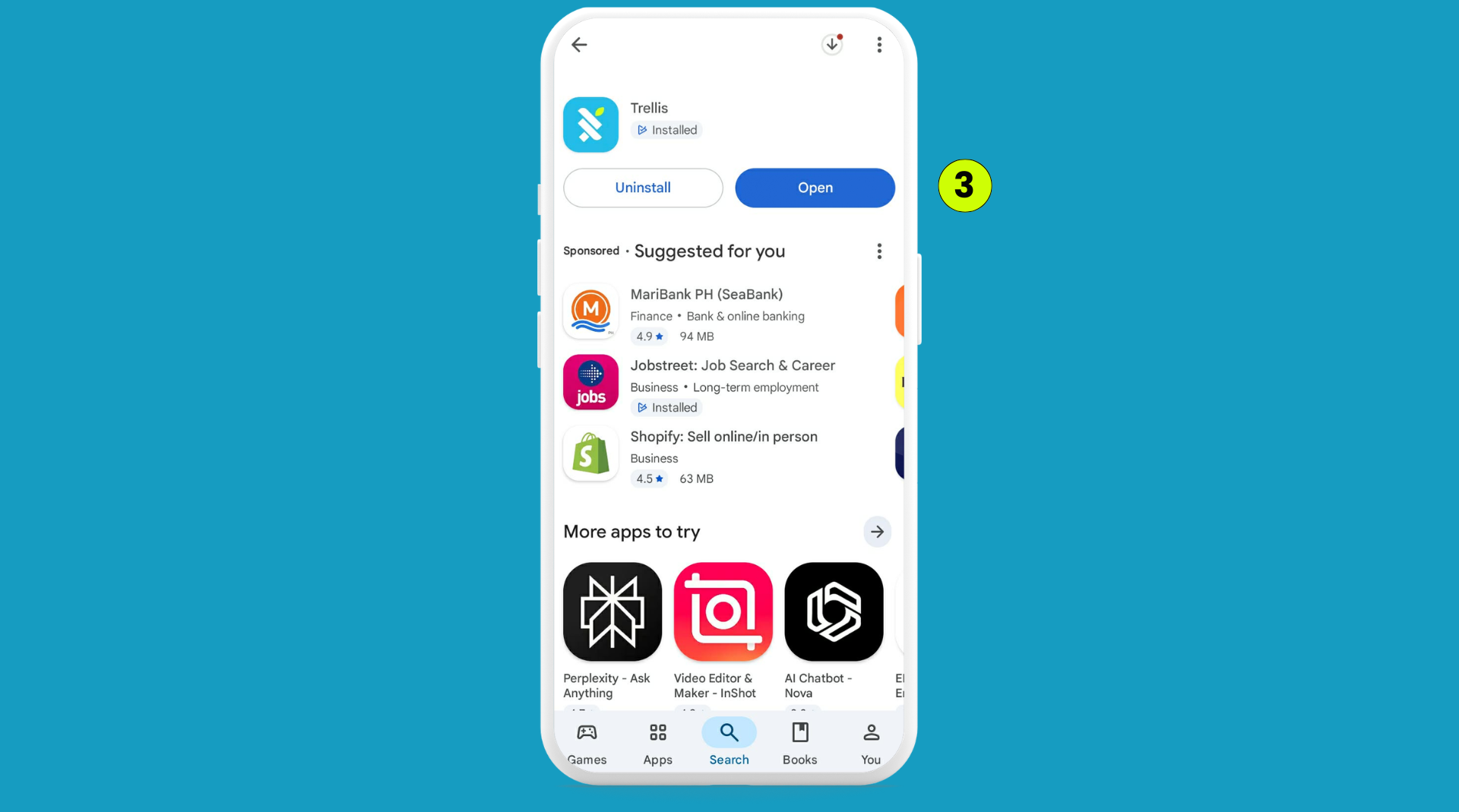
Once the installation is complete, tap "Open" to launch the app.
 Read the full guide →
From the sidebar, click "Attendance," then select "Shift Management."
The Shift Management page will open, where you can view the list of shifts, assigned employees, shift schedules, and working hours.
648e0c.png) Read the full guide →
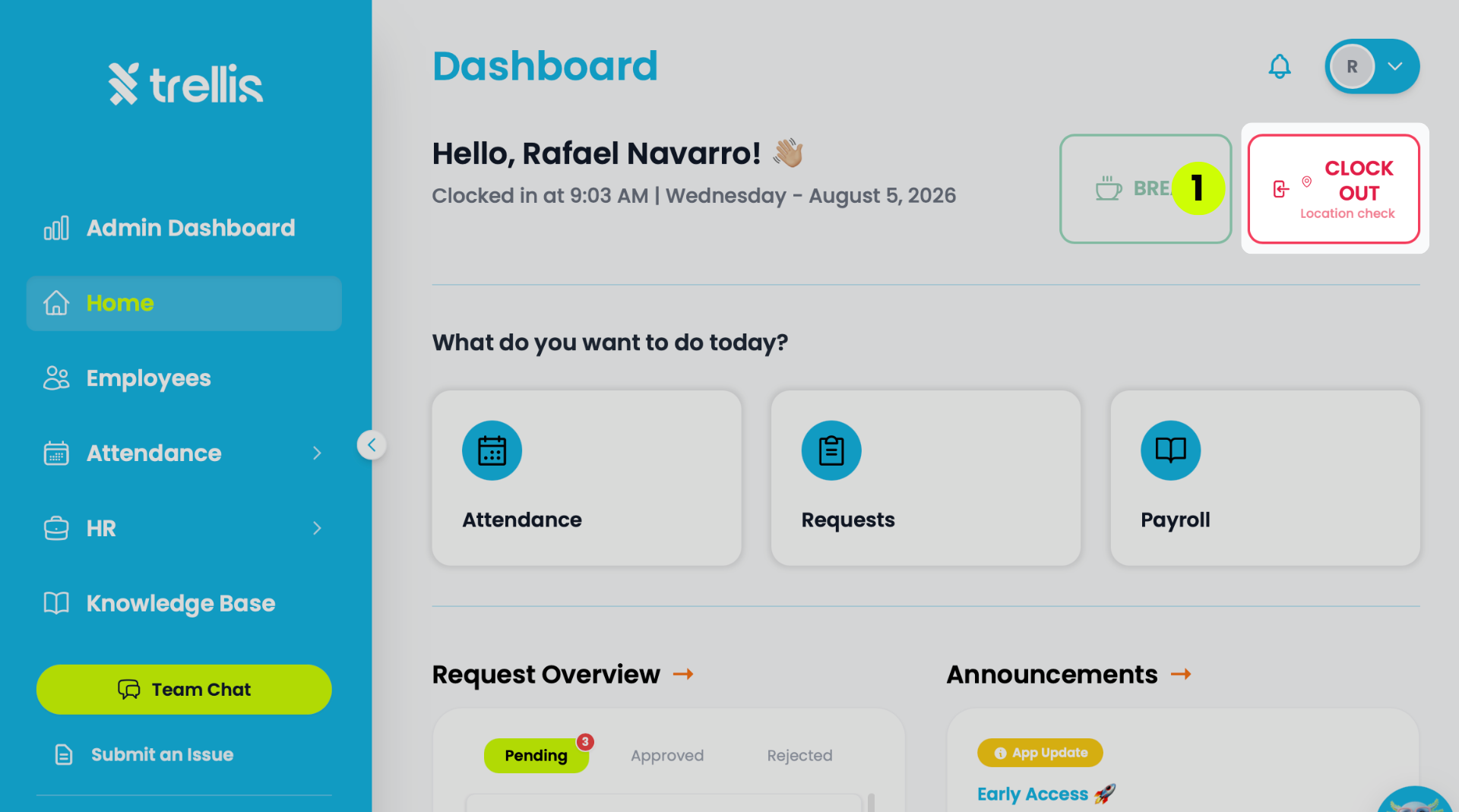
Read the full guide →From the Dashboard, click the "Clock Out" button in the top right corner.
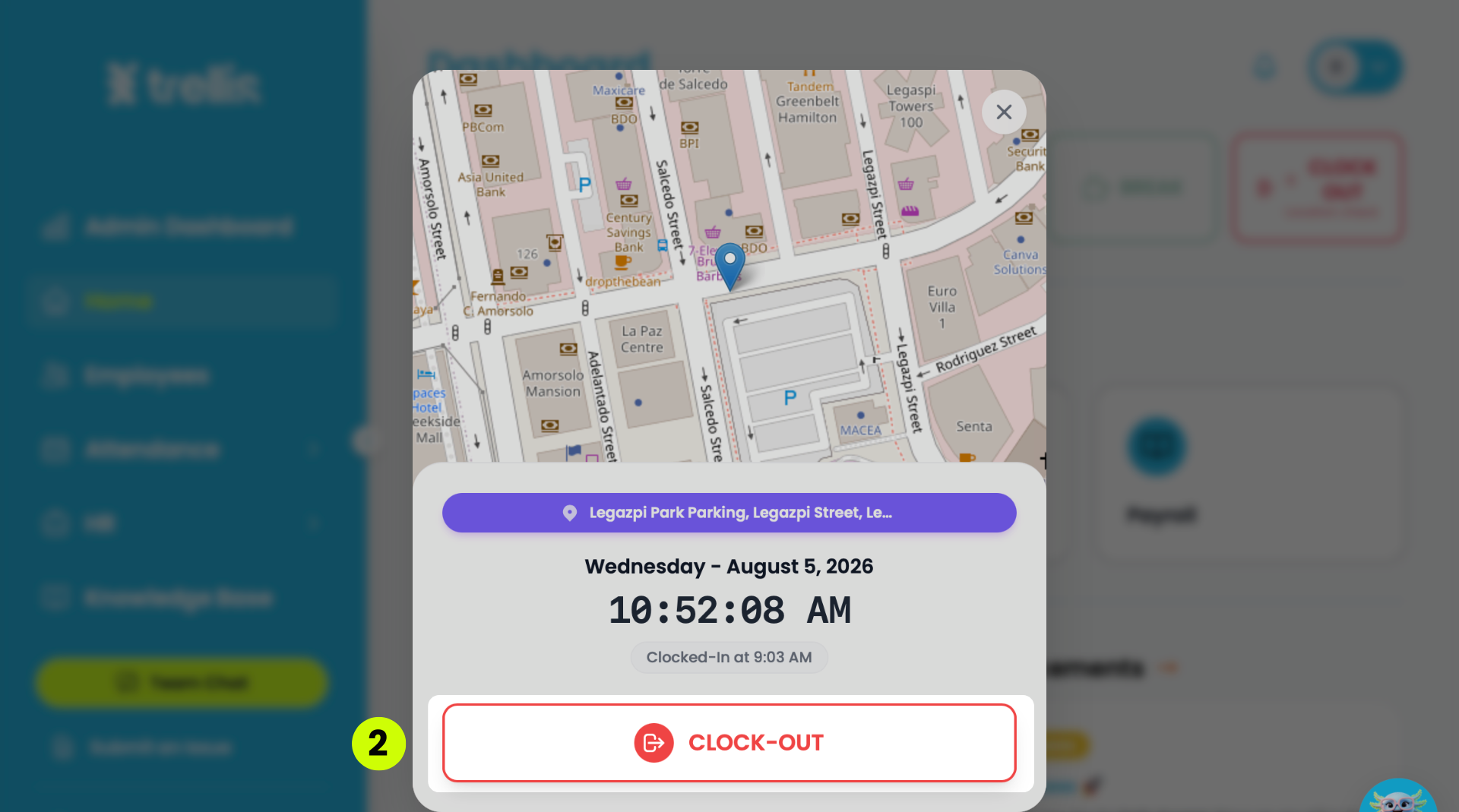
A dialog will appear showing your current location on the map and your clock-in time. Click "Clock-Out" to confirm.
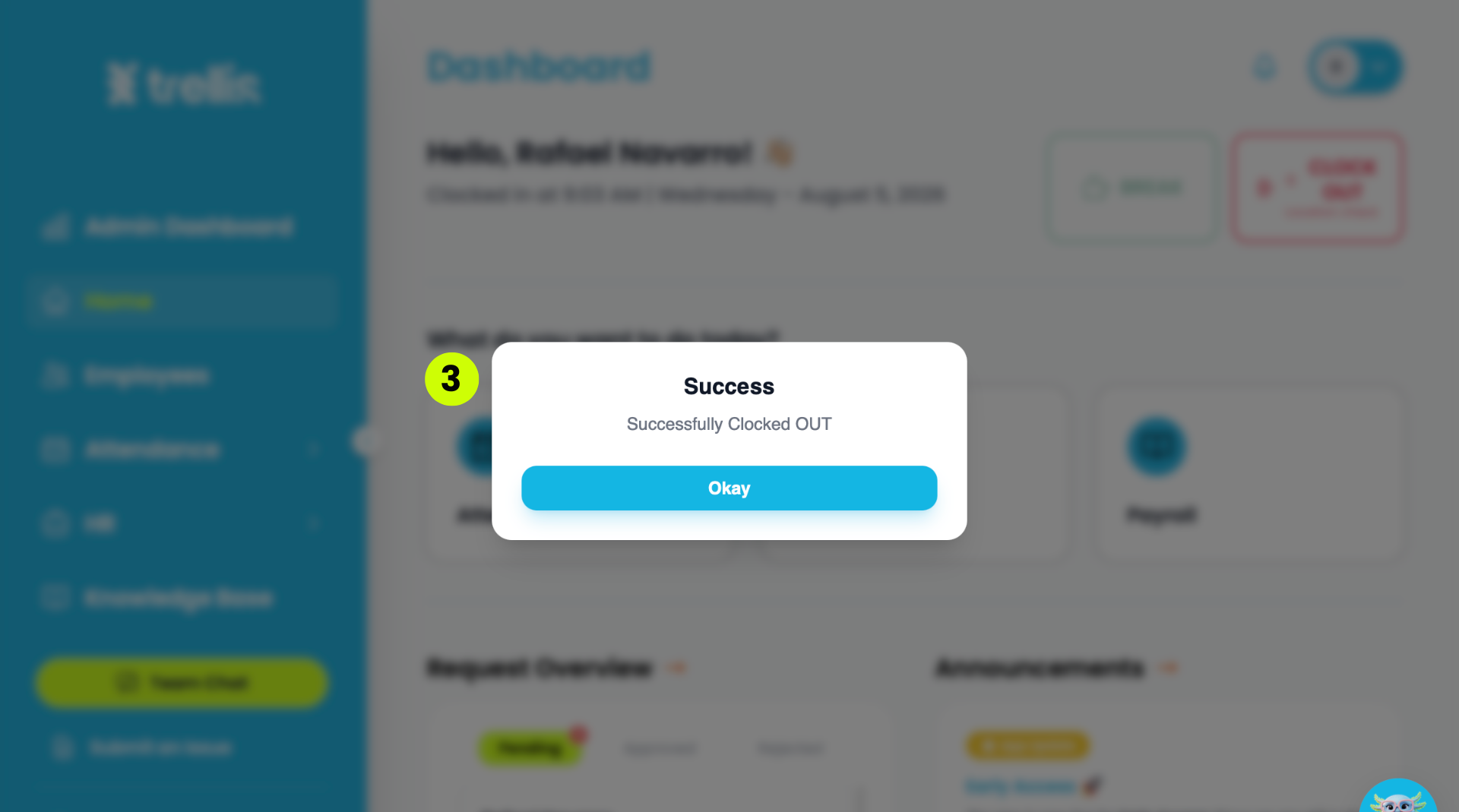
A success message will confirm that you have successfully clocked out. Click "Okay" to close.
From the sidebar, click "Home."
On the Dashboard, click "Requests."
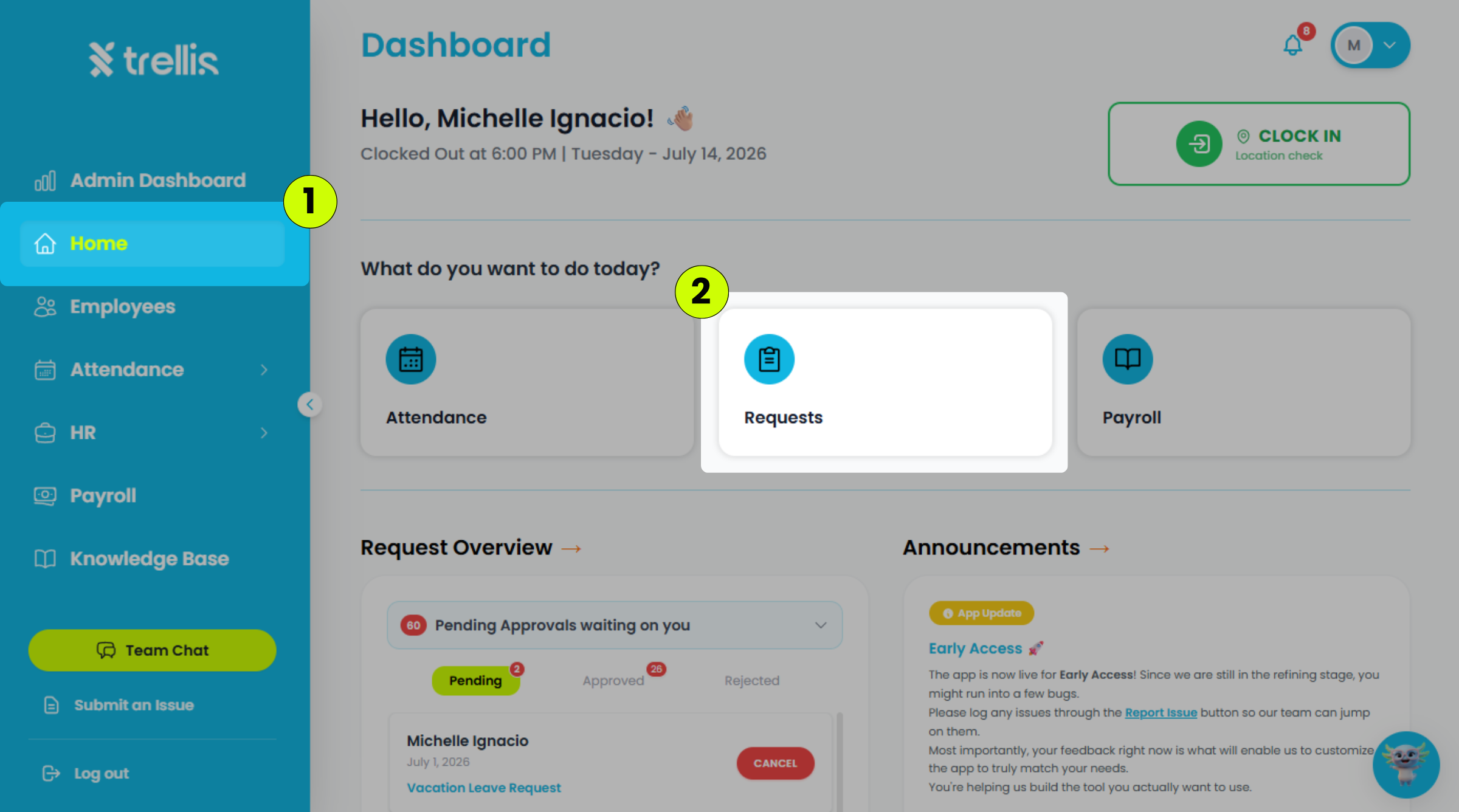
On the Requests page, click "Overtime."
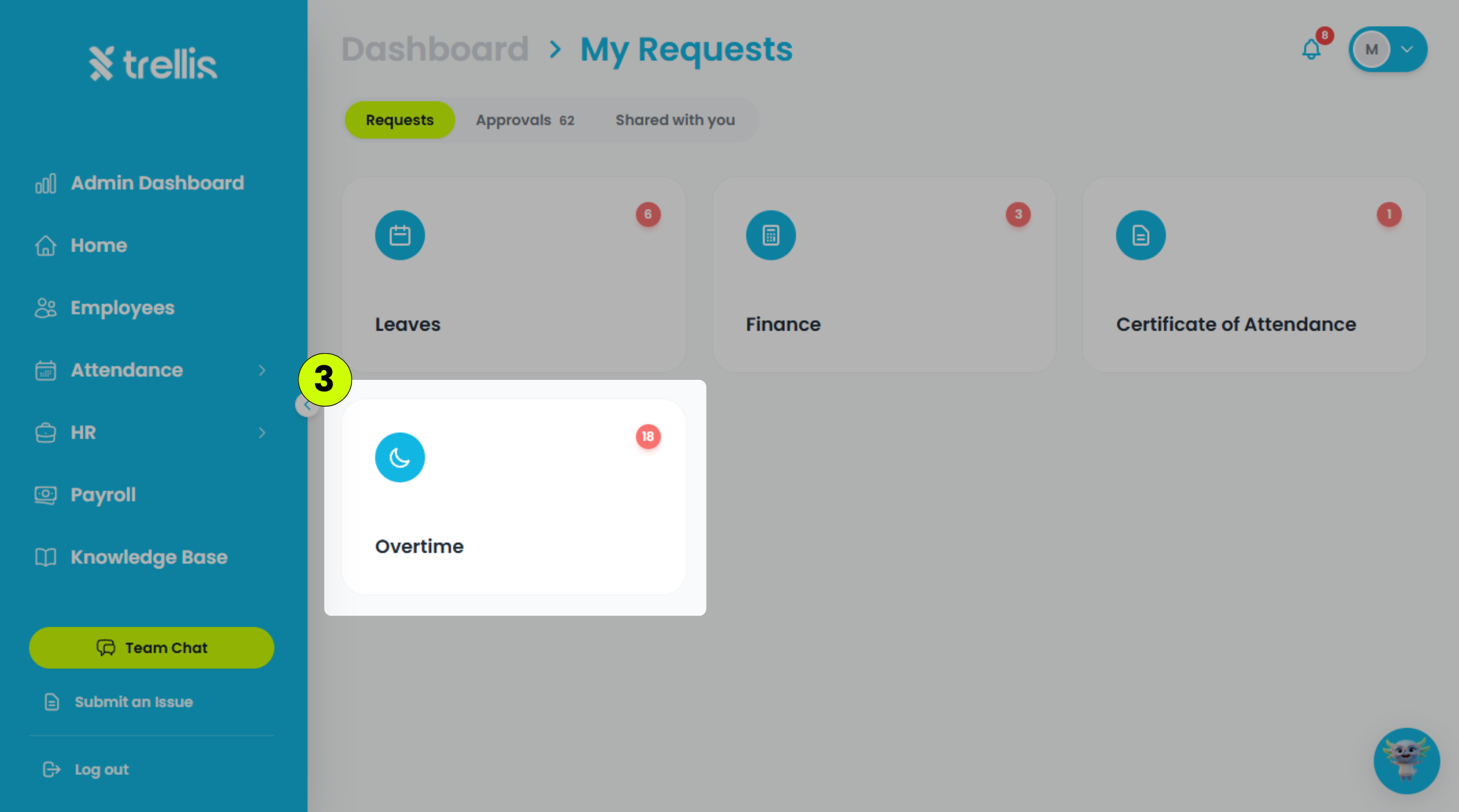
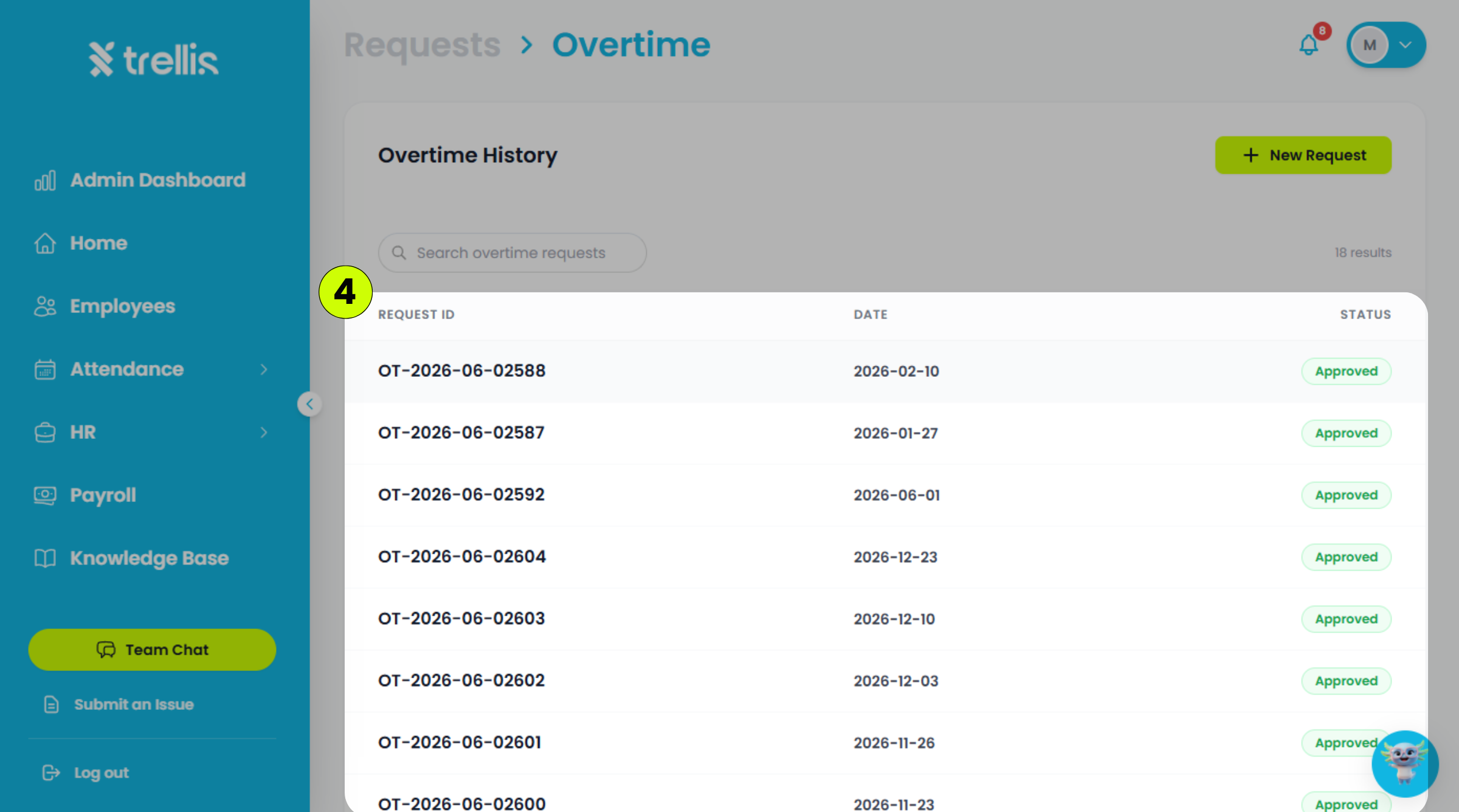
Select the overtime request you want to view.
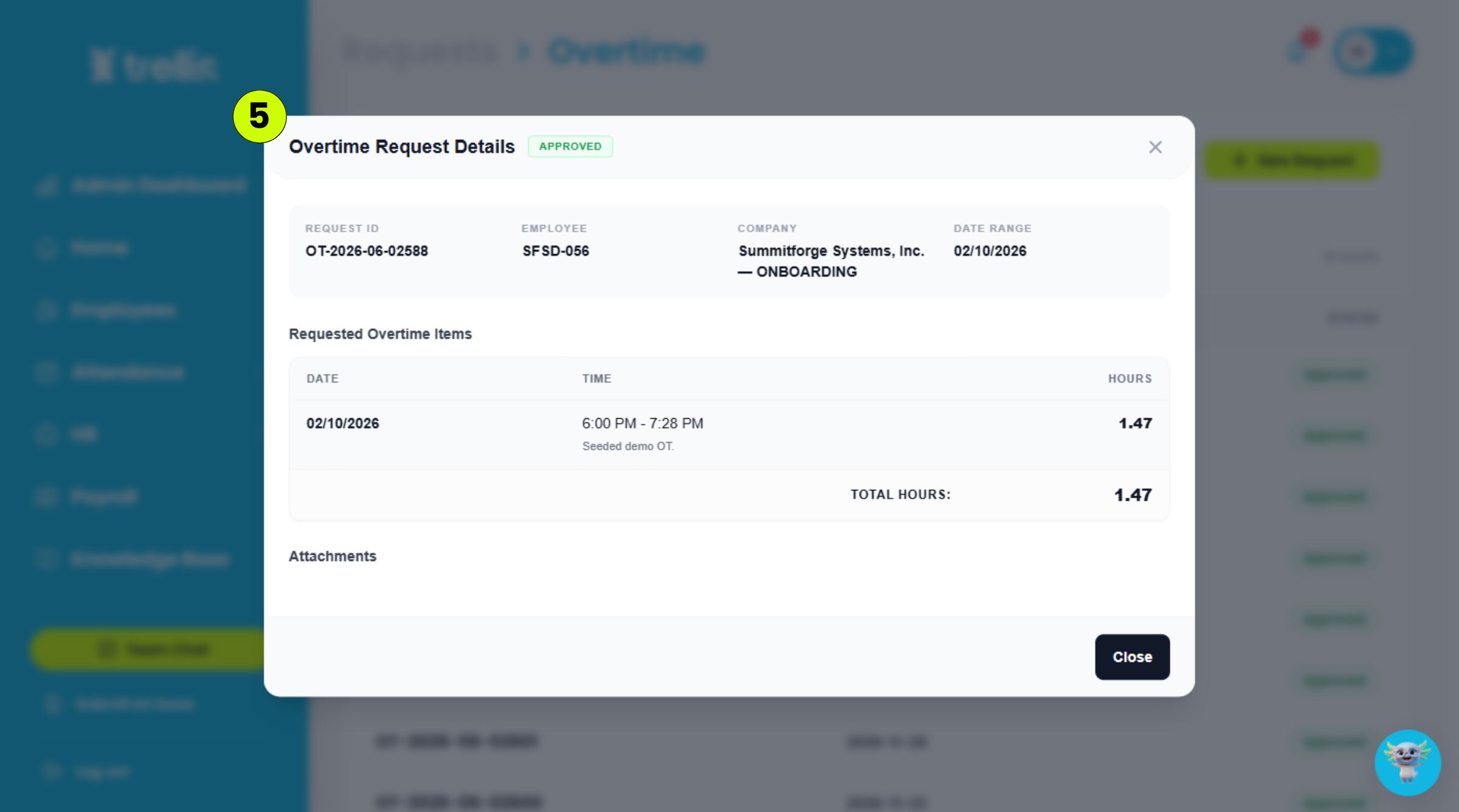
The "Overtime Request Details" window will appear, displaying the request information, rendered hours, status, and any attached files.
 Read the full guide →
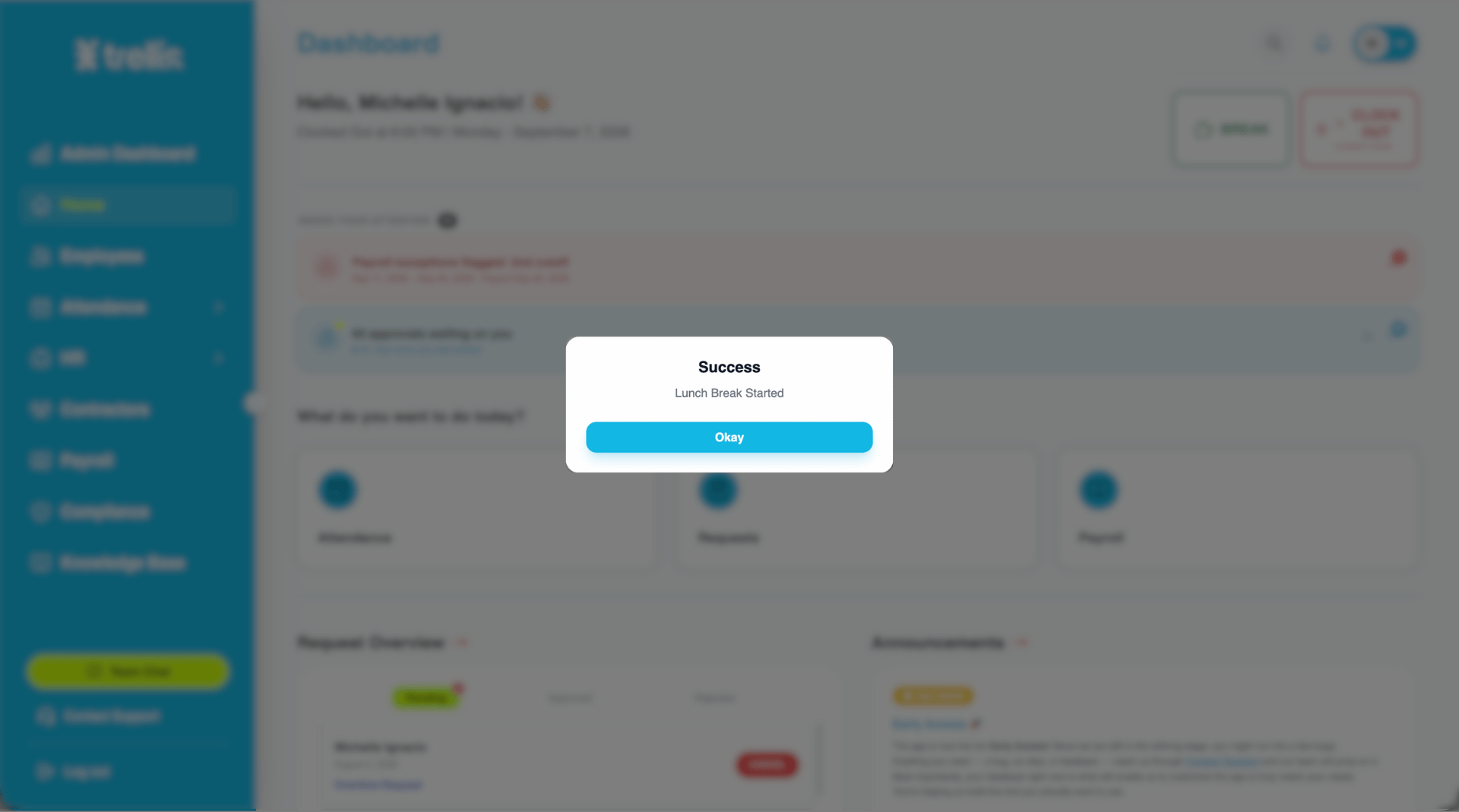
When your break time is near, click the "Break" button in the top-right corner of the Dashboard.
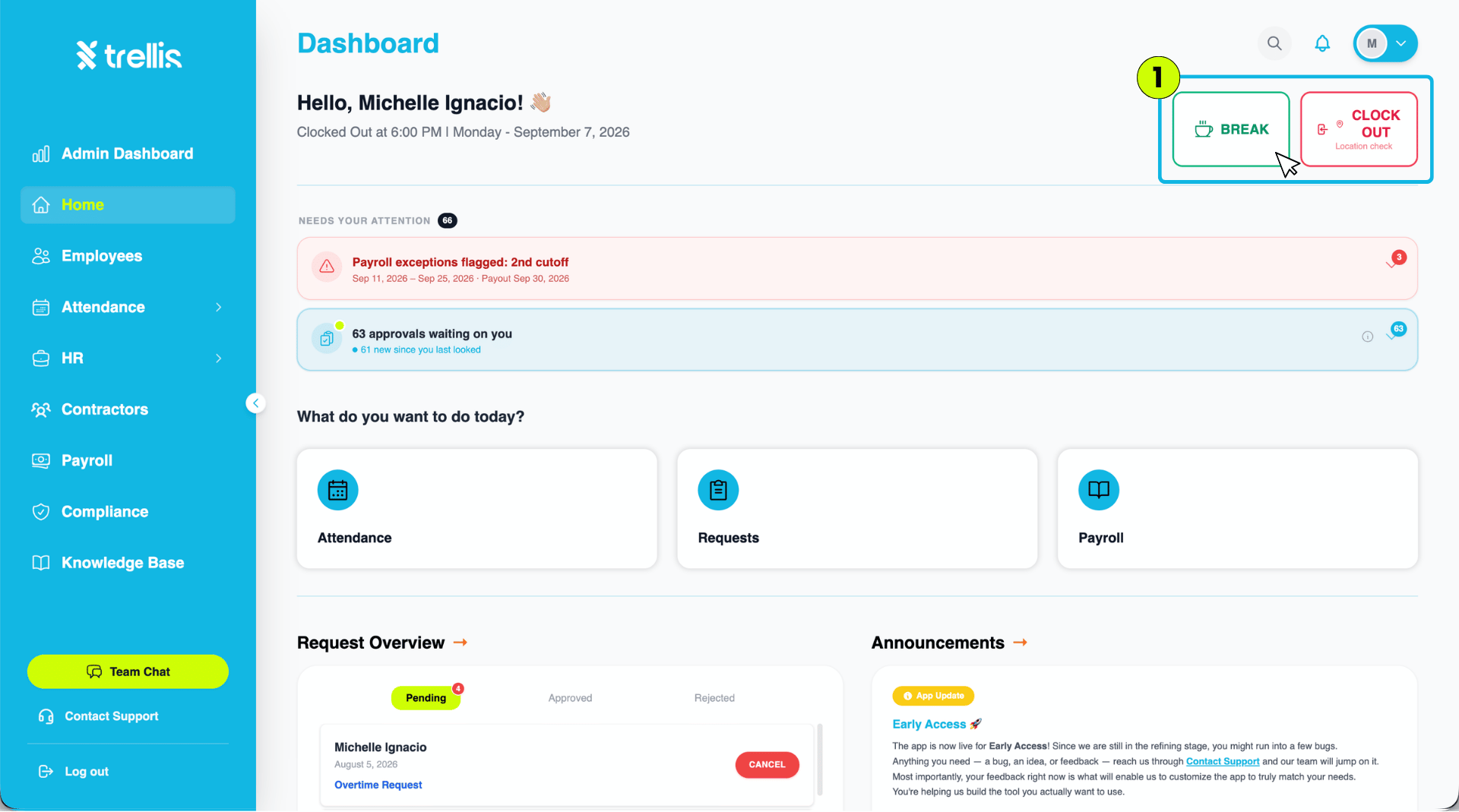
A success message will confirm that your lunch break has started. Click "Okay" to close the message.
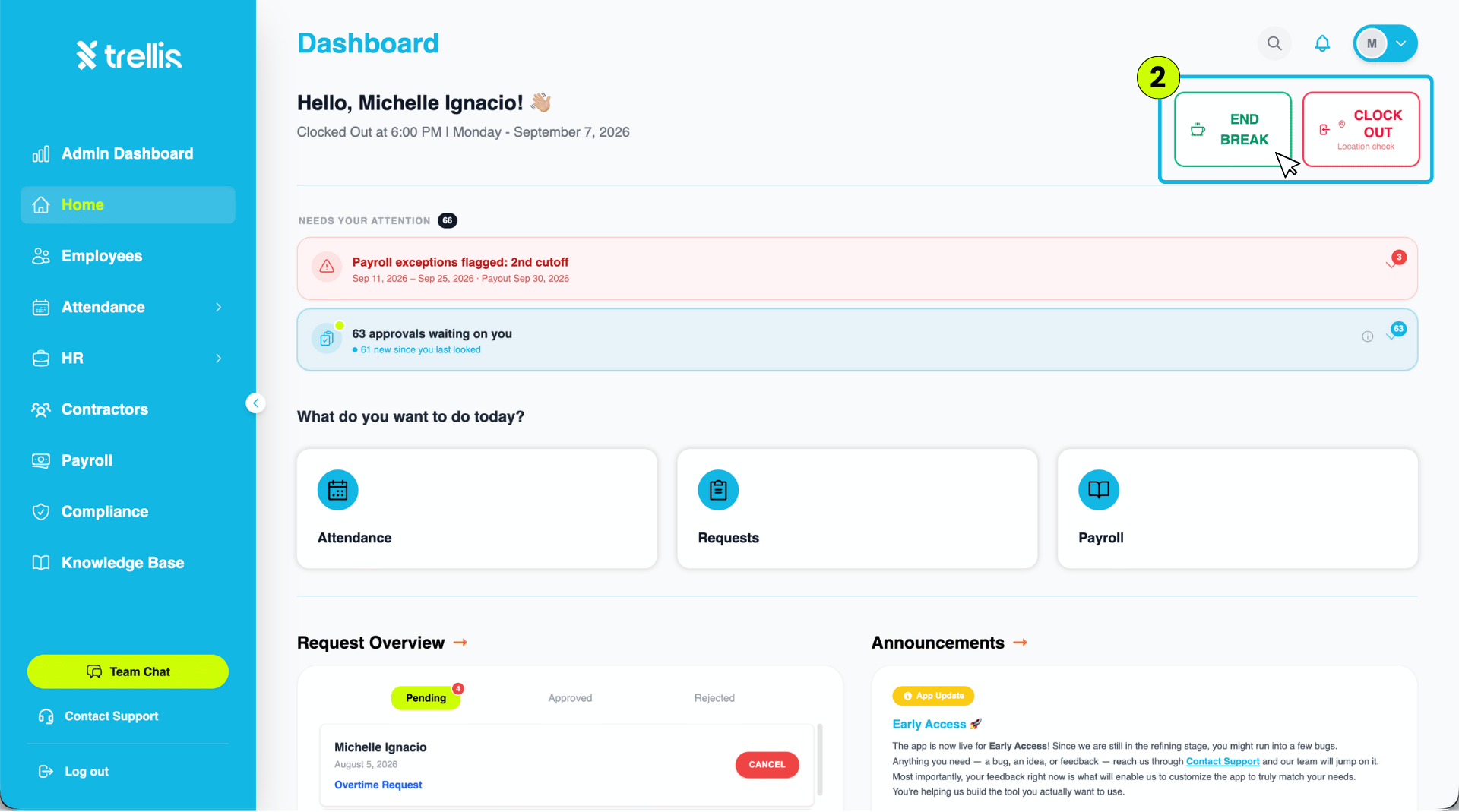
The Dashboard will update to show that you are on break. When you are ready to return to work, click "End Break."
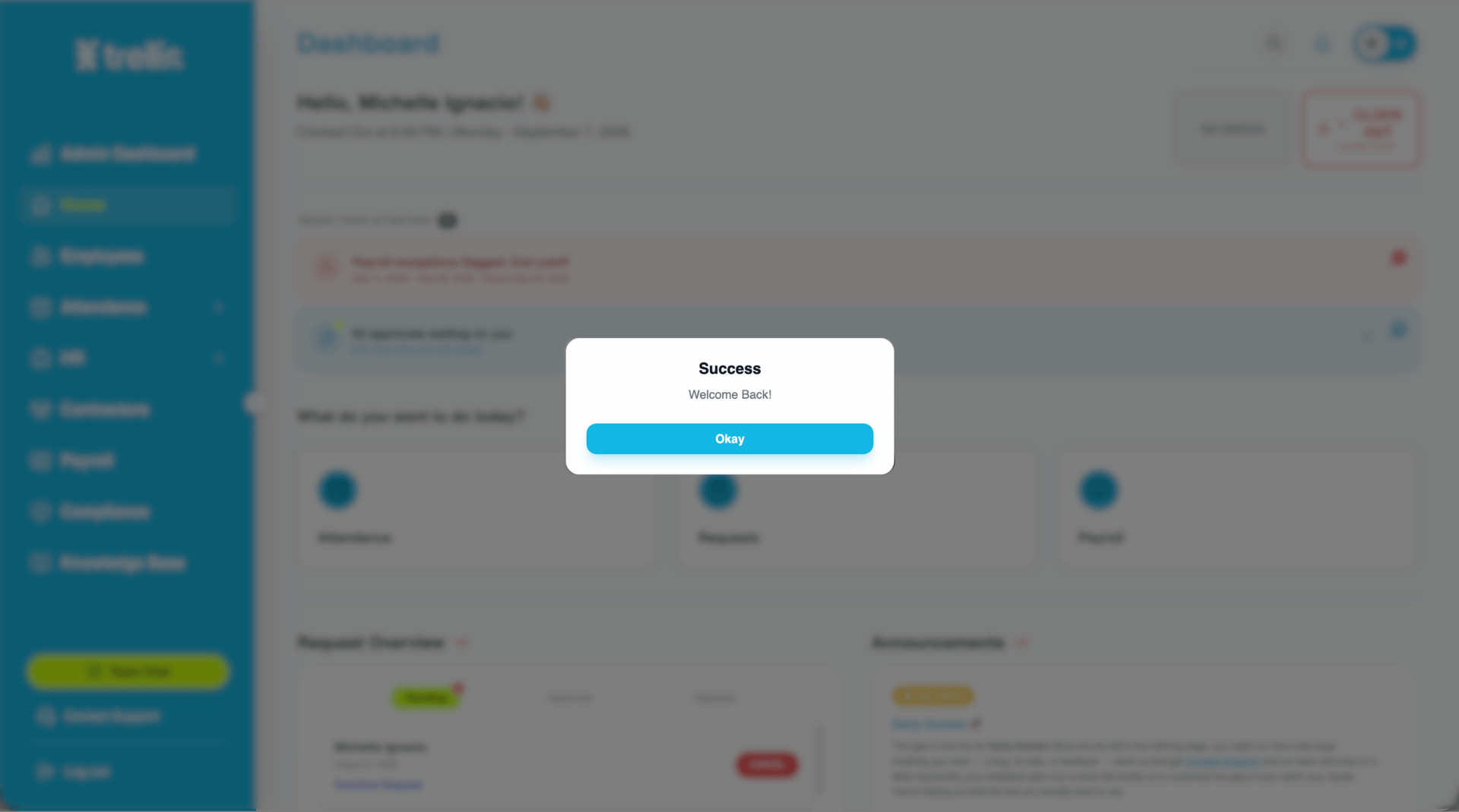
A success message will appear confirming that you are back. Click "Okay" to close the message.
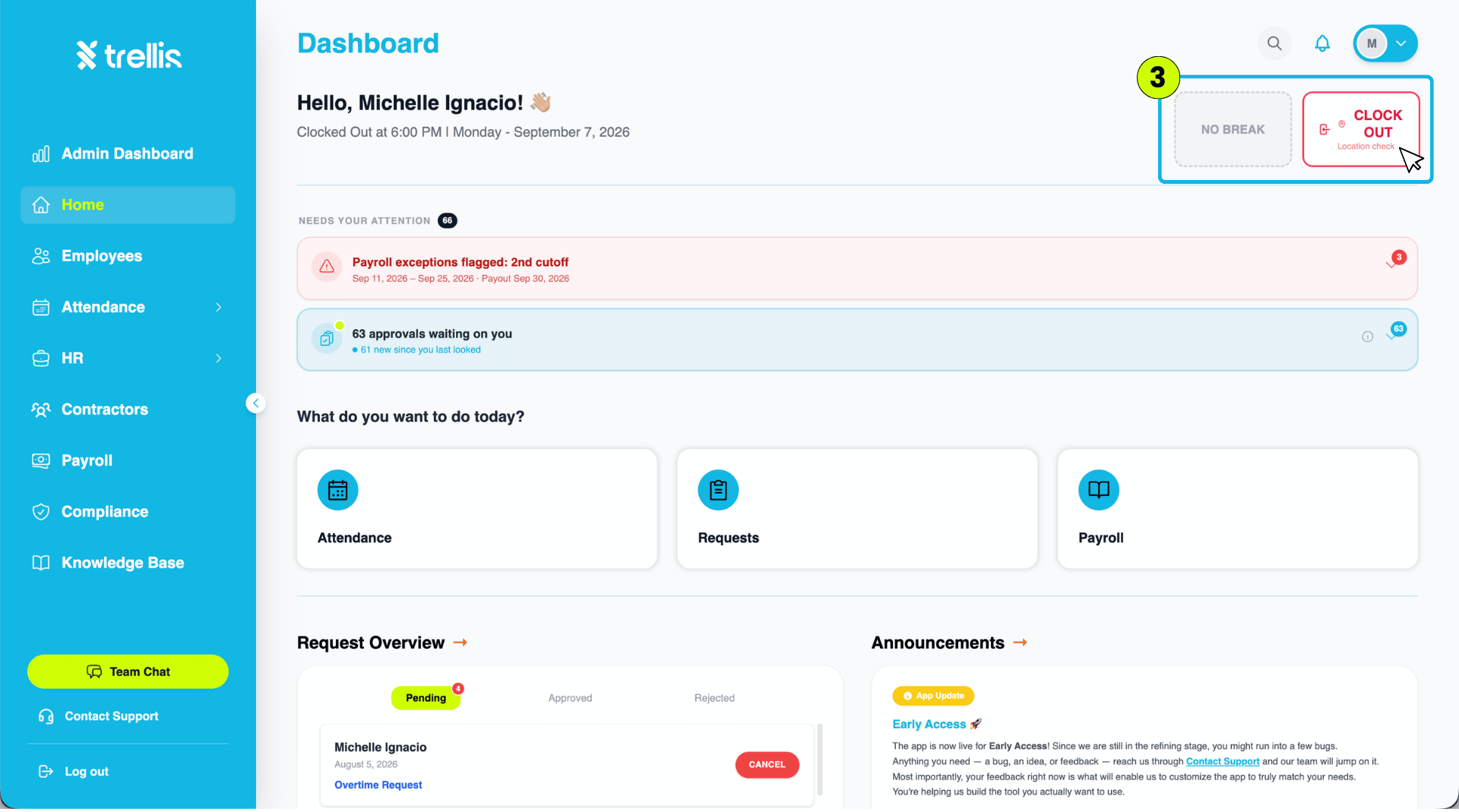
You are now clocked back in and the Dashboard returns to your active session, with the "Clock Out" button available.
 Read the full guide →
From the sidebar, click "Home."
On the Home page, click "Attendance."
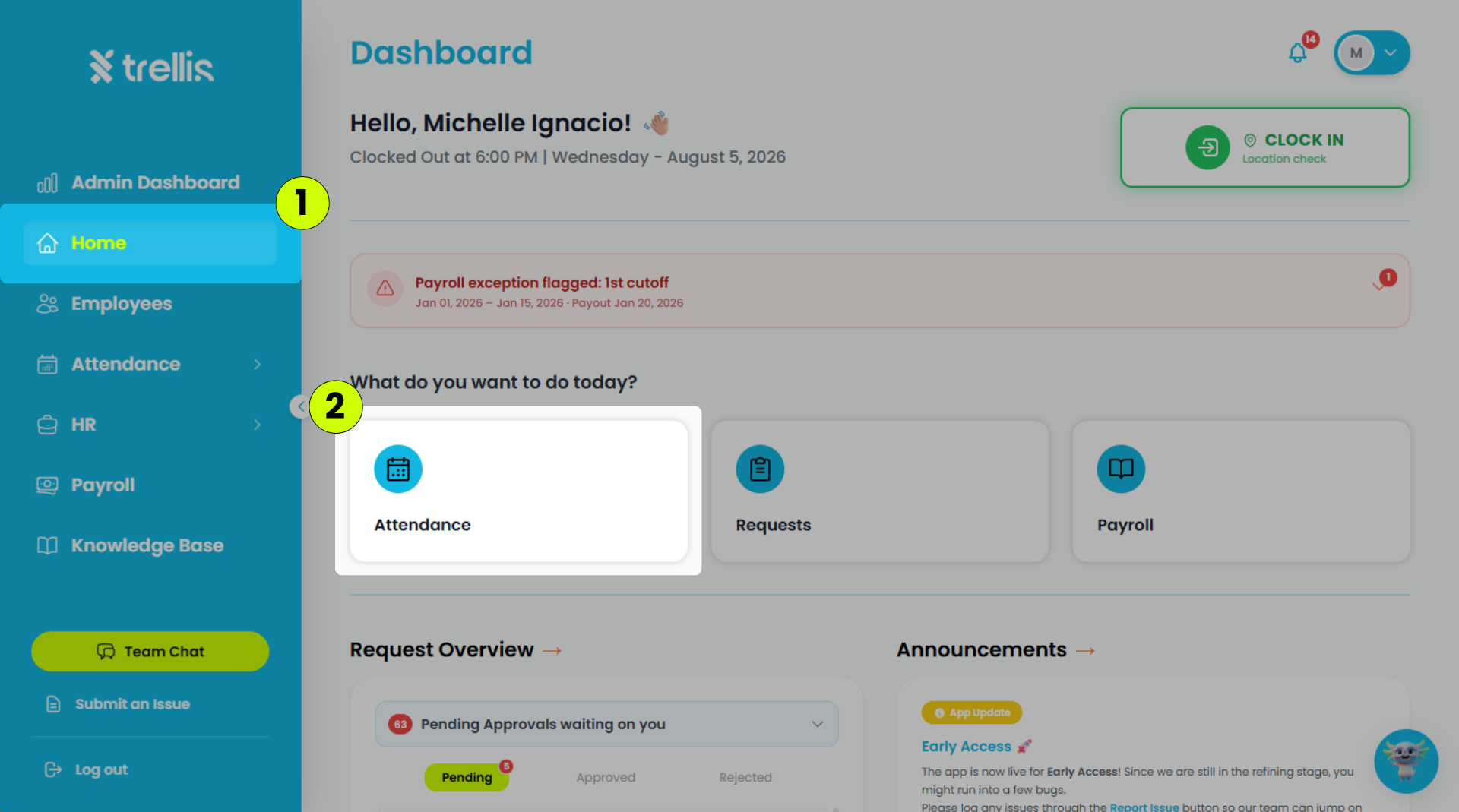
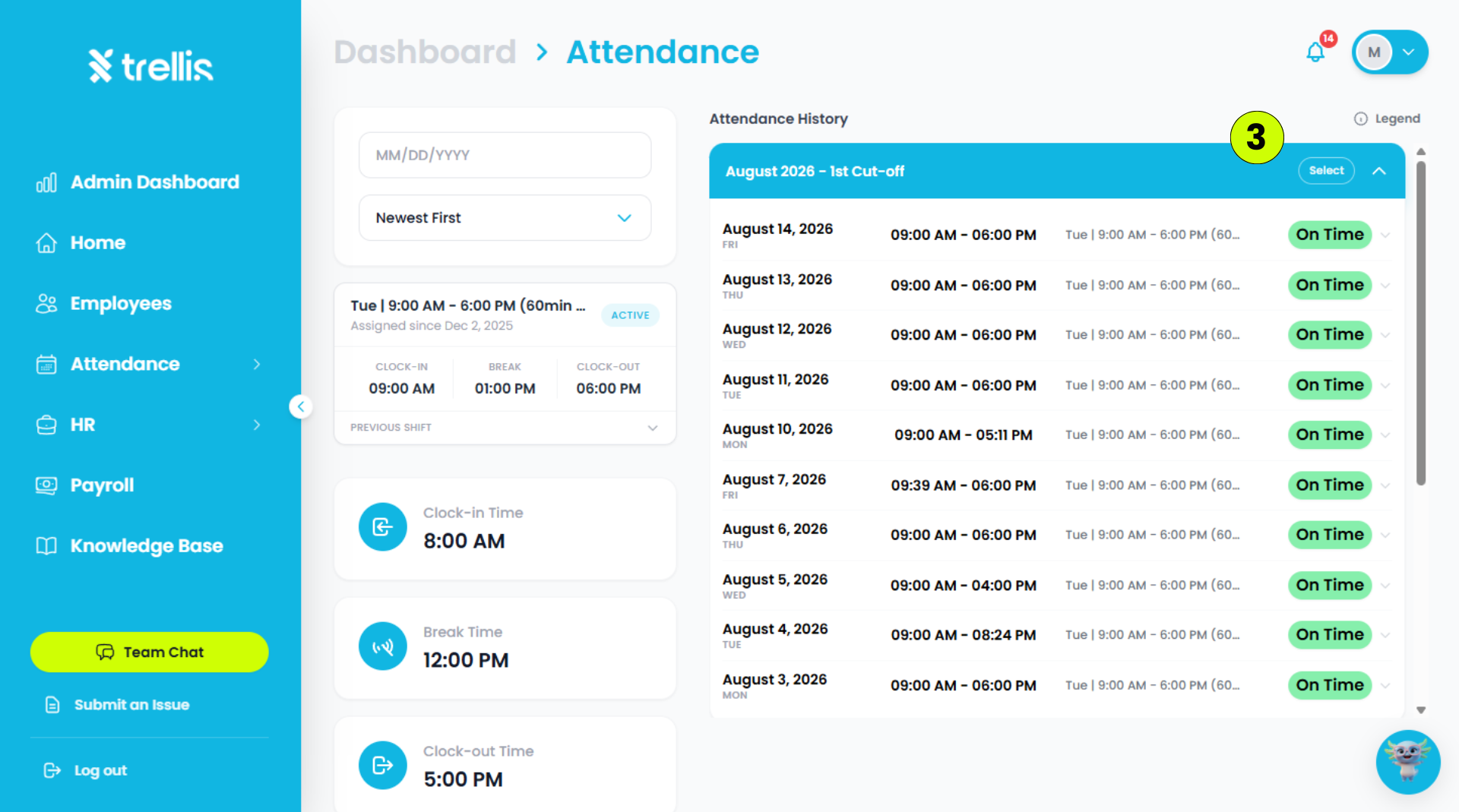
Your Attendance Report page will open, where you can view your attendance history.
 Read the full guide →
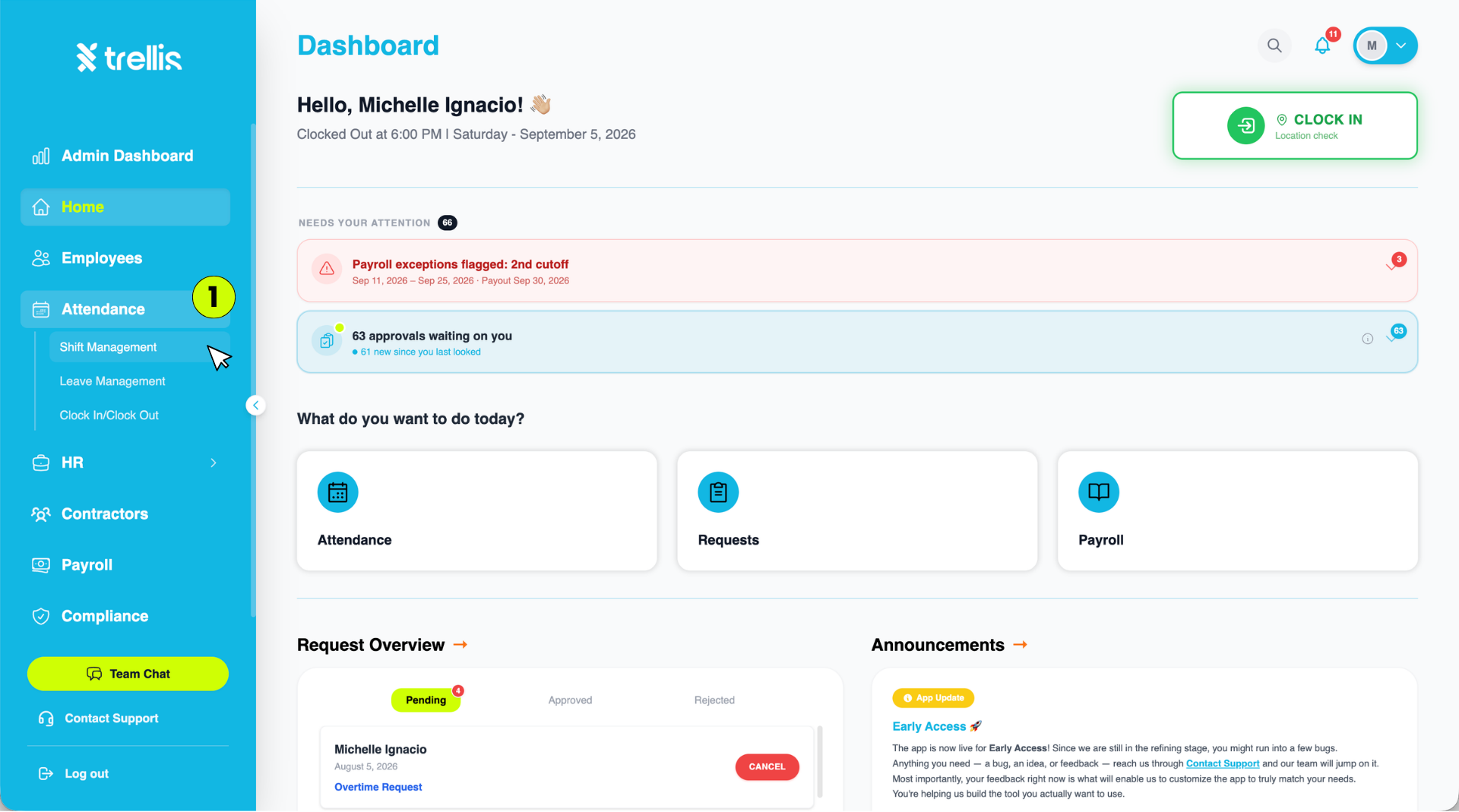
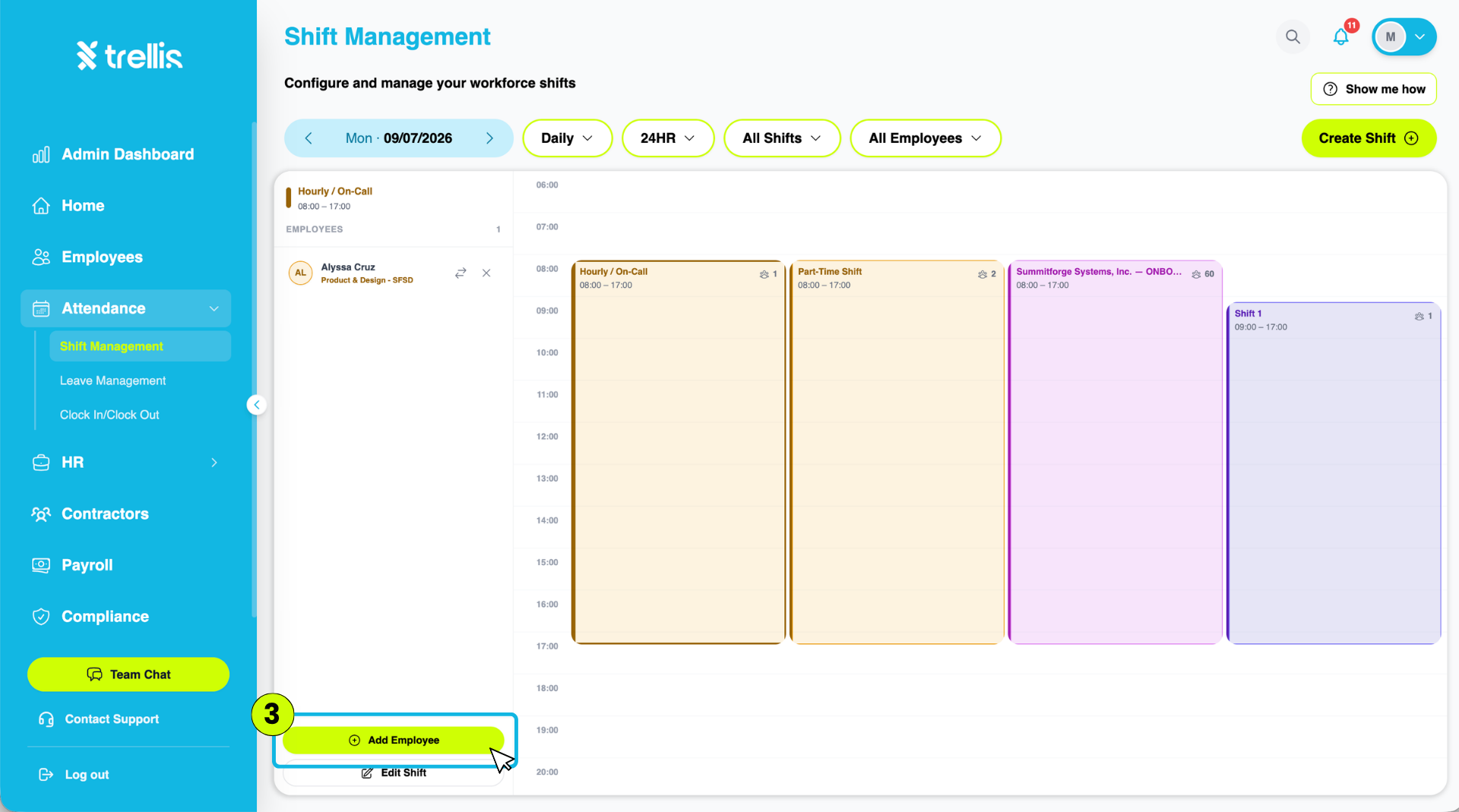
From the sidebar, click "Attendance" to expand the menu, then select "Shift Management."
On the Shift Management page, click into the shift column you want to assign employees to (e.g., "Hourly / On-Call"). This opens a panel on the left showing that shift's details and current employees.
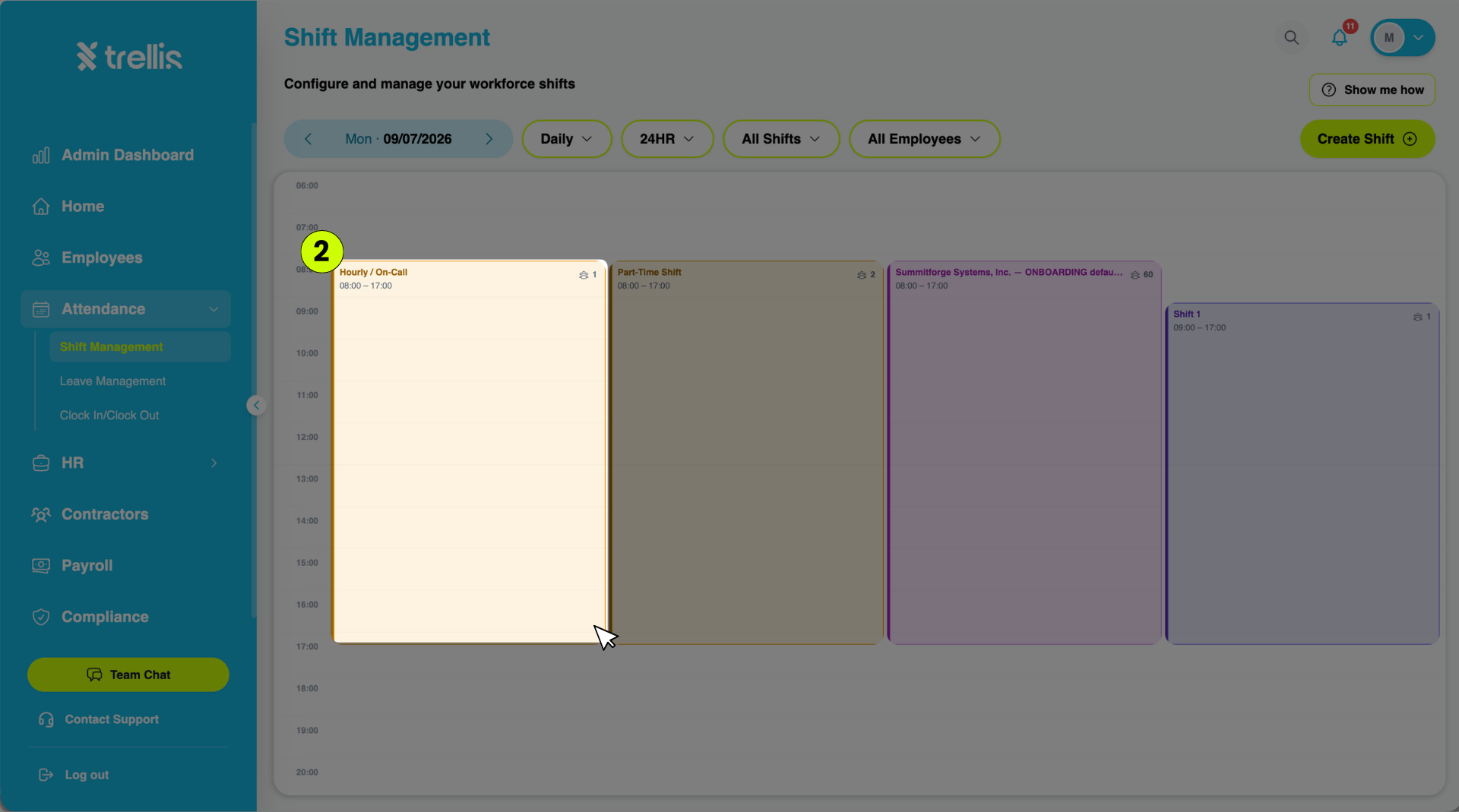
Click the "Add Employee" button at the bottom of that panel.
The "Assign Shift" window will appear on the right. Fill in the required details, then click "Assign."
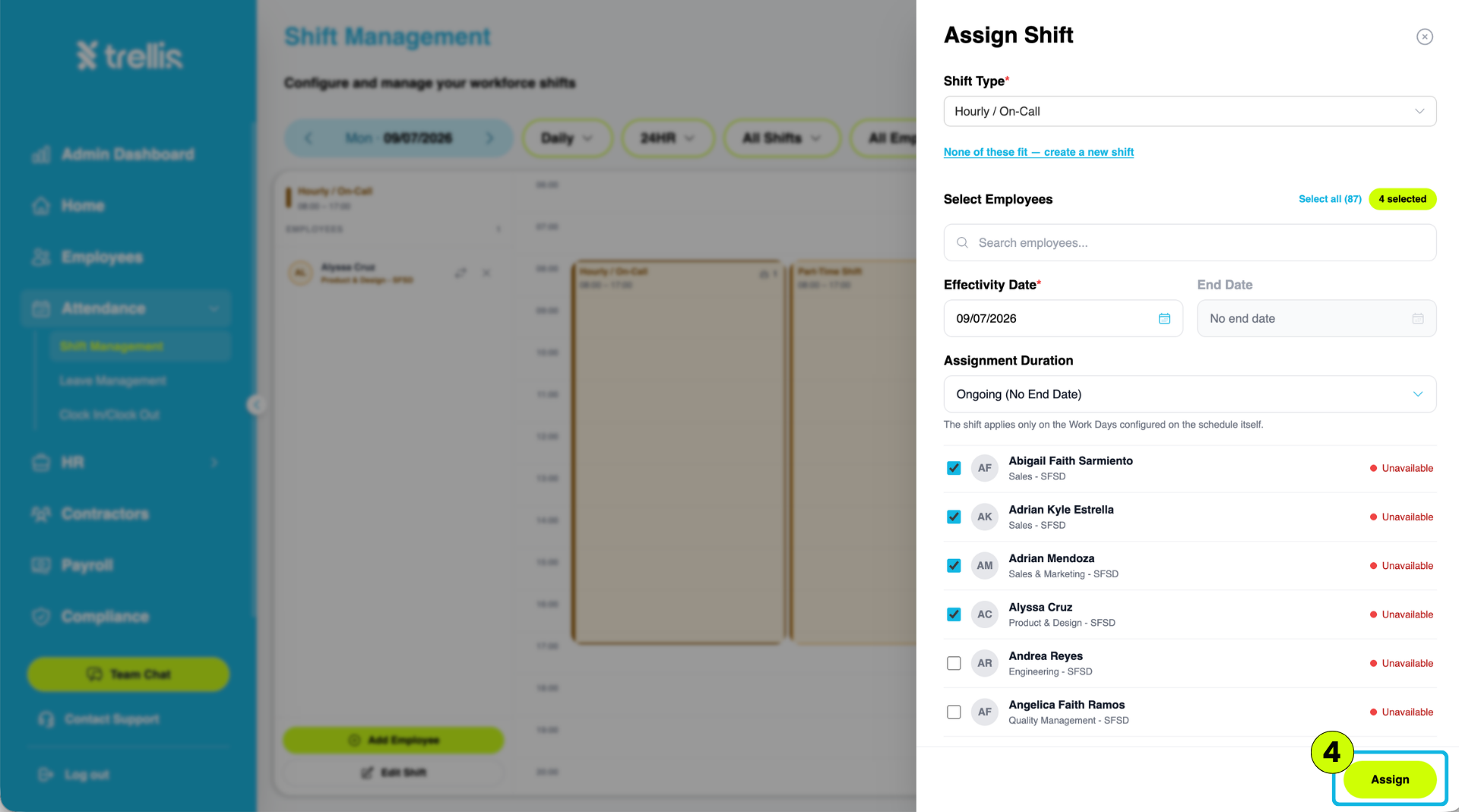
Shift Type — select the shift schedule from the dropdown (or click "None of these fit — create a new shift" if you need a new one)
Select Employees — search or check off the employee/s you want to assign to this shift; you can also click "Select all"
Effectivity Date — set the date the shift assignment begins
End Date — optional; leave as "No end date" if the assignment doesn't have a fixed end
Assignment Duration — defaults to "Ongoing (No End Date)." The shift will automatically apply only on the work days configured on the shift schedule itself.
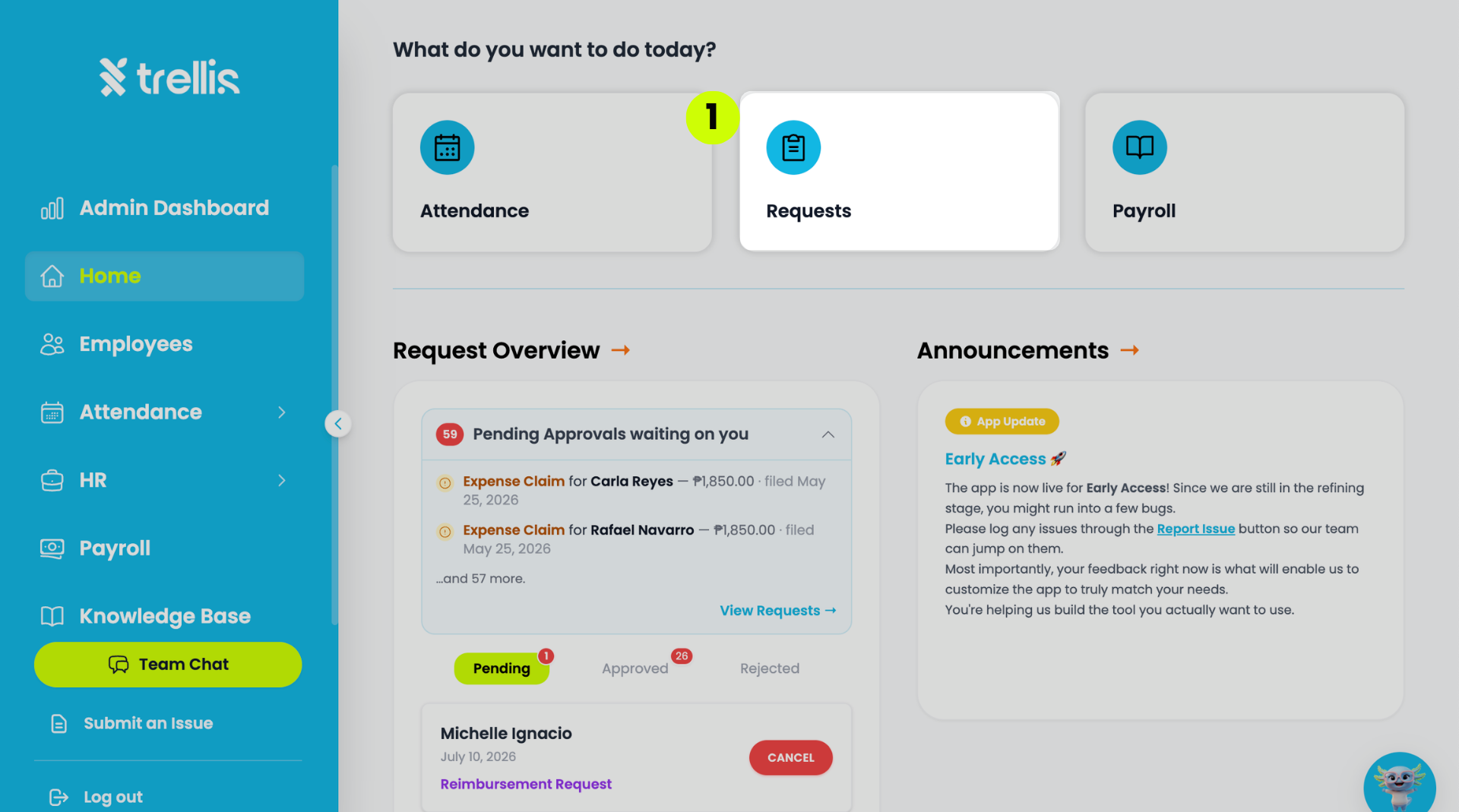
From the sidebar, click "Requests"
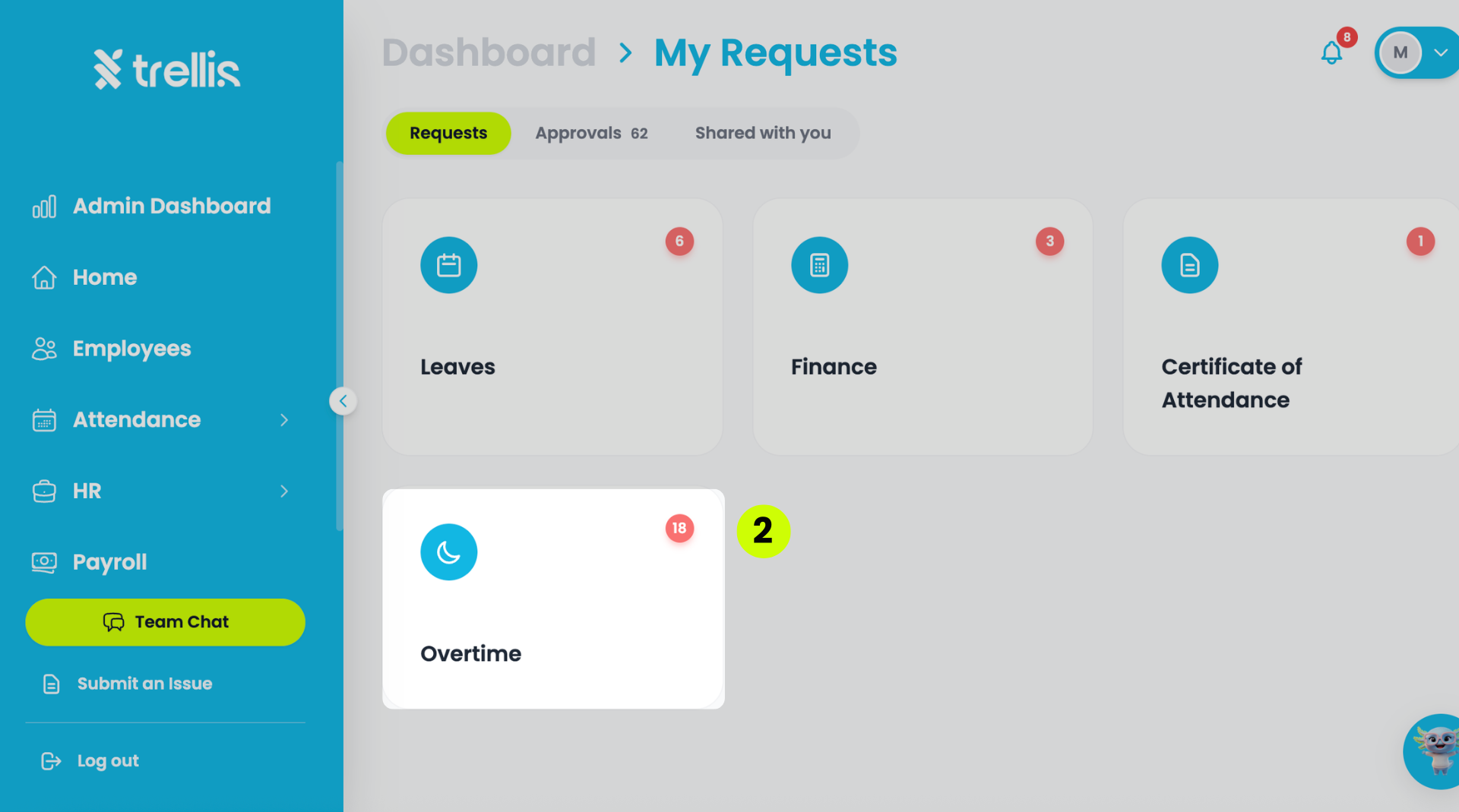
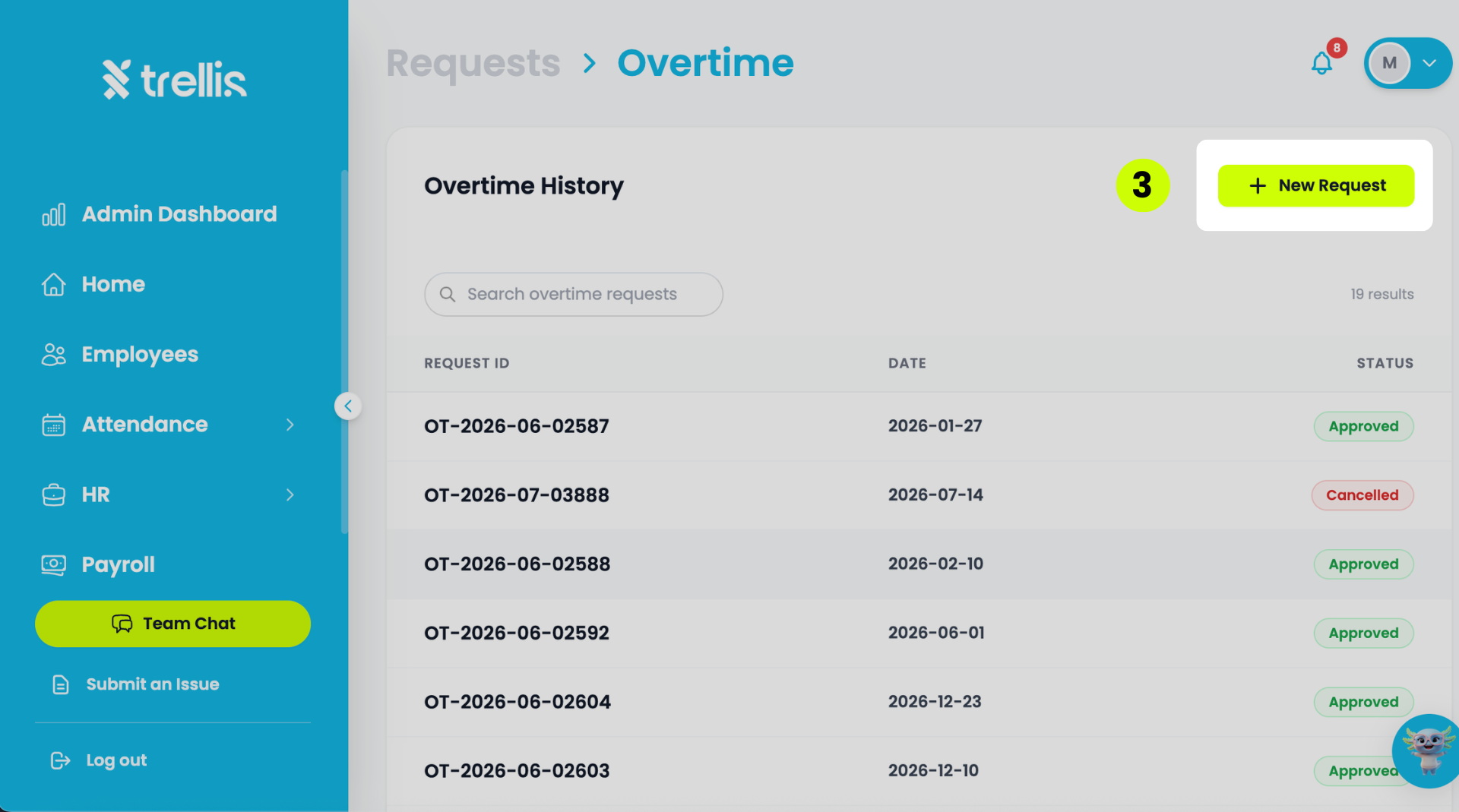
Select the "Overtime" tile.
Click “+ New Request.”
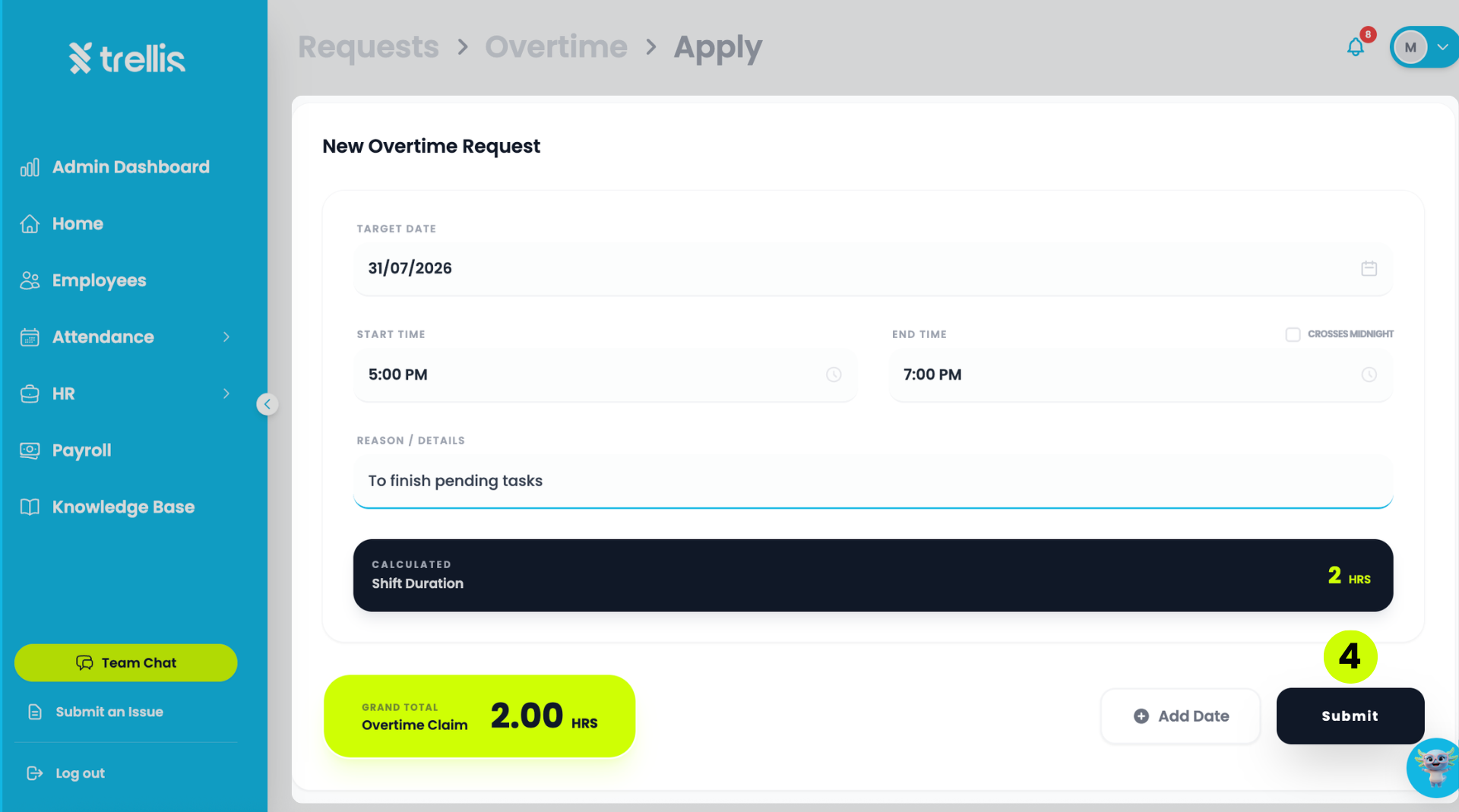
Fill in the "Target Date", "Start/End Times", and "Reason", then click the "Submit" button to send your request.
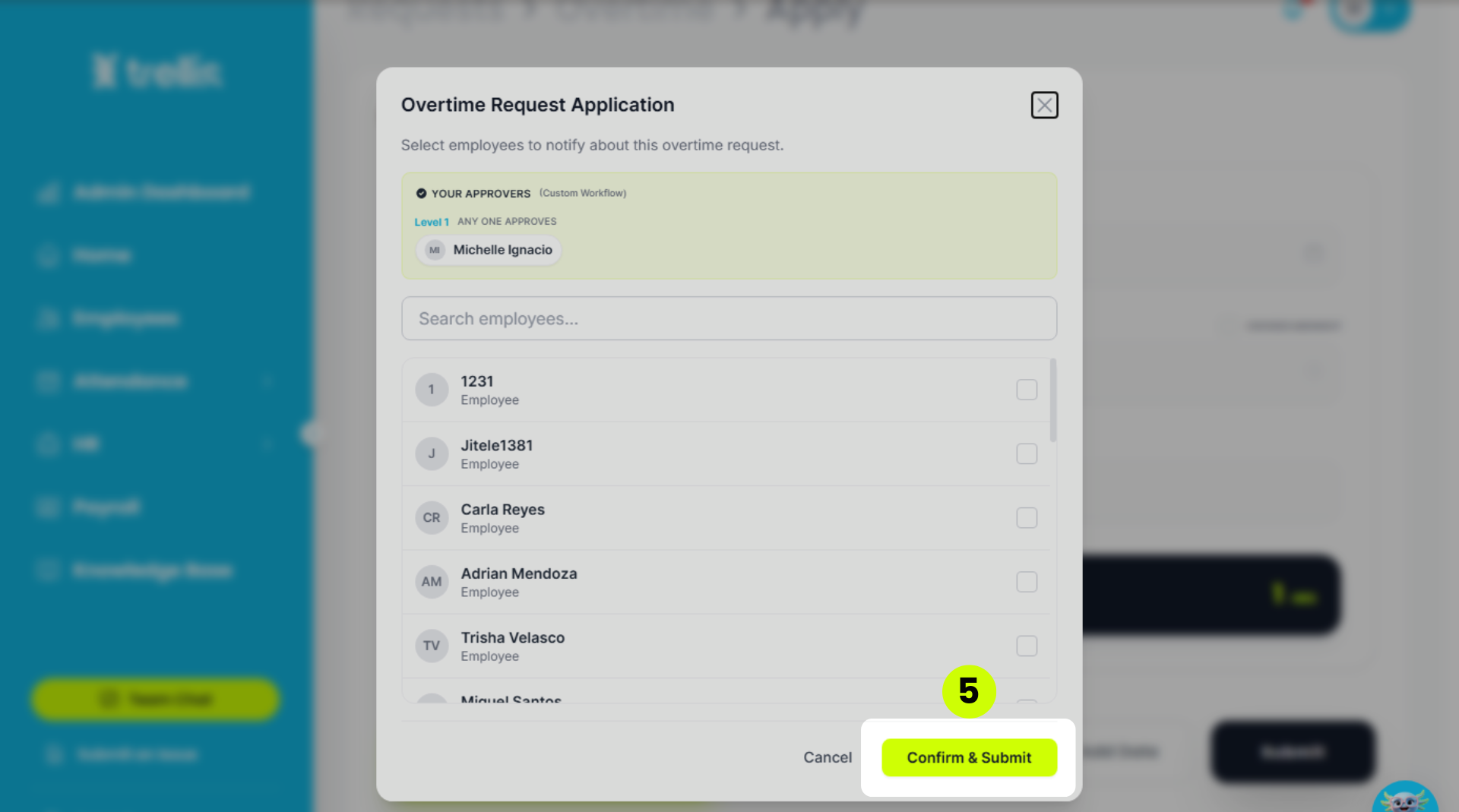
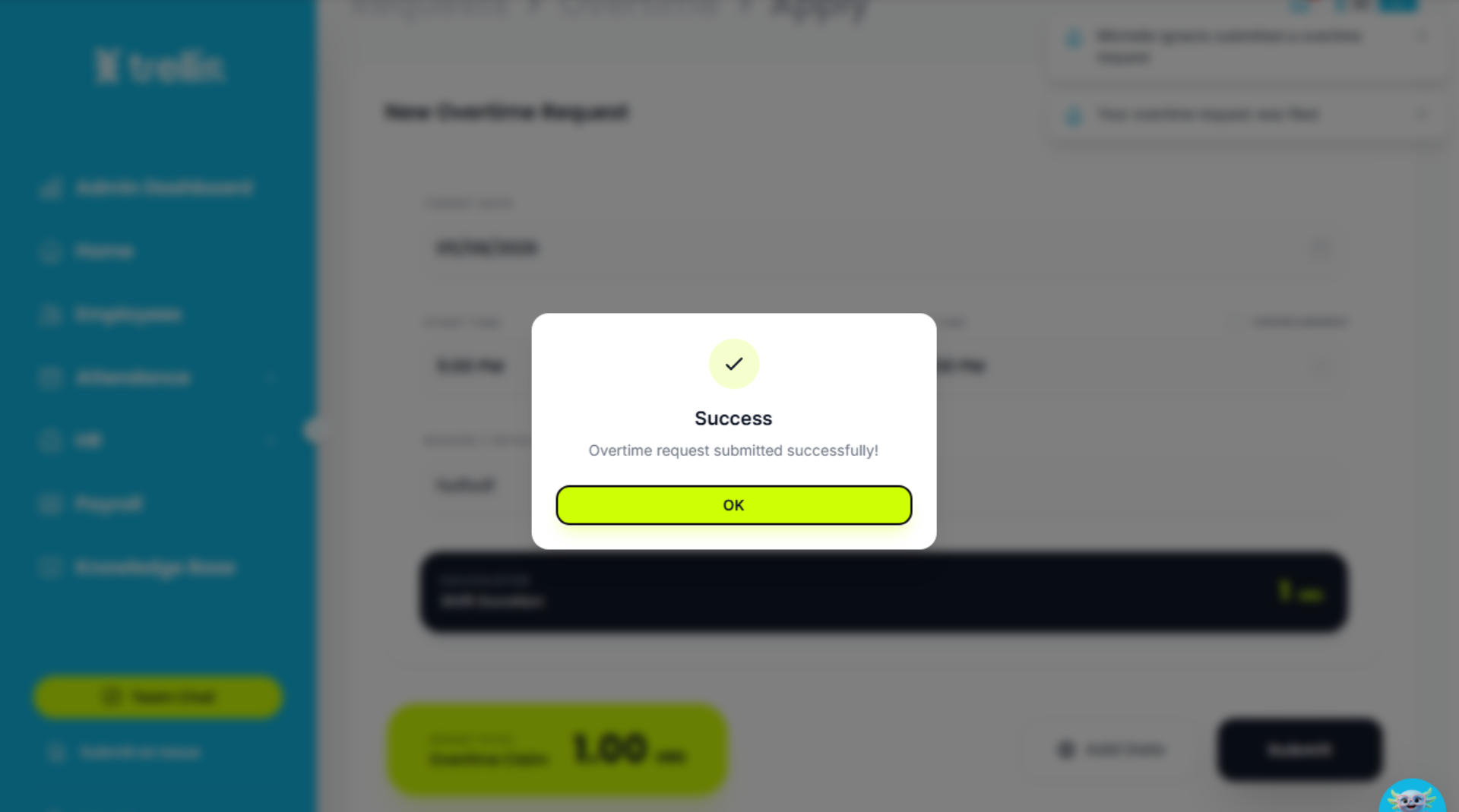
Select employees to notify about the overtime request. After that, press “Confirm & Submit”. Finally, once the "Success" pop-up appears, click "OK" to complete the activity and return to the home screen.
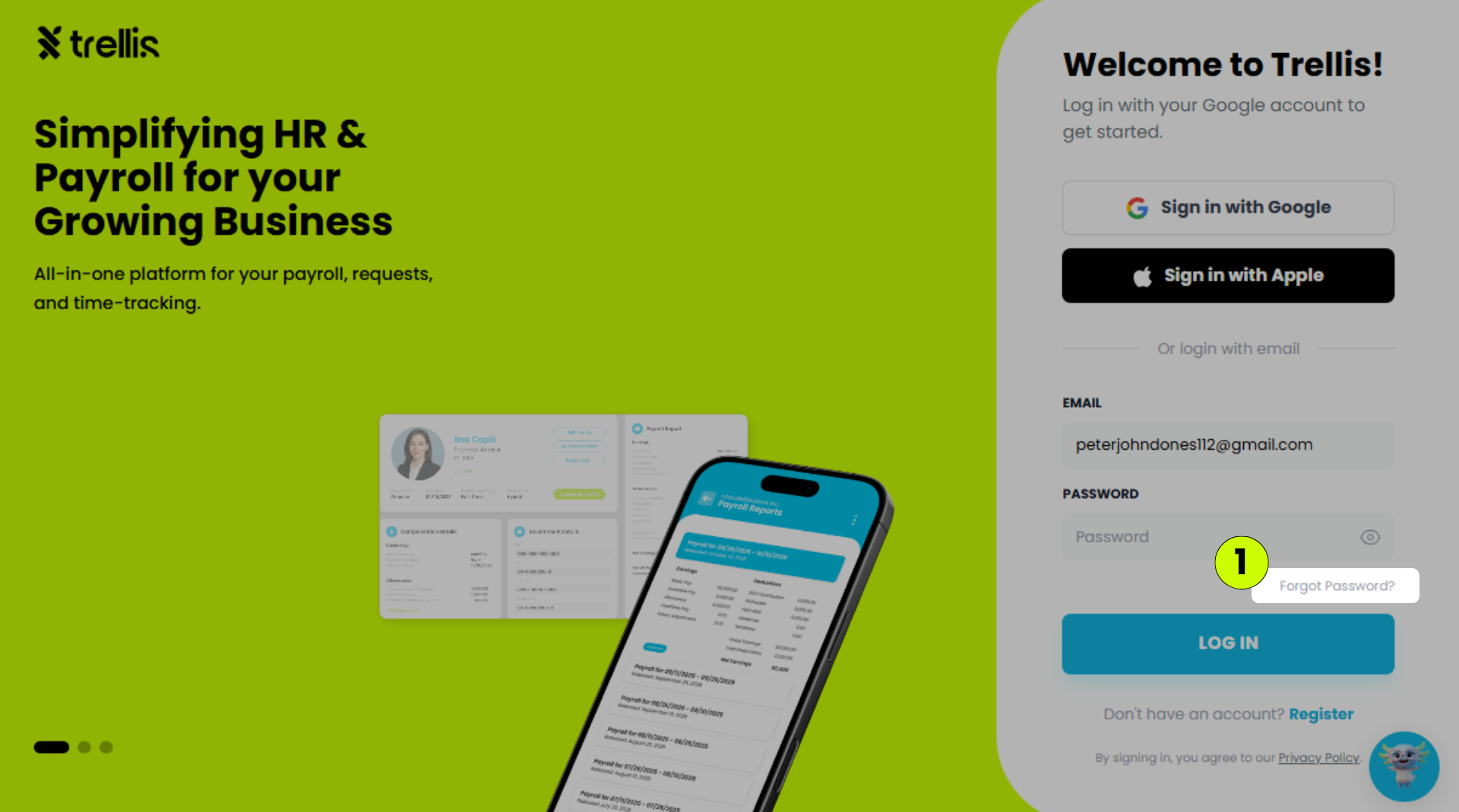
On the login page, click “Forgot Password?”
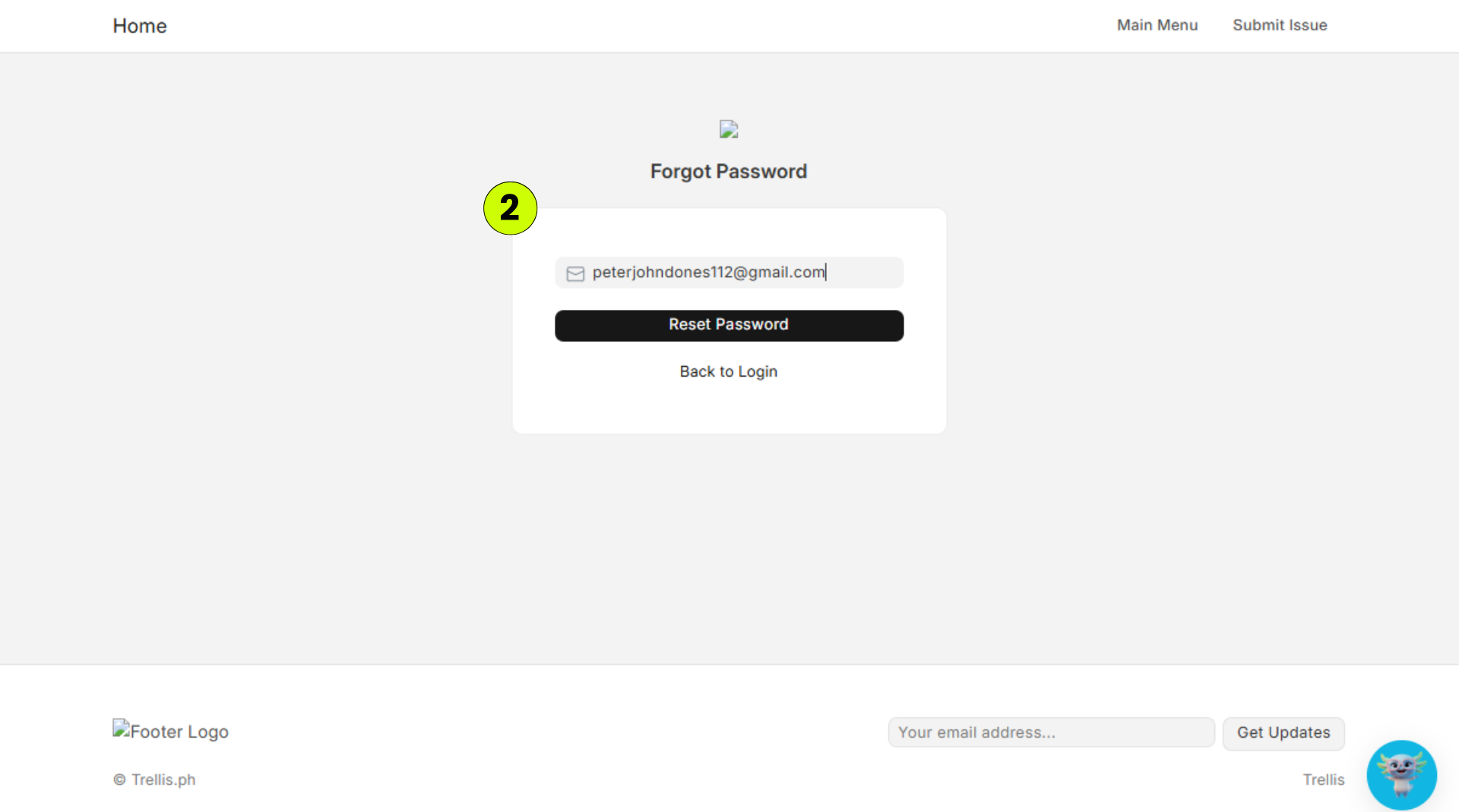
Enter your registered email address, then click “Reset Password”.
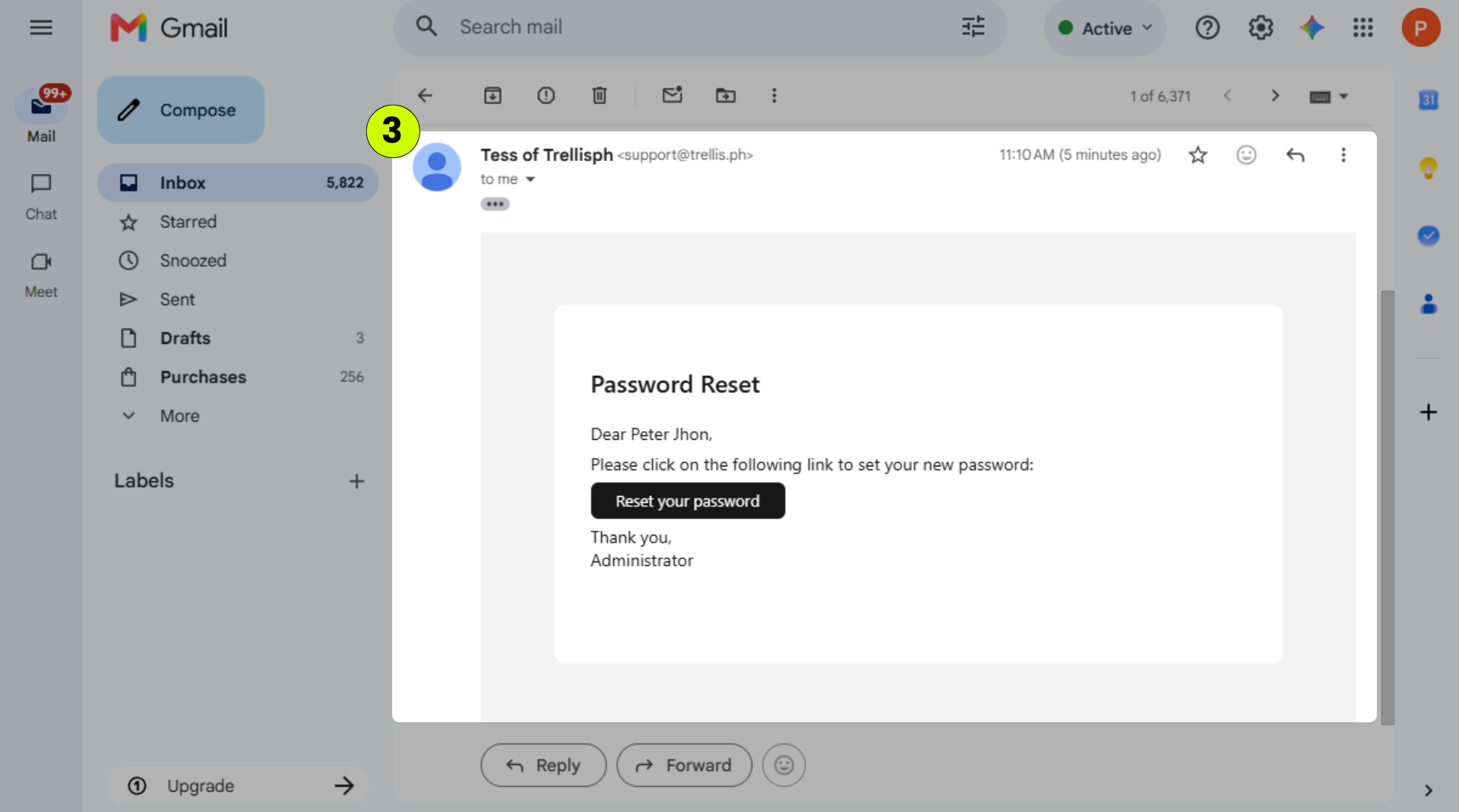
Open the password reset email and click “Reset your password”.
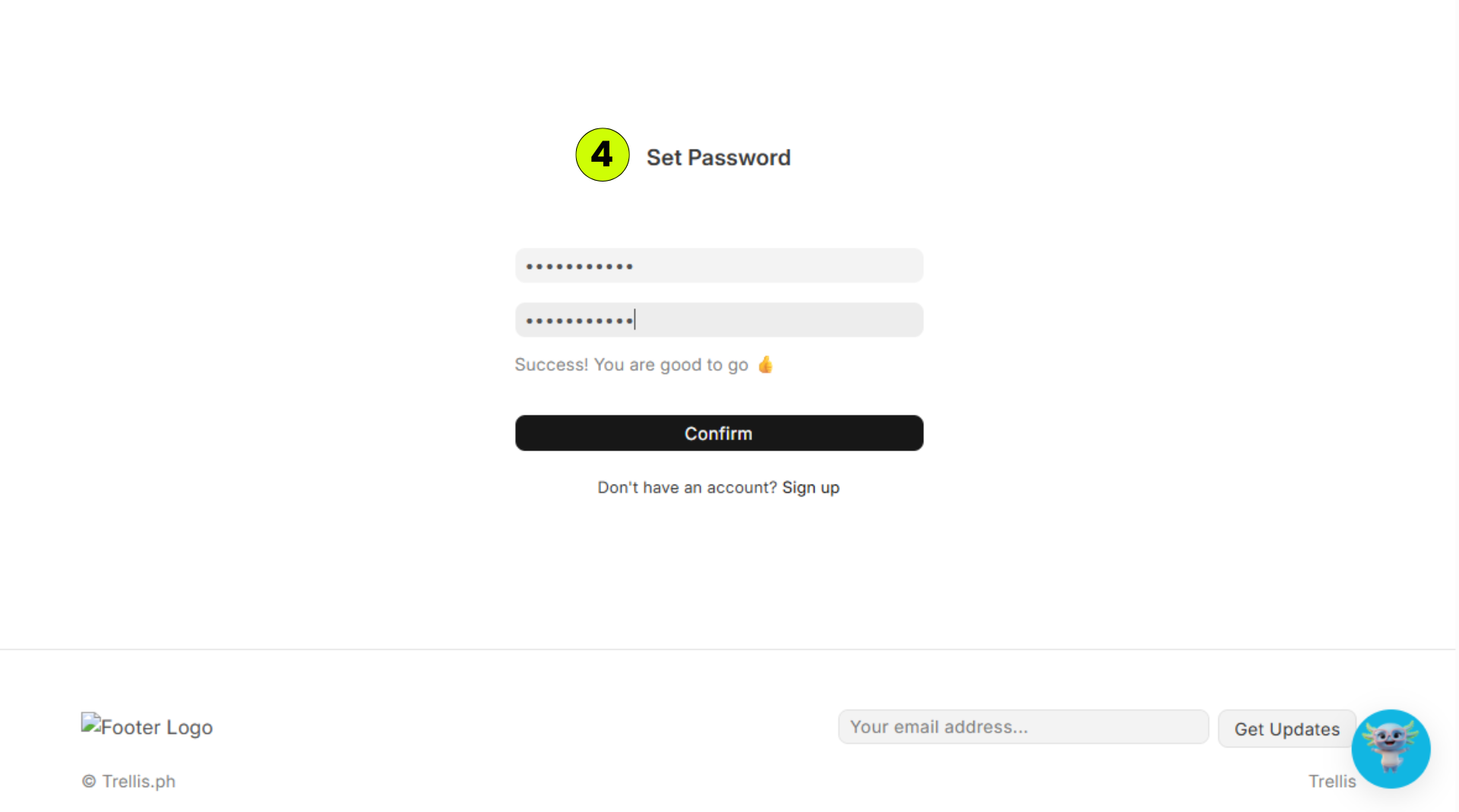
Enter and confirm your new password, then click “Confirm”.
 Read the full guide →
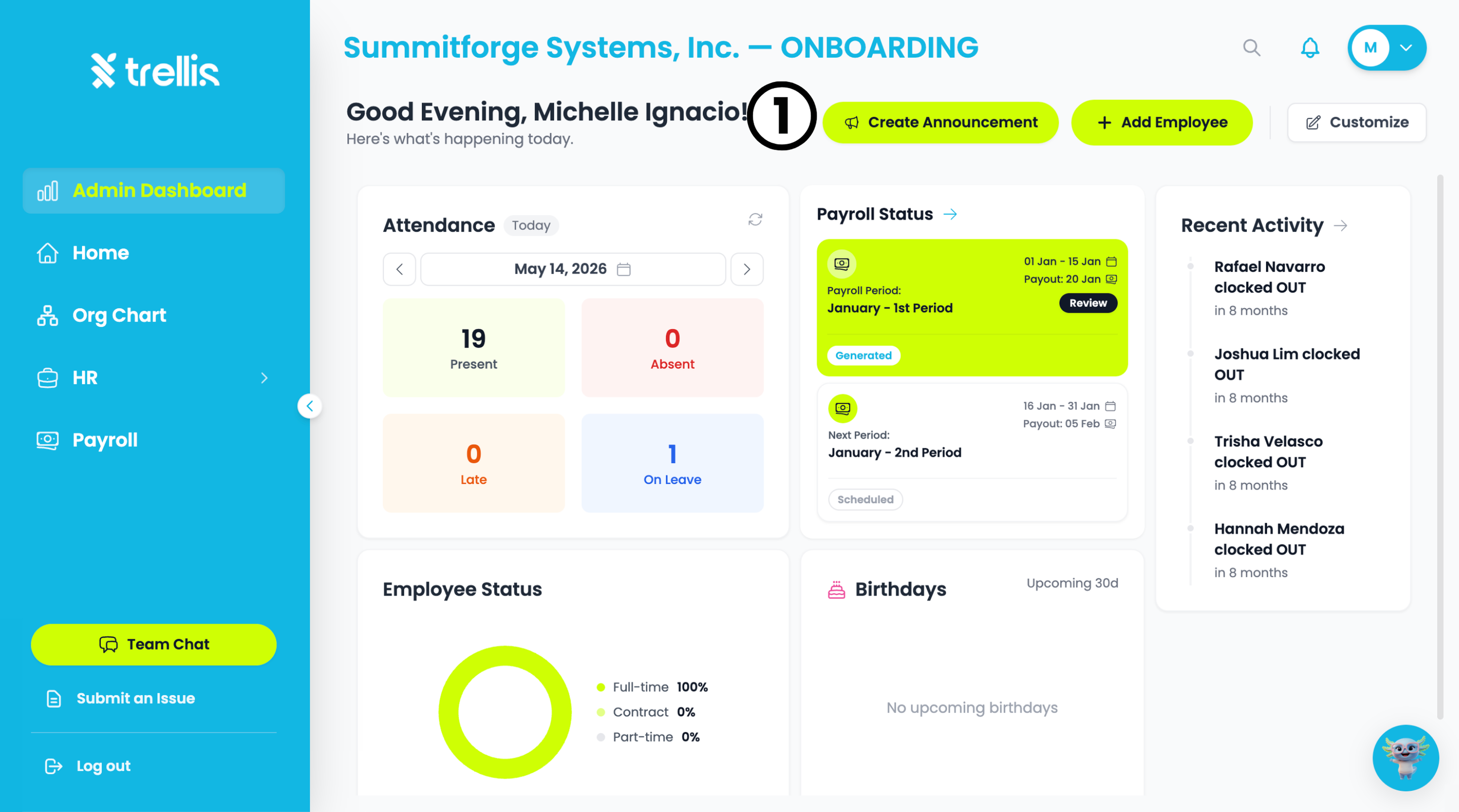
From the “Admin Dashboard”, click the "Create Announcement" button at the top of the page.
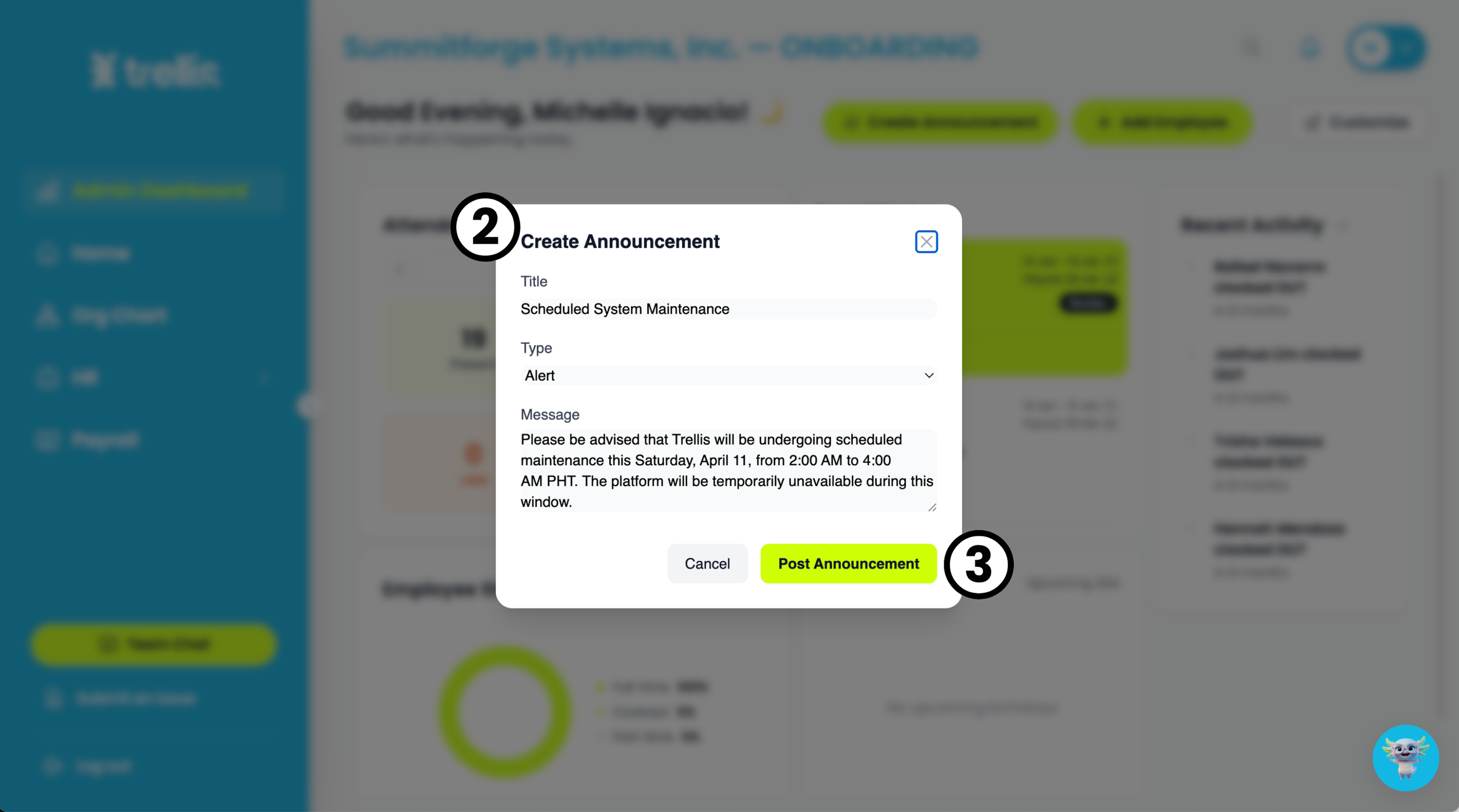
A Create Announcement window will appear. Fill in the Title, select the Type (e.g. Alert), and write your Message in the field provided.
Click "Post Announcement" to publish it to your team.
A success pop-up appears. Click “OK” to finish.
Read the full guide →From the sidebar, click "HR" to expand the menu, then select "Shift Management."
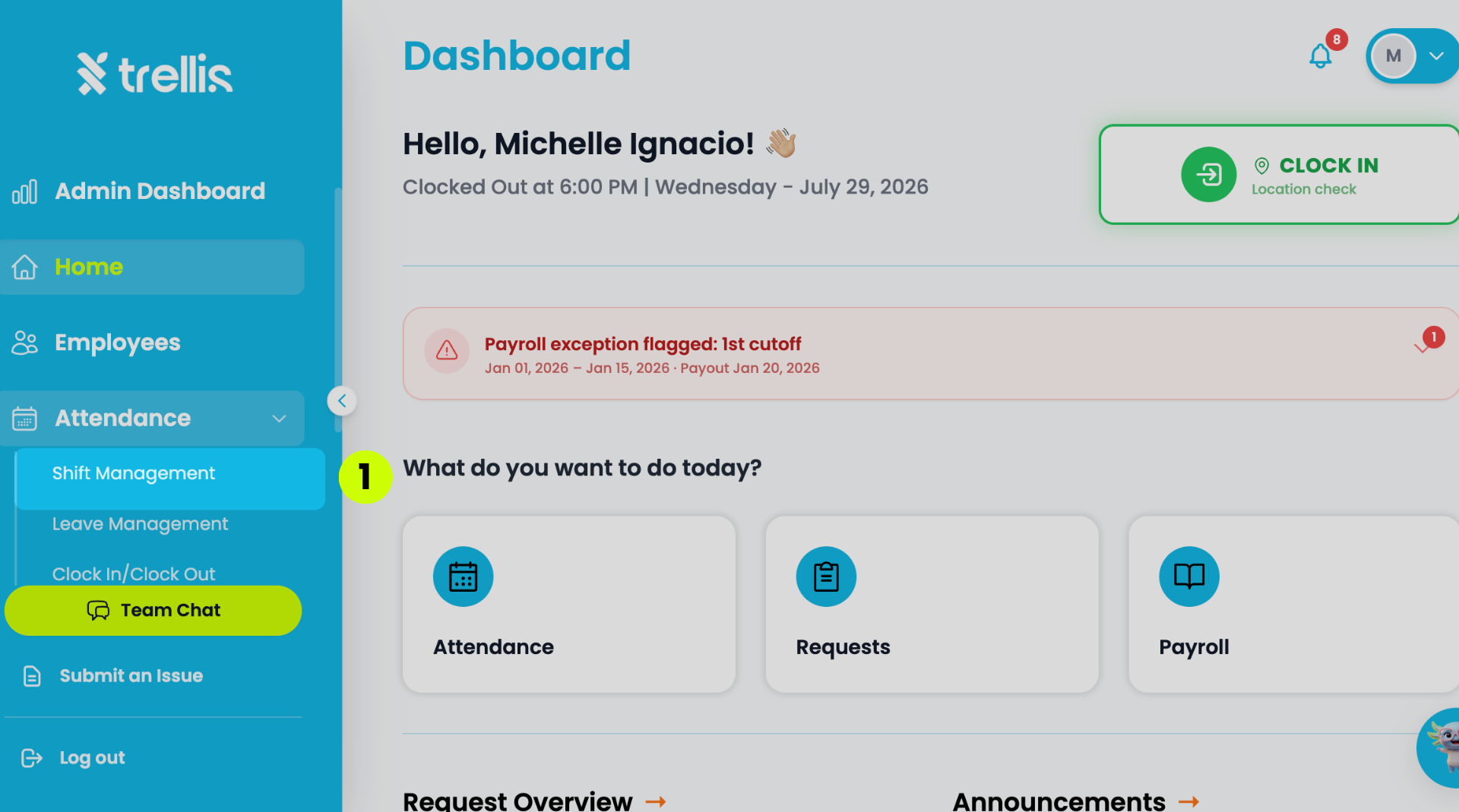
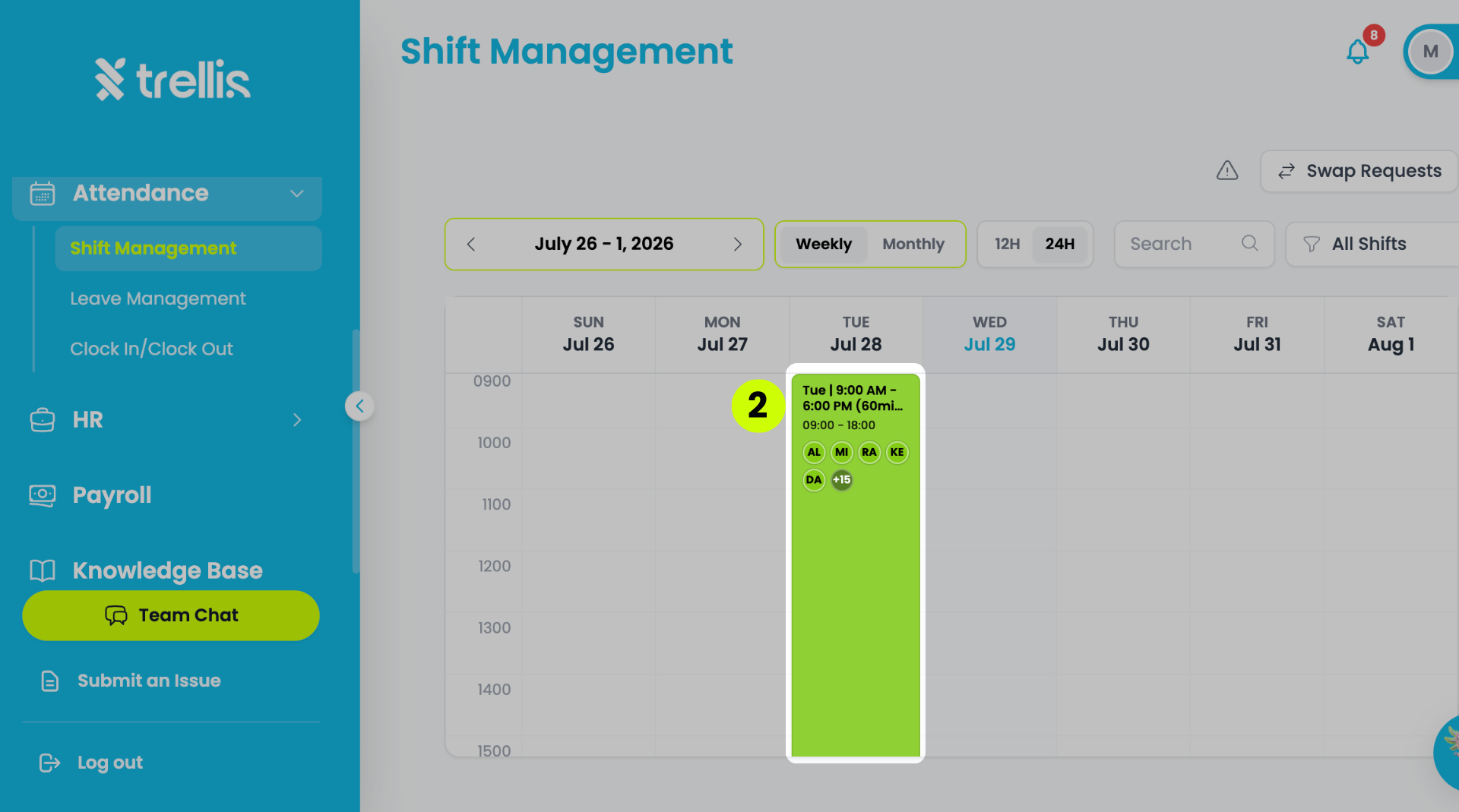
On the "Shift Management” page, click on the shift block you want to edit from the calendar.
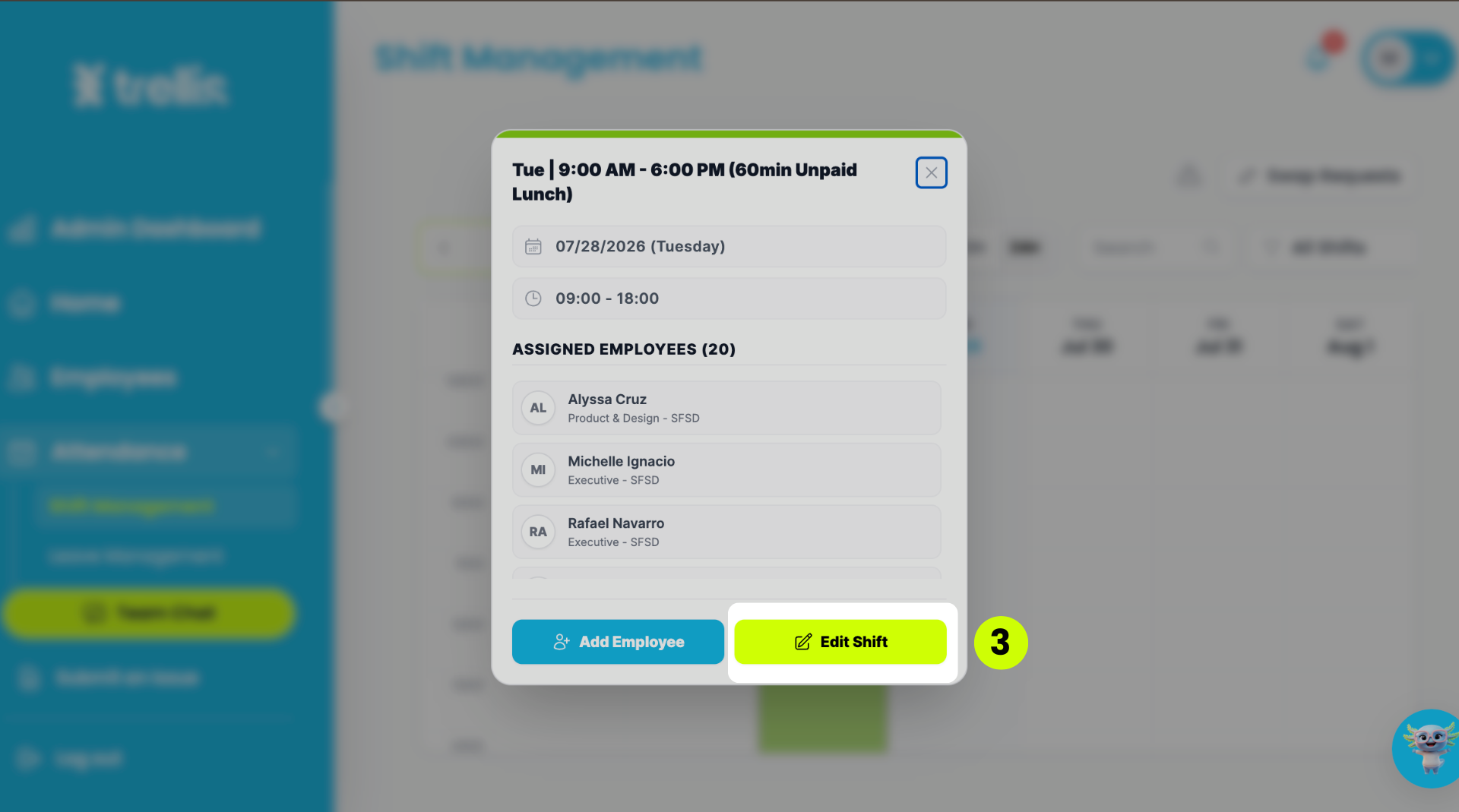
A popup will appear showing the shift details including the date, time, and list of "Assigned Employees”. Click "Edit Shift" to proceed.
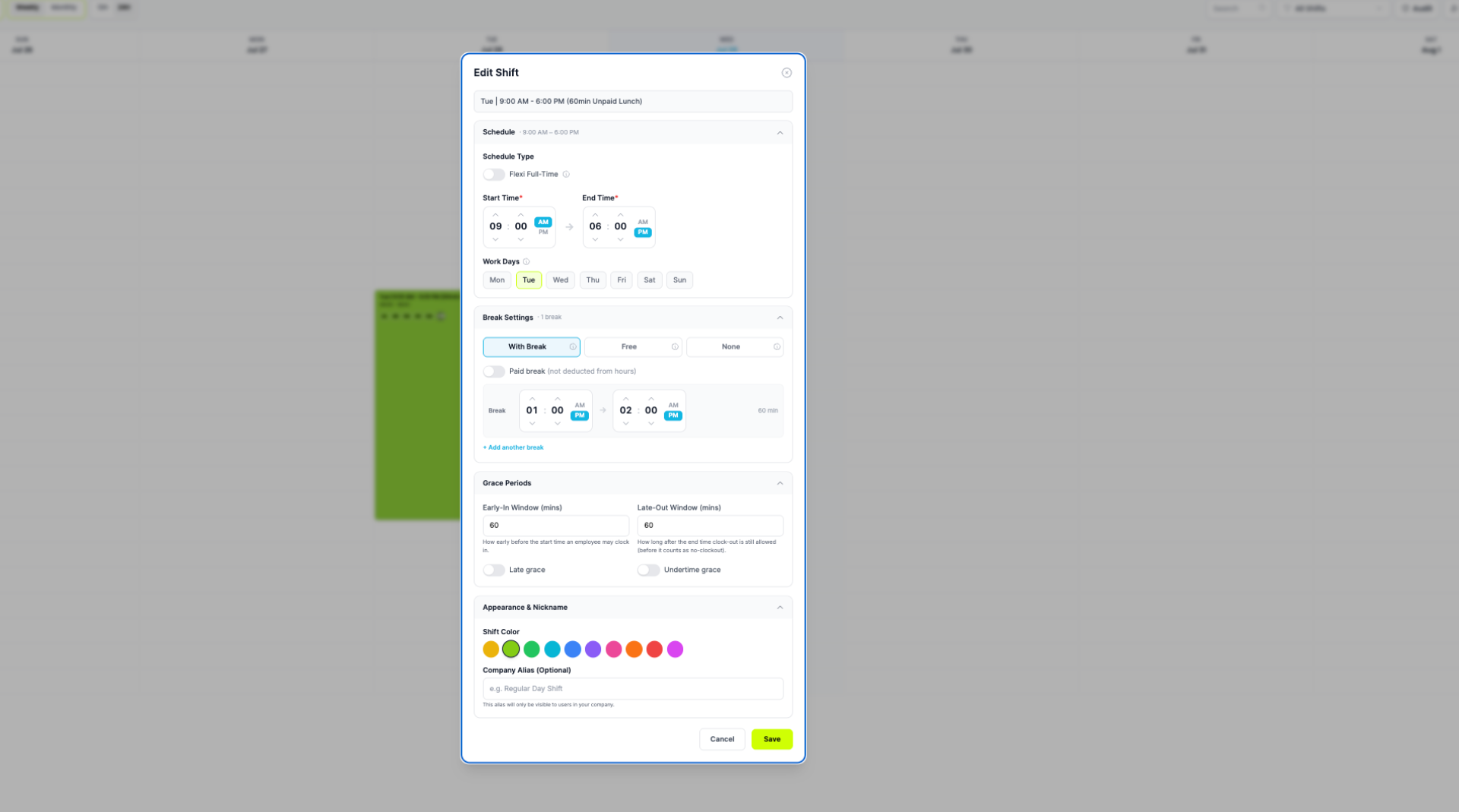
The “Edit Shift” window will appear. Update the fields as needed, then click “Save”.
Schedule Type & Flex Allowance — adjust if Flexi Full-Time applies
Start Time & End Time — update the shift hours
Work Days — update which days this shift applies to
Break Settings — update the break type, start time, and end time
Grace Periods — update Early In and Late Out grace period minutes
Company Alias (optional) — update the internal name visible only within your company
Shift Color — change the color to identify this shift on the calendar
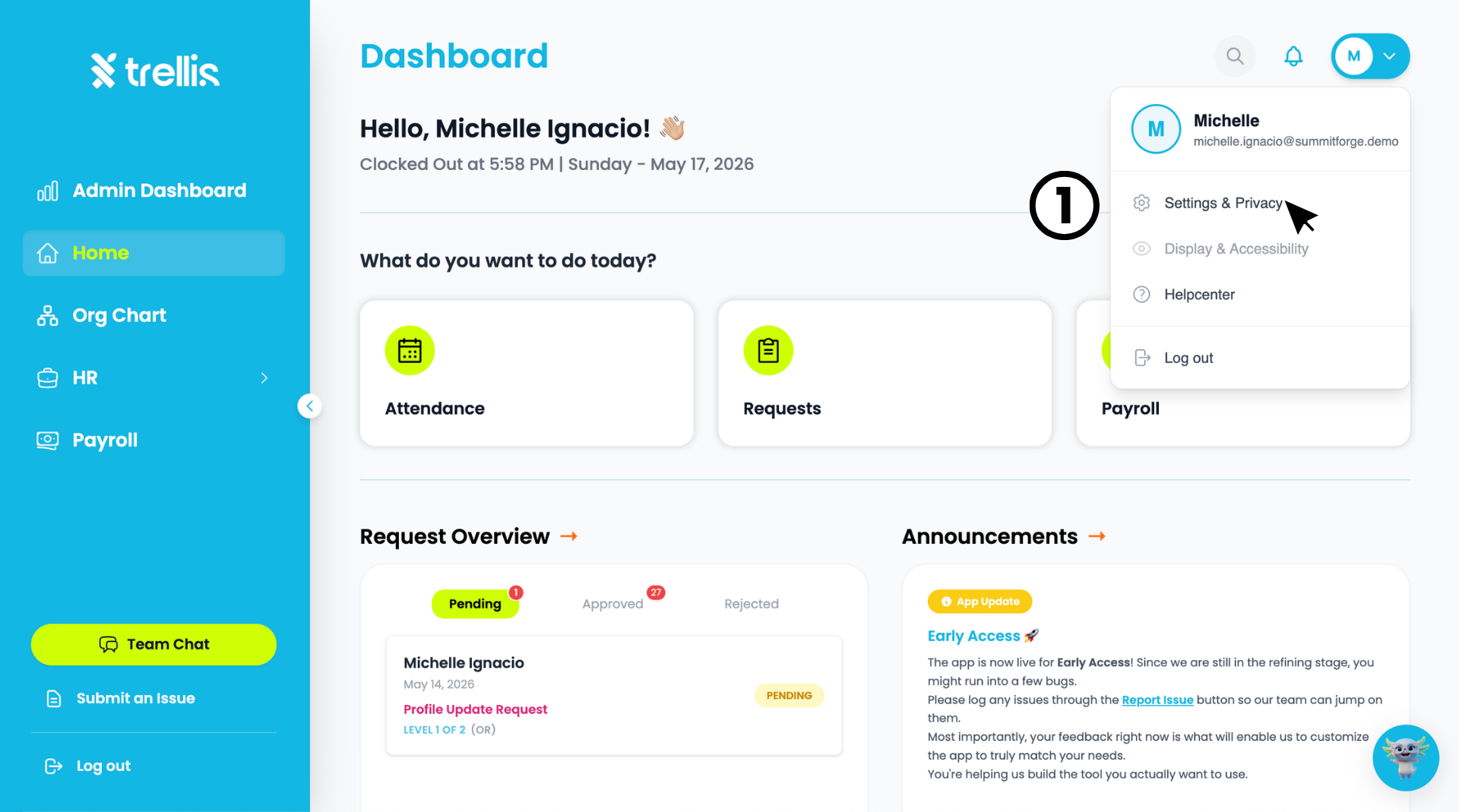
Click your profile icon at the top right corner of the dashboard, then select "Settings & Privacy."
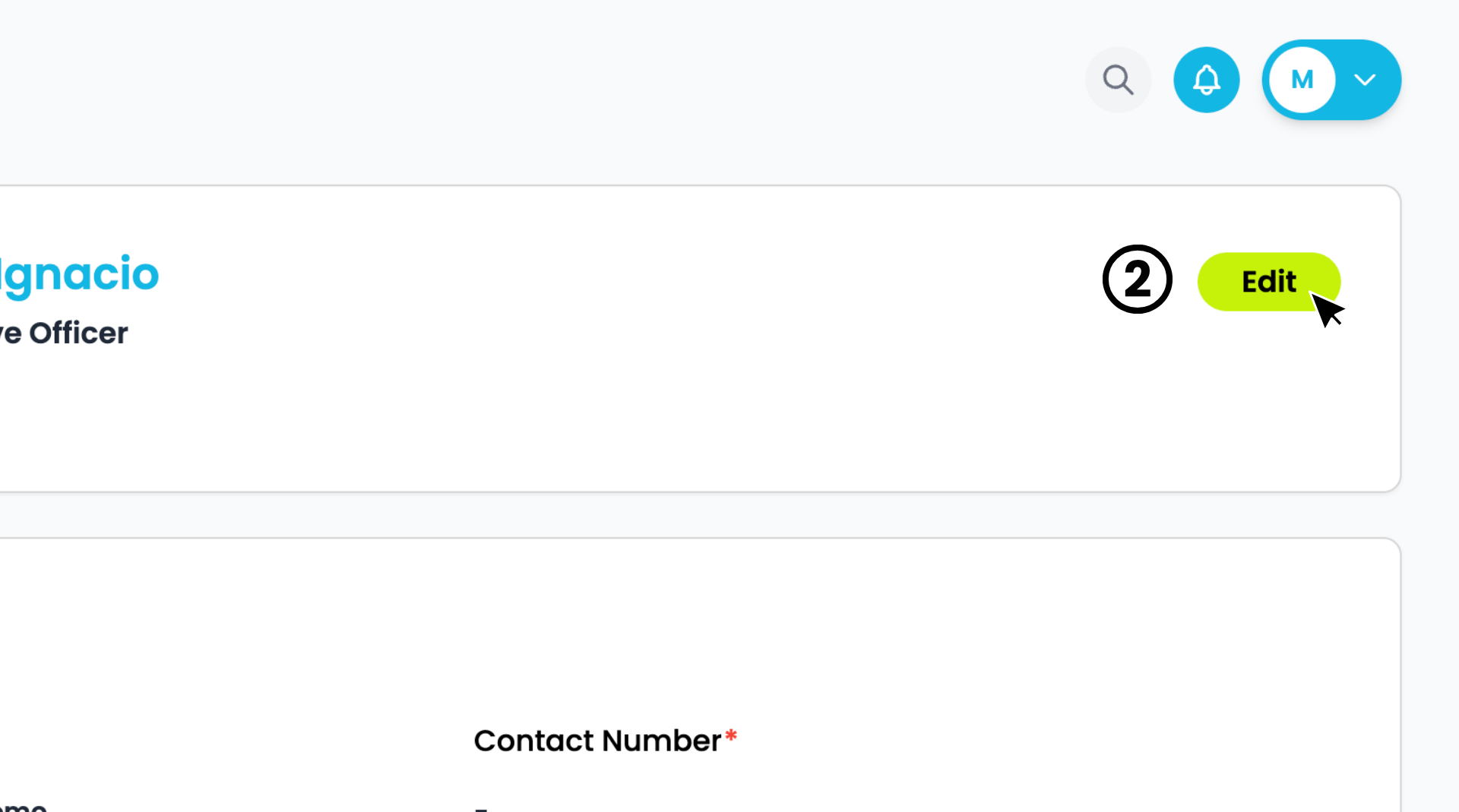
On the ““My Profile page, click the "Edit" button to start editing your profile.
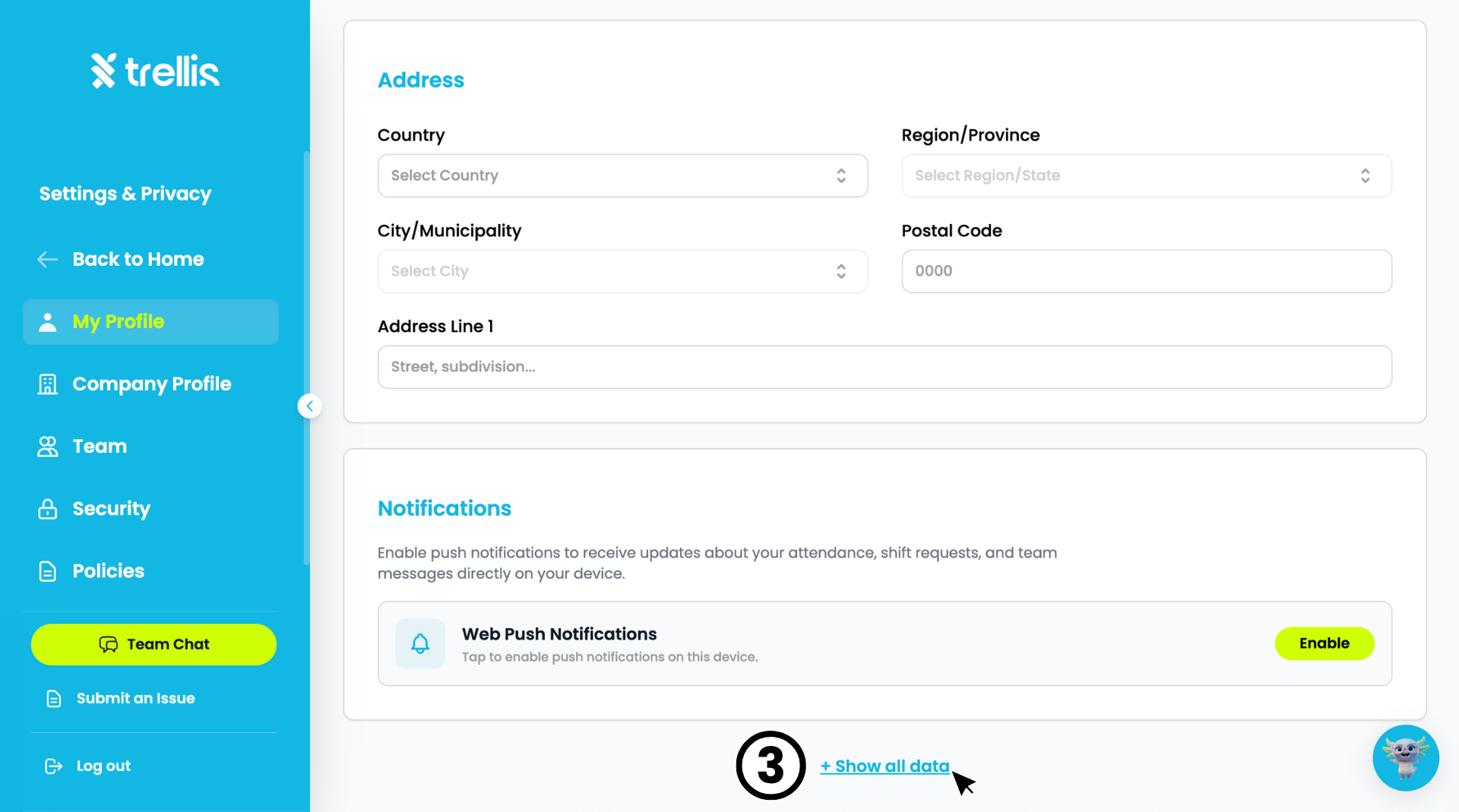
Scroll down and click "+ Show all data" to reveal the additional sections.
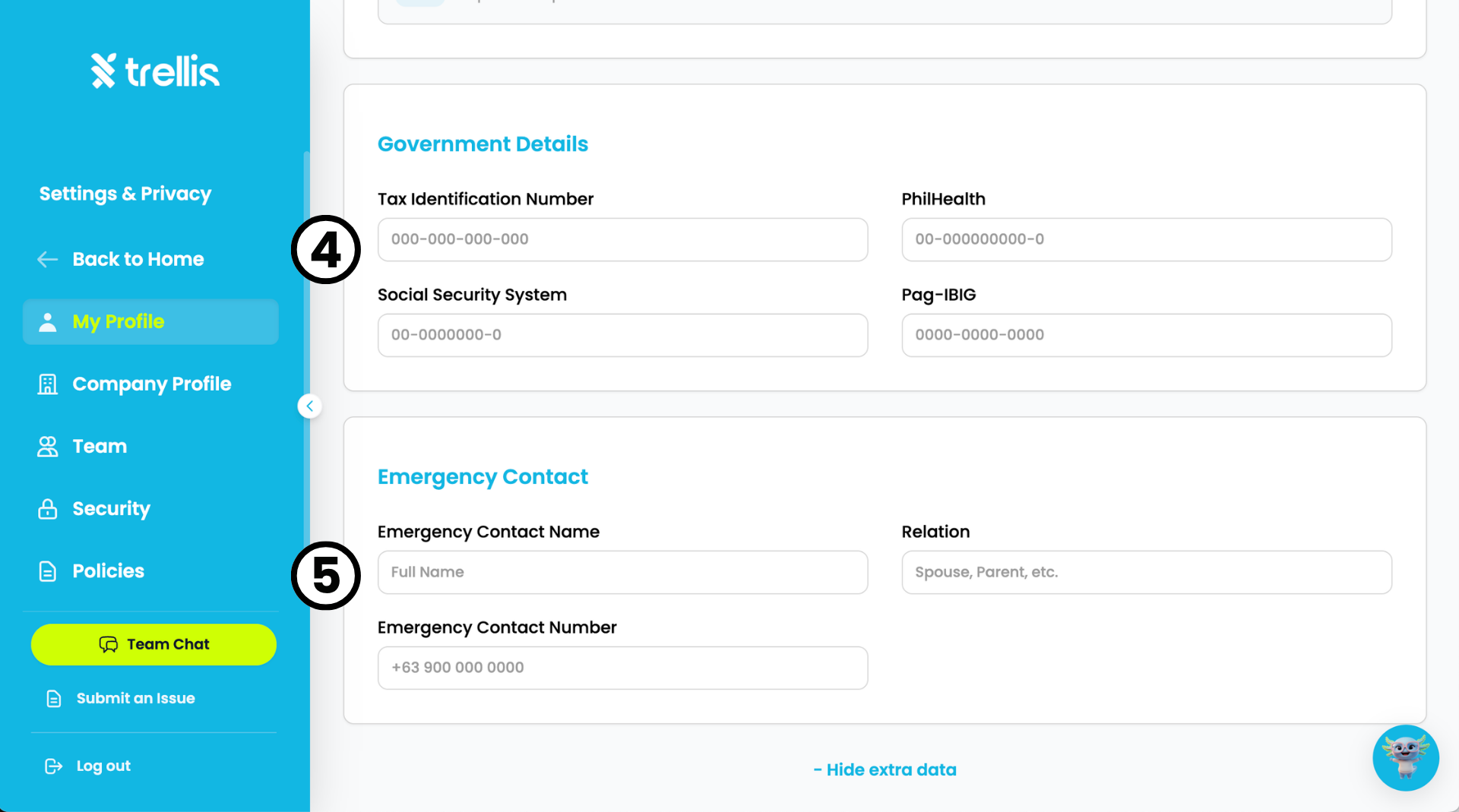
Fill in your "Government Details" including Tax Identification Number, PhilHealth, Social Security System, and Pag-IBIG.
Fill in your "Emergency Contact" details including Full Name, Relation, and Emergency Contact Number. Click "Save" once all changes are complete.
 Read the full guide →
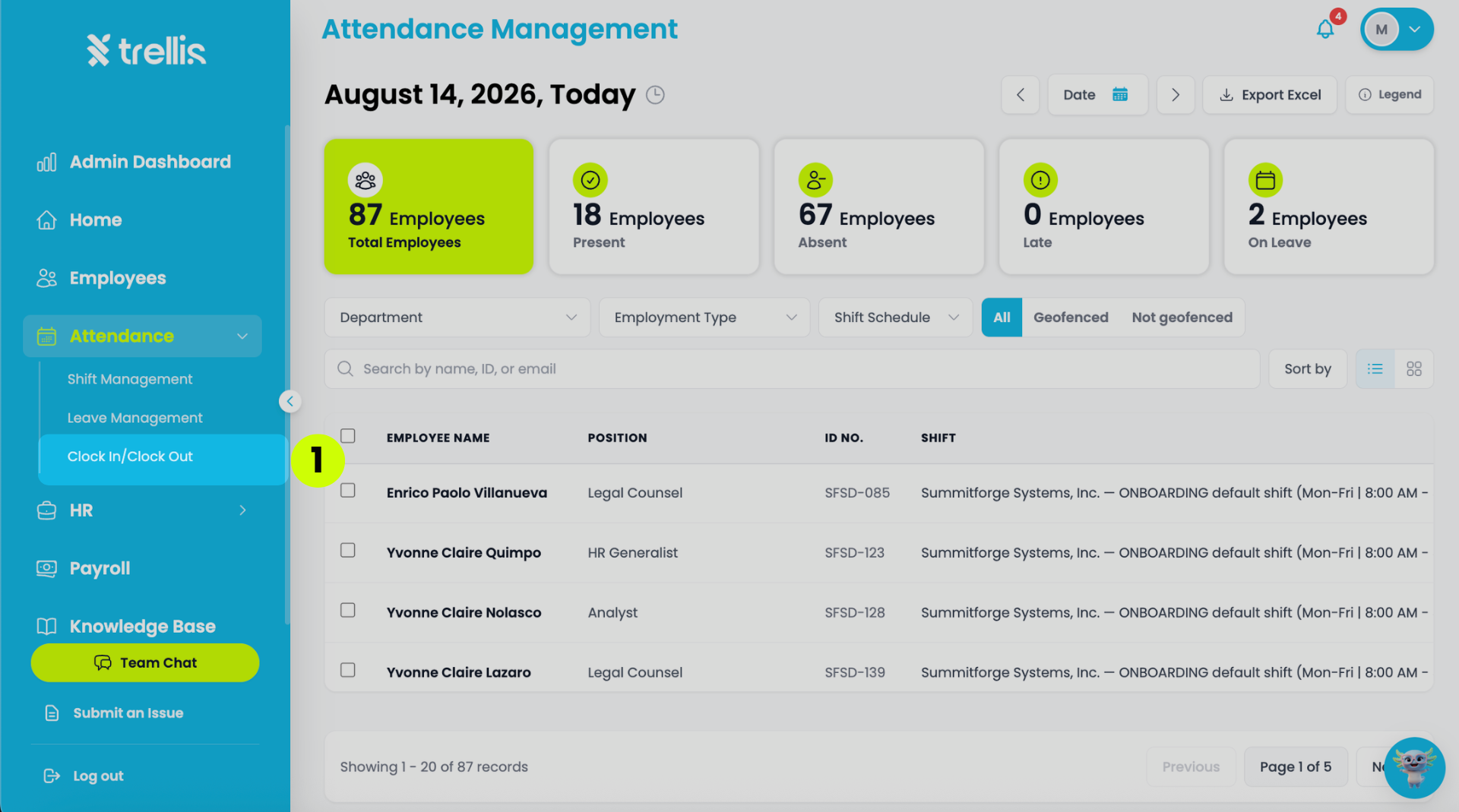
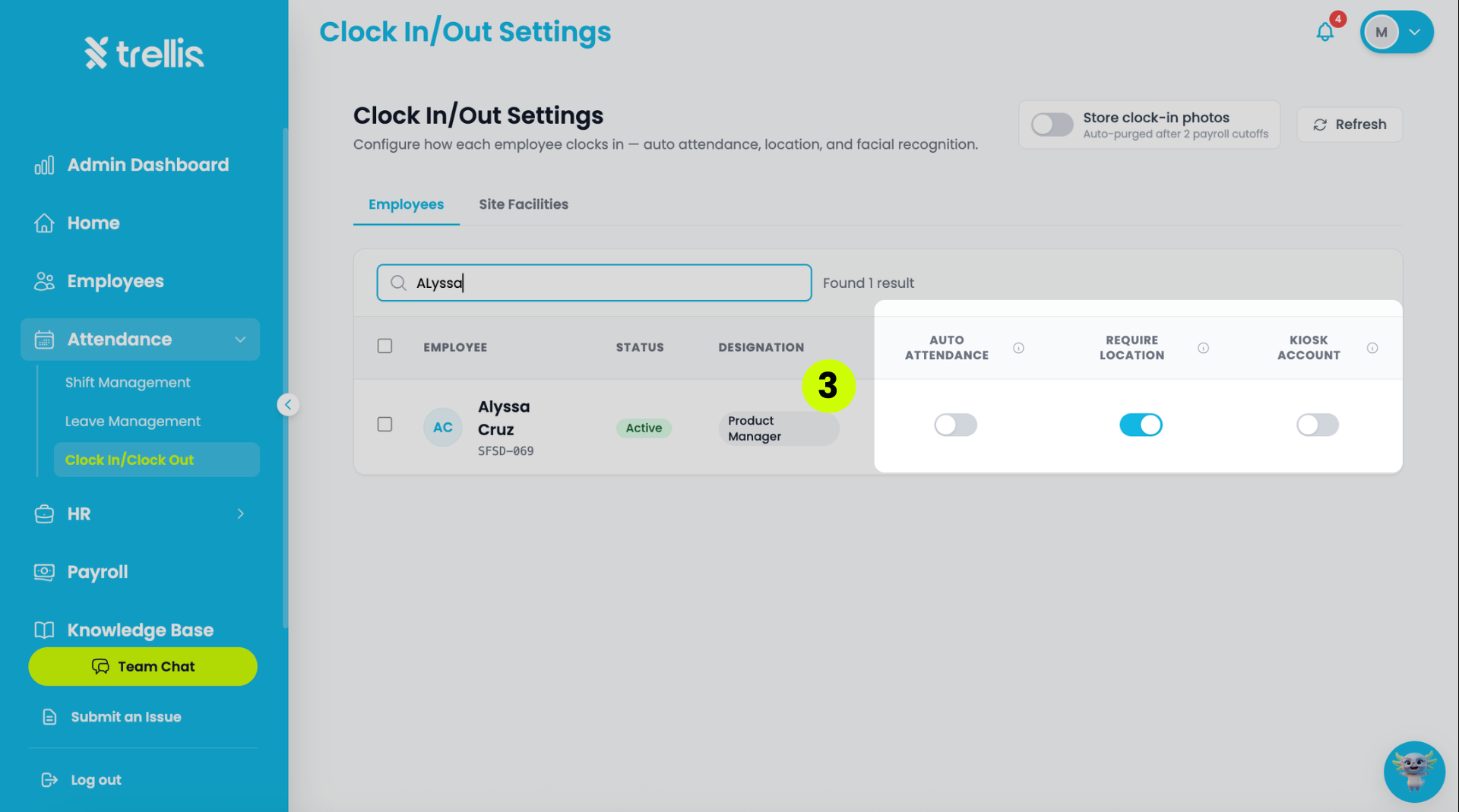
From the sidebar, click "HR" to expand the menu, then select "Clock In/Out Settings."
On the "Clock In/Out Settings" page, search for an employee by name using the search bar.
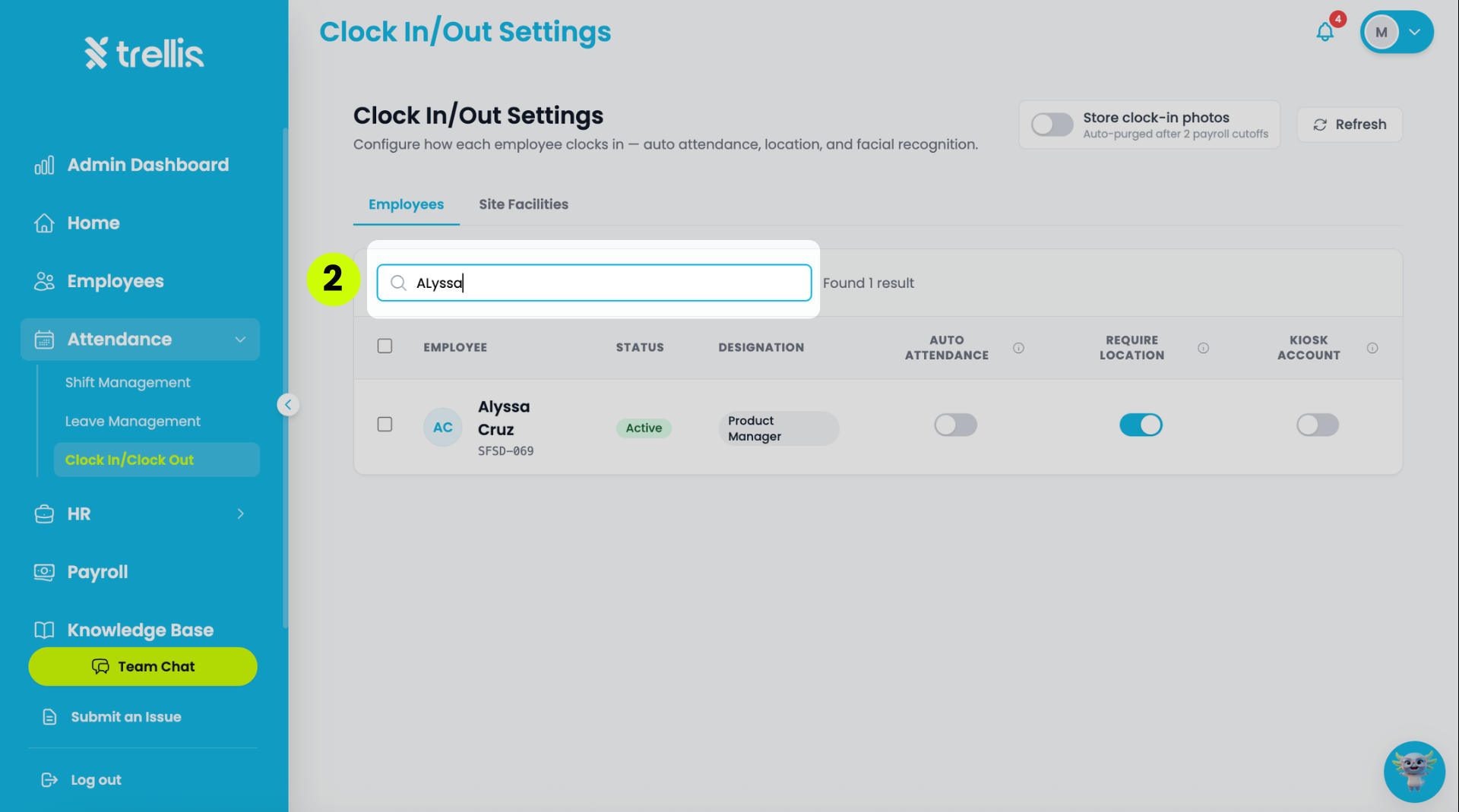
Toggle the switches to enable or disable the available settings.
Auto Attendance
Require Location
Kiosk Account
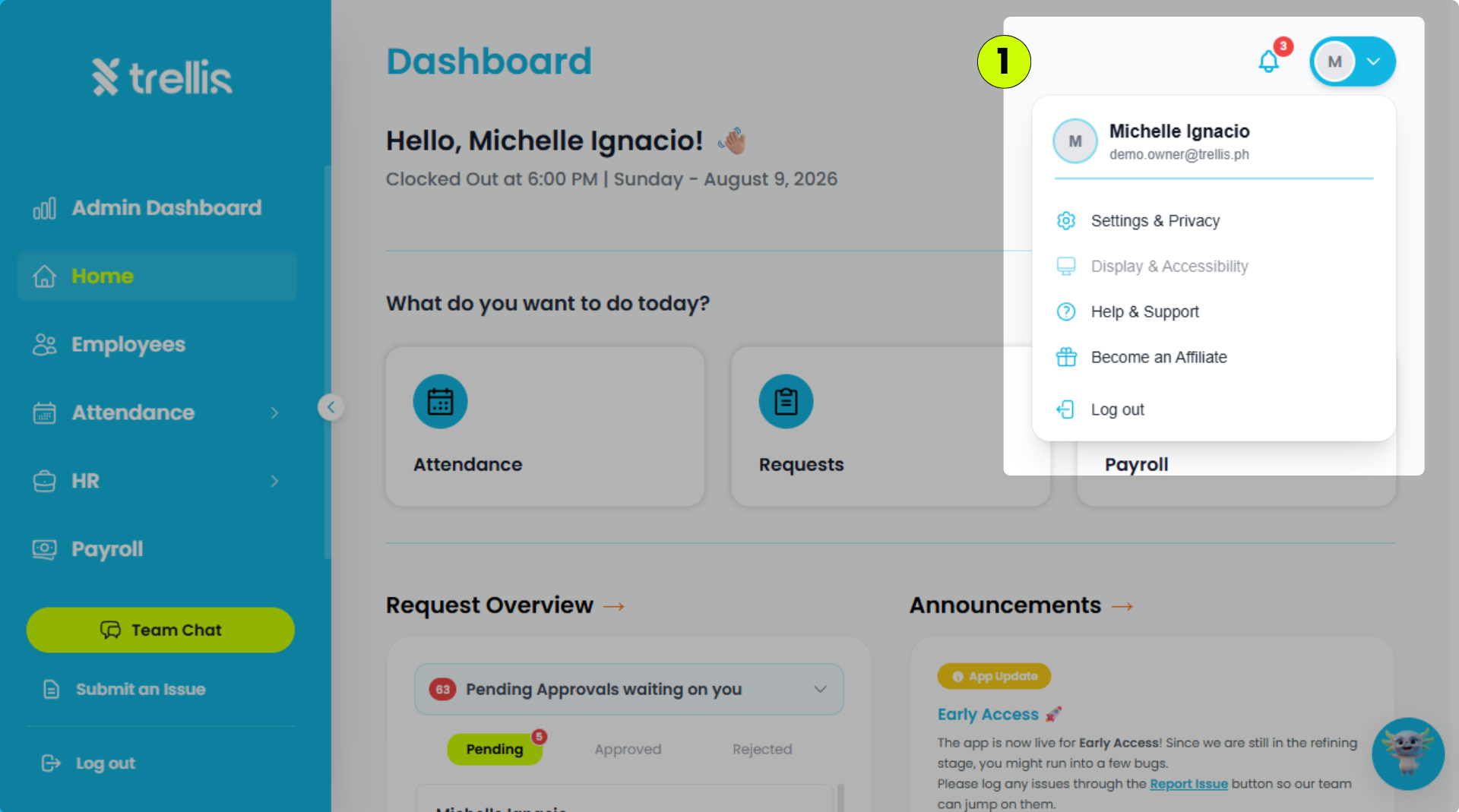
Click your profile icon in the top-right corner, then select "Settings & Privacy."
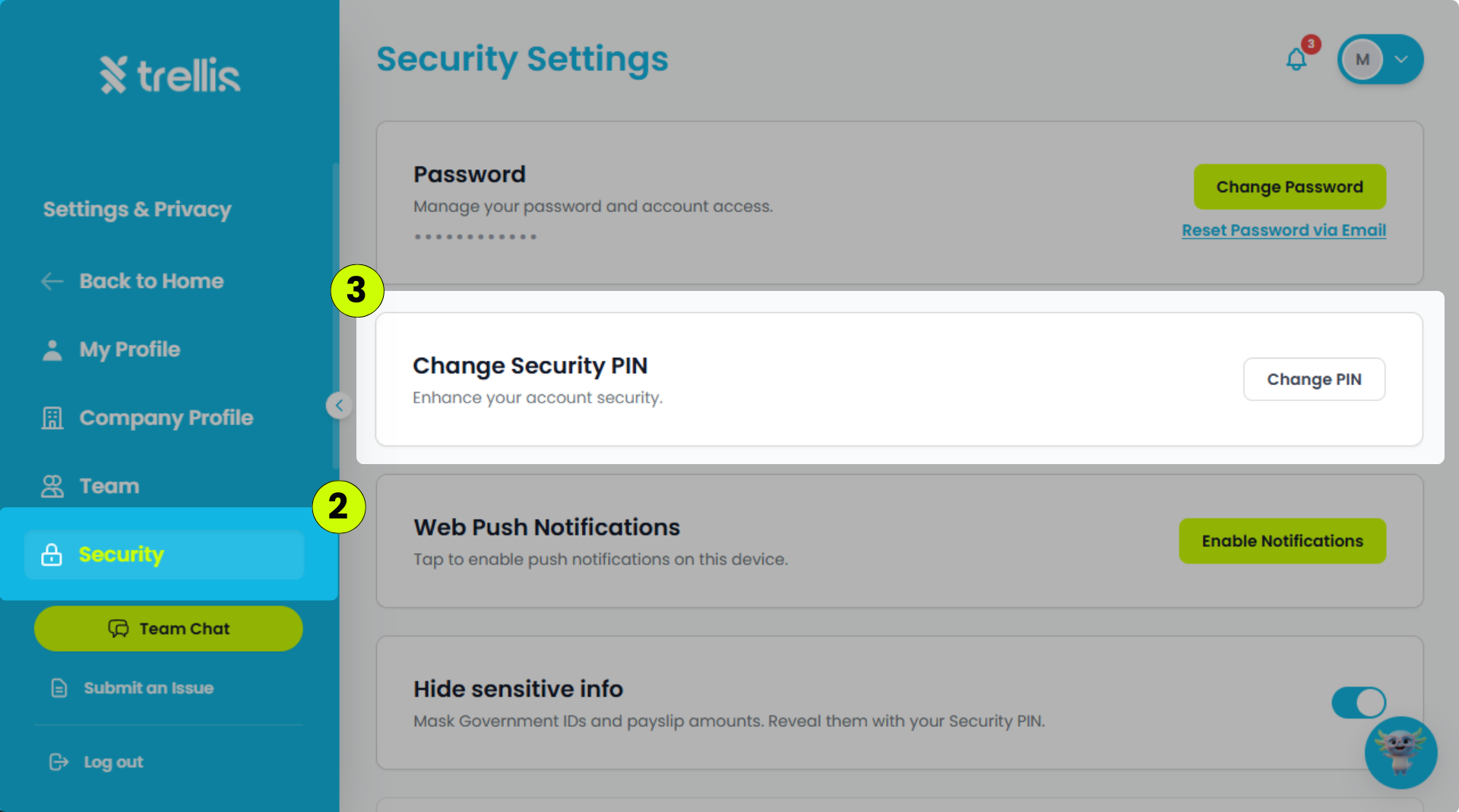
Click the "Security" tab.
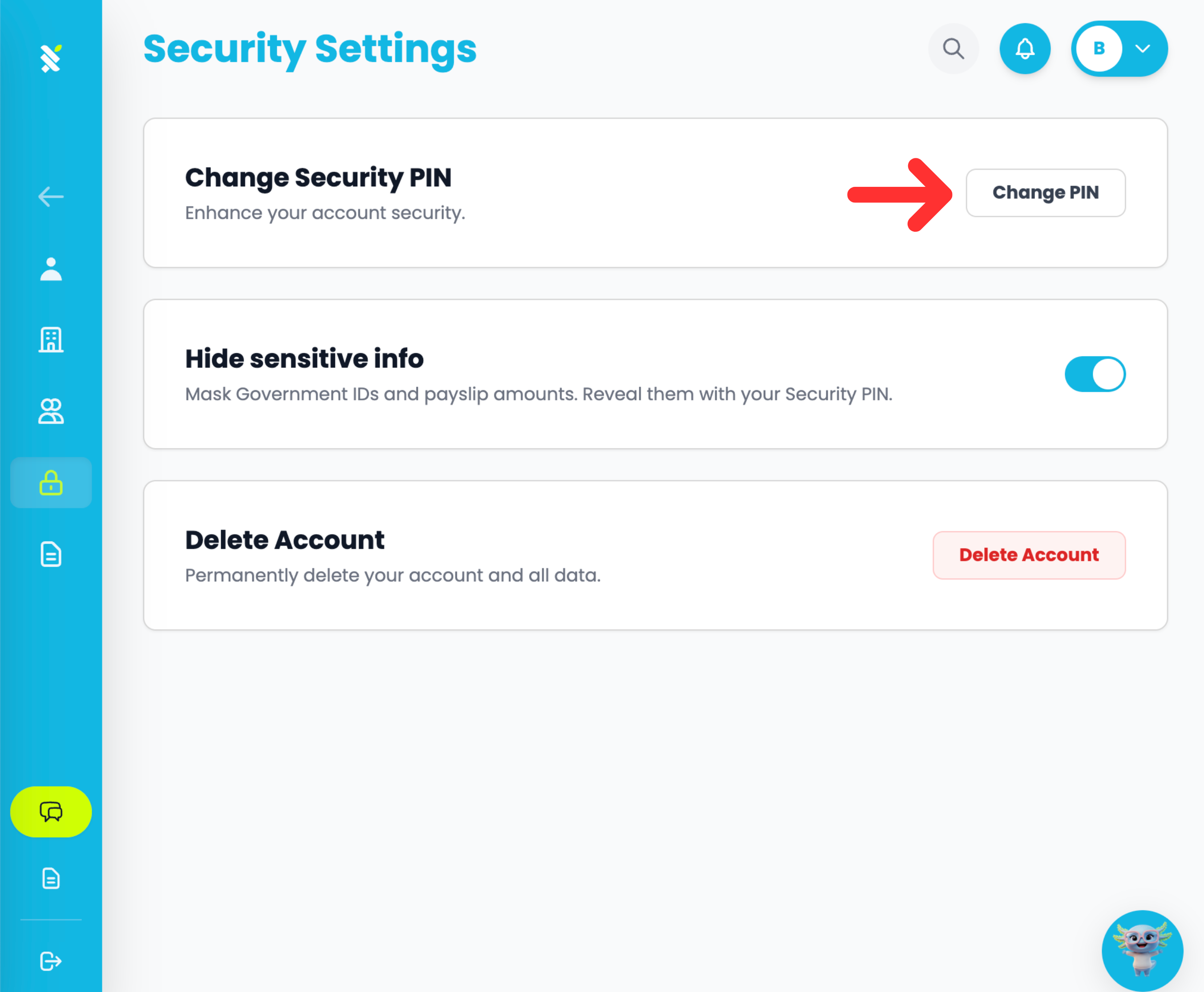
In Security Settings, click "Change PIN."
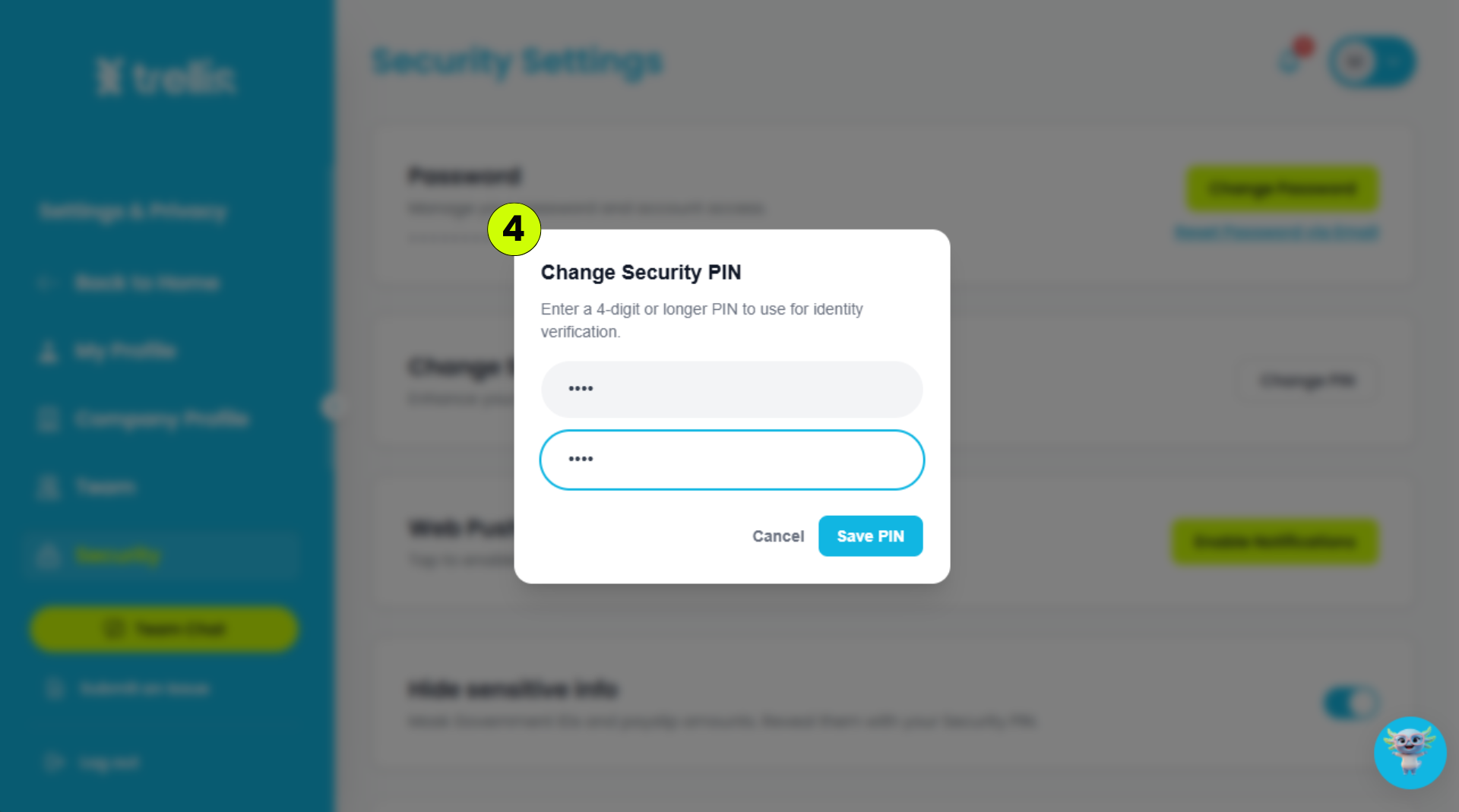
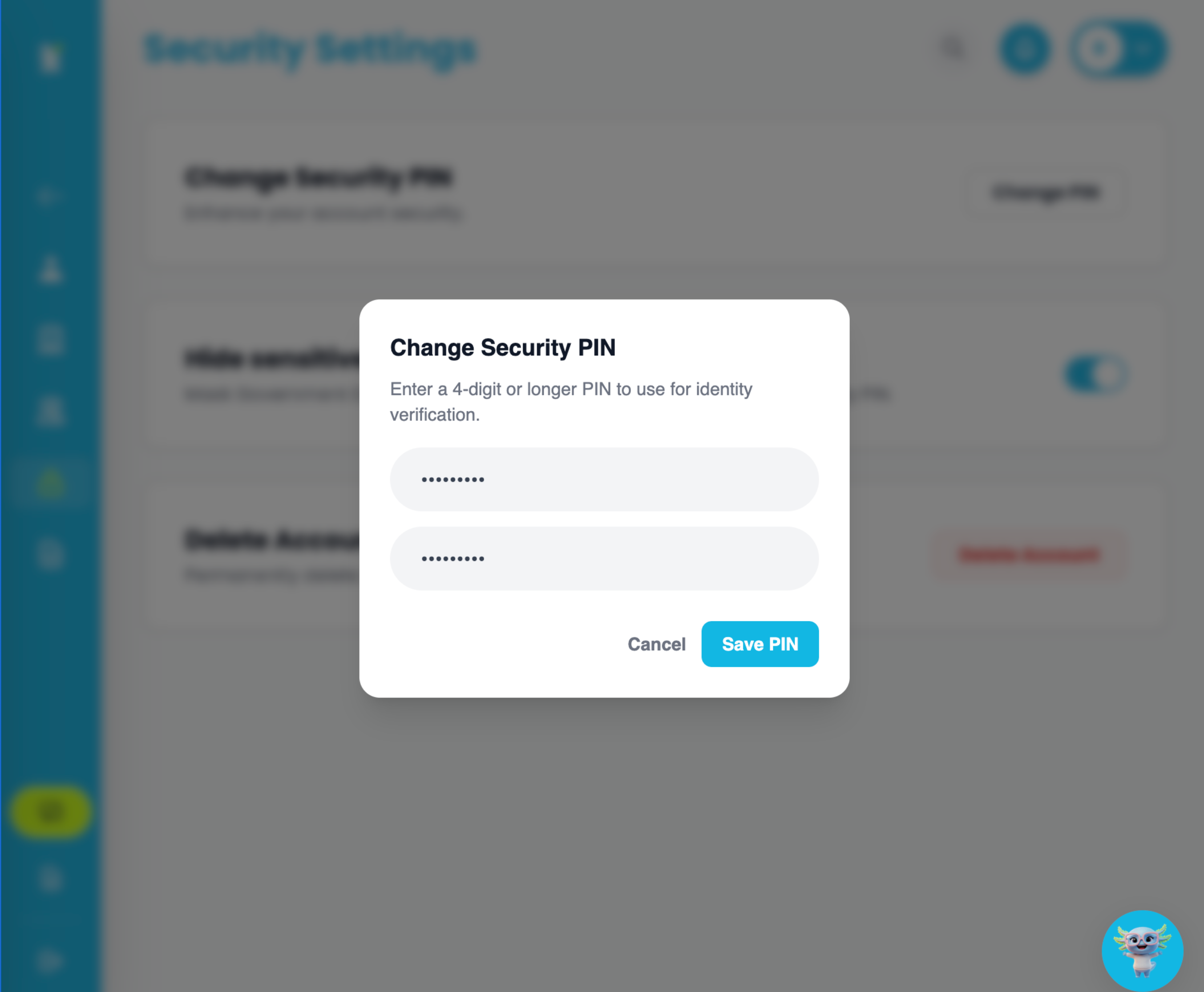
Enter a 4-digit PIN, re-enter it to confirm, then click "Save PIN."
 Read the full guide →
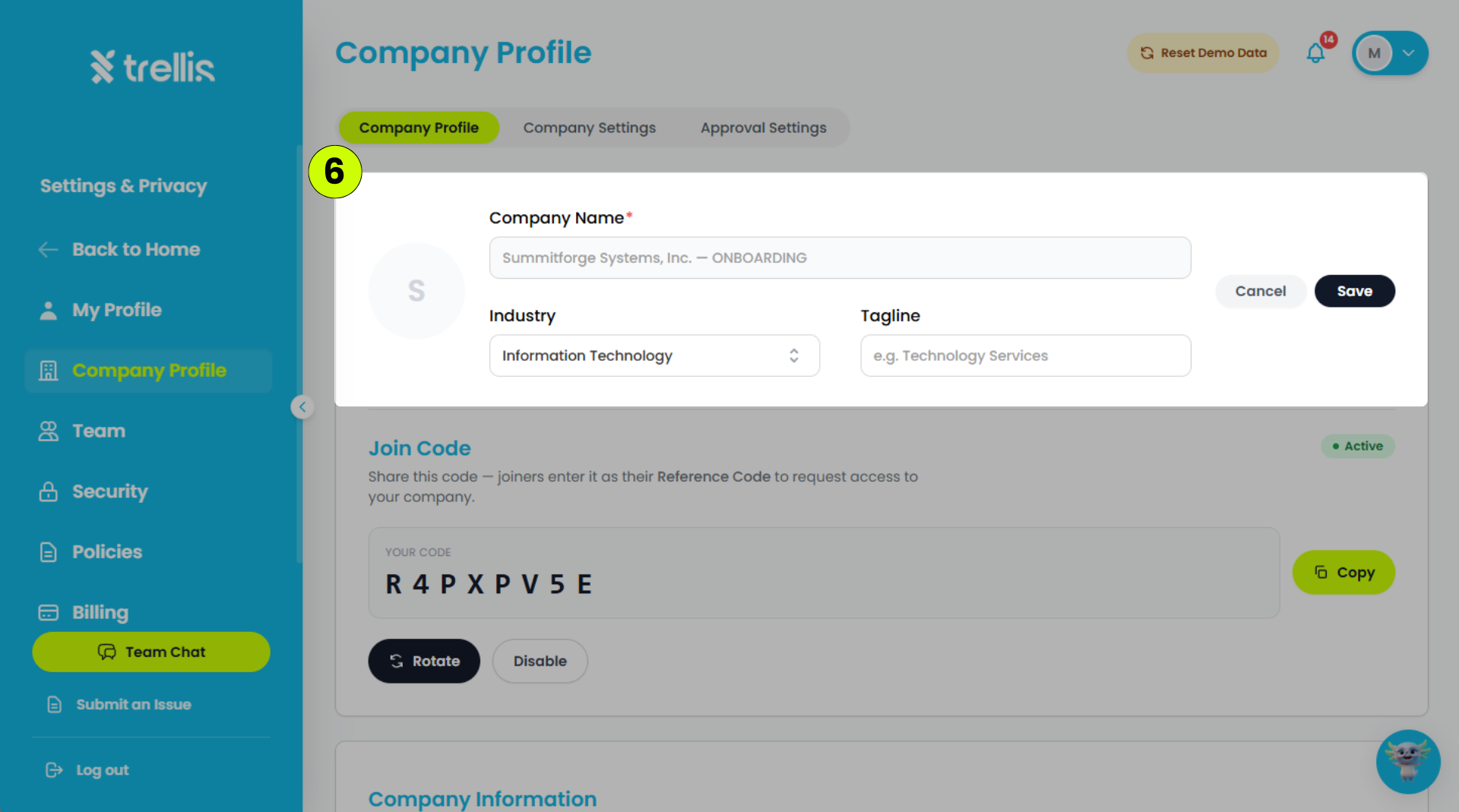
Click your profile icon in the top-right corner, then select "Settings & Privacy."
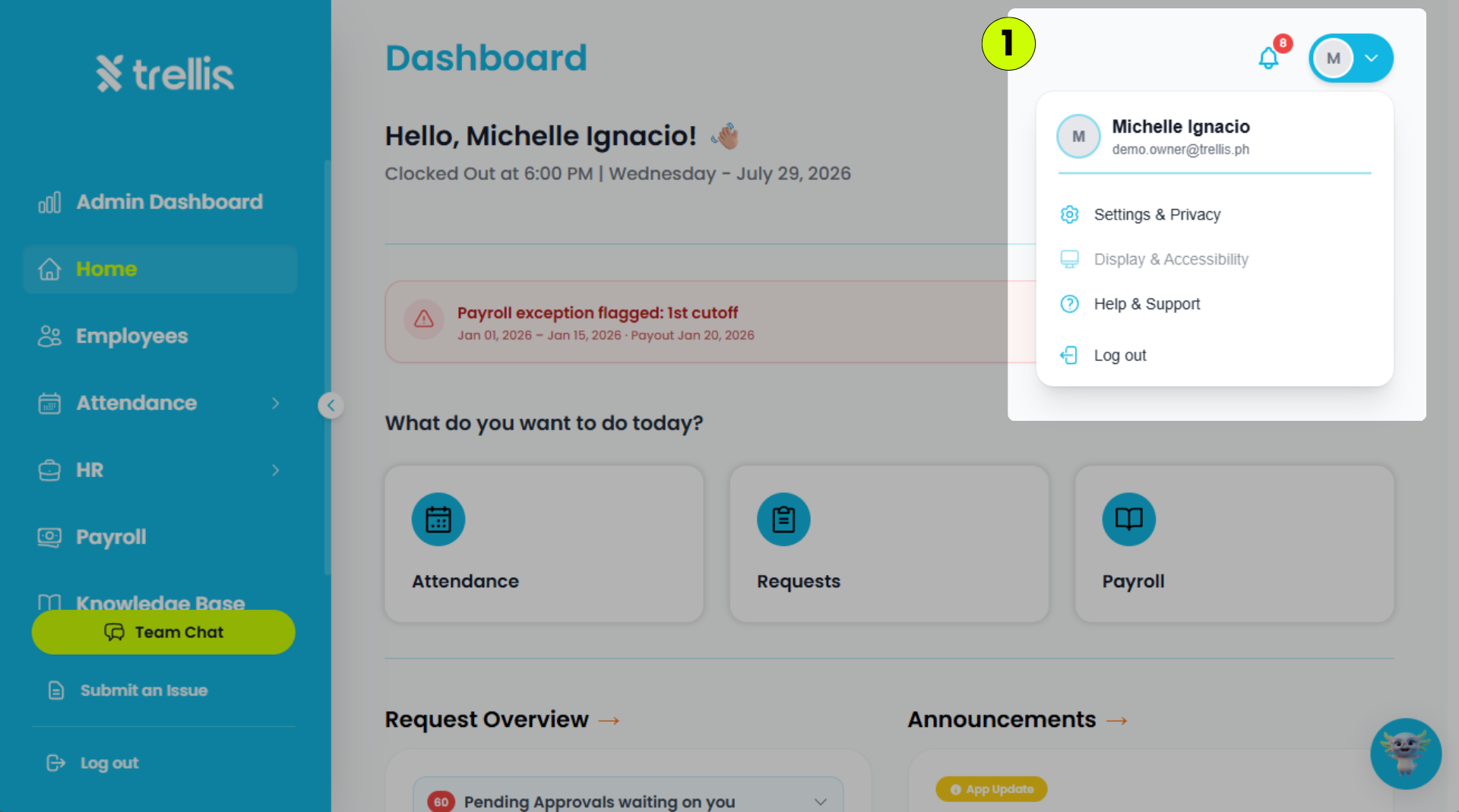
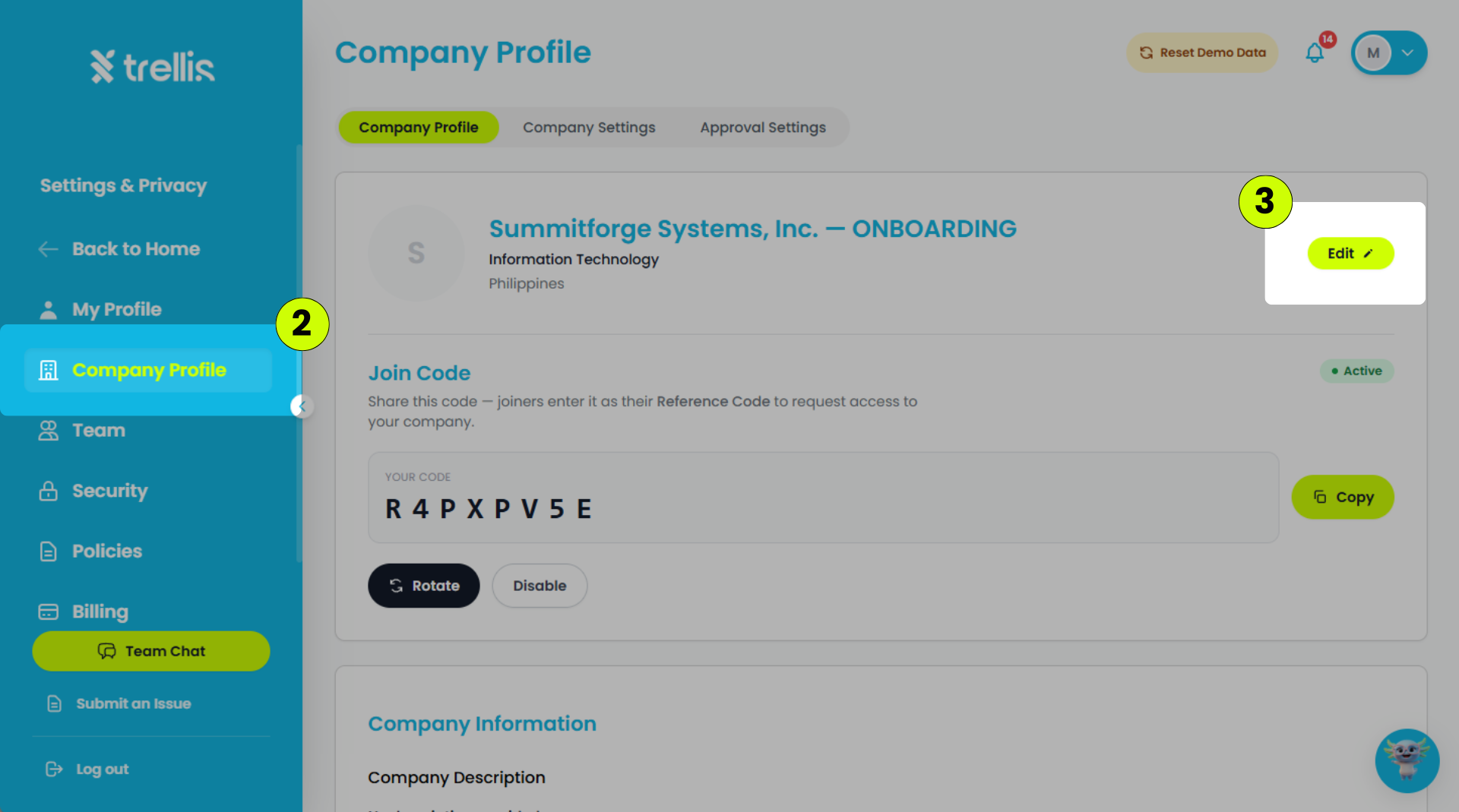
Click the "Company Profile" tab.
On the Company Profile page, click "Edit."
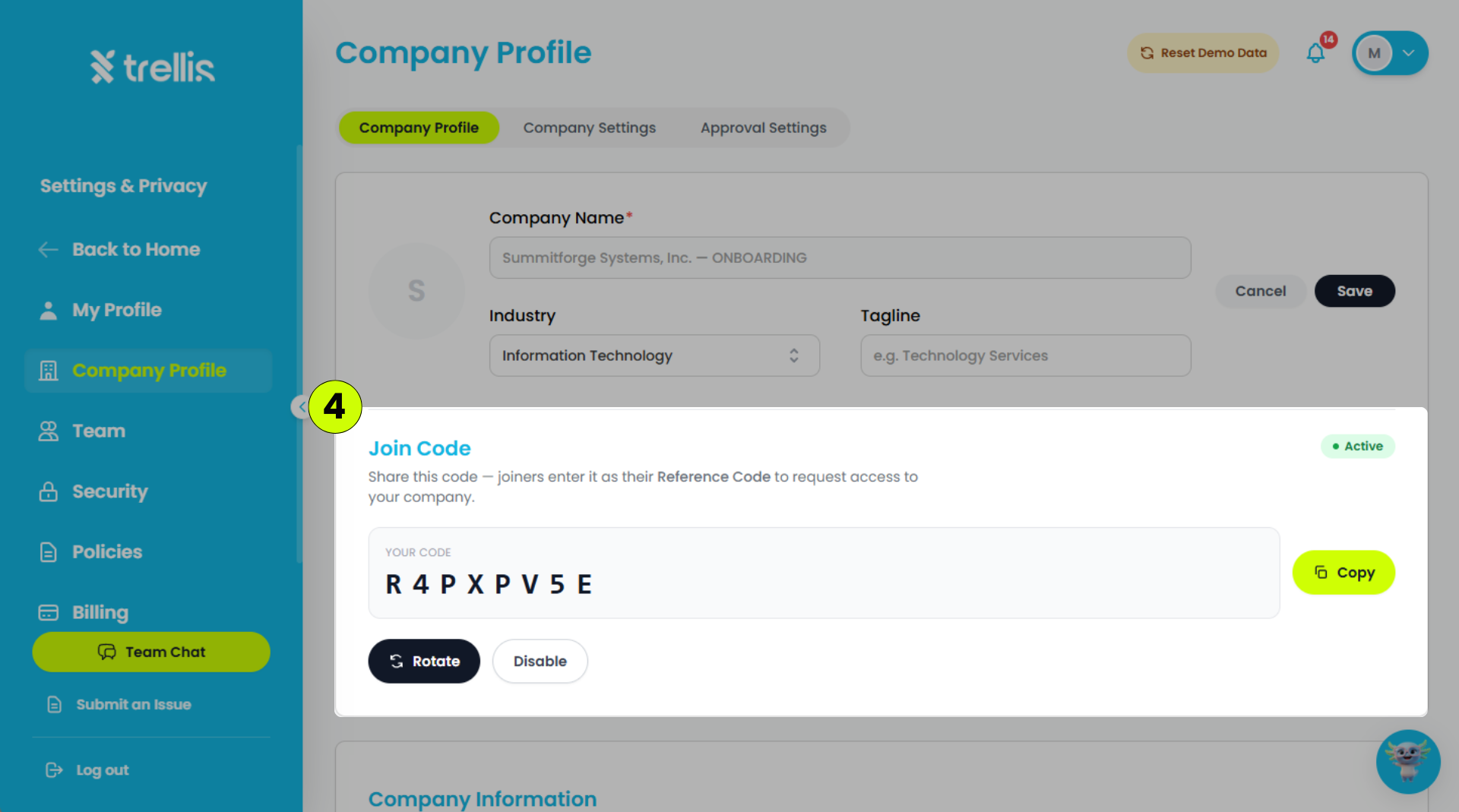
To manage your Company Join Code, rotate or disable the join code, if needed.
Update the Company Information section
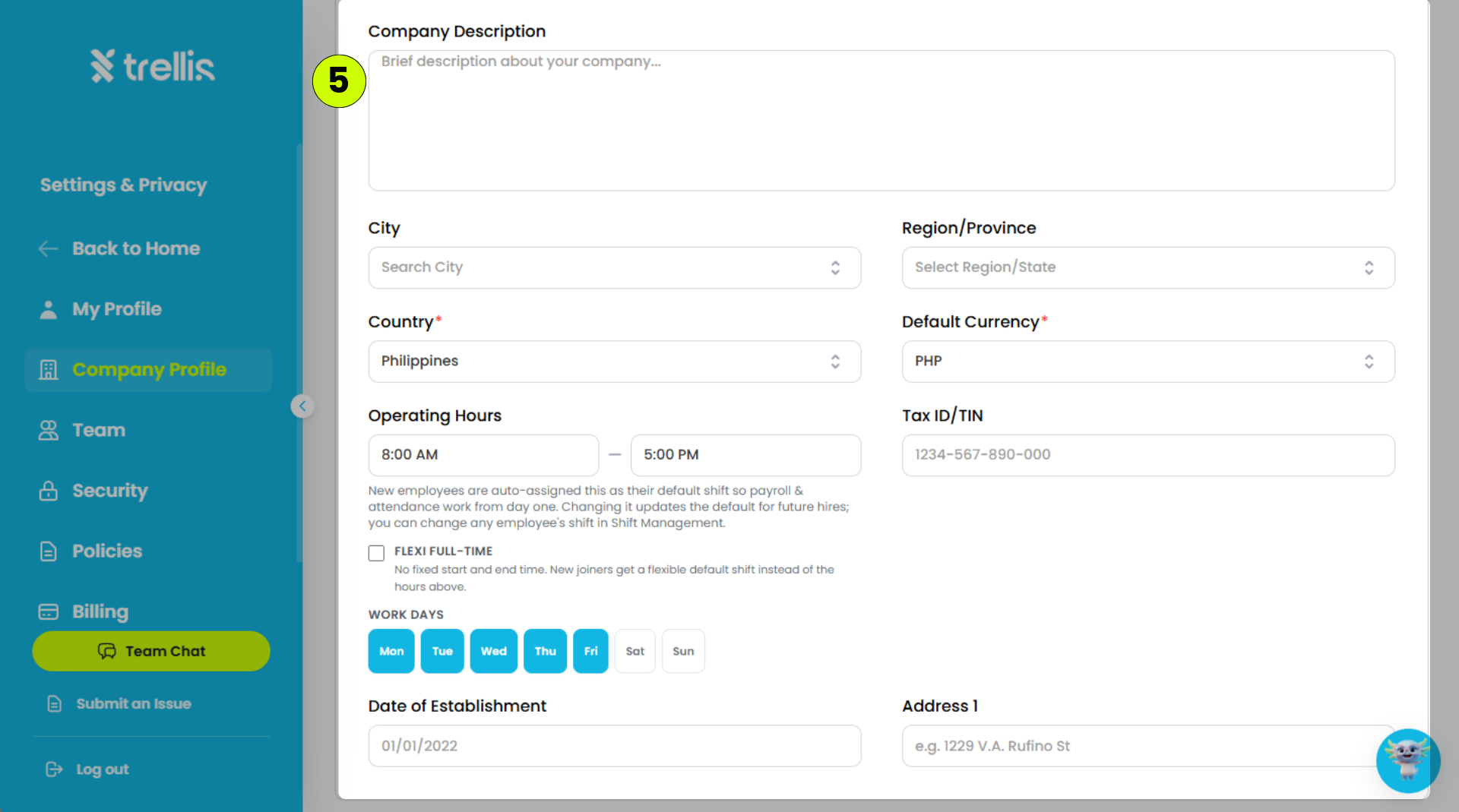
Update Company Name if needed, then click "Save."
 Read the full guide →
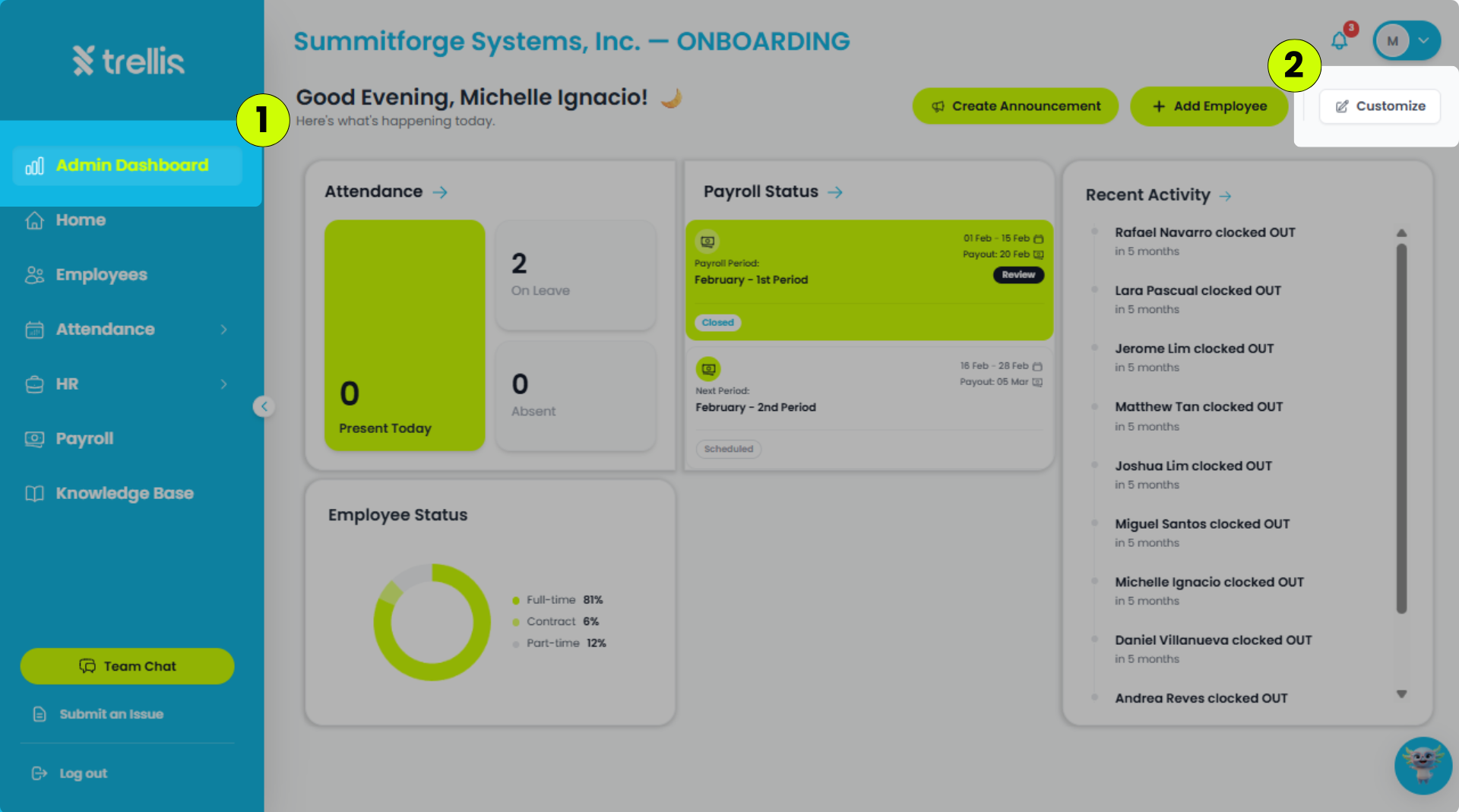
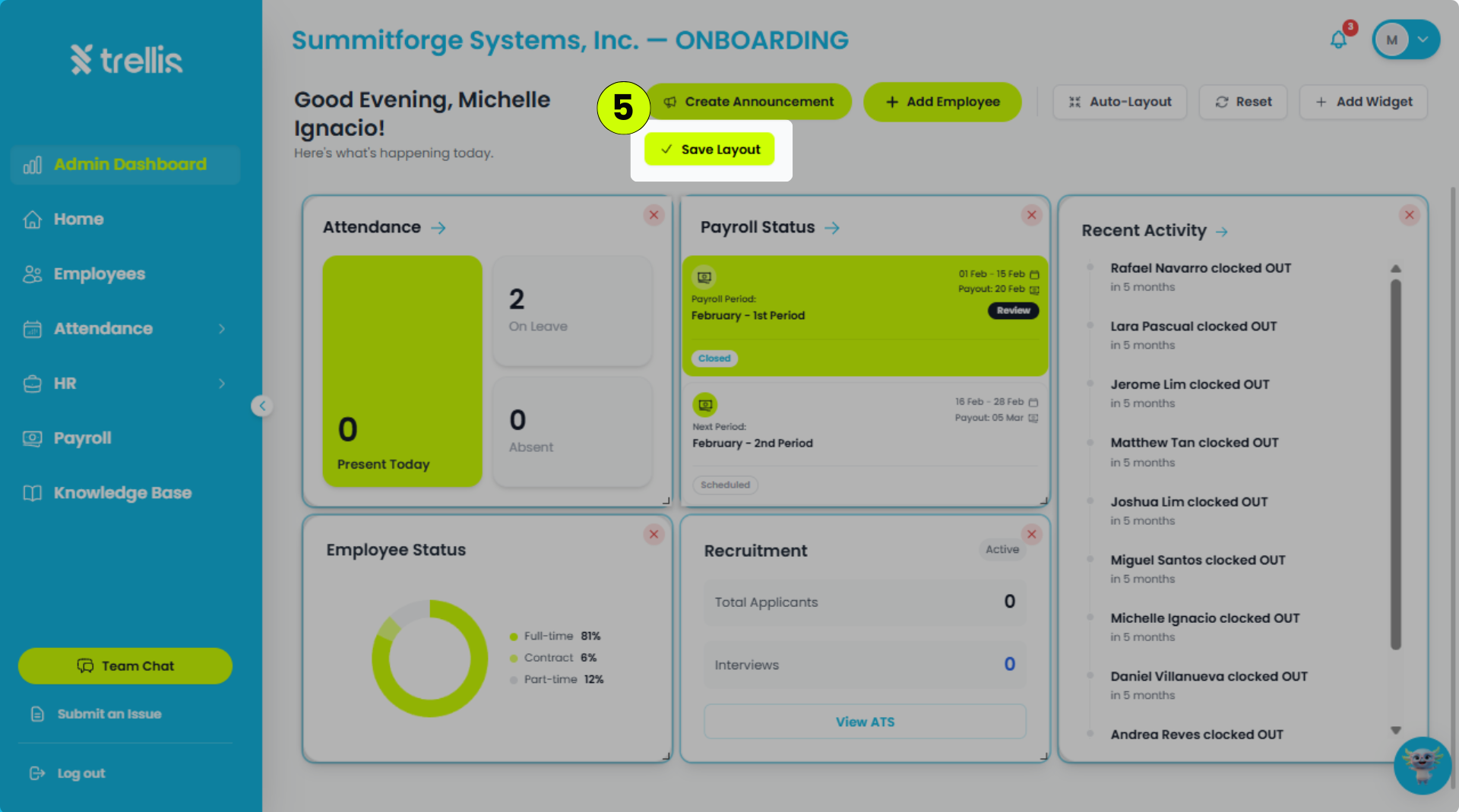
From the sidebar, click "Admin Dashboard."
On the Admin Dashboard, click "Customize" at the top right.
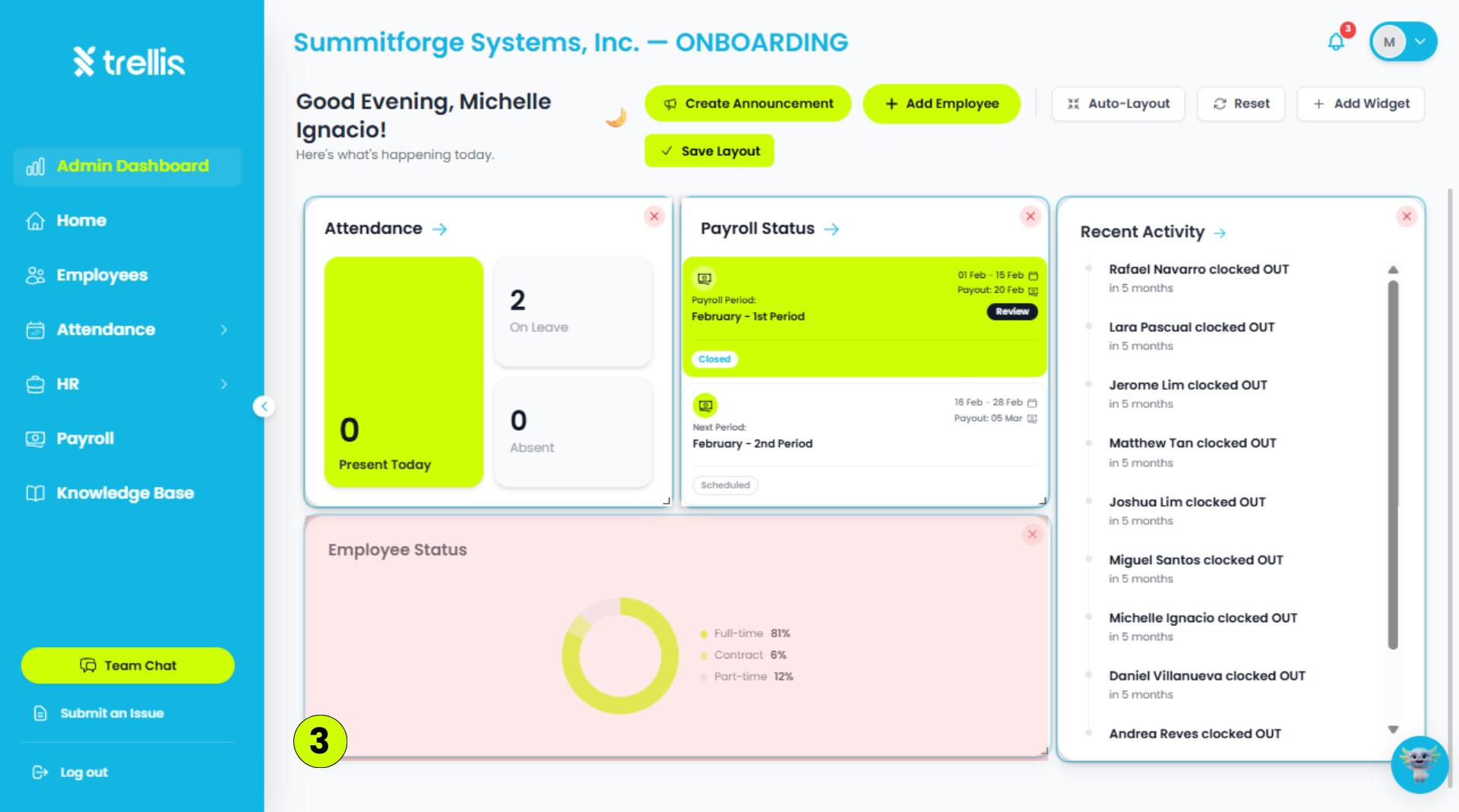
Rearrange, resize, remove, or adjust the size of the widgets.
To add a widget, click "Add Widget."
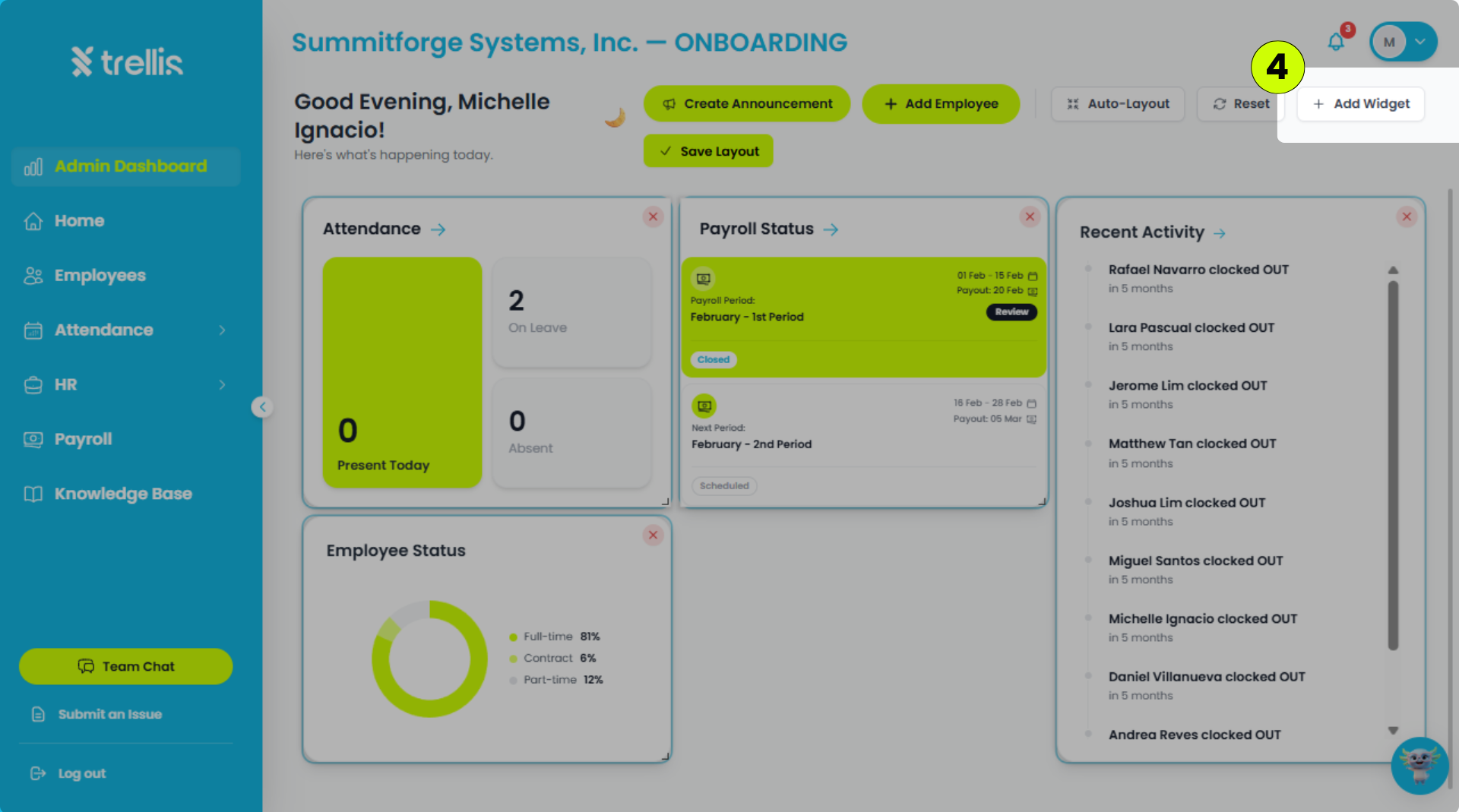
Once finished, click "Save Layout" to apply the changes.
 Read the full guide →
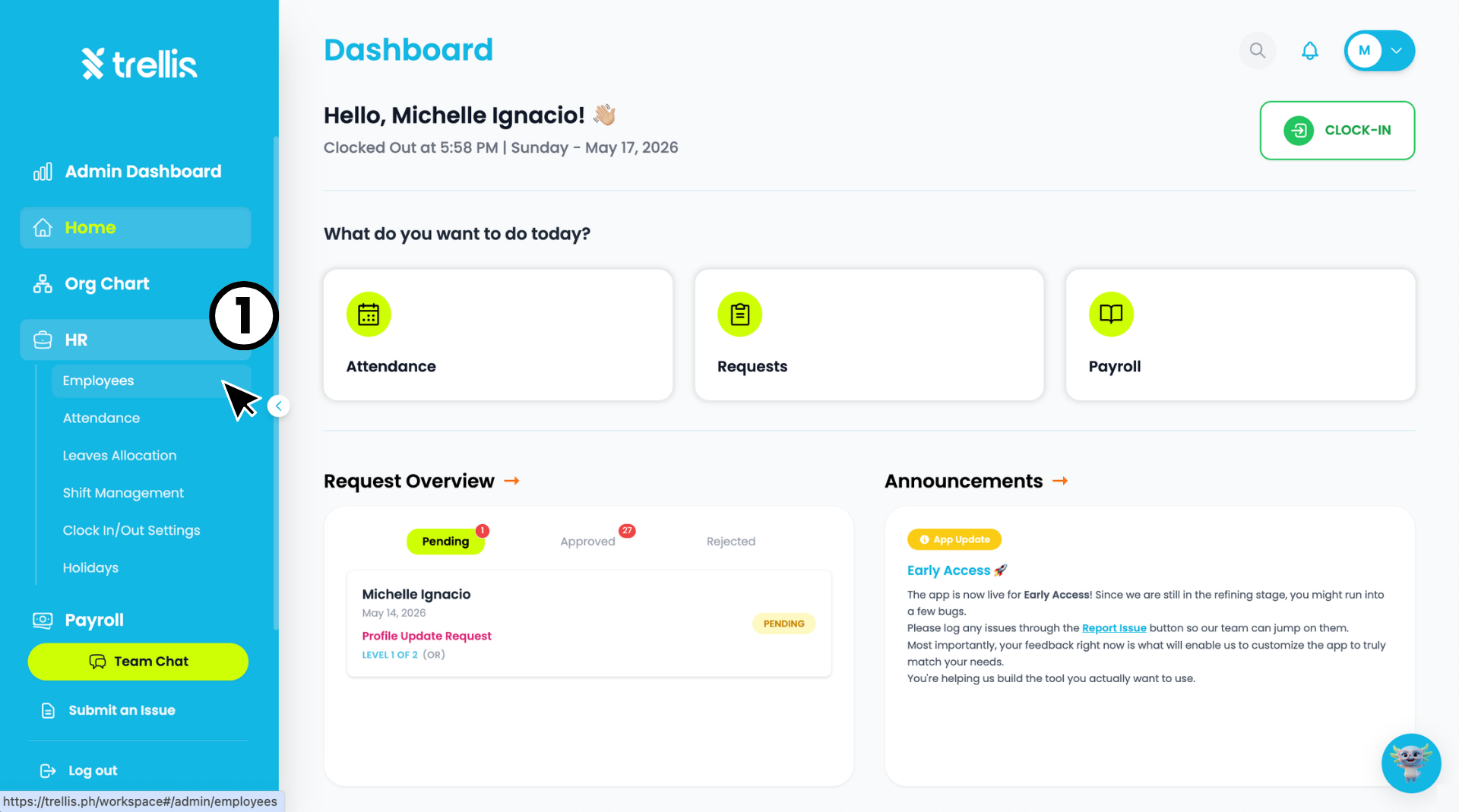
From the sidebar, click "HR" to expand the menu, then select "Employees."
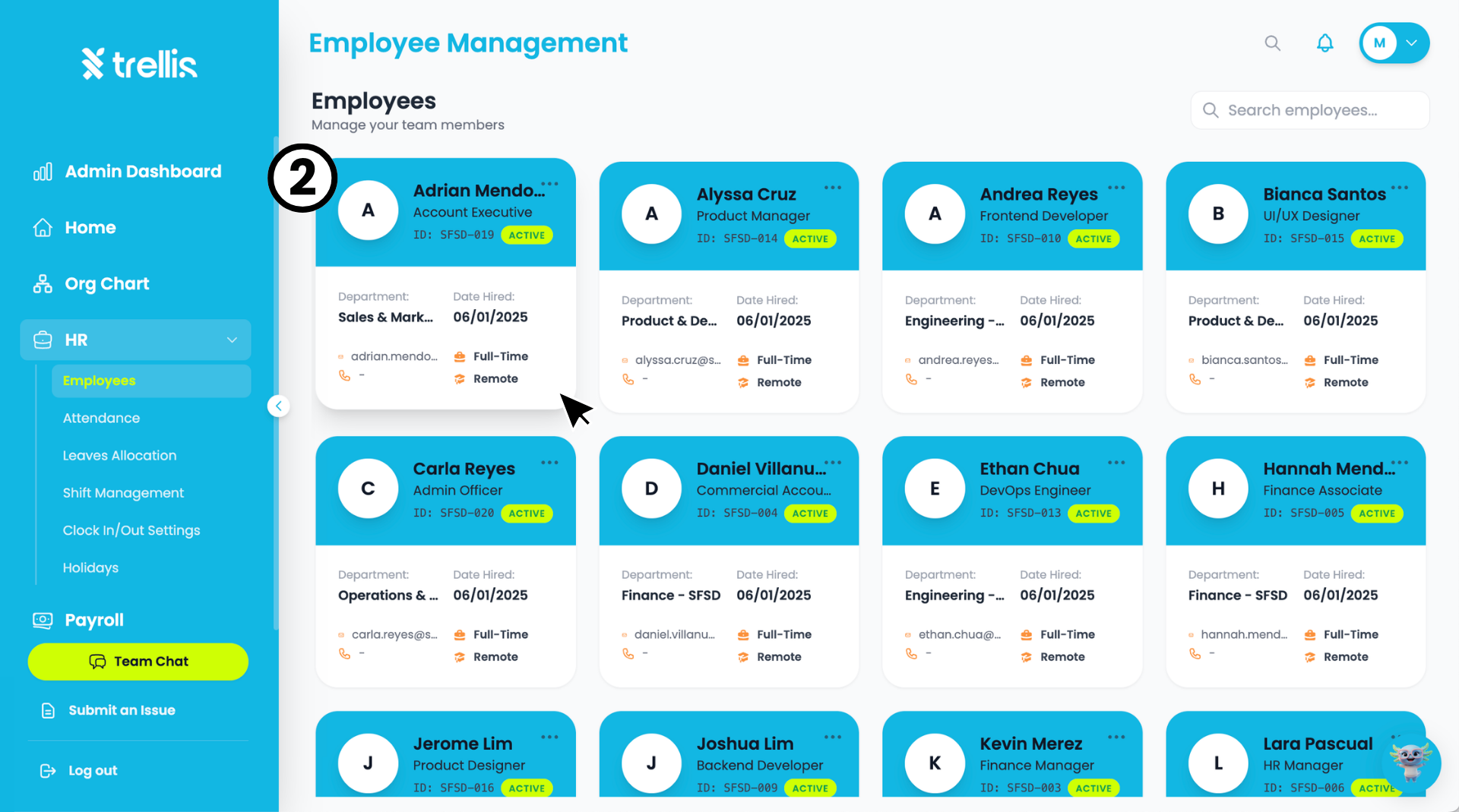
On the "Employee Management” page, click on the employee card you want to view.
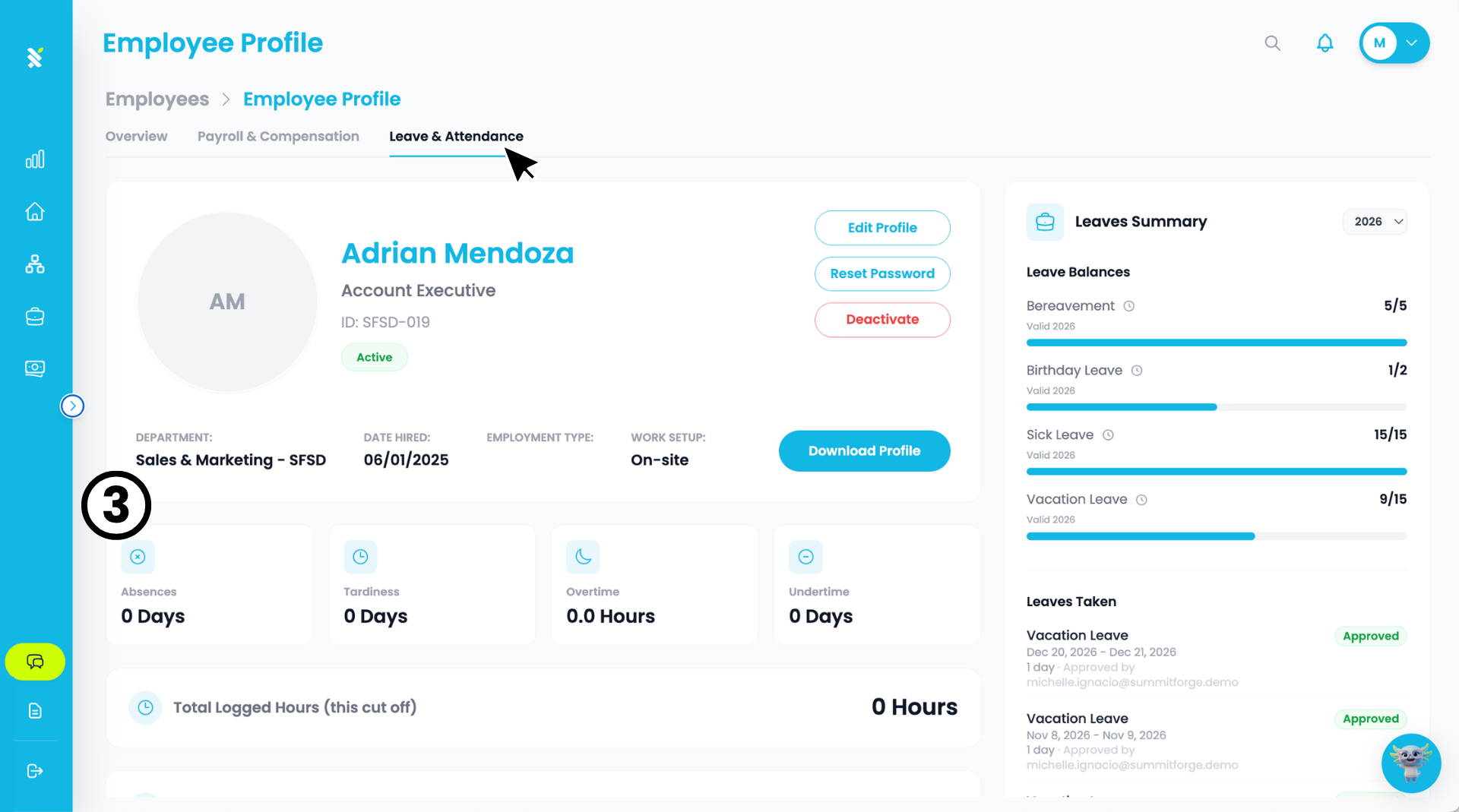
On the "Employee Profile" page, click the "Leave & Attendance" tab to view the employee's attendance summary including "Absences", "Tardiness", "Overtime, Undertime", and "Total Logged Hours". On the right side, you can also see their "Leave Balances" and "Leaves Taken". Scroll down to view the employee's "Daily Time Logs" and full "Leaves Taken" history.
 Read the full guide →
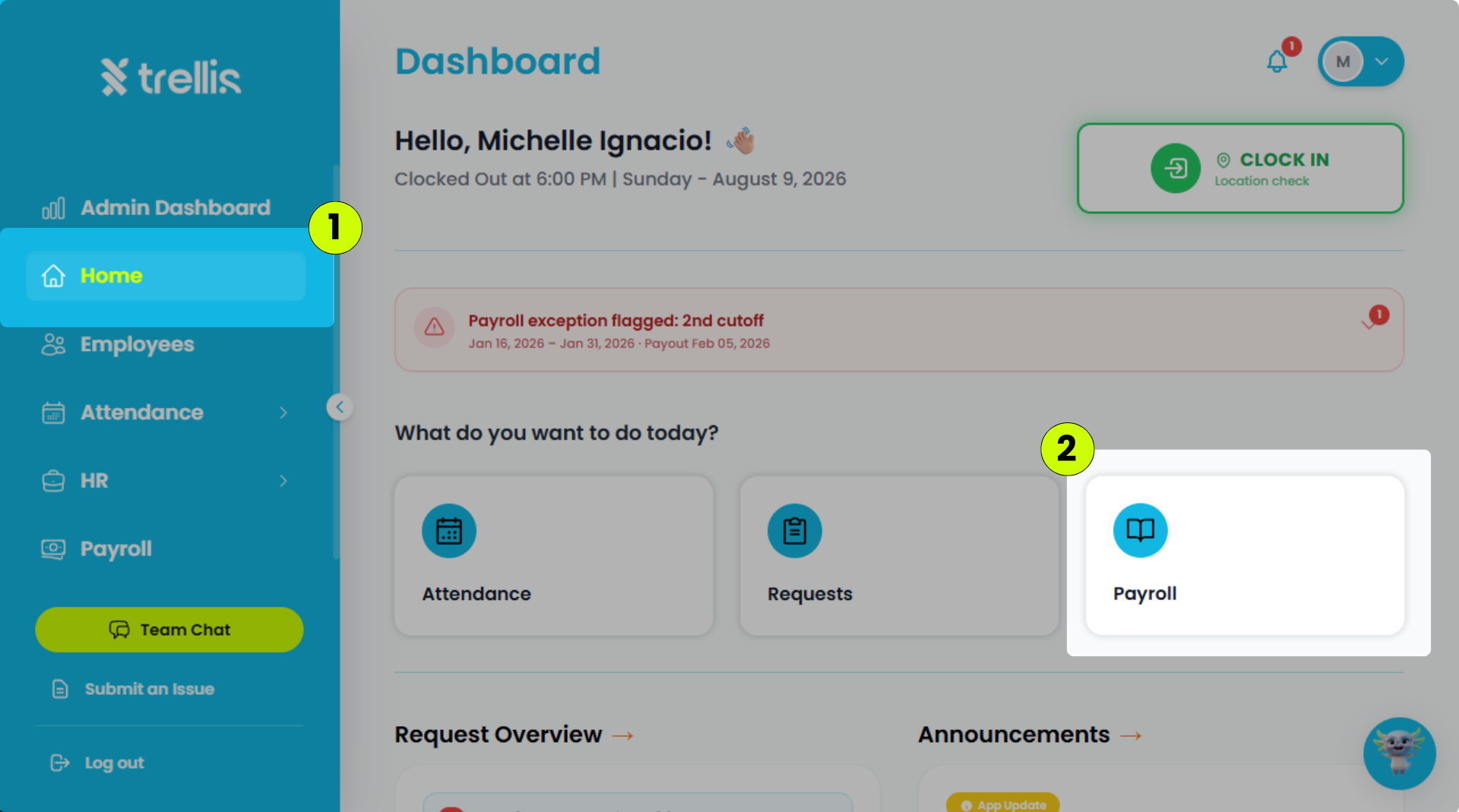
From the sidebar, click "Home."
On your Home Dashboard, click "Payroll."
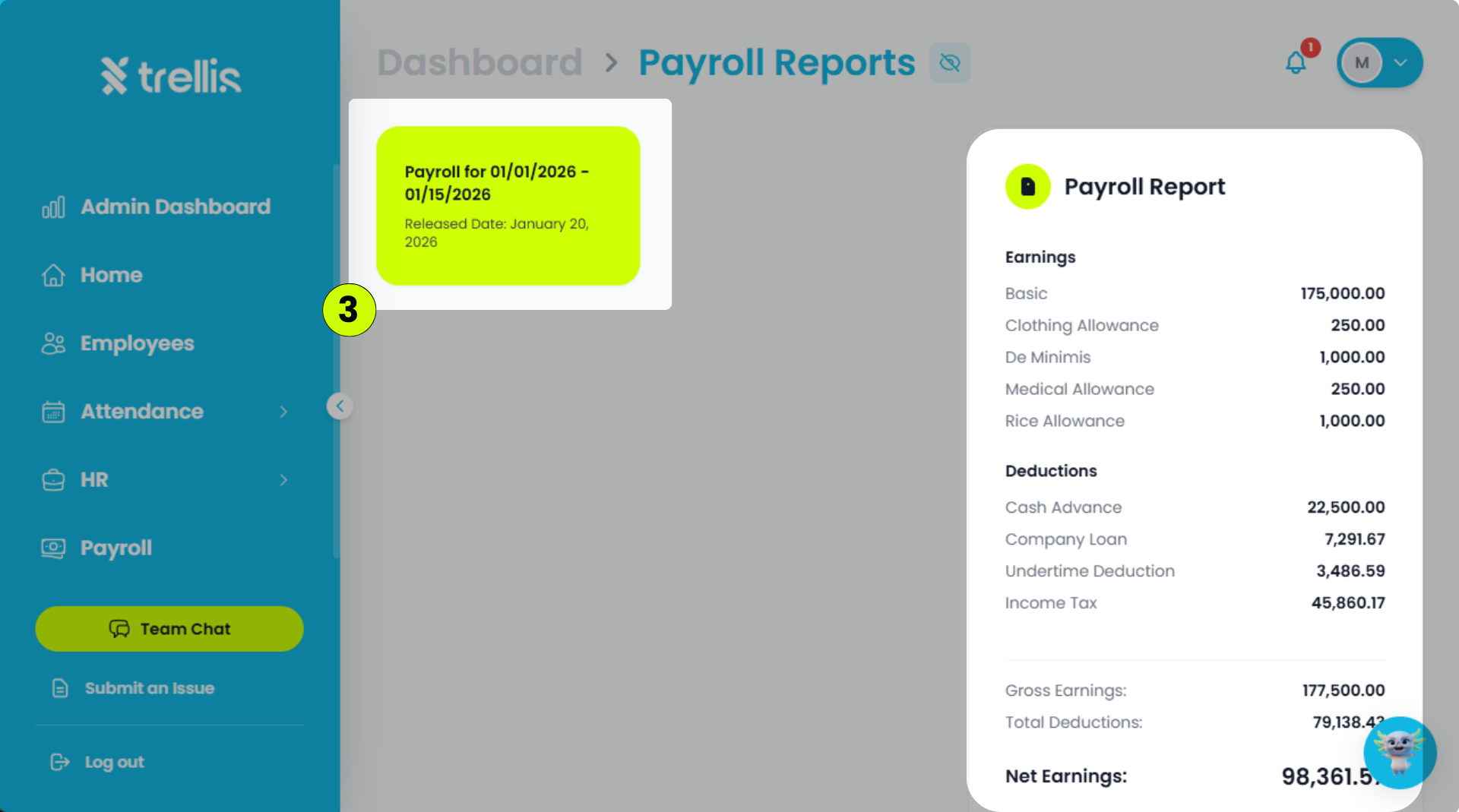
Select the payroll report containing the payslip you want to download.
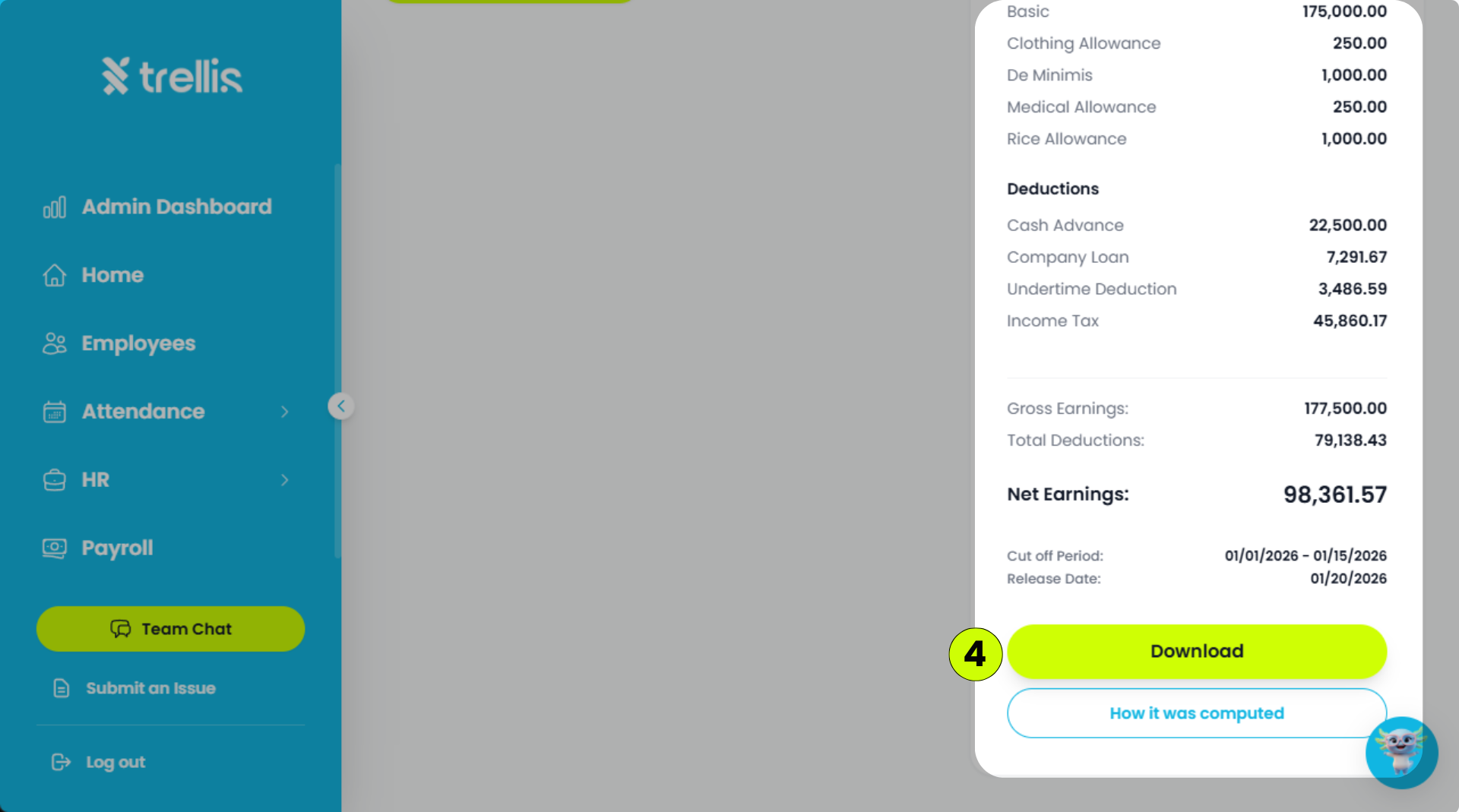
Scroll to the bottom of the payroll report, then click "Download."
 Read the full guide →
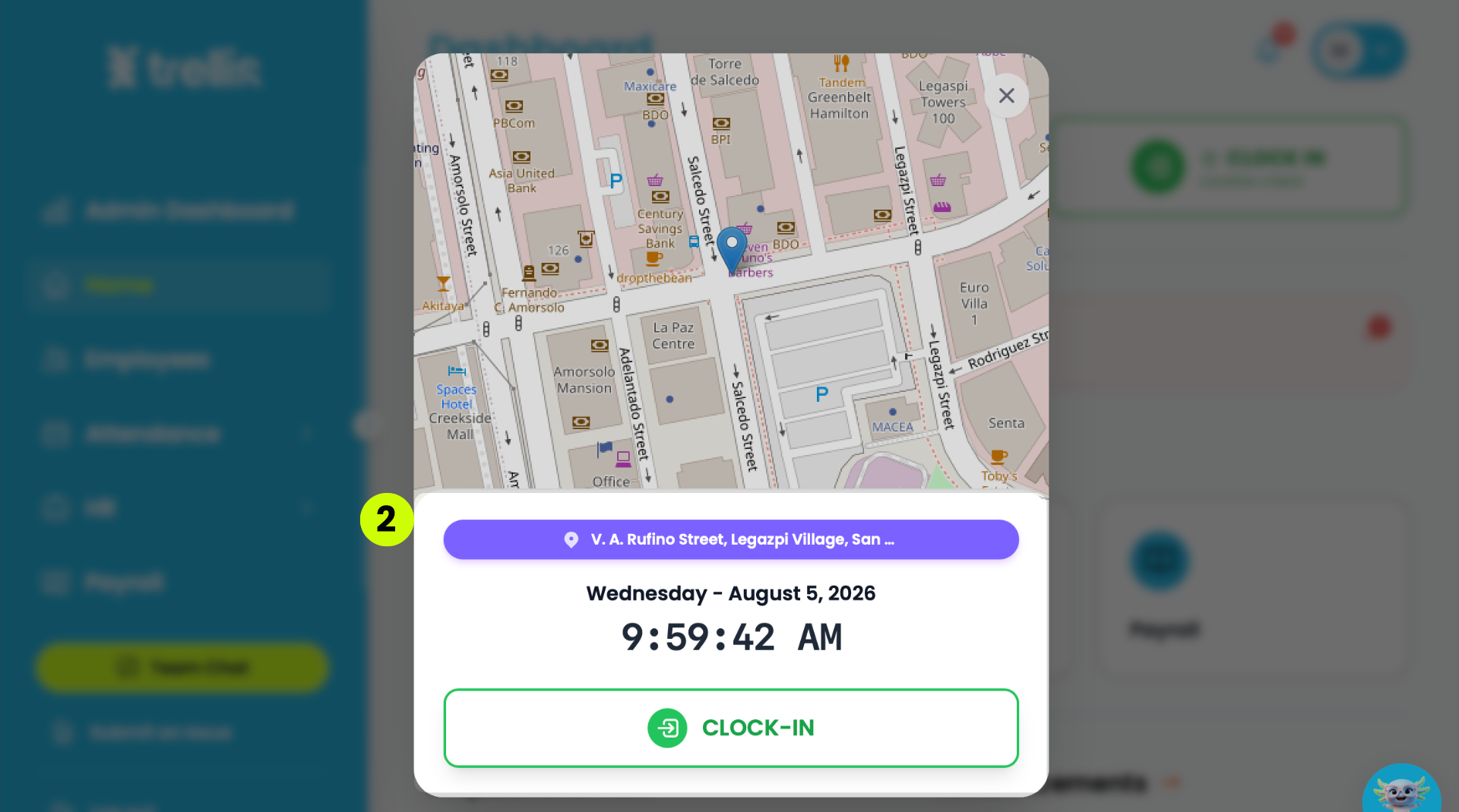
From the "Dashboard", click the "Clock-In" button in the top right corner.
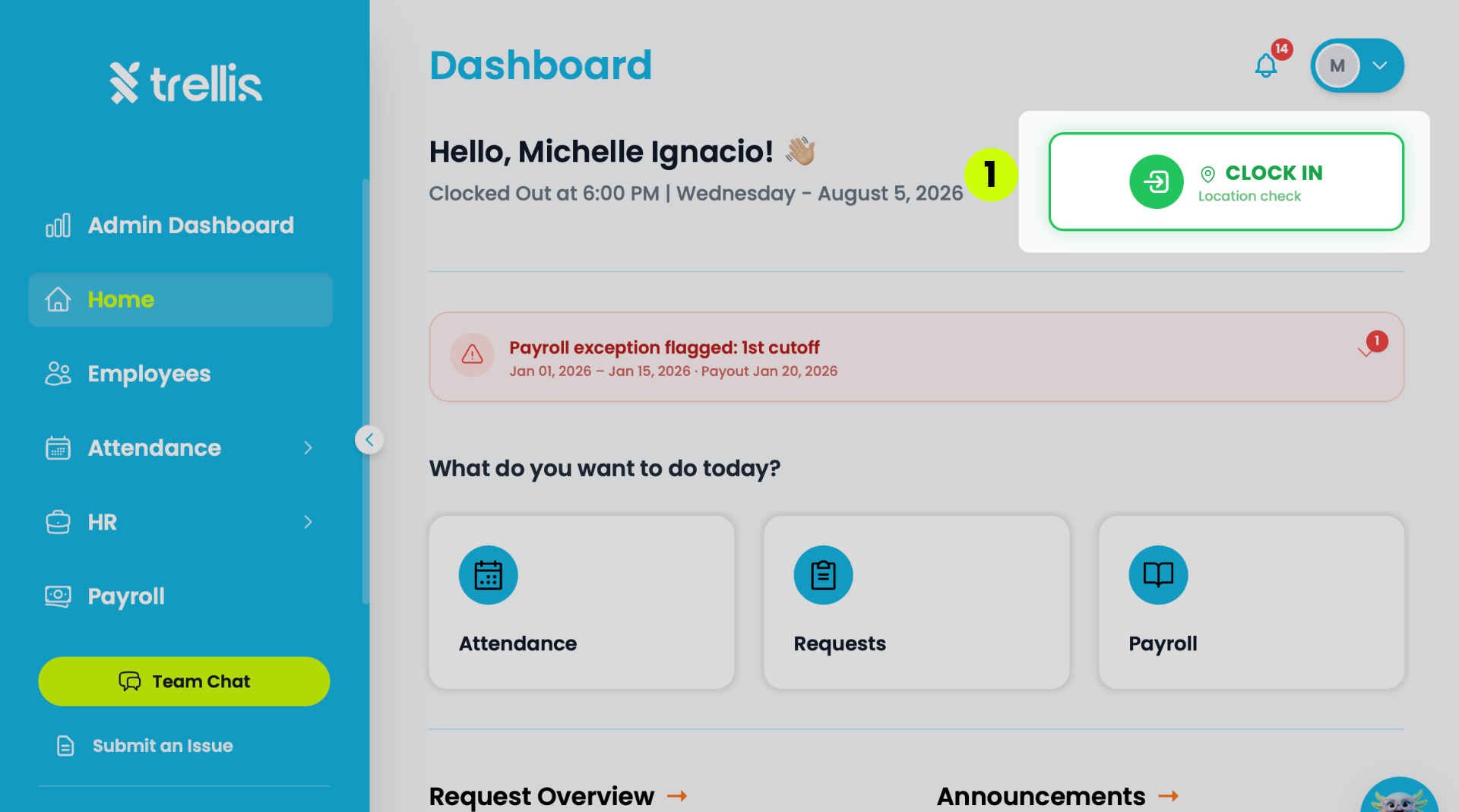
A dialog will appear showing your current location on the map and the time. Click "Clock-In" to confirm.
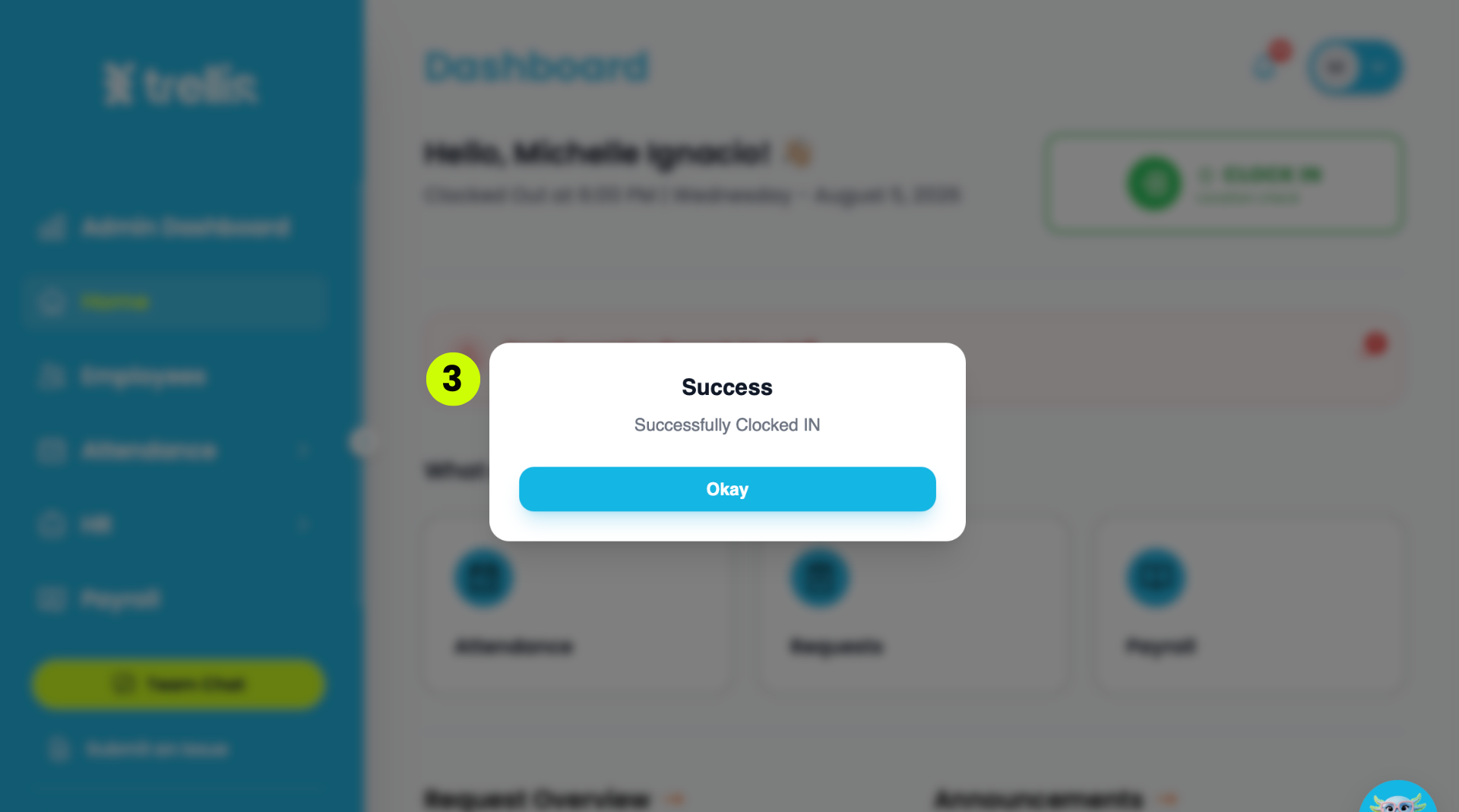
You are now clocked in. The dashboard will update to show your clock-in time, and the "Clock Out" and "No Break "buttons will appear in the top right corner. The "Break" button will only appear when you're close to your scheduled break time, depending on your assigned shift.
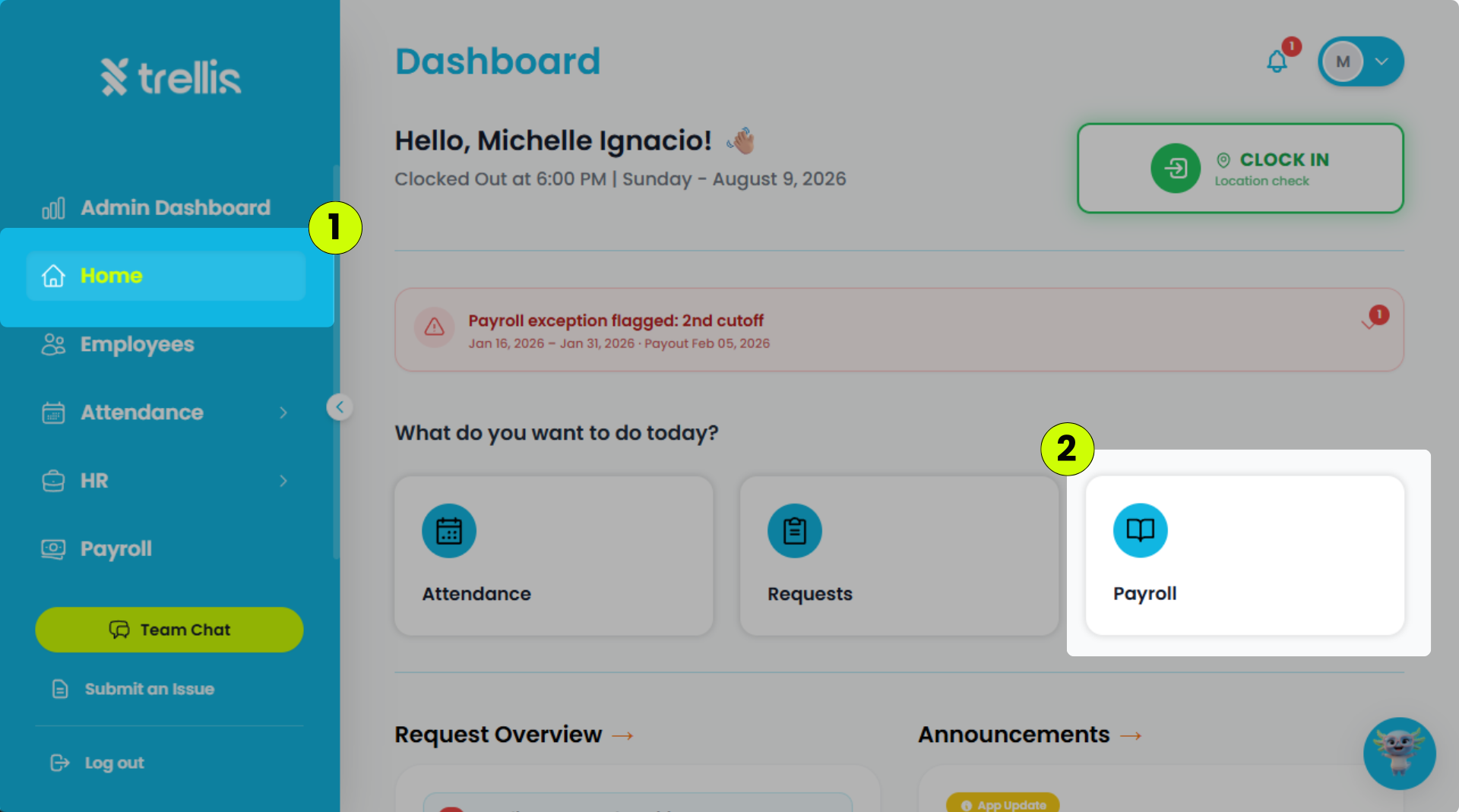
From the sidebar, click "Home."
On your Home Dashboard, click "Payroll."
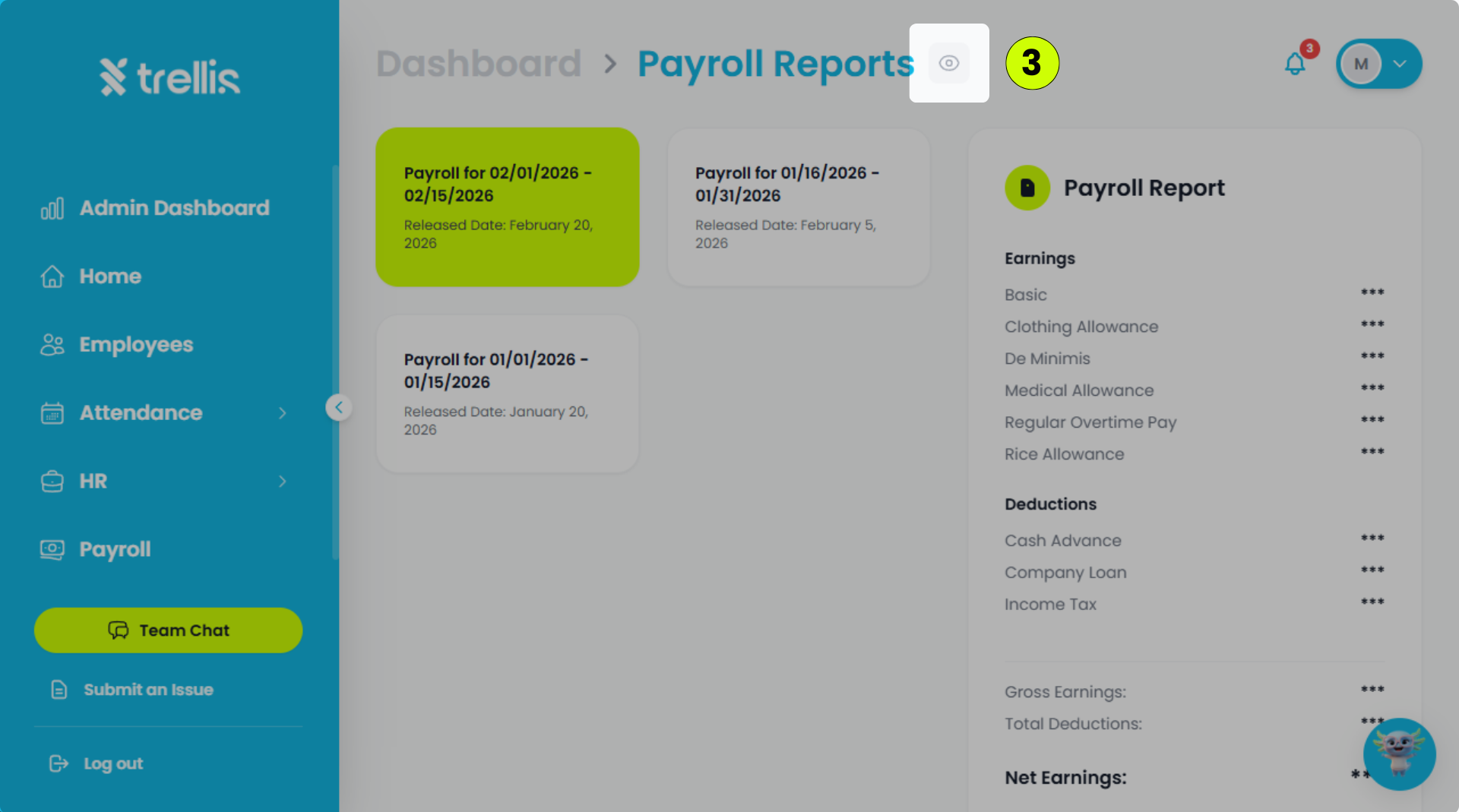
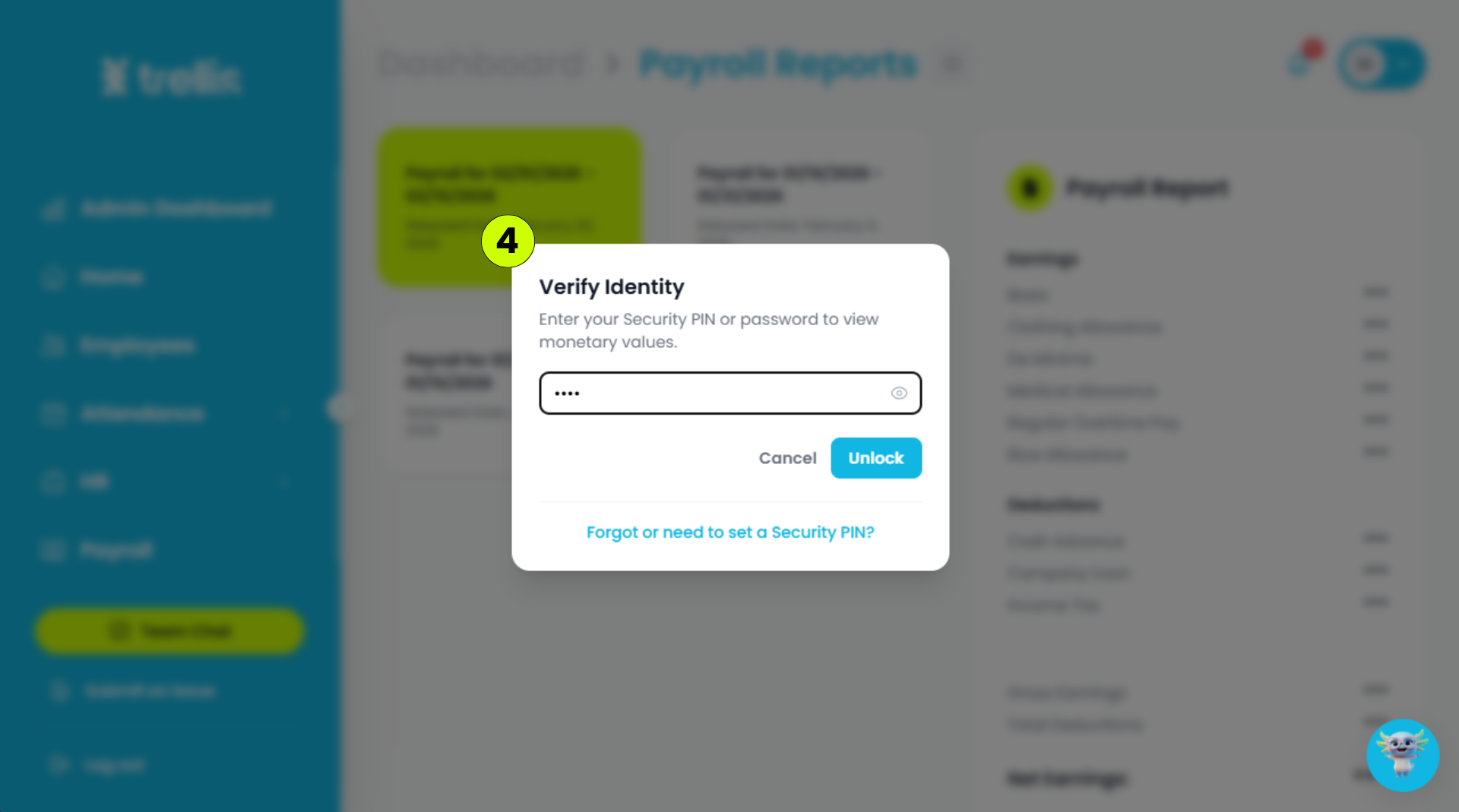
Beside the "Payroll Reports" label, click the eye icon.
Enter your PIN or password, then click "Unlock."
 Read the full guide →
From the sidebar, click "Home."
On the Dashboard, click "Requests."
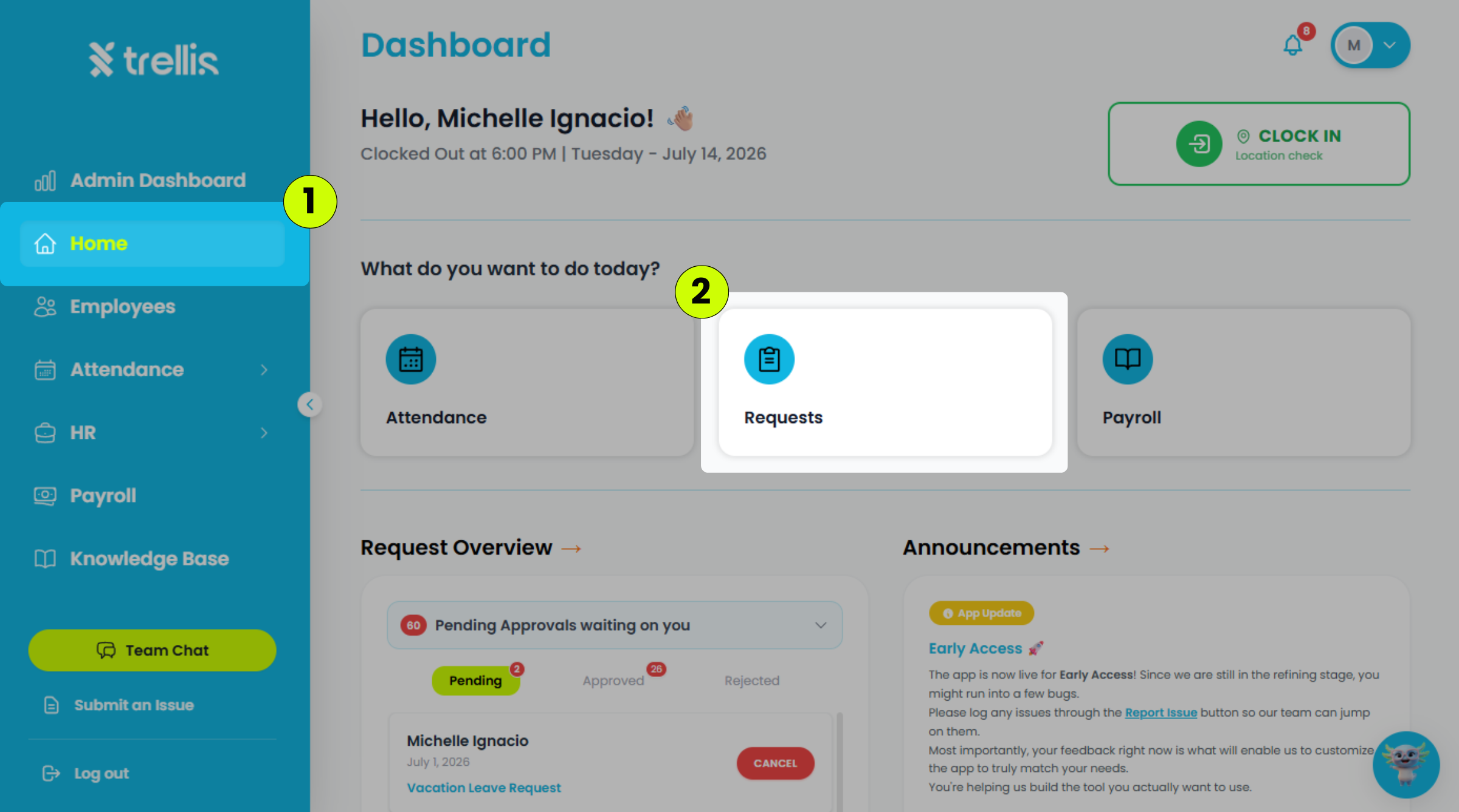
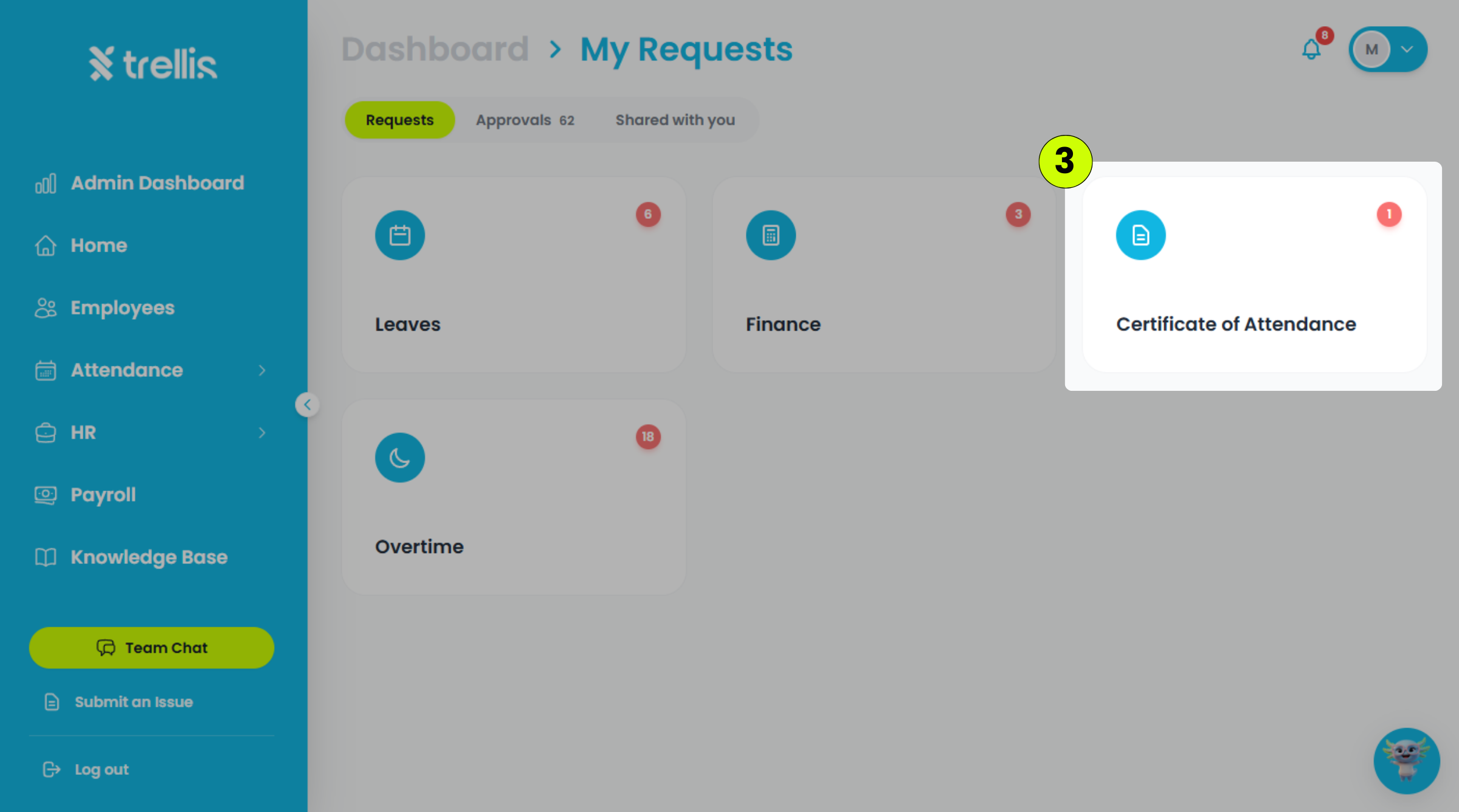
On the Requests page, click "Certificate of Attendance."
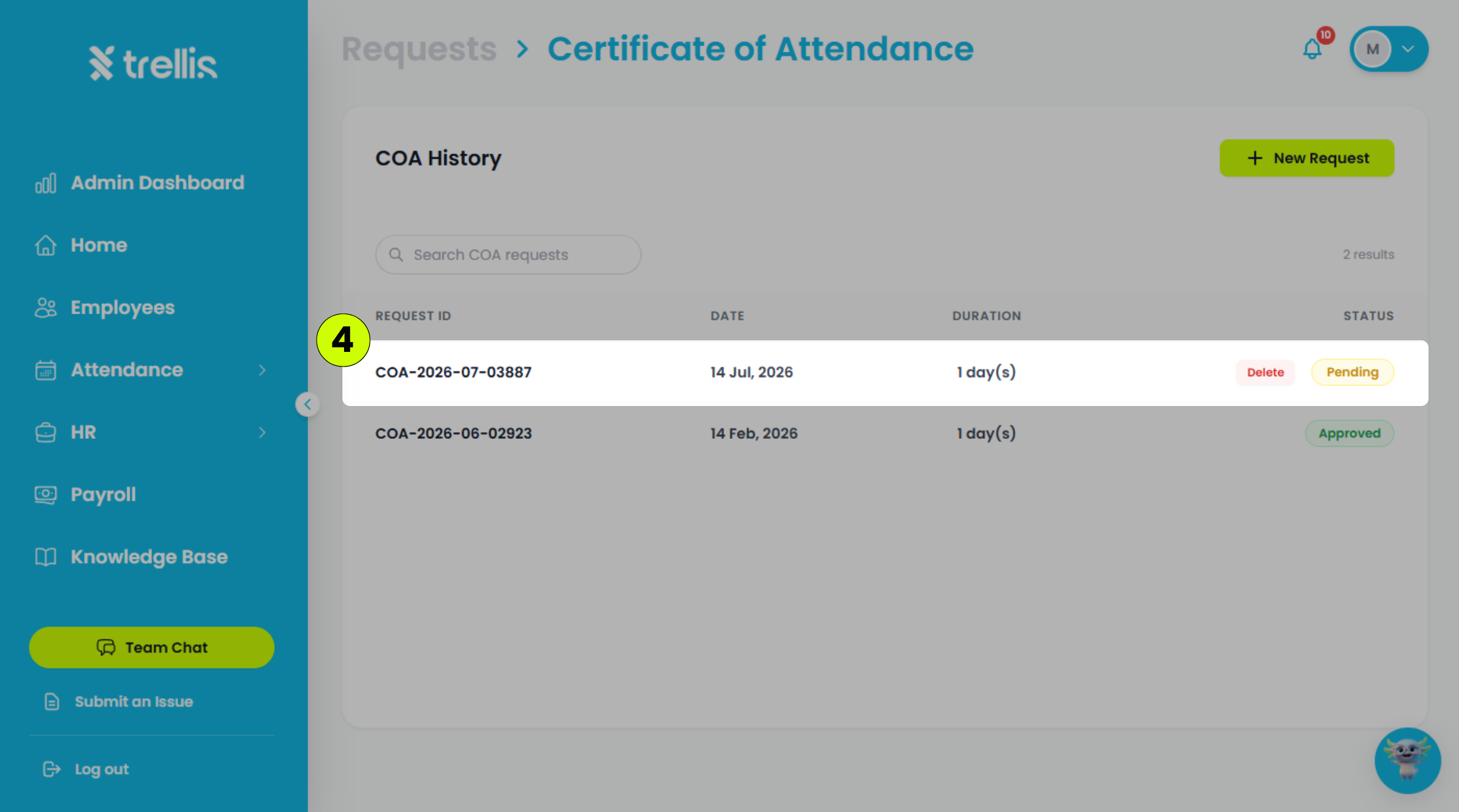
Locate the COA request you want to delete, then click "Delete."
Click "Delete" again to confirm the deletion.
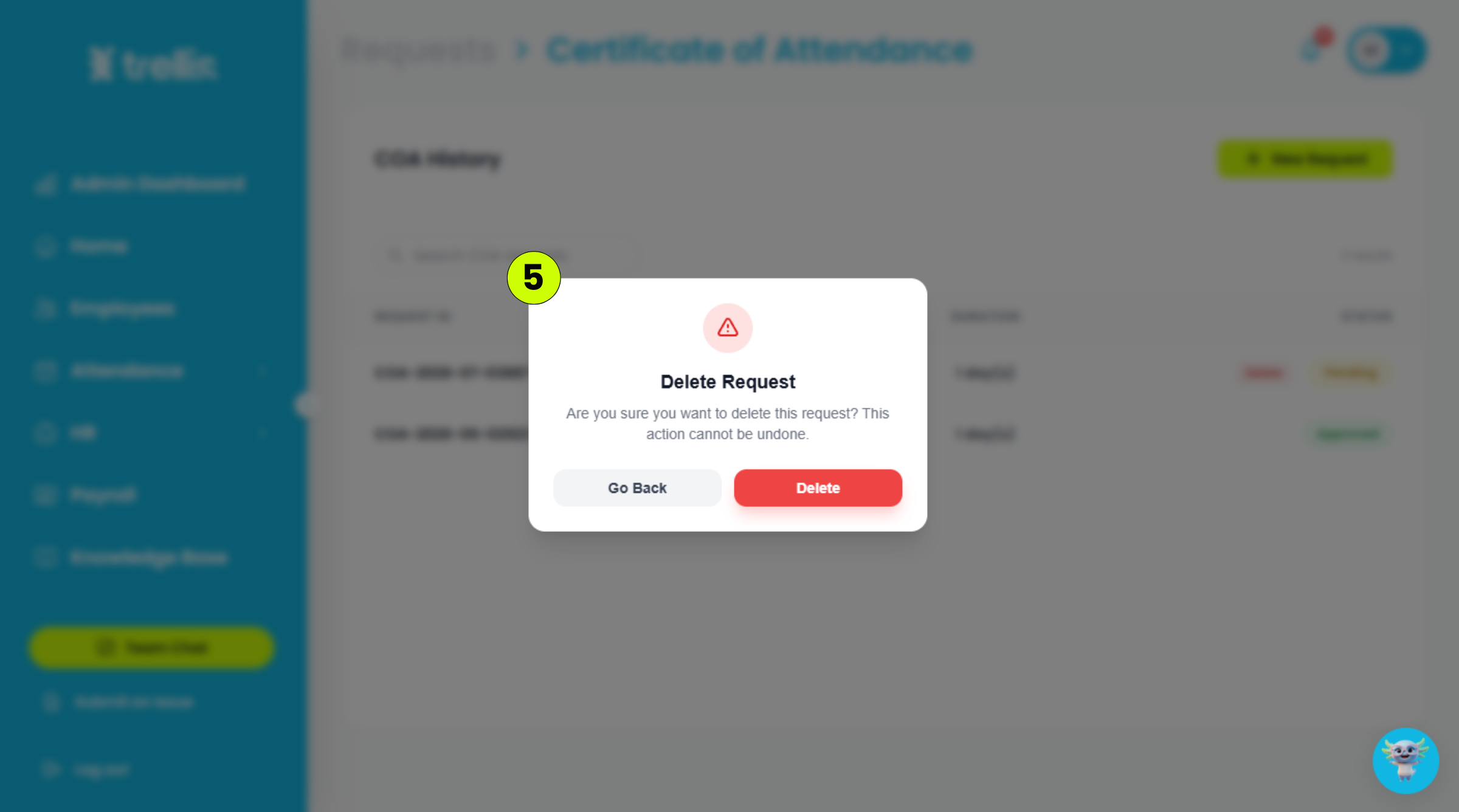 Read the full guide →
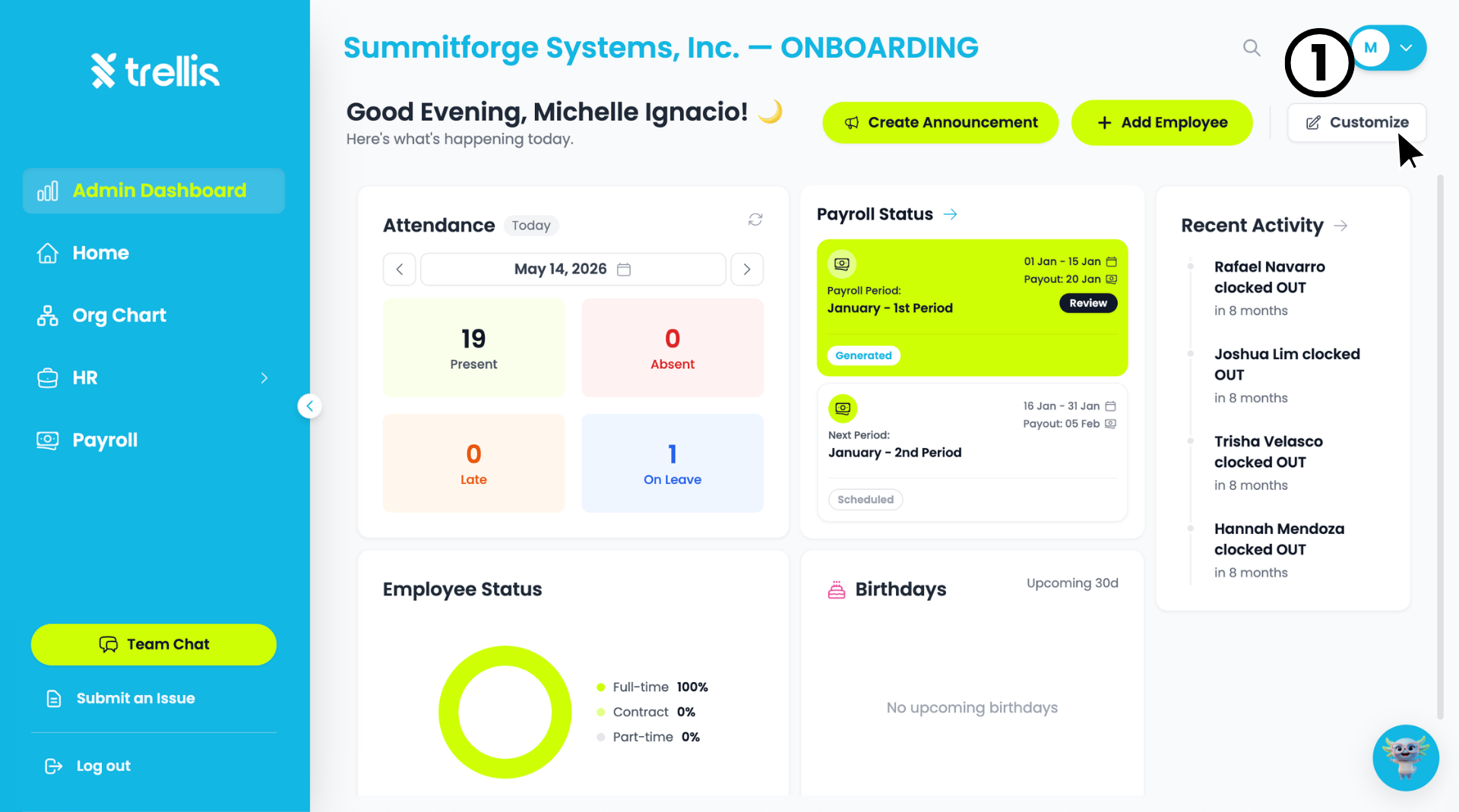
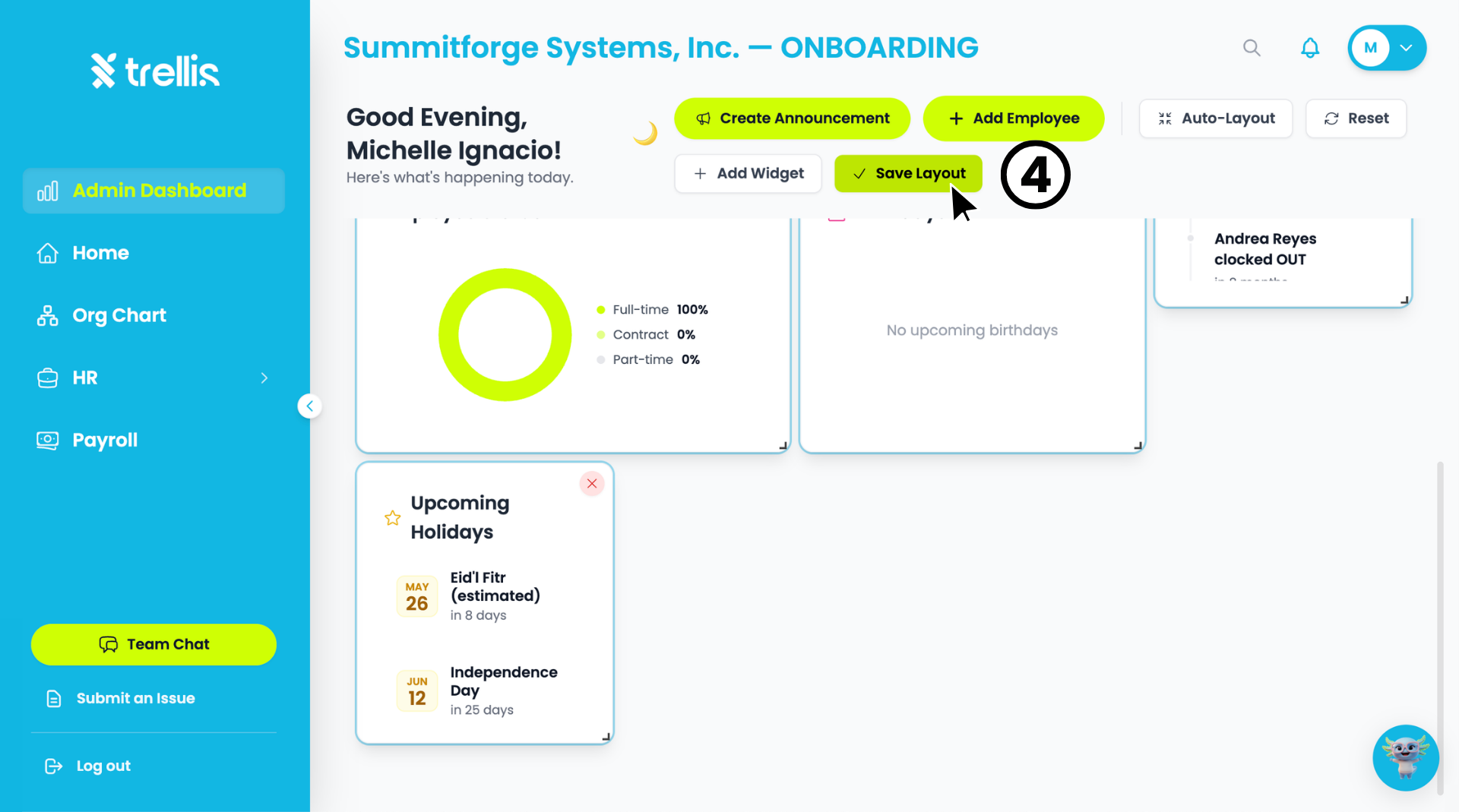
From the "Admin Dashboard", click the "Customize" button at the top right of the page to enter edit mode.
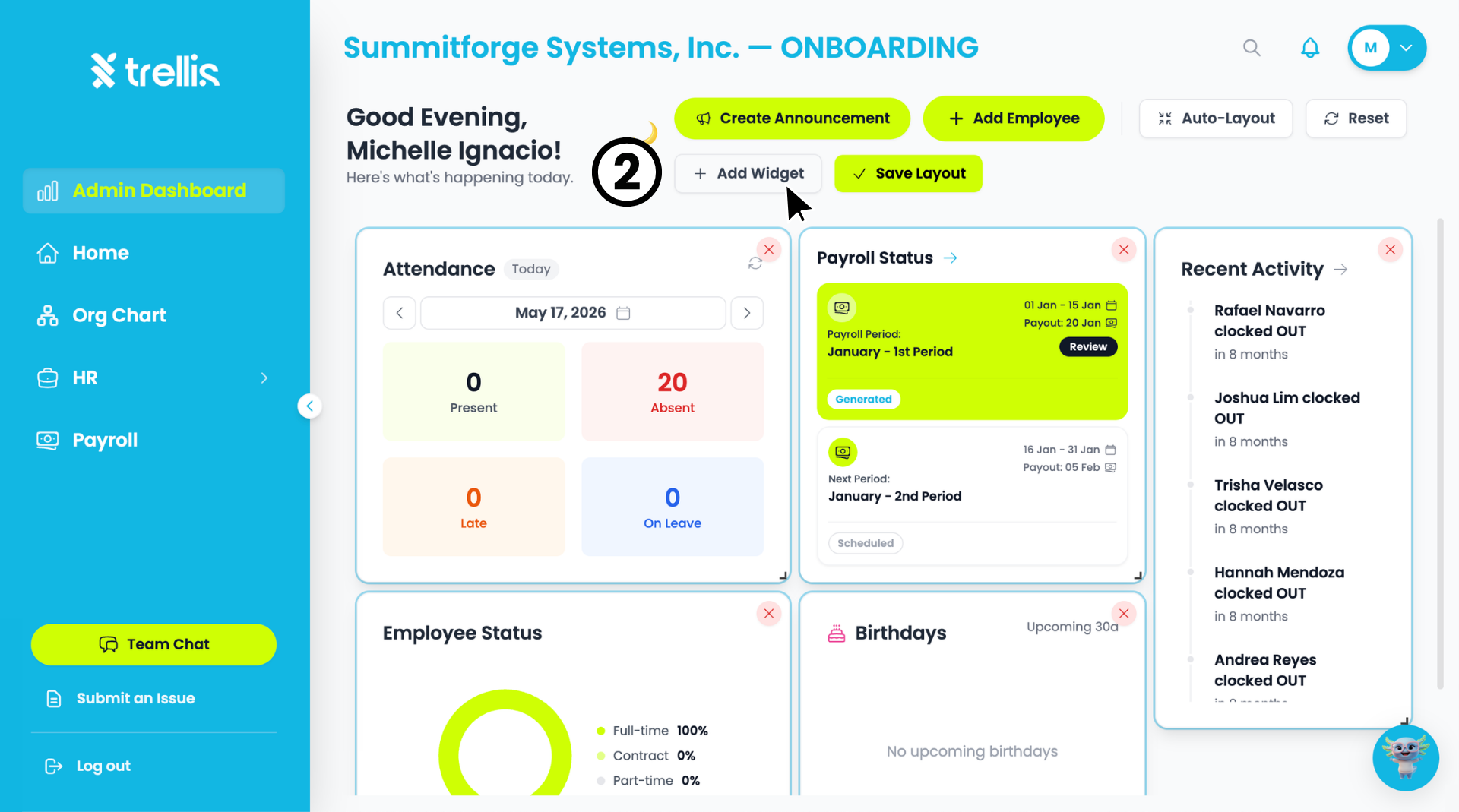
Click the "+ Add Widget" button that appears in the toolbar.
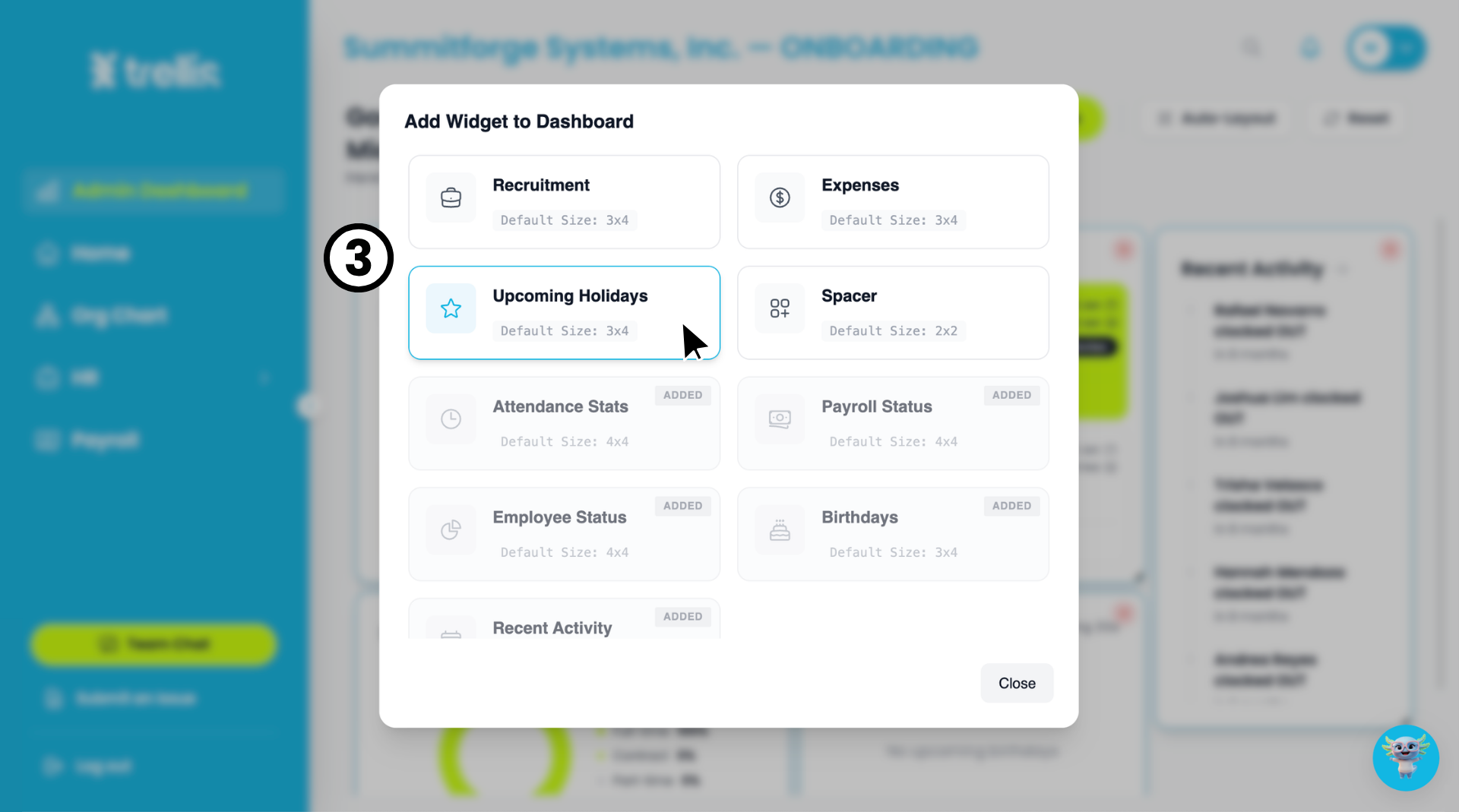
An "Add Widget to Dashboard" window will appear. Select the widget you want to add — widgets already on your dashboard will be marked as "Added."
Your selected widget will appear on the dashboard. Click "Save Layout" to apply your changes.
 Read the full guide →
From the sidebar, click "Home."
On your Home Dashboard, click "Payroll."
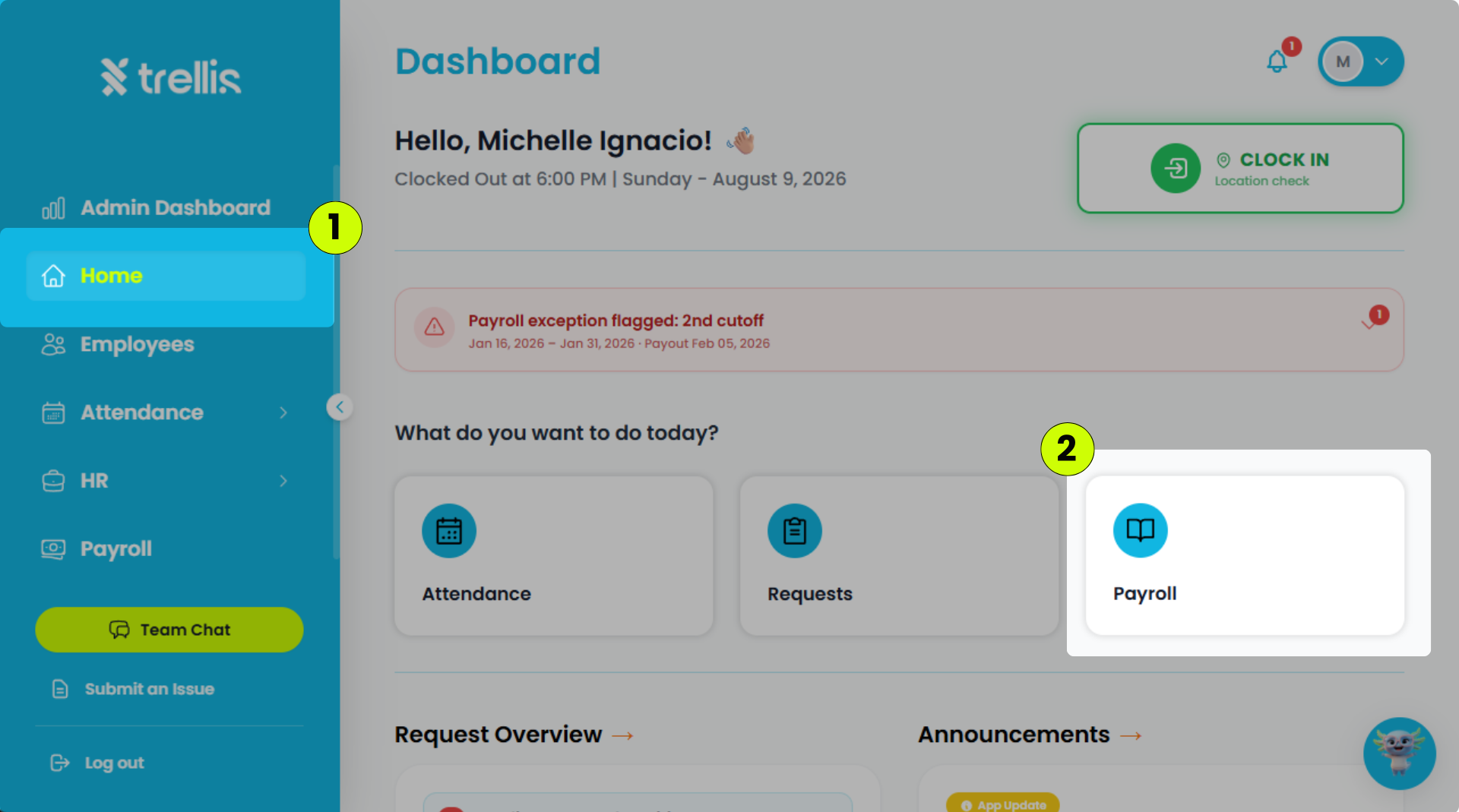
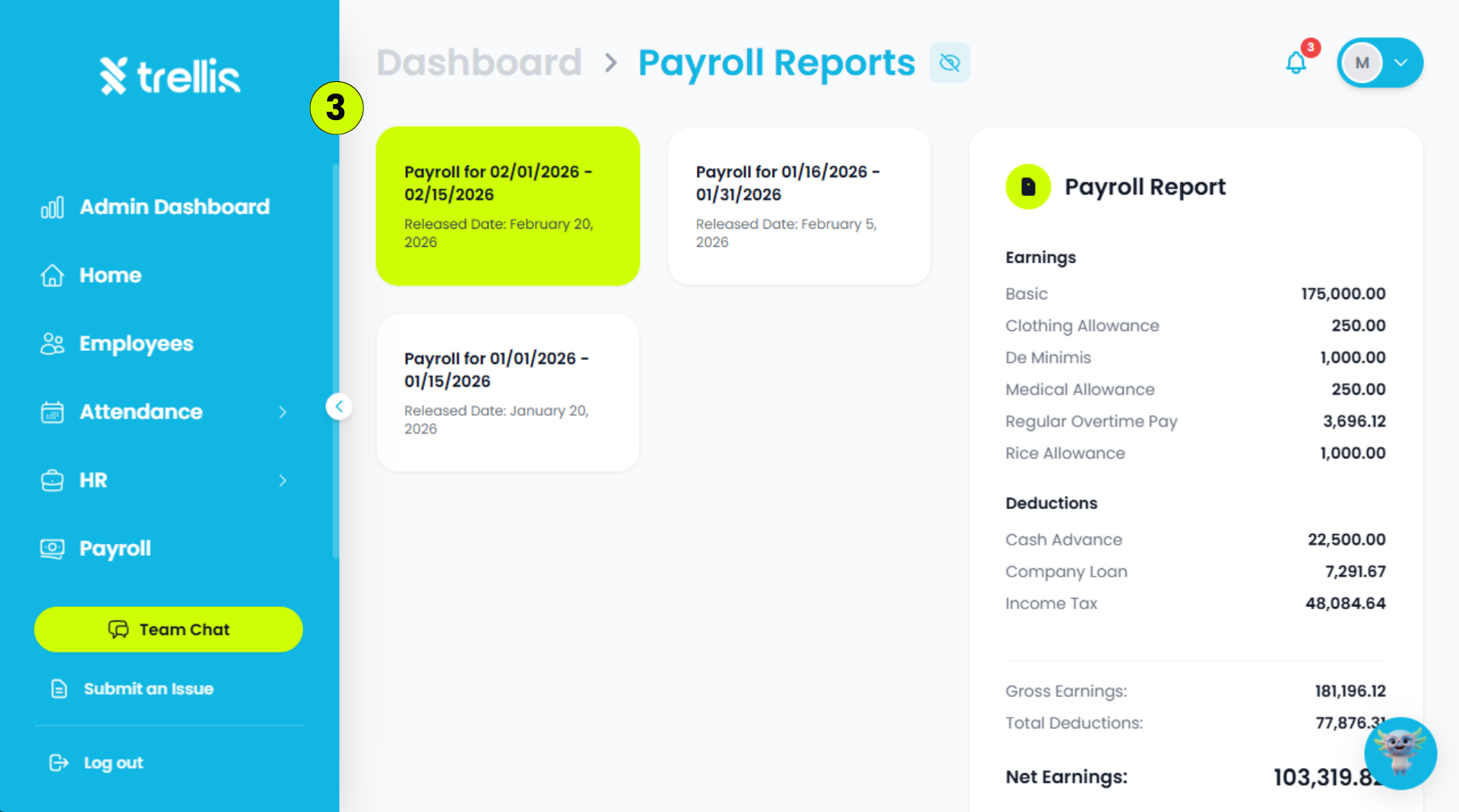
Select the payroll report you want to view.
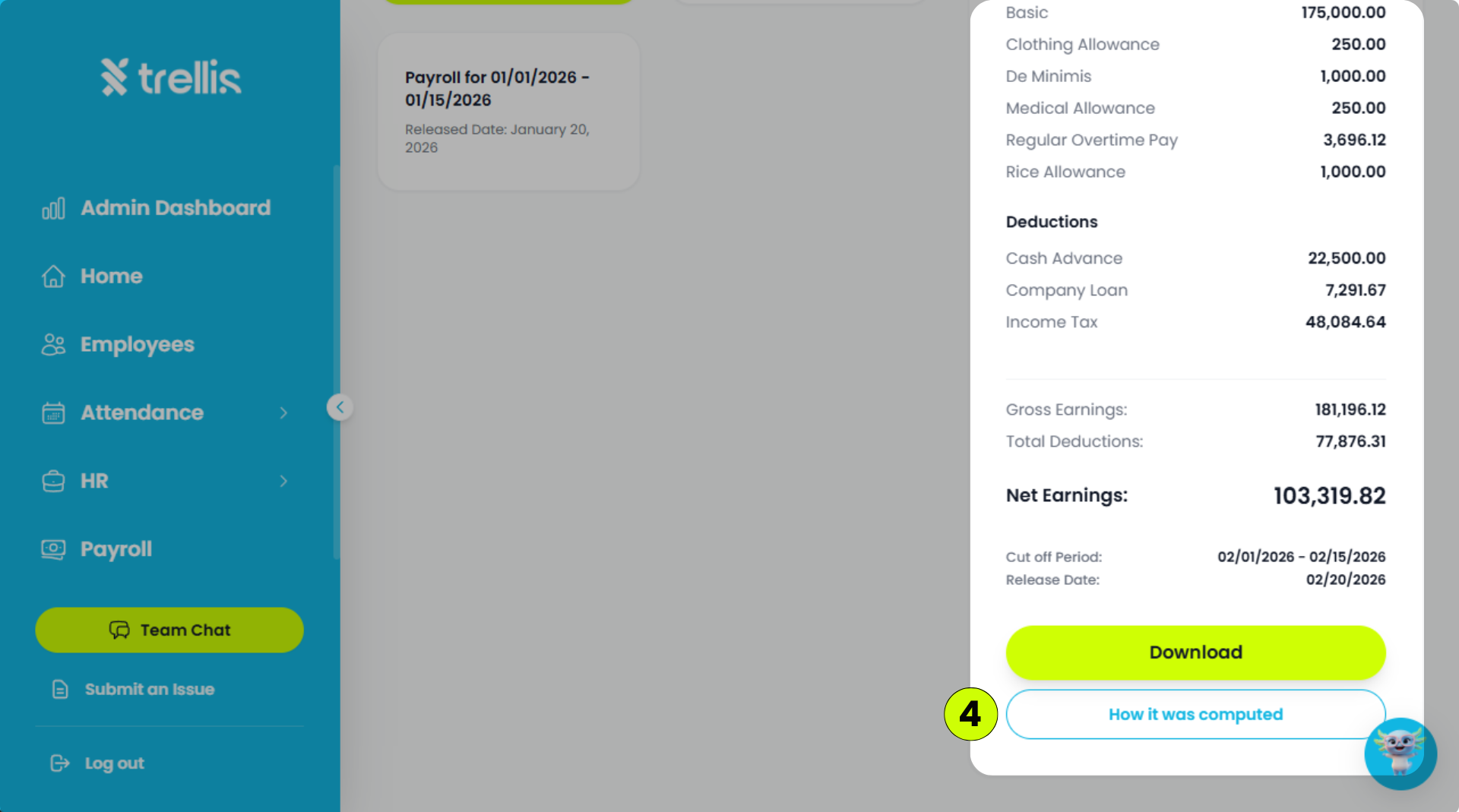
Scroll down to "How It Was Computed," then click it to view the full computation of your payslip.
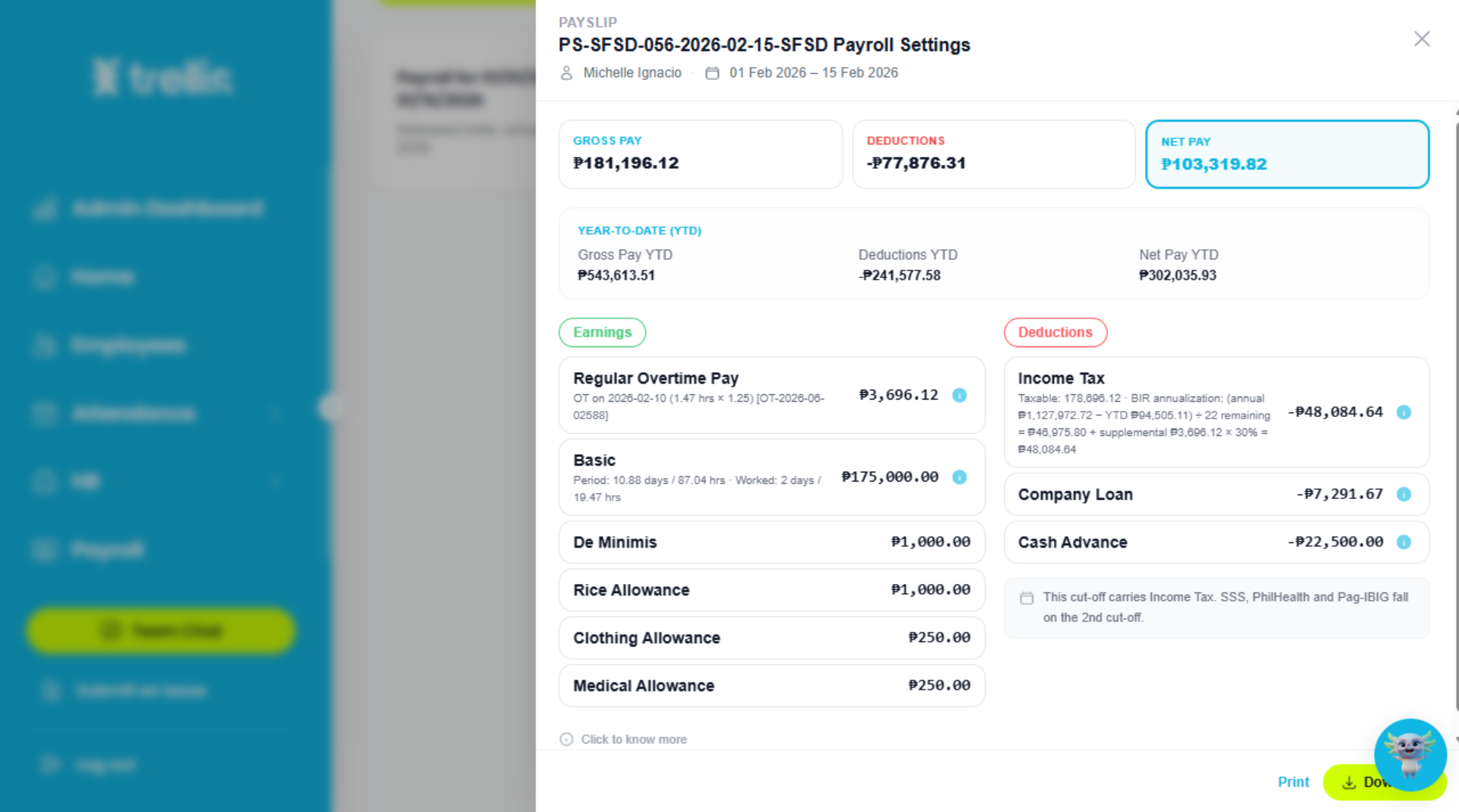 Read the full guide →
Go to Security Settings and click the Change PIN button.
Enter and confirm a new 4-digit (or longer) PIN, then click “Save PIN”.
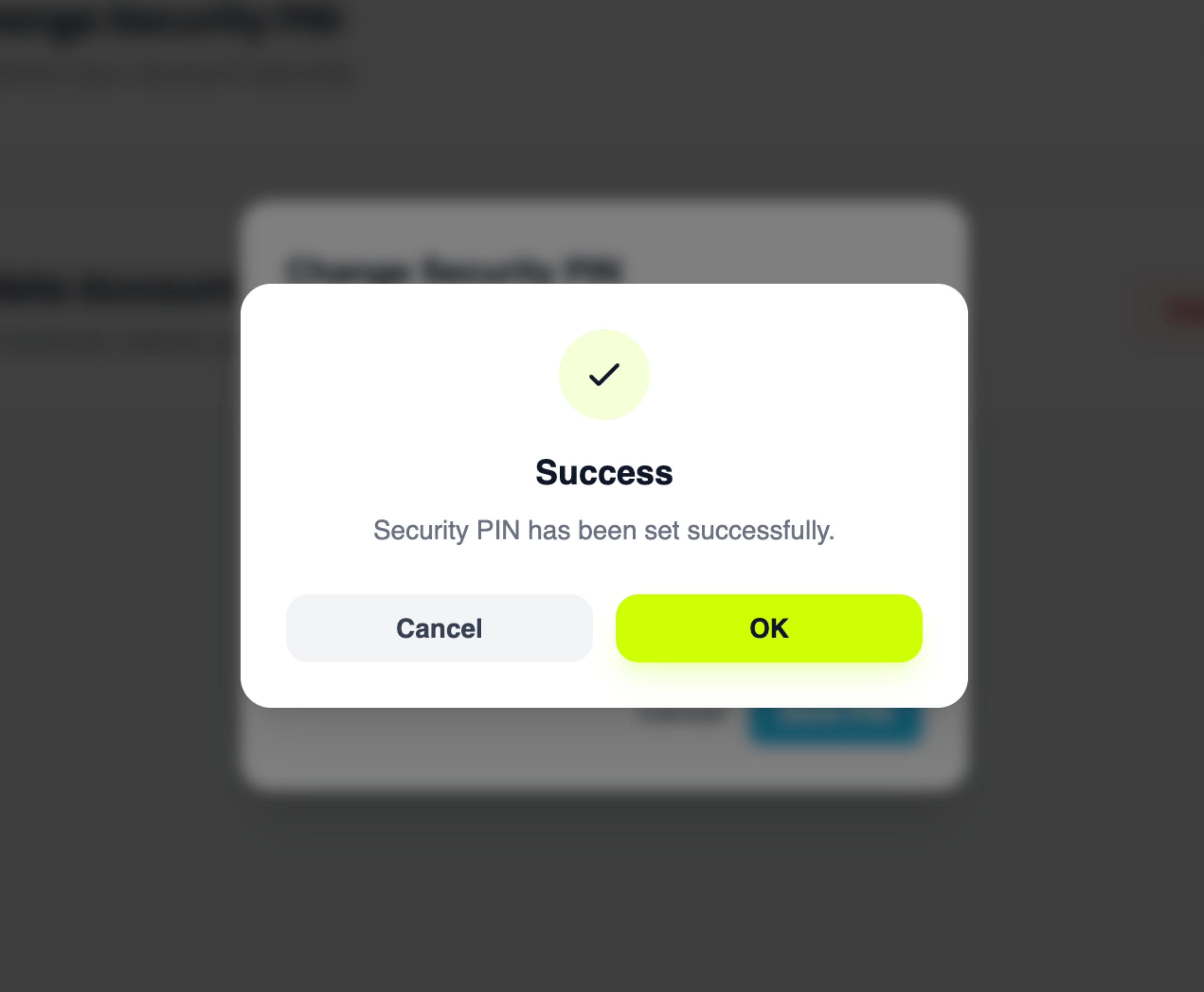
Once the success message appears, click “OK” to return to your settings.
 Read the full guide →
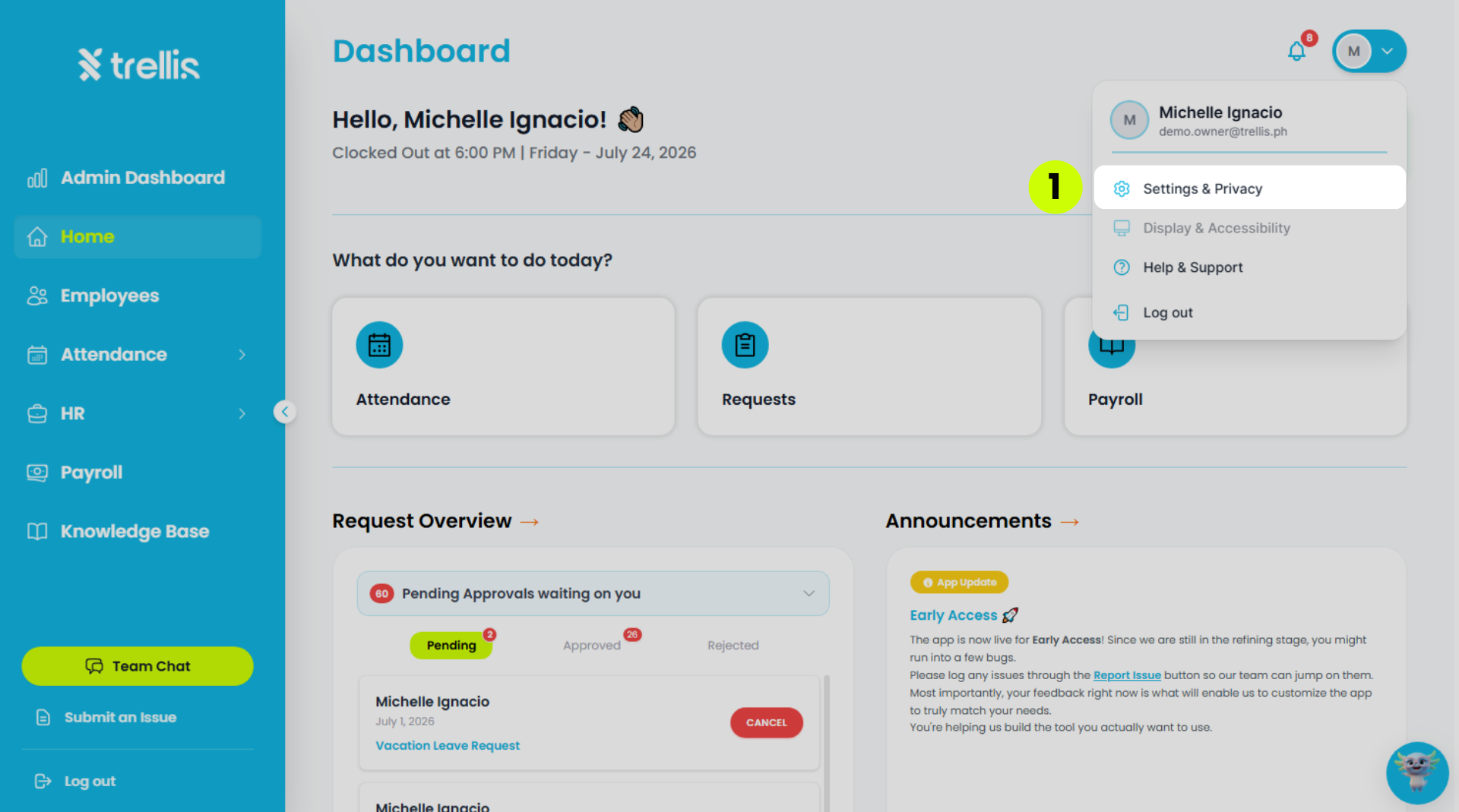
Click your profile icon at the top right, then select Settings & Privacy.
From the sidebar, click "Team" to expand the menu.
.png)
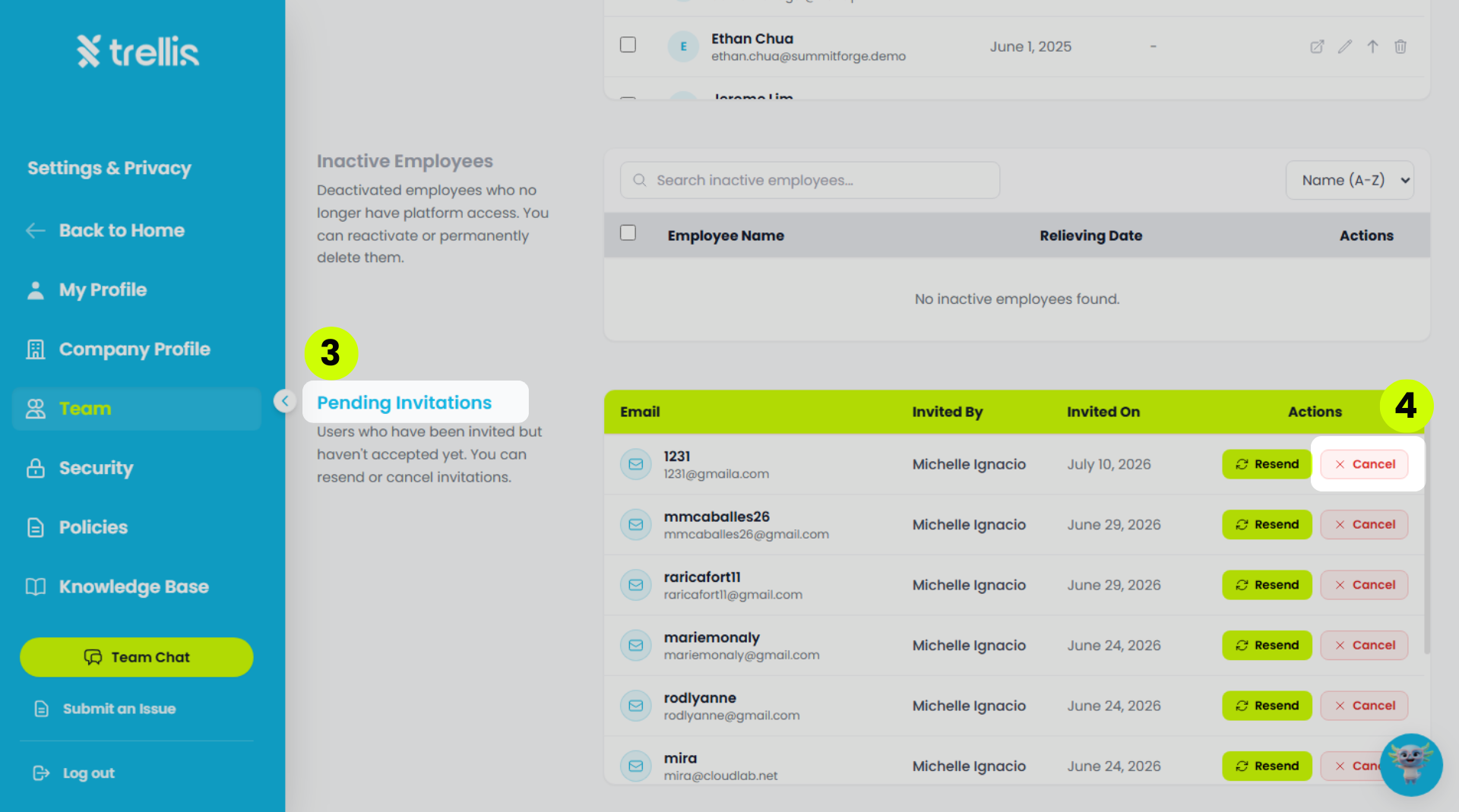
Scroll down to the “Pending Invitations” section
Under the “Action” column, press the “Cancel” button.
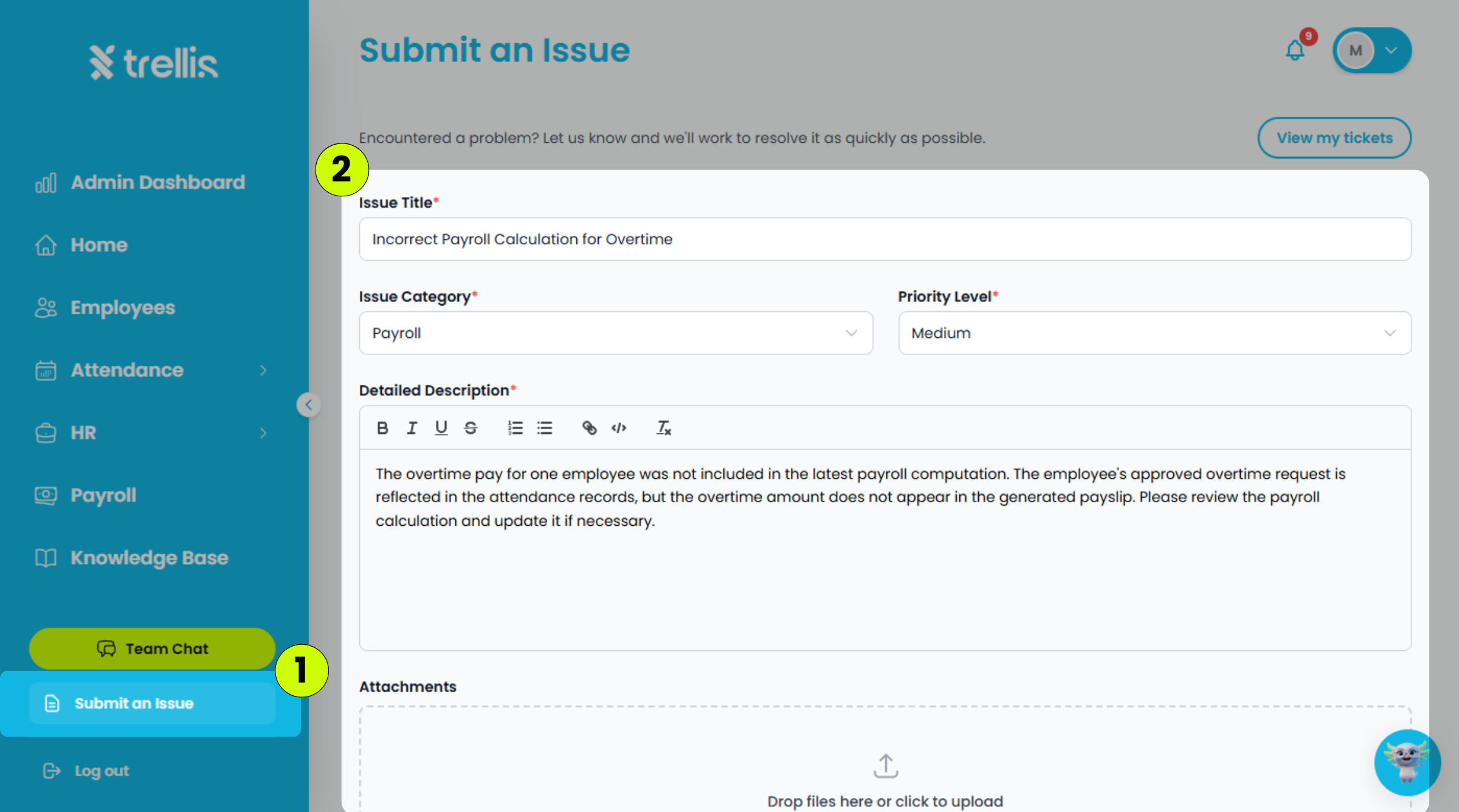
From the sidebar, click "Submit an Issue."
Fill in the following information:
Issue Title – A short summary of the issue.
Category – The category that best describes the issue.
Priority Level – The urgency of the issue.
Detailed Description – A detailed explanation of the issue.
Attachments (Optional) – Upload screenshots or files that may help explain the issue.
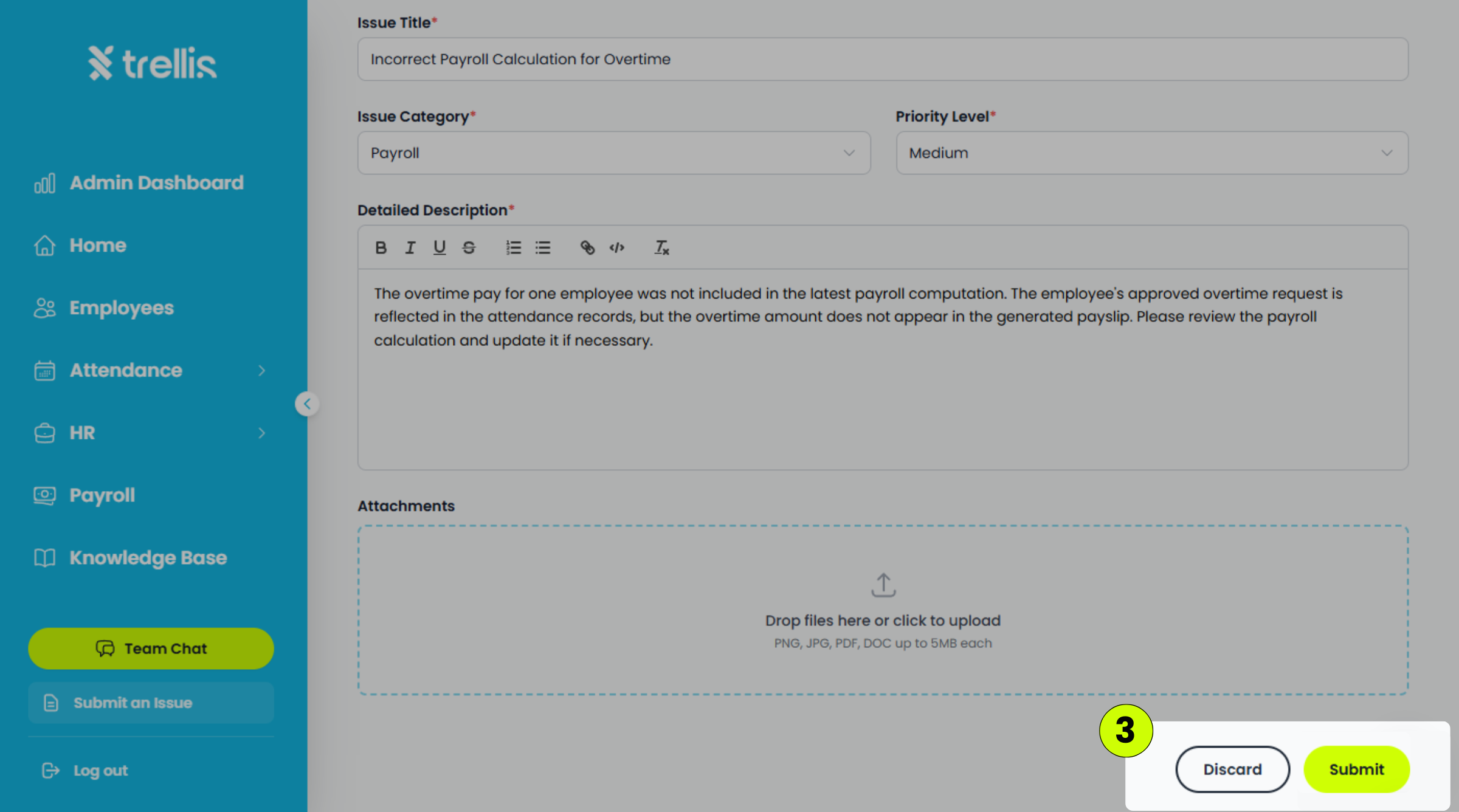
Click "Submit" to send the issue report.
 Read the full guide →
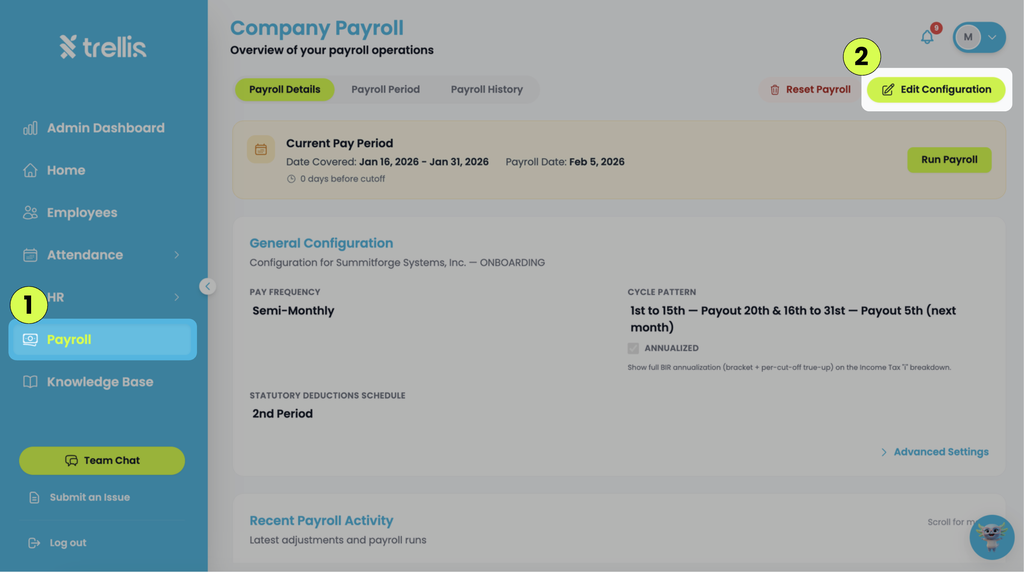
From the sidebar, click "Payroll" to open the Company Payroll page.
On the Payroll Details tab, click "Edit Configuration" and update the payroll configuration as needed.
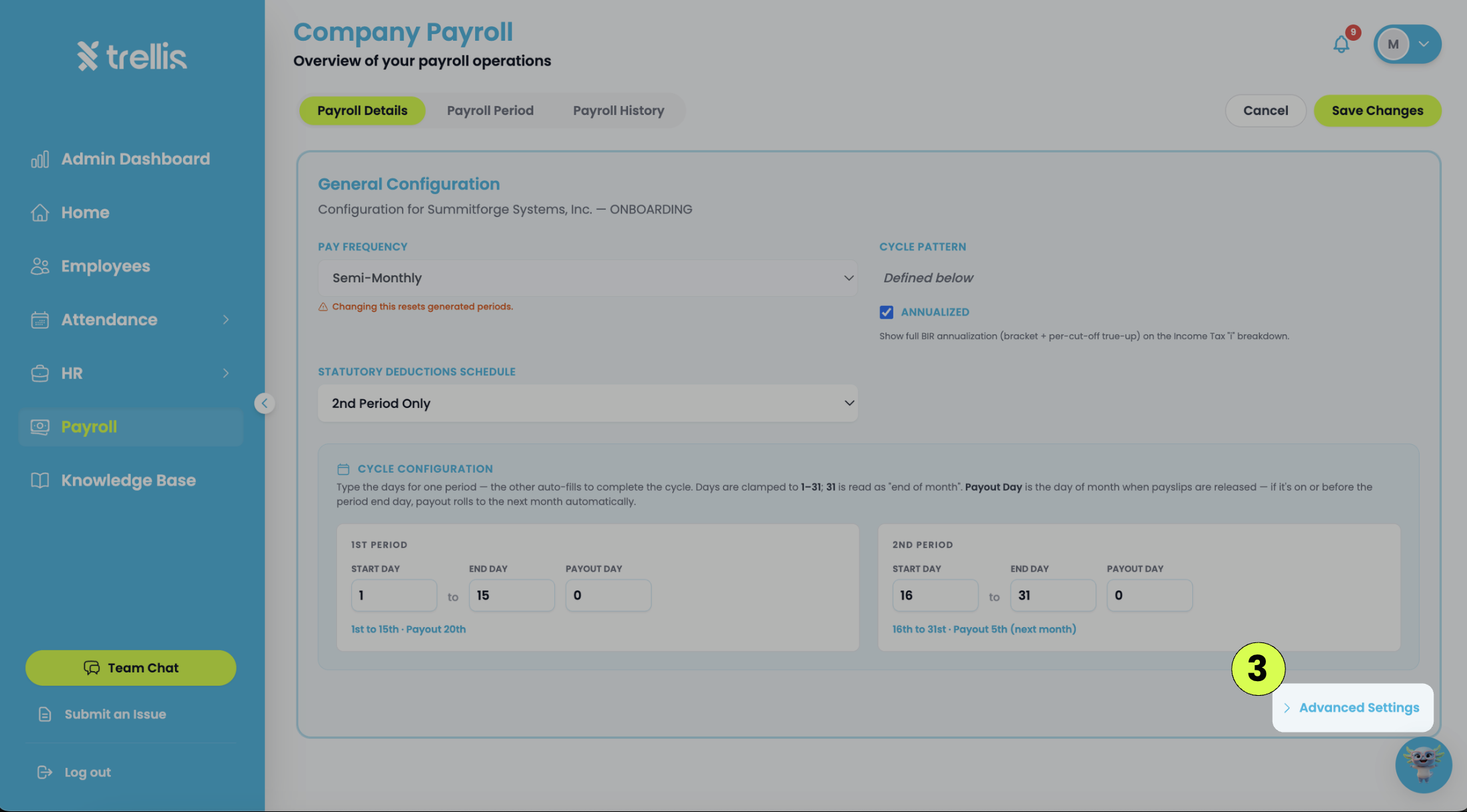
For additional customization options, click "Advanced Settings".
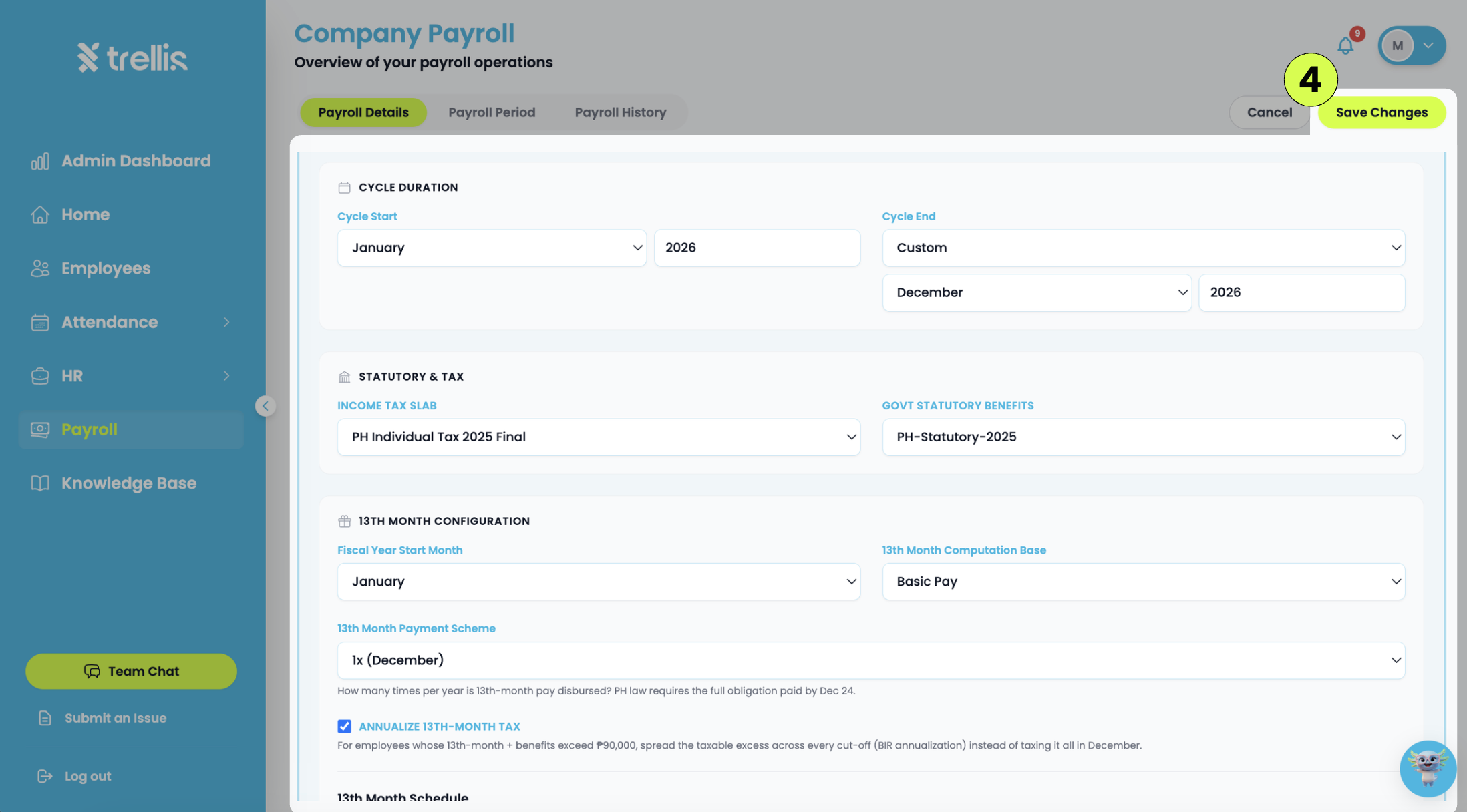
click "Save Changes" once all updates are complete.
If government contributions or statutory deductions appear incorrect in payroll, try the solutions below:
Verify that the employee’s contribution information and payroll details are complete and updated correctly.
Check if the employee is assigned to the correct payroll structure and statutory deduction schedule.
Review the payroll configuration settings for SSS, PhilHealth, Pag-IBIG, or other government contributions to ensure they are configured properly.
Make sure the employee’s salary rate and payroll frequency are correct, as incorrect salary information may affect contribution calculations.
Refresh the payroll page and review the contribution details again after a few minutes.
Check if any manual payroll adjustments or deductions were entered incorrectly.
Verify that the correct payroll period and payroll coverage dates were selected before running payroll.
If contribution tables or deduction settings were recently updated, rerun the payroll computation and review the updated records.
If the issue persists, you may submit an issue to our support team through Submit an Issue.
Read the full guide →If the employee did not receive the invitation email, try the following solutions below:
Verify that the employee’s email address was entered correctly and does not contain any spelling mistakes.
Ask the employee to check their Spam, Junk, Promotions, or Updates folder, as the invitation email may have been filtered automatically.
Wait for a few minutes and refresh the inbox. In some cases, email delivery may take longer depending on the email provider or internet connection.
Try resending the invitation from the employee management page.
Make sure the employee’s mailbox is not full, as a full inbox may prevent new emails from being received.
Ask the employee to log out and sign back into their email account before checking the inbox again.
If the issue persists, you may submit an issue to our support team through Submit an Issue.
Read the full guide →If you are not receiving the verification email, try the solutions below:
Double-check that the email address you entered is correct and does not contain any spelling mistakes.
Check your Spam, Junk, Promotions, or Updates folders, as the verification email may have been filtered automatically by your email provider.
Wait for a few minutes and refresh your inbox. In some cases, email delivery may take longer depending on your internet connection or email provider.
Make sure your inbox is not full. A full mailbox may prevent new emails from being received.
Try requesting the verification email again by logging out and signing back into your account.
If possible, try using a different email address and request a new verification email.
Ensure that your internet connection is stable before requesting another verification email.
If the issue persists, you may submit an issue to our support team through Submit an Issue.
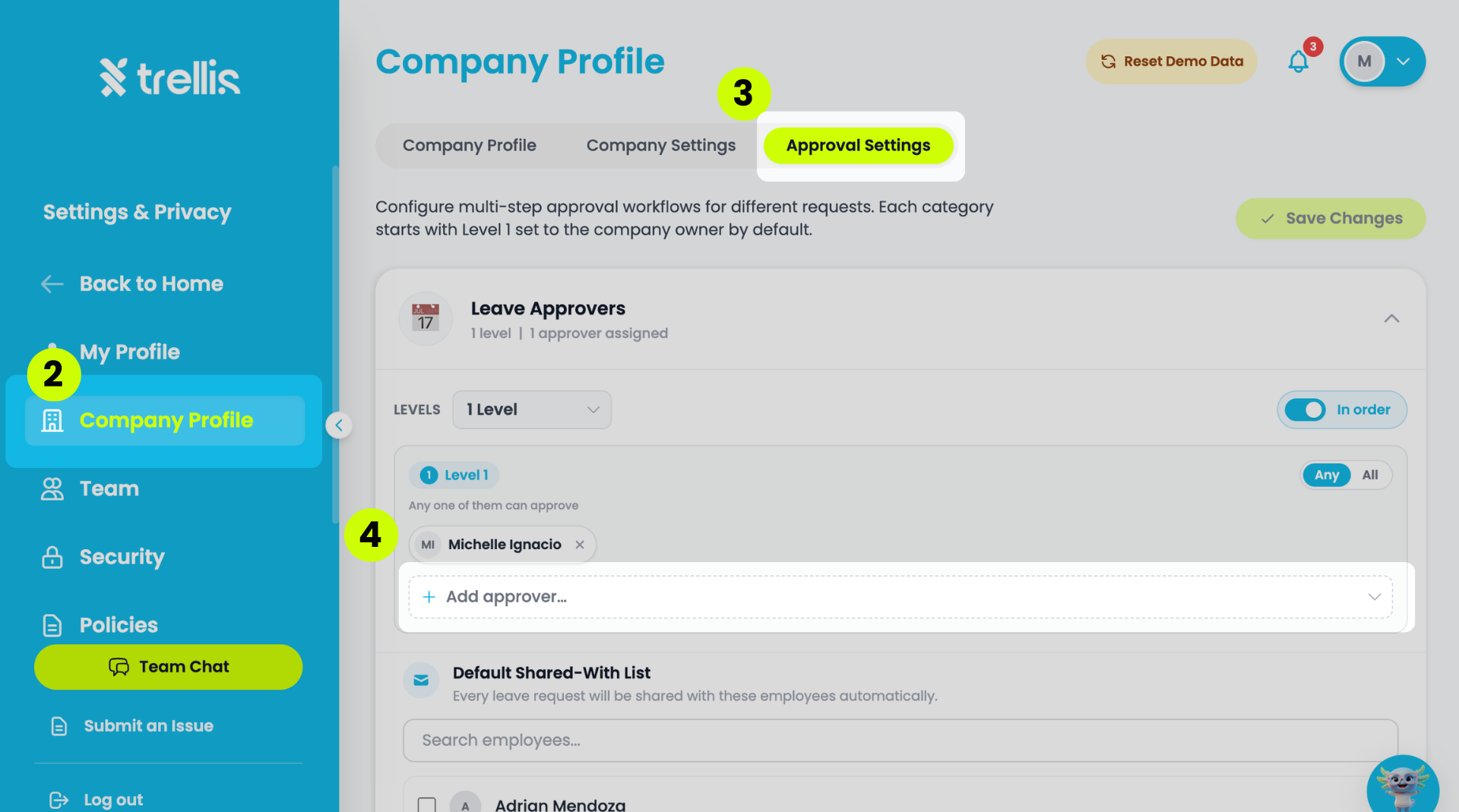
Read the full guide →Click your profile icon at the top right, then select “Settings & Privacy”.
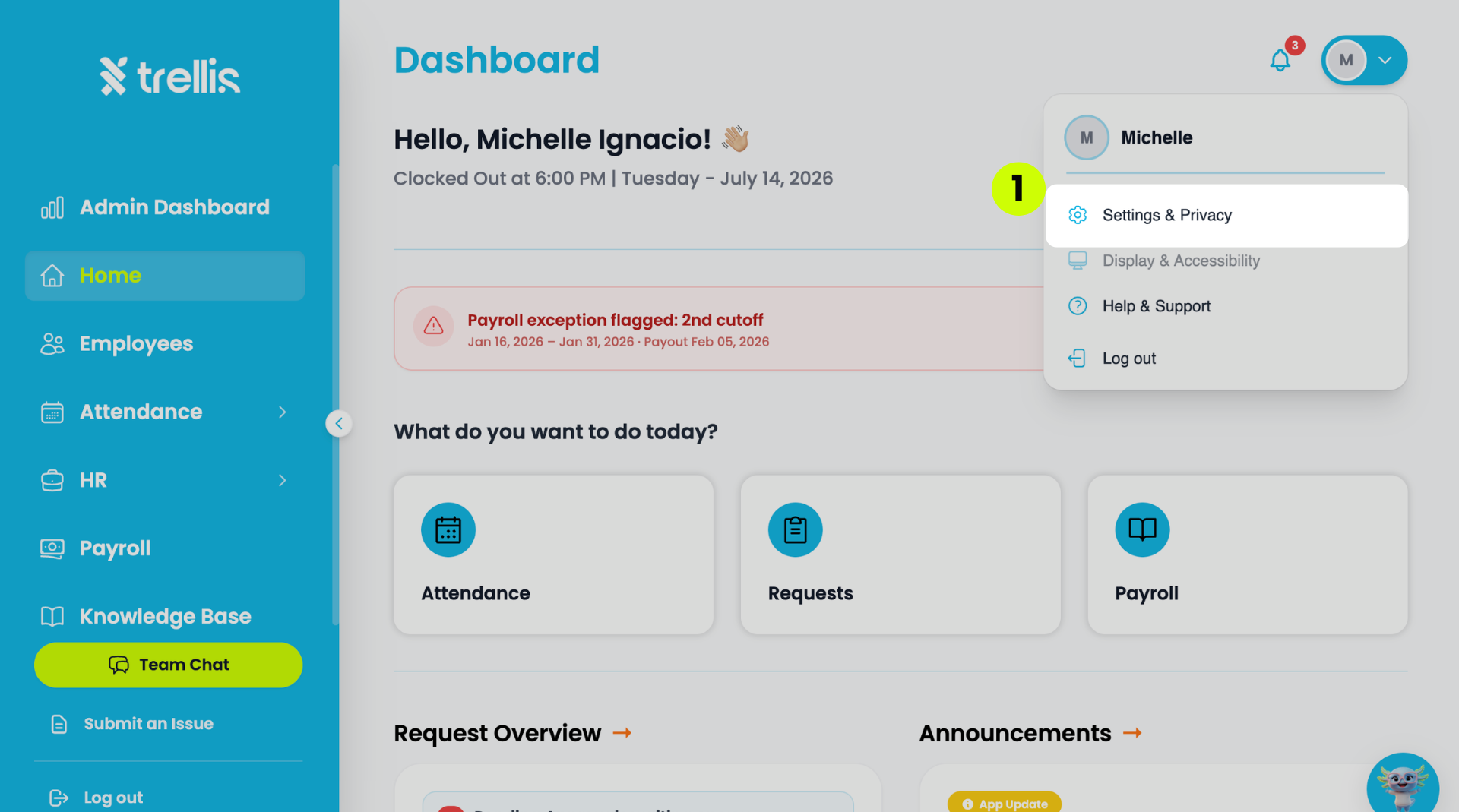
From the sidebar, click "Company Profile."
Select “Approval Settings” tab.
Click the dropdown button “+Add approver…” to display the employee list.
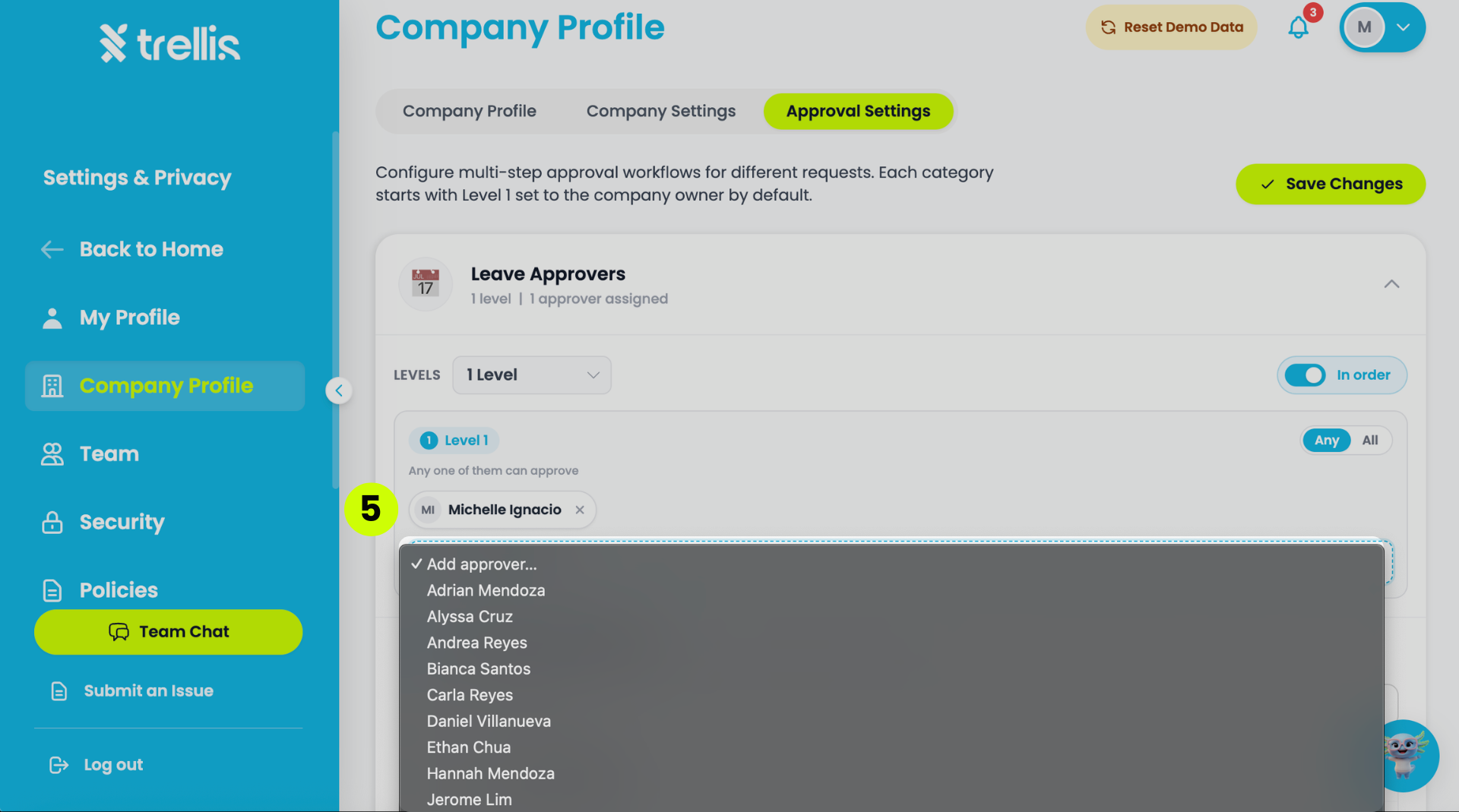
Select the names from the employee list that will be assigned as default approver.
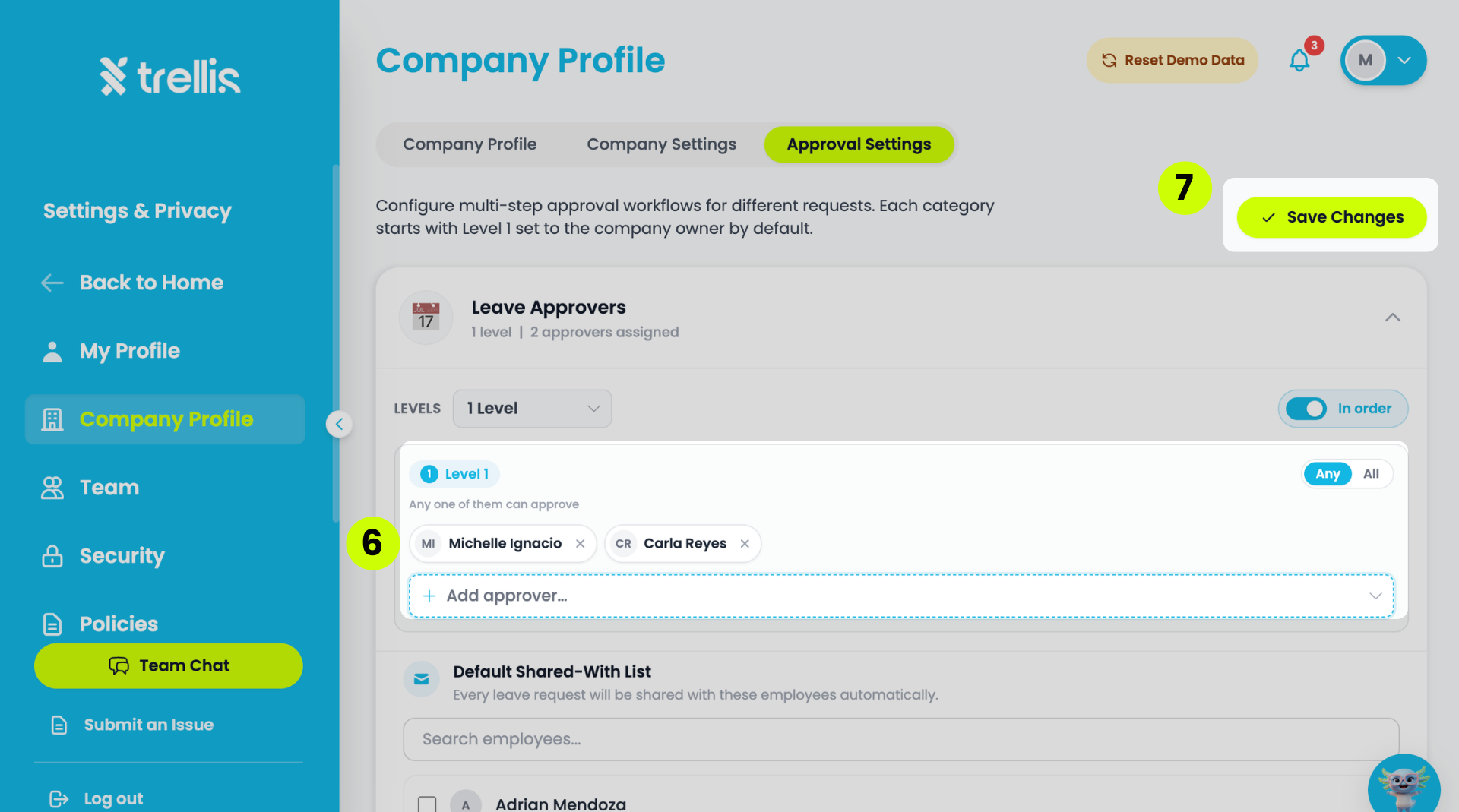
Finalize the list of employees that will be default approvers.
Click “Save Changes.”
If you receive an error message while submitting a request, try the solutions below:
Make sure all required fields are filled out correctly before submitting the request.
Check if the selected dates, leave type, or request details are valid and complete.
Refresh the page and try submitting the request again.
Ensure that your internet connection is stable while submitting the request.
If you are uploading an attachment, verify that the file is supported and does not exceed the allowed file size.
Try logging out and signing back into your account before submitting the request again.
Try using a different browser or device to check if the issue is related to the current browser session.
Wait a few minutes and try again, as temporary system delays or syncing issues may affect request submissions.
If the issue persists, you may submit an issue to our support team through Submit an Issue.
Read the full guide →From the sidebar, click "Payroll" to open the Company Payroll page.
On the Payroll Details tab, click "Edit Configuration" and update the payroll configuration as needed.
For additional customization options, click "Advanced Settings".
click "Save Changes" once all updates are complete.
If approval notifications are not appearing or being received, try the solutions below:
Refresh the page and wait a few minutes for notifications to load completely.
Verify that the request was successfully submitted before checking for approval notifications.
Check if the request has already been approved, rejected, or processed by the assigned approver.
Make sure the approver account is assigned correctly and has permission to receive approval notifications.
Ensure that the user has a stable internet connection while using the system.
Try logging out and signing back into the account before checking notifications again.
Try using a different browser or device to check if the issue is related to the current browser session.
If the issue persists, you may submit an issue to our support team through Submit an Issue.
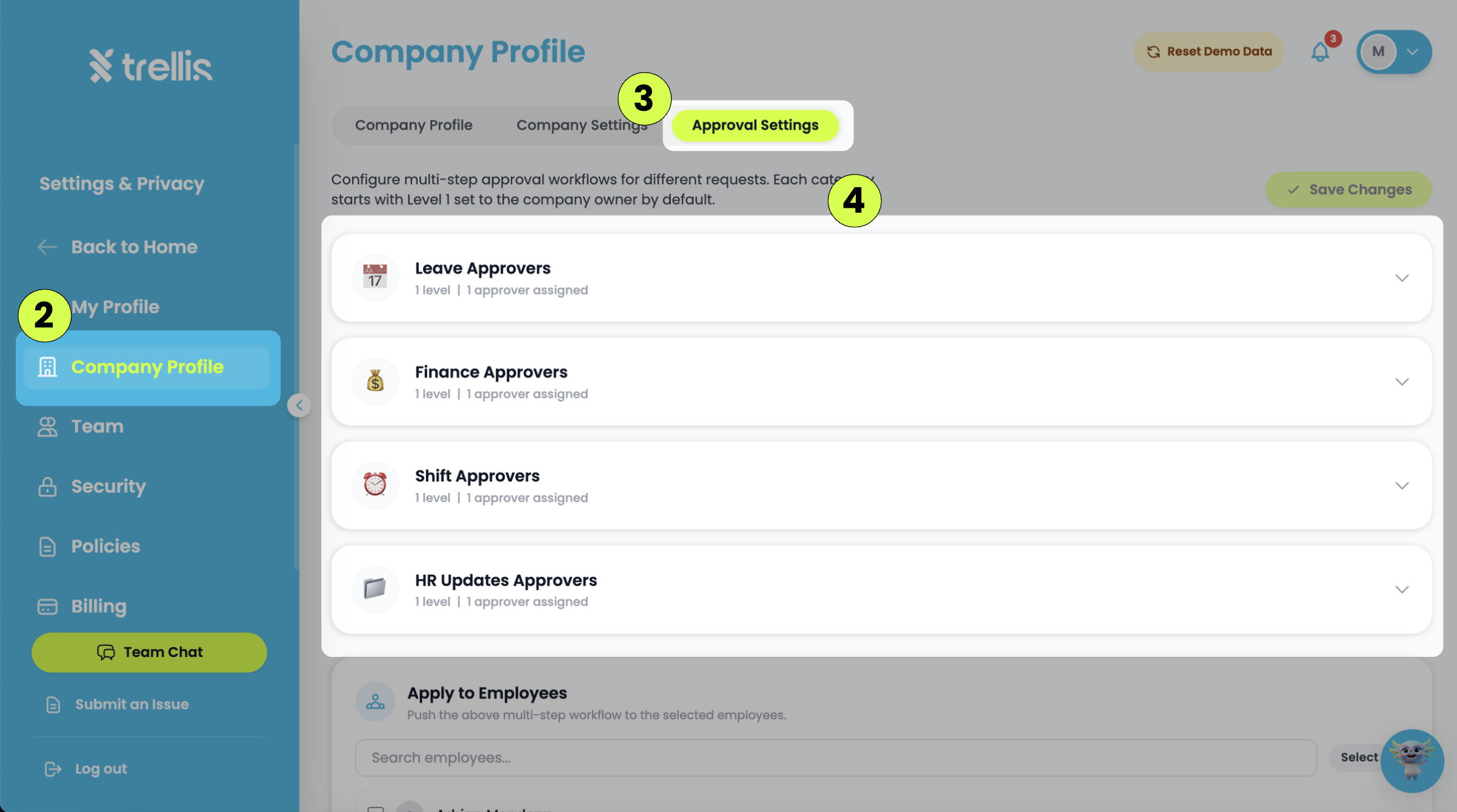
Read the full guide →Click your profile icon at the top right, then select “Settings & Privacy”.
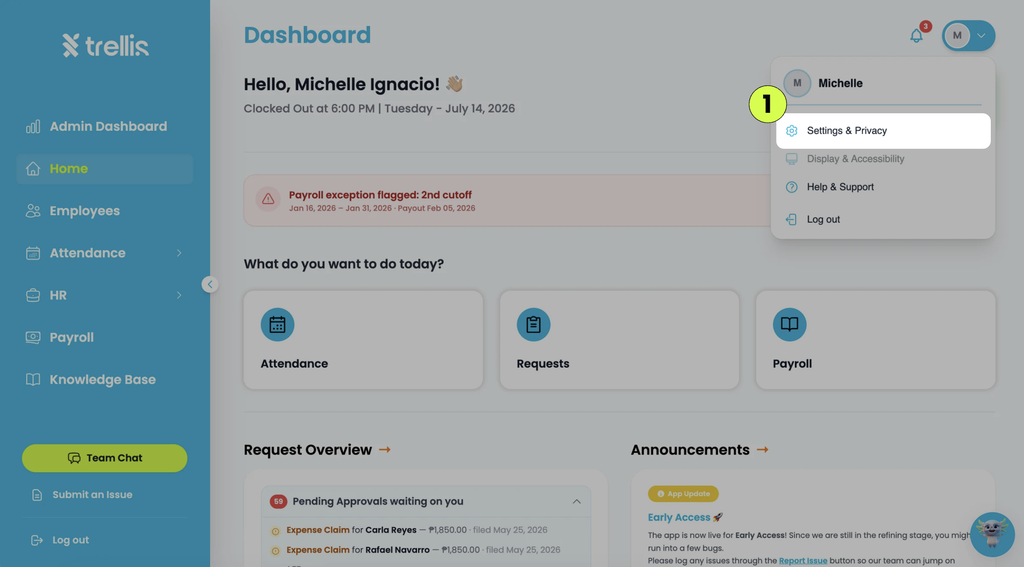
Go to “Company Profile”.
Select Approval Settings tab.
Click the dropdown arrow on the desired approval card:
Leave Approvers — for time-off and leave requests
Finance Approvers — for monetary or expense requests
Shift Approvers — for schedule or shift adjustment requests
HR Updates Approvers — for employee profile or data change requests
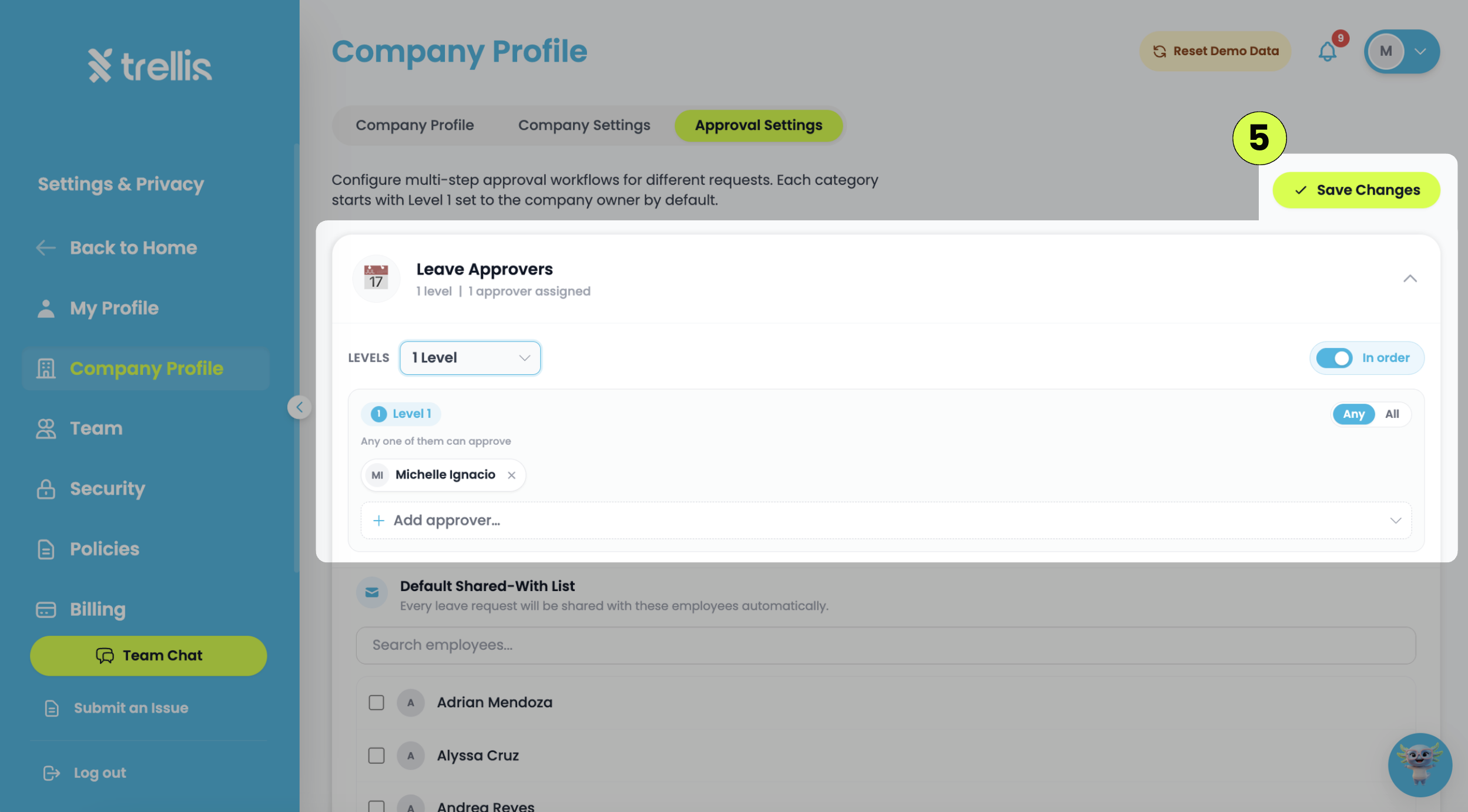
Set the approval levels, assign approvers, and then click “Save Changes”.
If an employee’s attendance record is missing or not appearing in the system, try the solutions below:
Make sure the employee successfully completed the clock in or clock out process.
Refresh the page and check the attendance records again after a few minutes, as attendance syncing may take time.
Verify that the employee is assigned to the correct shift or work schedule.
Check if the employee clocked in or out on the correct date and time.
Ensure that the employee has a stable internet connection while recording attendance.
If facial recognition or GPS tracking is enabled, make sure the required permissions are allowed on the employee’s device.
Try logging out and signing back into the account before checking the attendance records again.
Check if filters or selected date ranges are hiding the attendance records from the list.
If the issue persists, you may submit an issue to our support team through Submit an Issue.
Read the full guide →If attendance records are not syncing properly in the system, try the solutions below:
Refresh the page and wait a few minutes for the attendance records to sync completely.
Make sure the employee has a stable internet connection while clocking in or clocking out.
Verify that the employee successfully completed the attendance process before closing the application or browser.
Check if the employee’s attendance record appears in the correct date and time range.
Try logging out and signing back into the account before checking the attendance records again.
Ensure that the employee’s device date and time settings are correct, as incorrect device settings may affect attendance syncing.
If facial recognition or GPS tracking is enabled, make sure all required permissions are allowed on the device.
Try using a different browser or device to check if the issue is device-related.
If the issue persists, you may submit an issue to our support team through Submit an Issue.
Read the full guide →Payroll Analysis lets you review payroll exceptions and attendance-related issues before finalizing a payroll period. It helps identify items such as absences, late records, undertime, missing clock-outs, and other payroll adjustments that may affect employee pay.
To review Payroll Analysis:
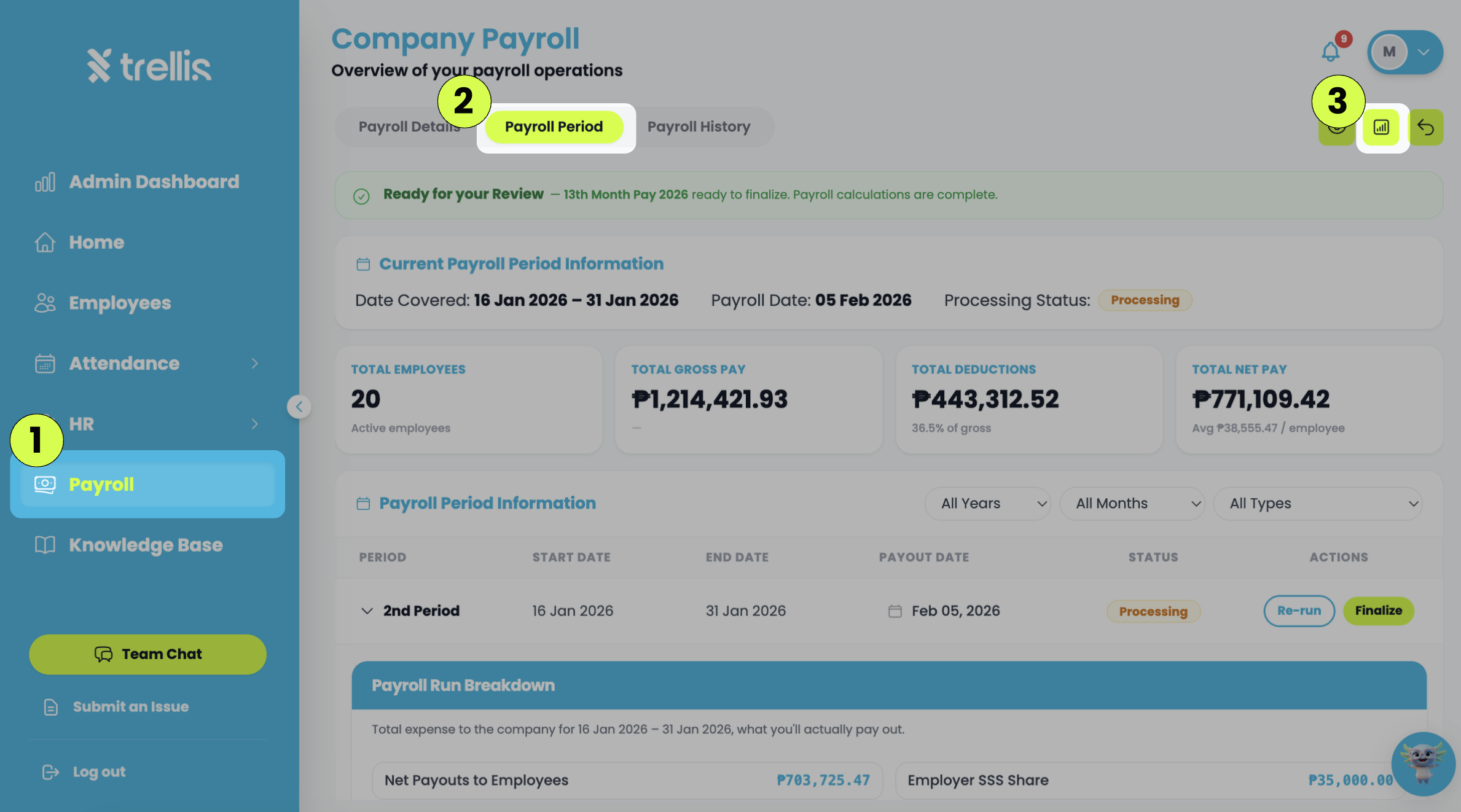
From the sidebar, click “Payroll”.
On the “Company Payroll” page, click “Payroll Period”.
Click the “Payroll Analysis” button.
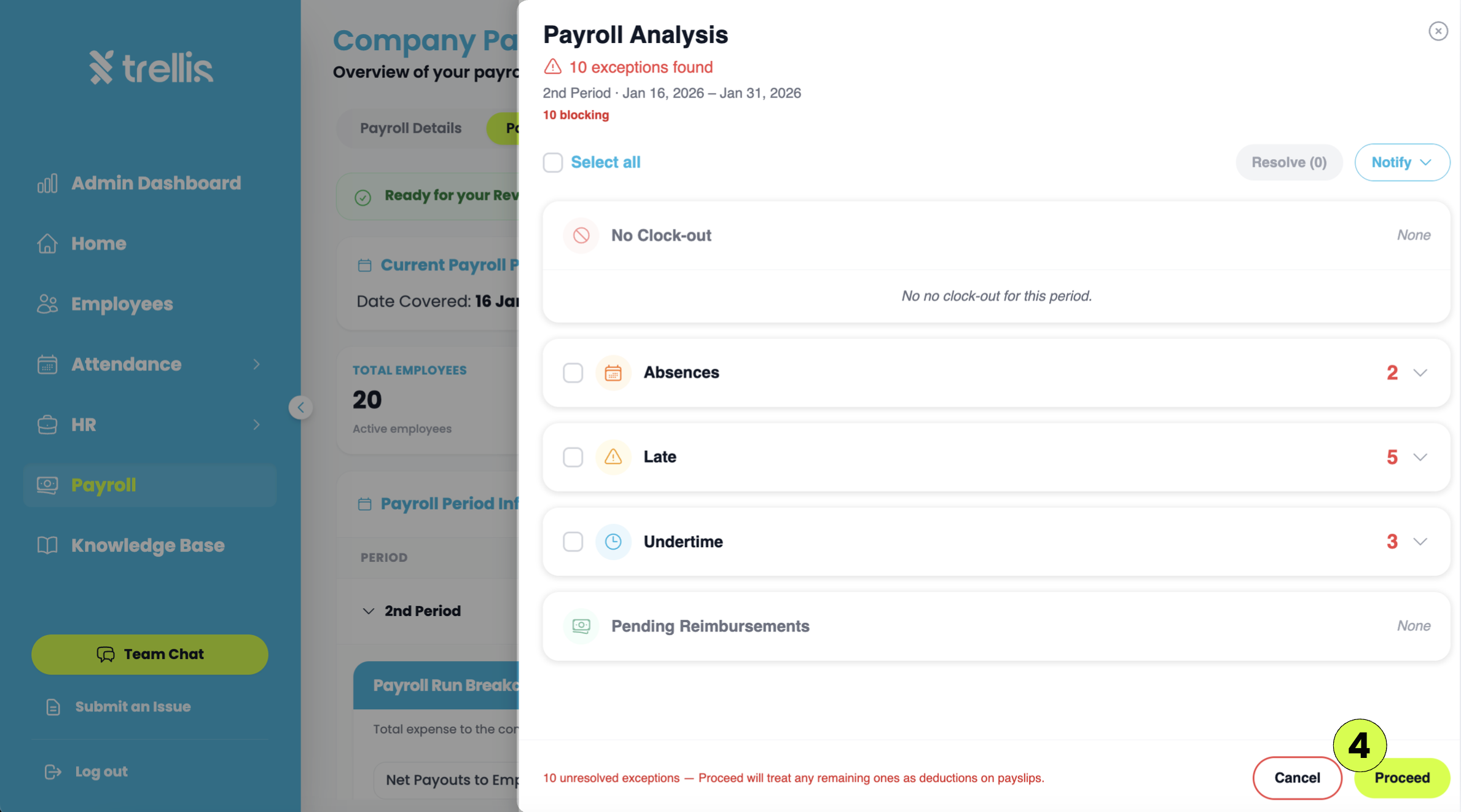
Review the listed exceptions and resolve any items as needed before proceeding with payroll.
Clock Out — identify employees with missing or incomplete clock-out records.
Absences — review employees who were absent during the payroll period.
Late — view employees who clocked in after their scheduled start time.
Undertime — track employees who worked fewer hours than required.
Pending Reimbursements — review reimbursement requests that are still awaiting processing.
If pending requests are missing or not appearing in the system, try the solutions below:
Refresh the page and wait a few minutes for the requests to load completely.
Check if the correct request category or tab is selected, such as Leave, Overtime, or Certificate of Attendance.
Verify that the selected date range or filters are not hiding the pending requests.
Make sure the request was successfully submitted before checking the pending request list.
Try logging out and signing back into the account before checking the requests again.
Ensure that the employee has a stable internet connection while submitting the request.
Try using a different browser or device to check if the issue is related to the current browser session.
If the request was recently approved, rejected, or deleted, it may no longer appear under pending requests.
If the issue persists, you may submit an issue to our support team through Submit an Issue.
Read the full guide →If the employee is unable to log in to their account, try the solutions below:
Verify that the employee is entering the correct email address and password.
Make sure that the employee account has already been invited and activated.
Ask the employee to check if the Caps Lock key is enabled, as passwords are case-sensitive.
Try resetting the password using the Forgot Password? option on the login page.
Make sure the employee has a stable internet connection before attempting to log in again.
Try refreshing the page or reopening the browser before signing in again.
If possible, try logging in using a different browser or device.
Check if the employee received the invitation email. For more information, refer to The Employee Didn’t Receive the Invitation.
If the issue persists, you may submit an issue to our support team through Submit an Issue.
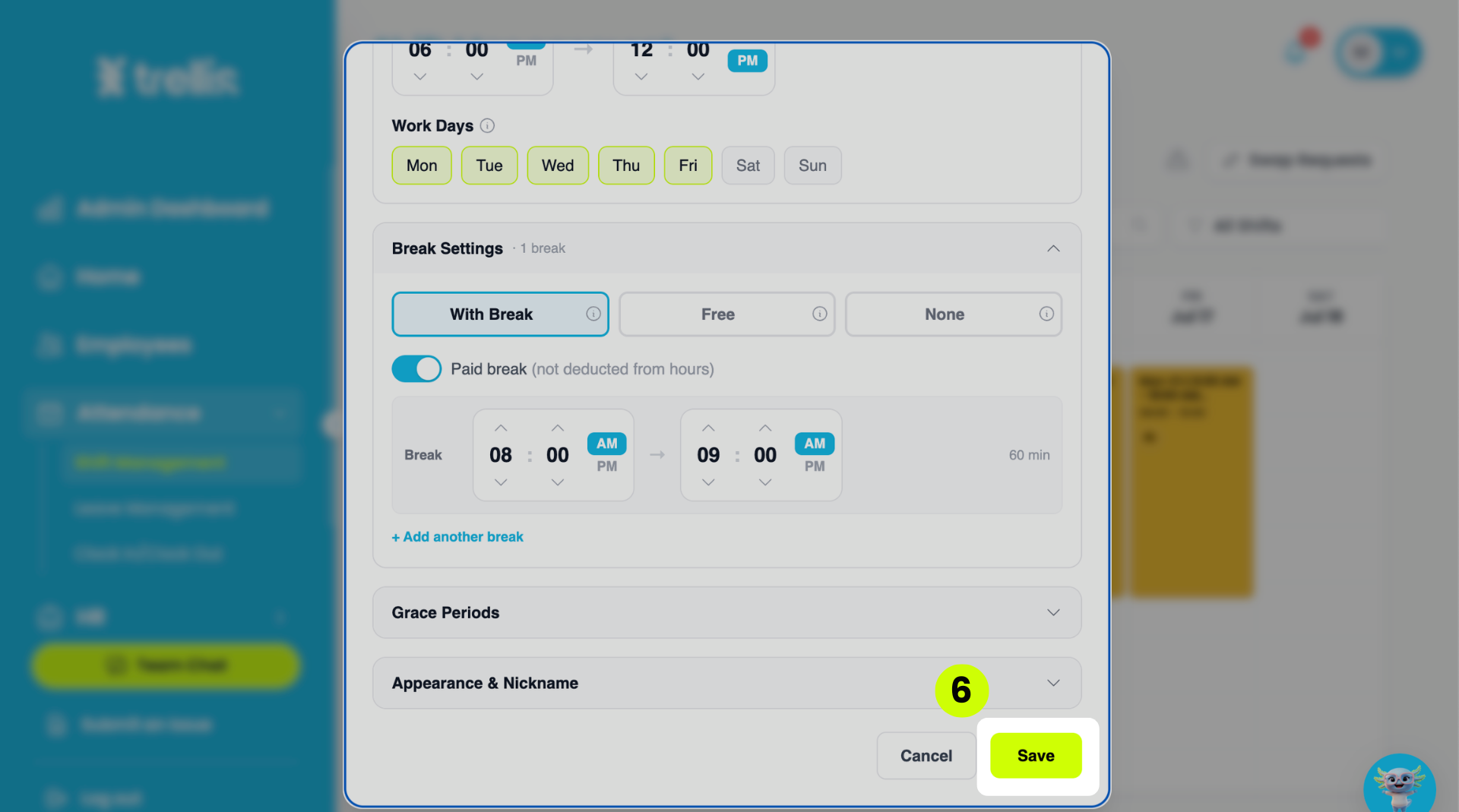
Read the full guide →From the sidebar, click "Attendance", then select "Shift Management.”
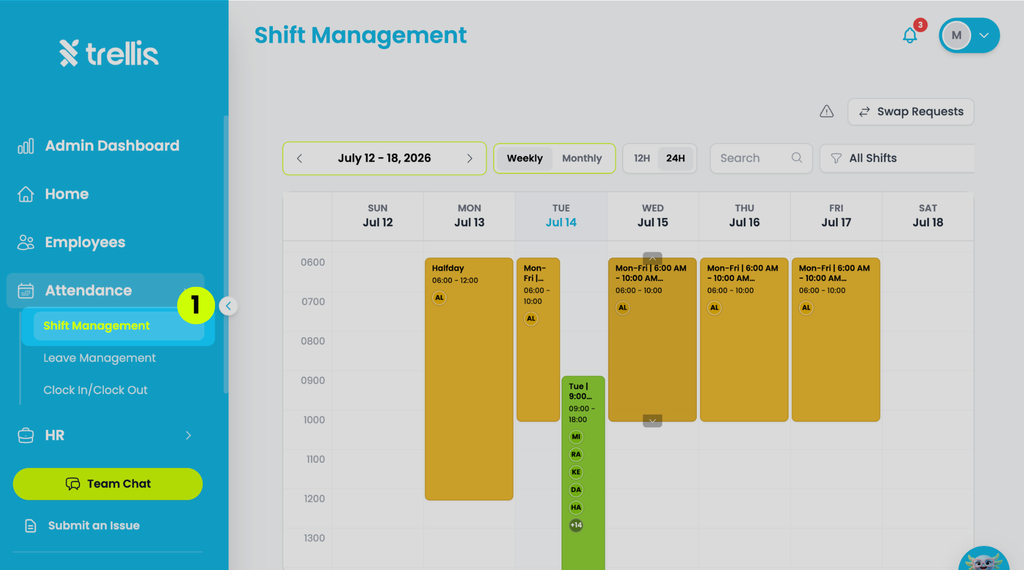
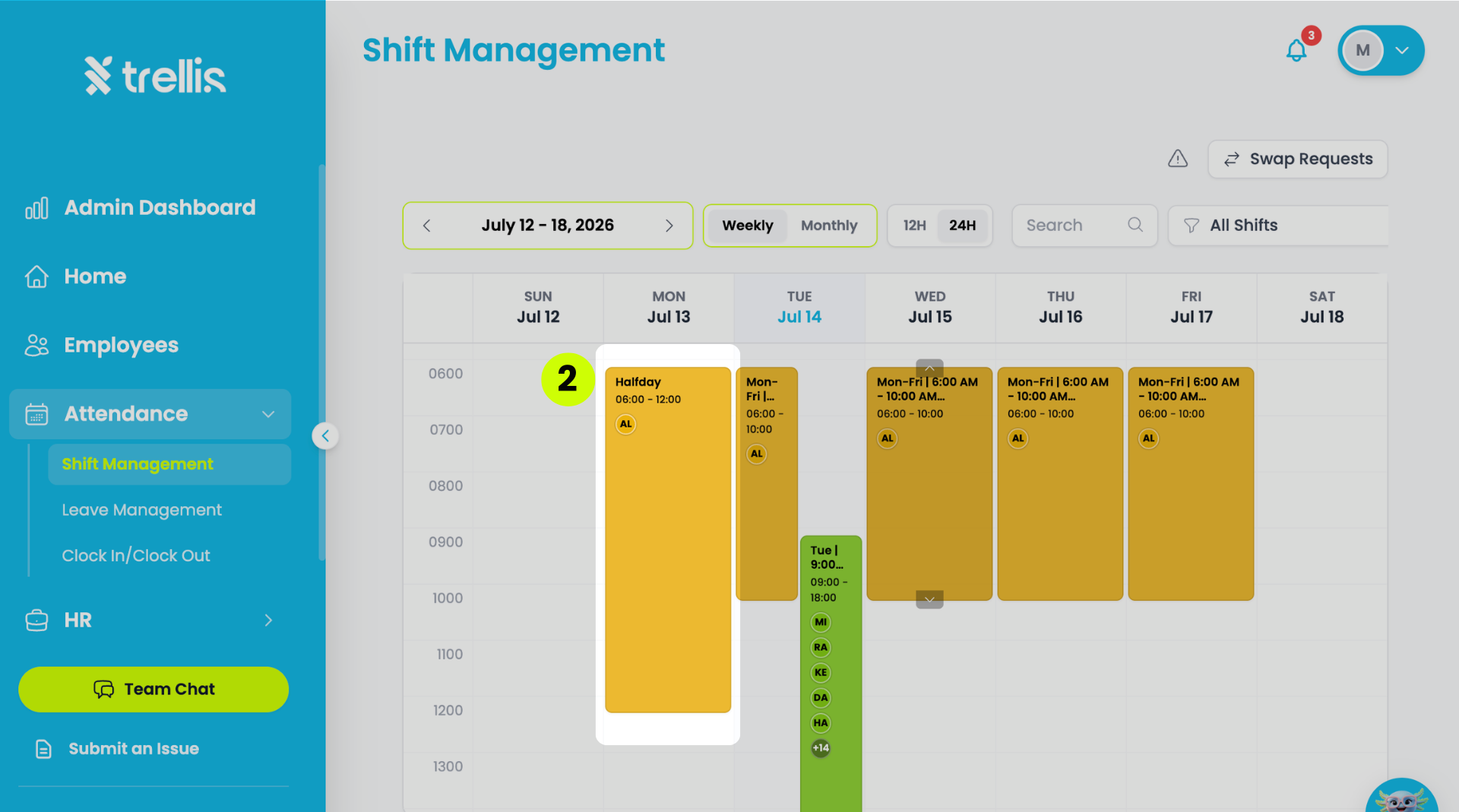
On the calendar, click the shift to edit.
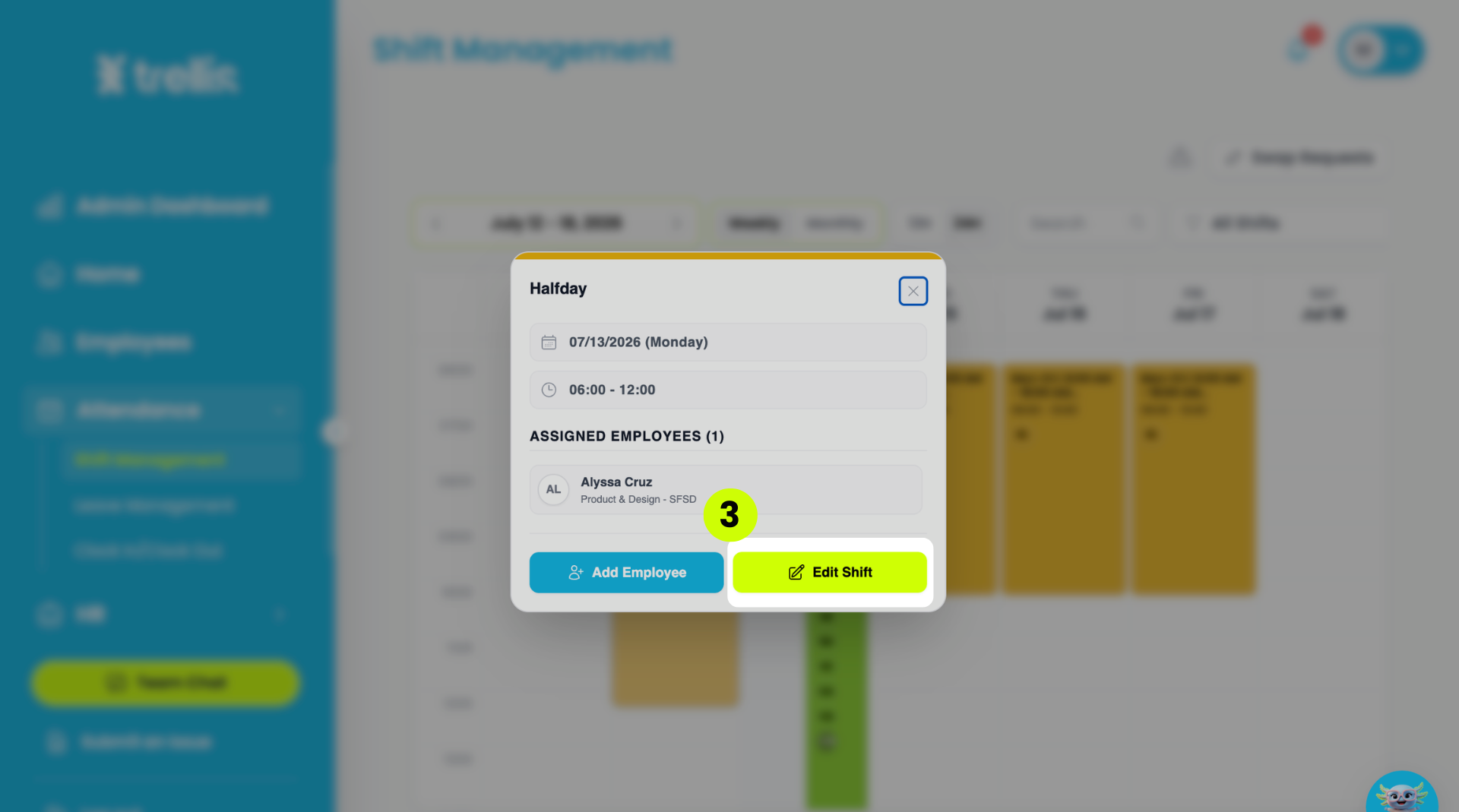
On the popup screen, click the button “Edit Shift.”
Scroll down to break settings and press the “With Break” button to expand the break time menu.
Input the time you want for the break. Click “+Add another break” if you want to add multiple breaks in a shift.
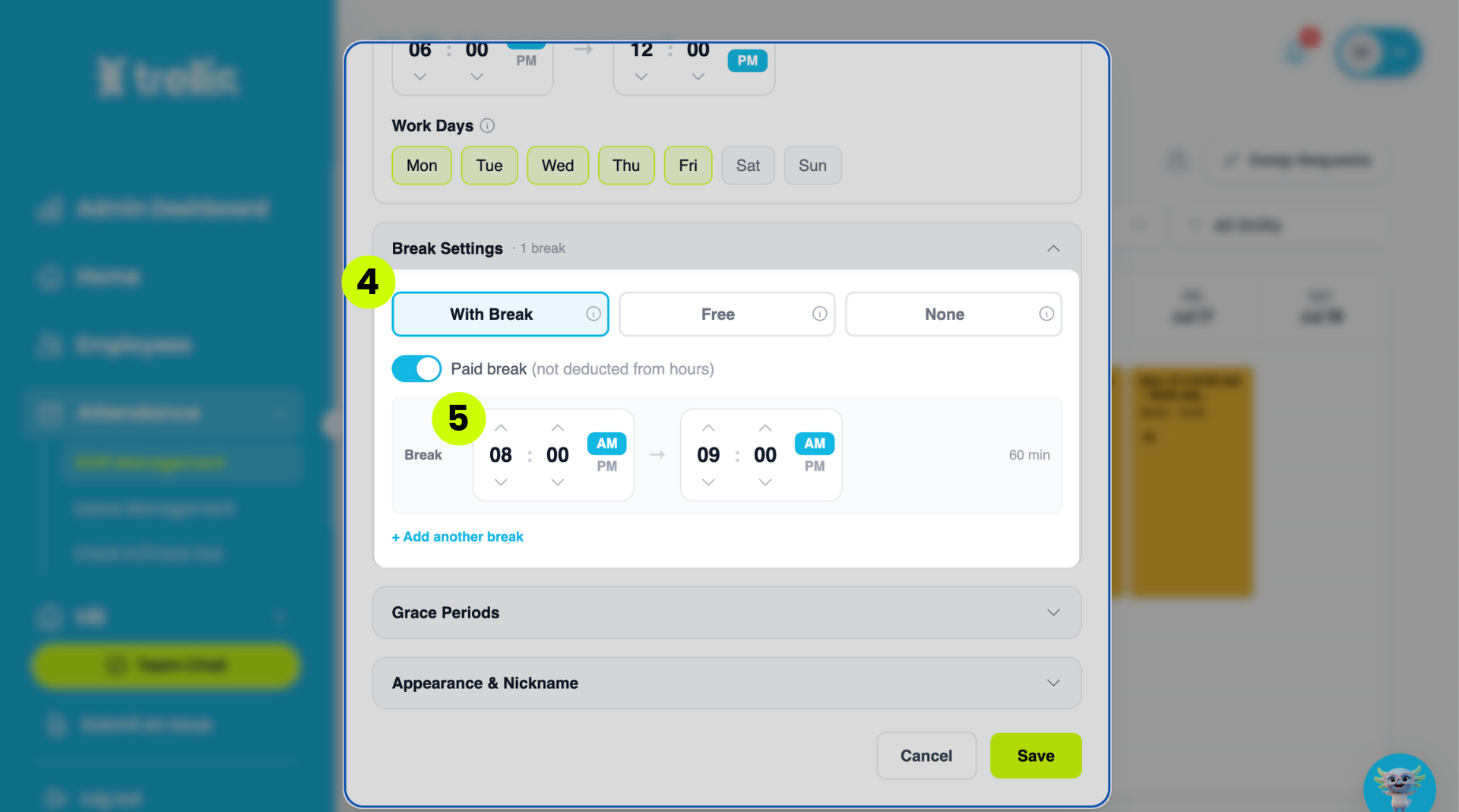
Finally, click “Save.”
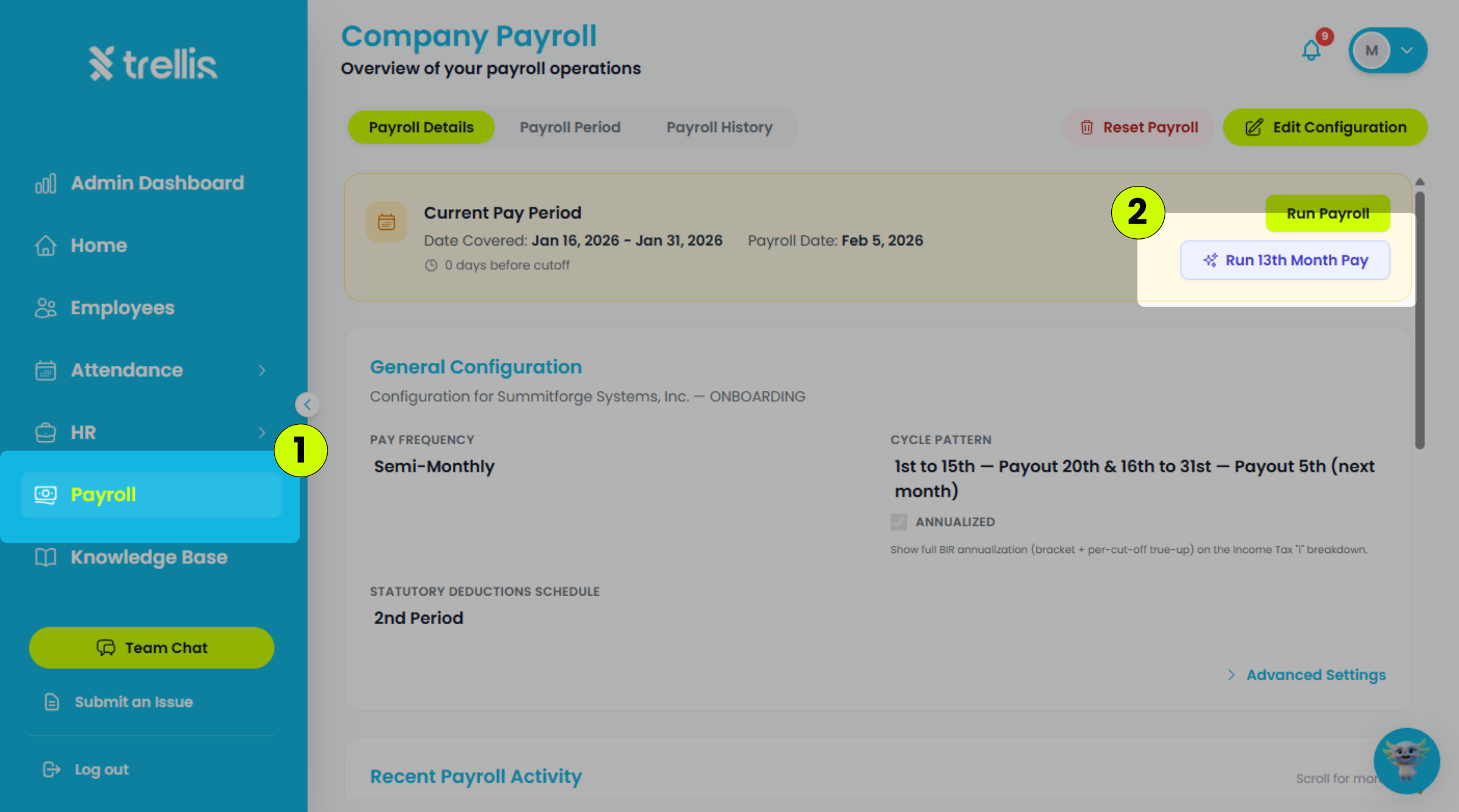
From the sidebar, click "Payroll."
Click "Run 13th Month Pay."
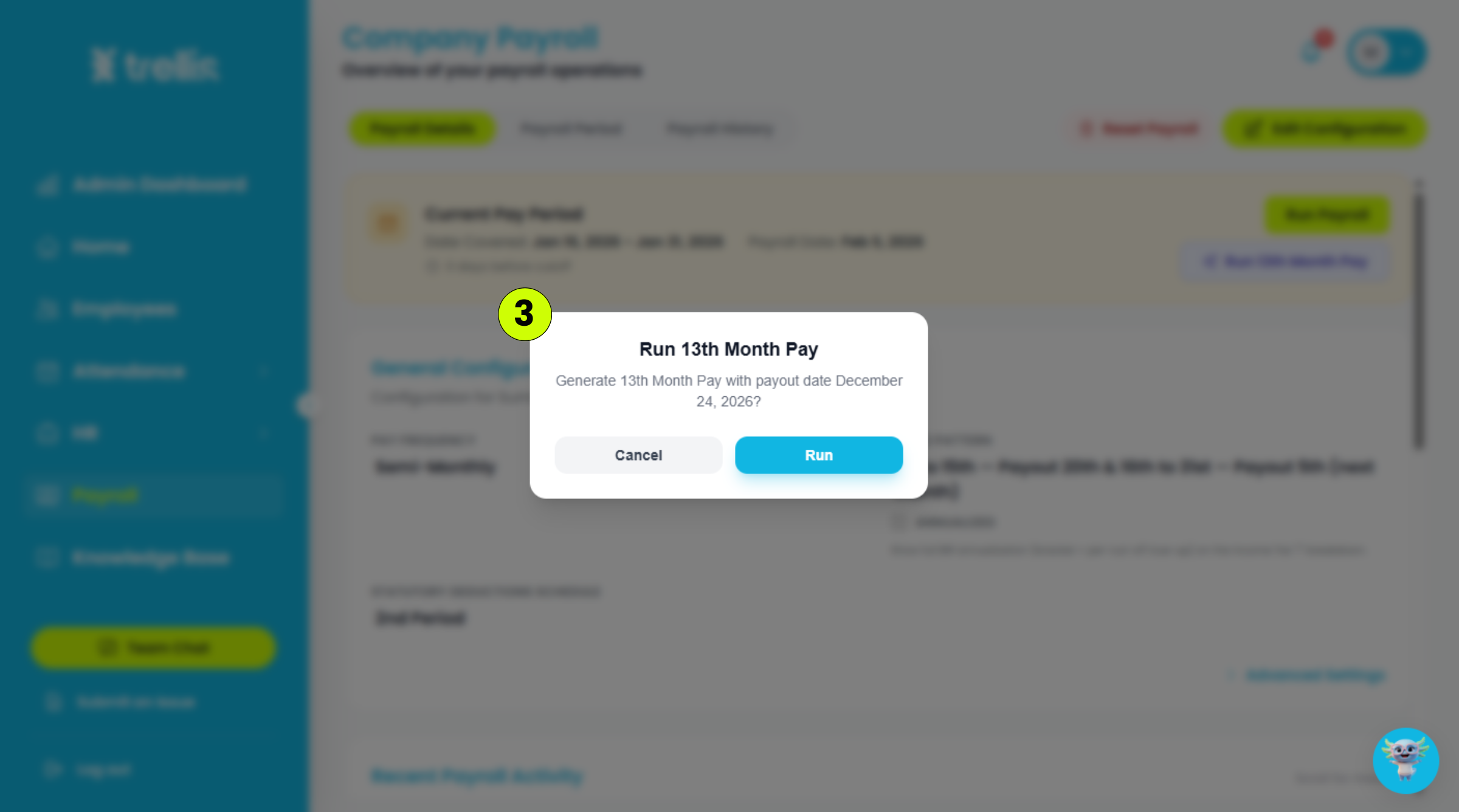
Review the payout date, then click "Run" to generate the 13th month pay.
 Read the full guide →
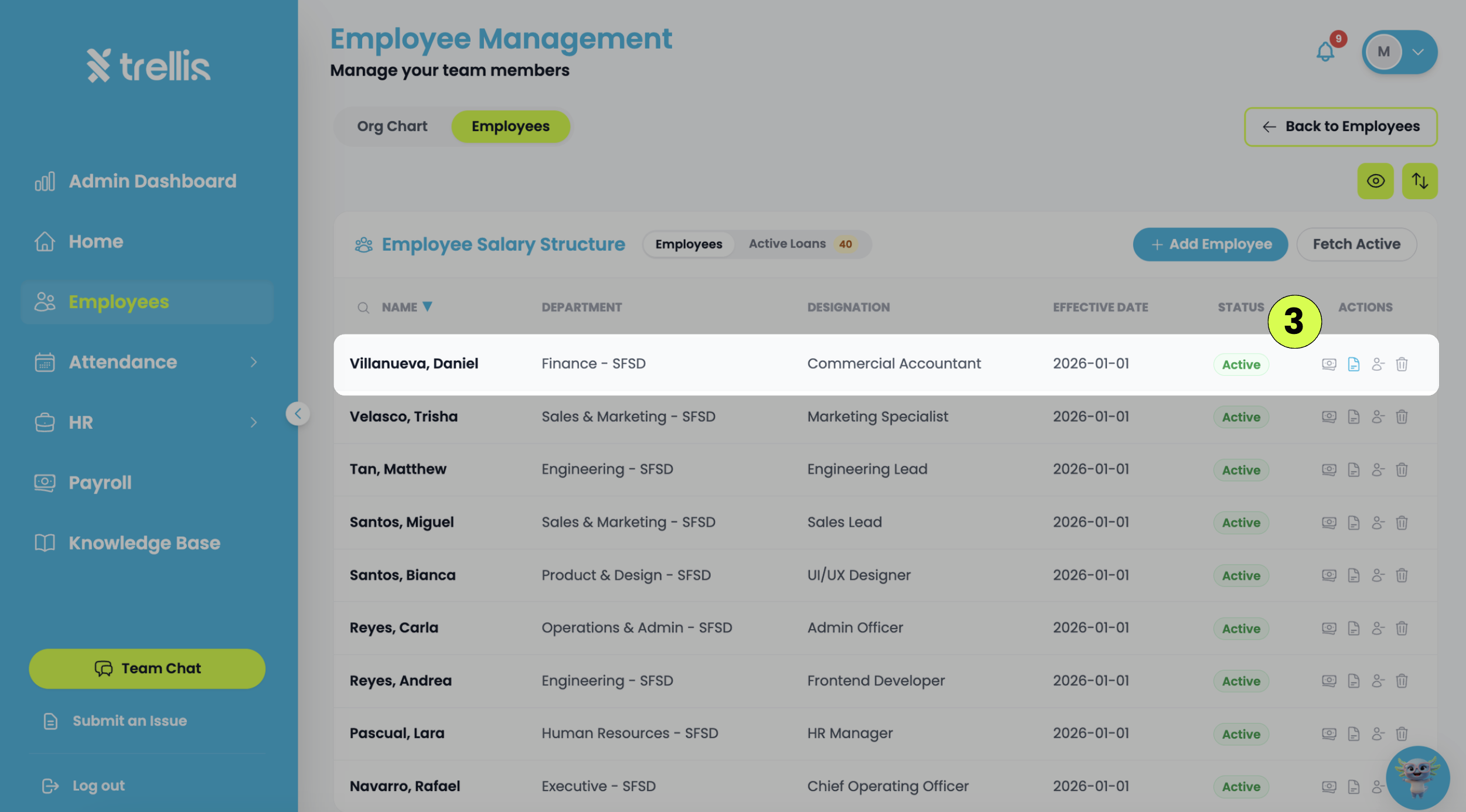
From the sidebar, click "Employees"
Click “Salary Structure”.
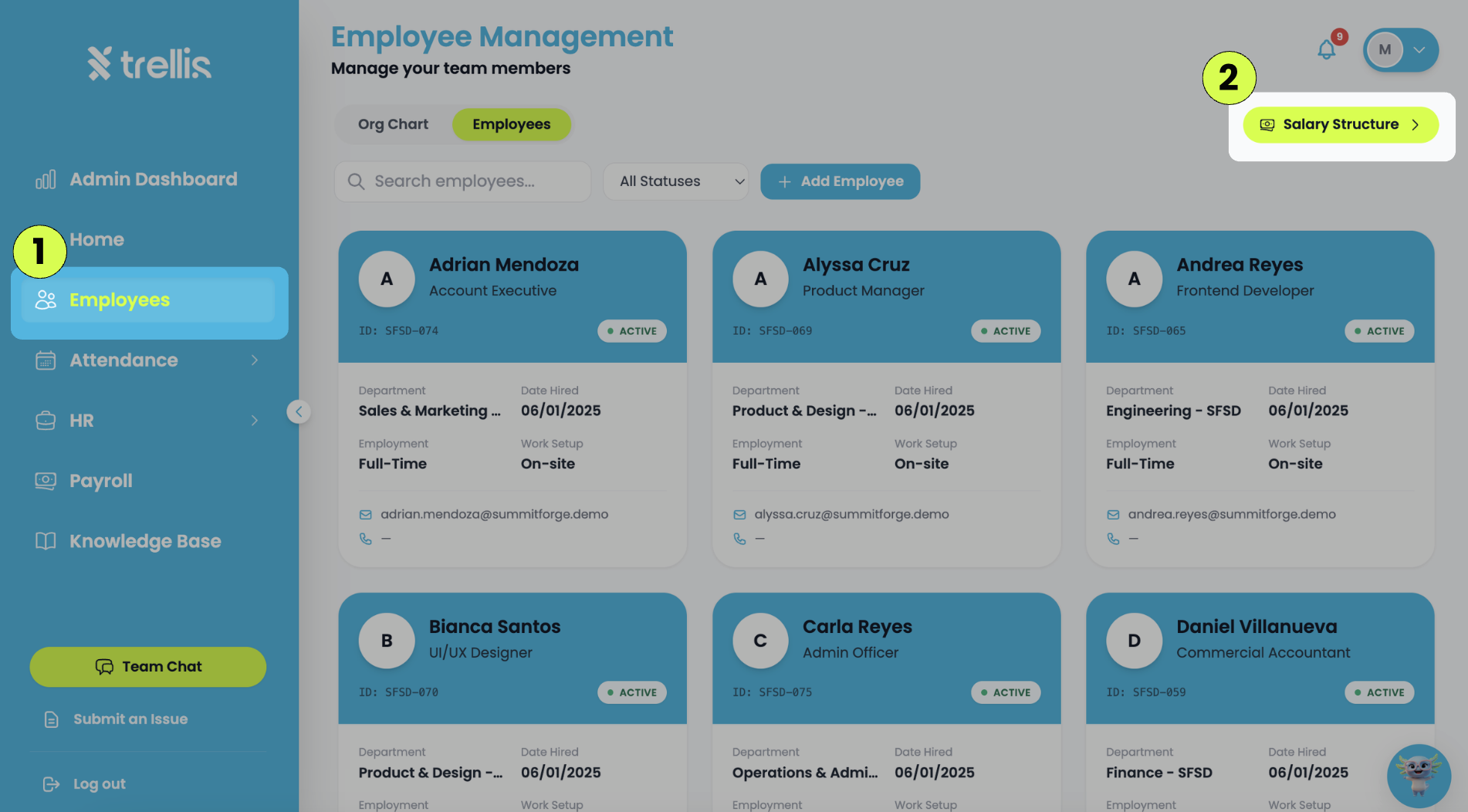
Locate the employee whose payroll information you want to configure, then click "View Salary Structure" icon.
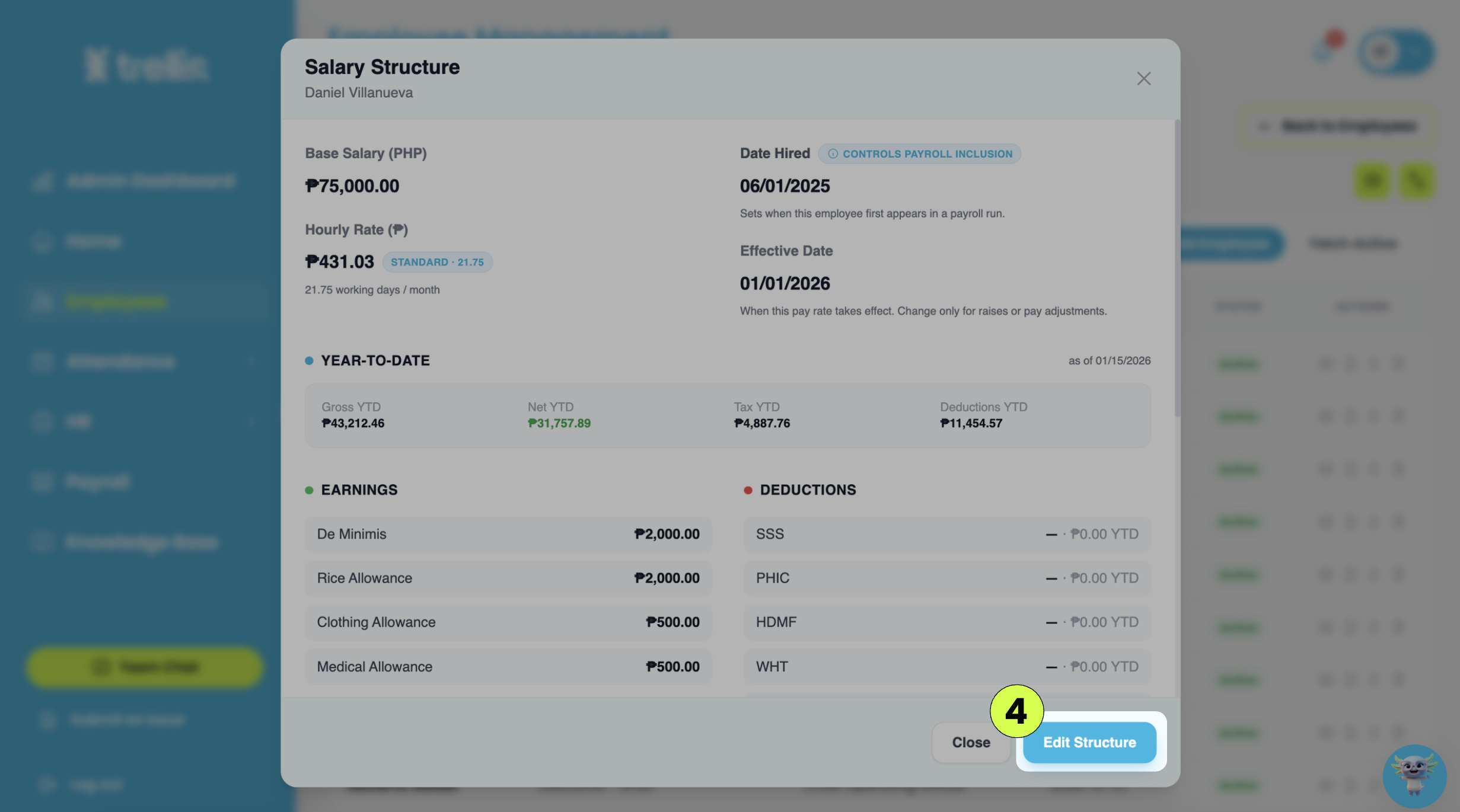
In Salary Structure, click "Edit Structure" to update the employee's payroll details as needed
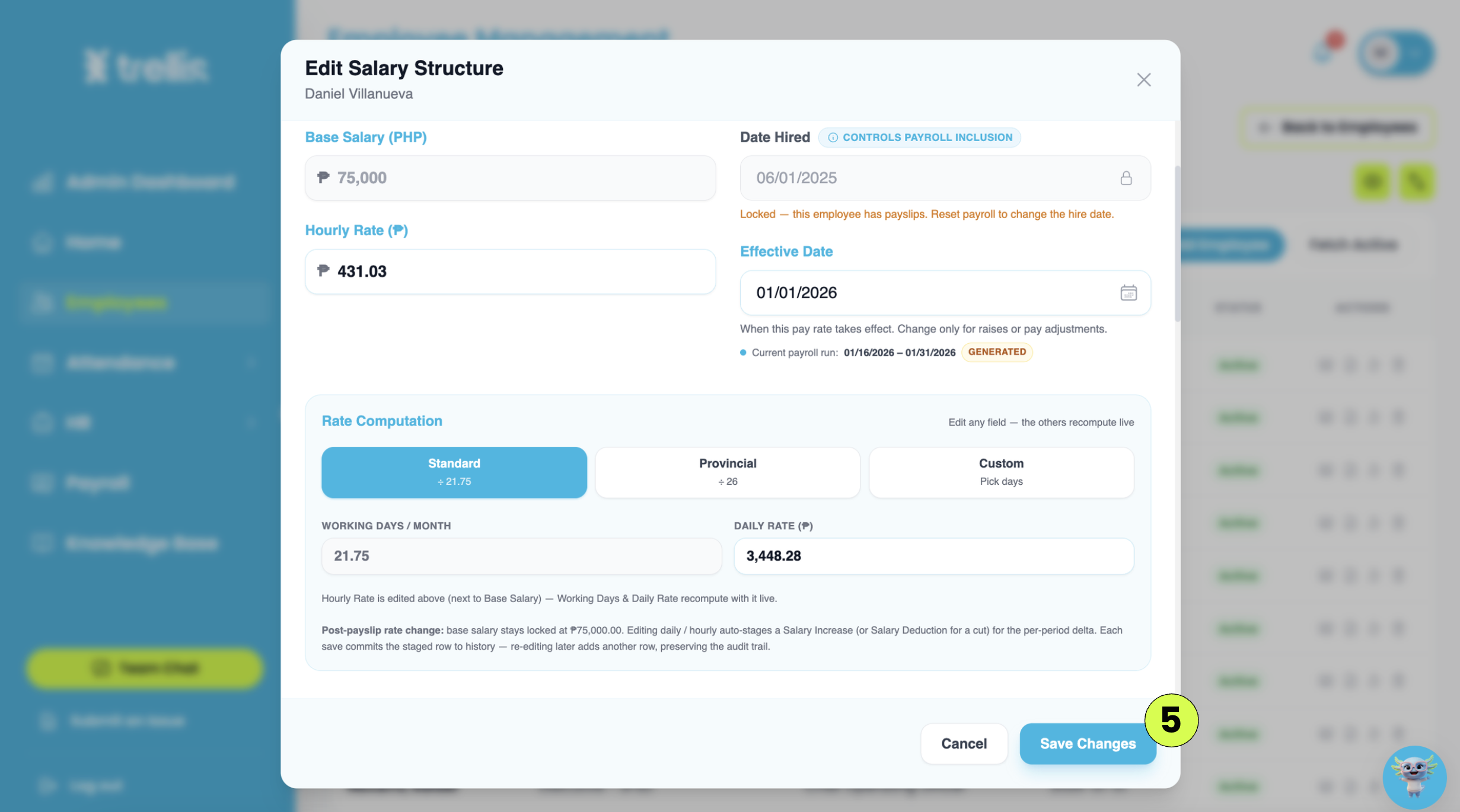
Then click "Save Changes".
If GPS tracking is not working during clock in or clock out, try the solutions below:
Make sure the device’s Location Services or GPS is turned on before attempting to clock in or clock out.
Verify that the browser or application has permission to access your device location. If location access was previously denied, enable it in your device or browser settings.
Ensure that your internet connection is stable, as GPS tracking may not function properly with a weak or unstable connection.
Refresh the page or close and reopen the application before trying again.
Try moving to an open area with a stronger GPS signal, especially if you are indoors or inside a building with weak reception.
Restart the device to refresh location and GPS services.
Try using a different browser or device to check if the issue is device-related.
Make sure your device date and time settings are set correctly, as incorrect device settings may affect GPS tracking.
If the issue persists, you may submit an issue to our support team through Submit an Issue.
Read the full guide →If the mobile application keeps crashing or suddenly closes while using Trellis, try the solutions below:
Close the application completely, then reopen it and try again.
Restart your mobile device to refresh the application and system processes.
Make sure your internet connection is stable, as weak or unstable connections may cause the app to stop responding.
Check if you are using the latest version of the application. Update the app through the App Store or Google Play Store if an update is available.
Clear the application cache or temporary files from your device settings.
Make sure your device has enough available storage space, as low storage may affect app performance.
Try logging out and signing back into your account after reopening the application.
If possible, uninstall and reinstall the application to refresh the app files and settings.
If the issue persists, you may submit an issue to our support team through Submit an Issue.
Read the full guide →If the timesheet is displaying incorrect working hours, try the solutions below:
Verify that the employee successfully completed both clock in and clock out records for the workday.
Check if the employee clocked in or out at the correct time and date.
Make sure the employee is assigned to the correct shift or work schedule.
Refresh the page and review the timesheet again after a few minutes, as attendance records may take time to sync.
Check if overtime, break time, or undertime settings affected the total computed hours.
Ensure that the device date and time settings are correct before recording attendance.
Try logging out and signing back into the account before checking the timesheet again.
If the issue only affects a specific employee, review the employee’s attendance records for missing or duplicate entries.
If the issue persists, you may submit an issue to our support team through Submit an Issue.
Read the full guide →No articles match your search.