
How to allocate leaves for an employee.
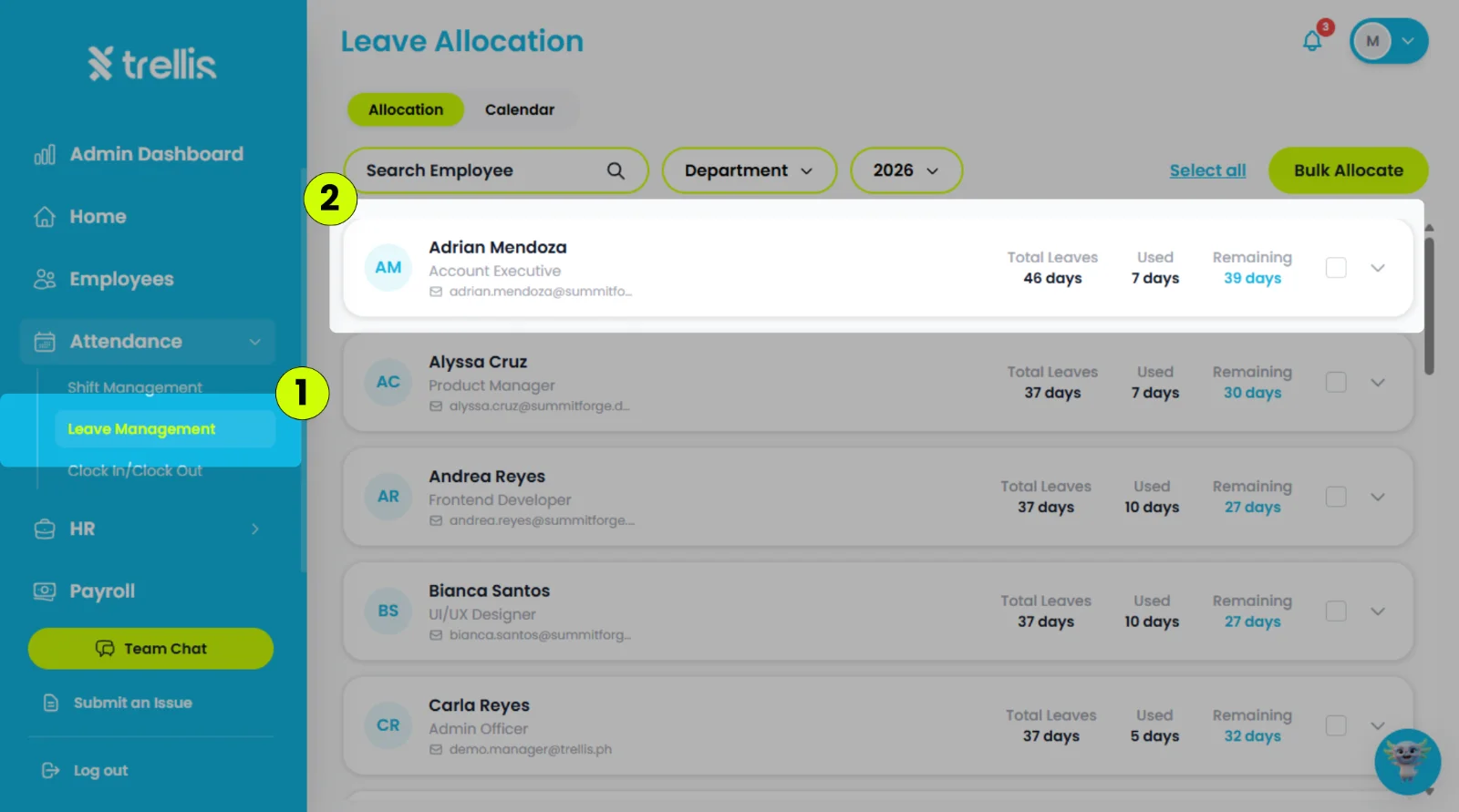
From the sidebar, click "Attendance", then select "Leave Management."
Click the employee you want to allocate leave to.
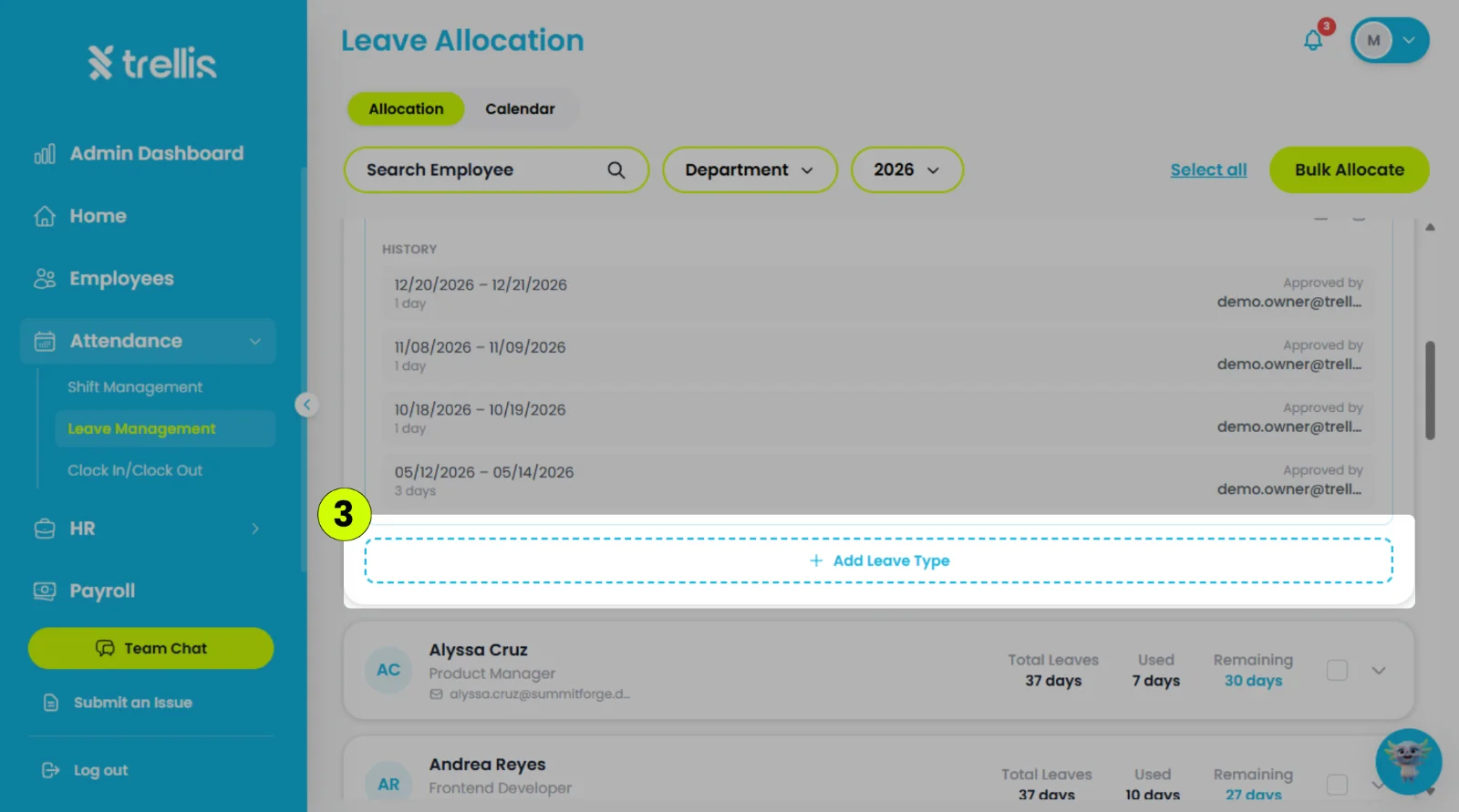
Scroll down to the employee you want to update, then click "Add Leave Type."
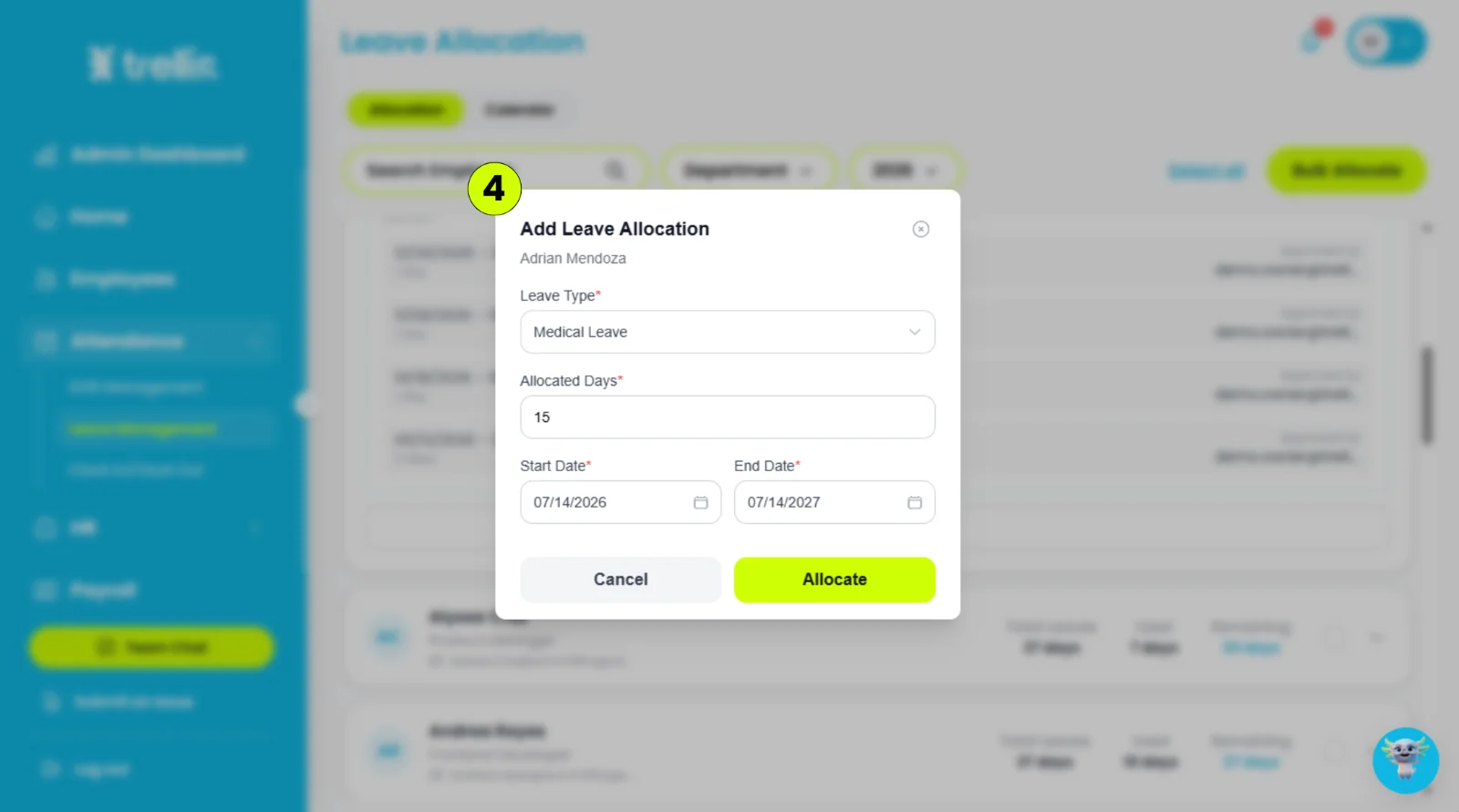
Fill in the required information, then click "Allocate".
Leave Type – The category of leave being allocated (e.g., Vacation Leave, Sick Leave).
Allocated Days – The total number of leave days assigned to the employee.
Start Date – The date when the leave allocation becomes effective.
End Date – The date when the leave allocation expires.
To change the days of a leave type the employee already has:
Open the employee as in steps 1 and 2.
On that leave type's row, click the pencil icon ("Edit allocation").
Set "Allocated Days" to the new total, then click "Save".
The total can't be lower than the days the employee has already used. The number of days used is shown under "Allocated Days".