Book a Demo
Open Workspace Settings & Privacy Help & Support
Features Pricing Jobs Blog FAQ Affiliate Program Log inOpen Workspace Book a Demo
Employee Management

How to Track Employee Leave and Attendance

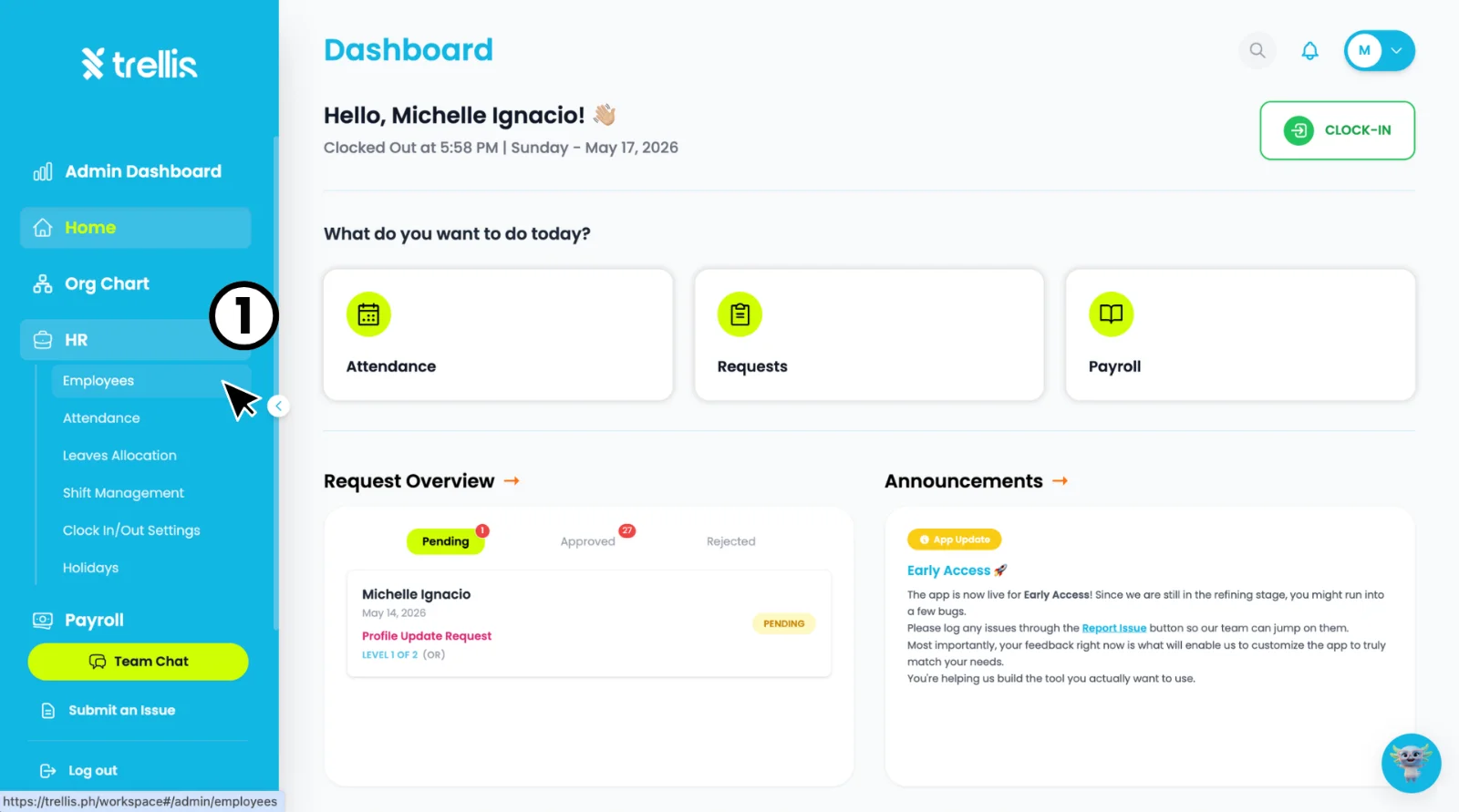
  1. From the sidebar, click "HR" to expand the menu, then select "Employees."
How to Track Employee Leave and Attendance
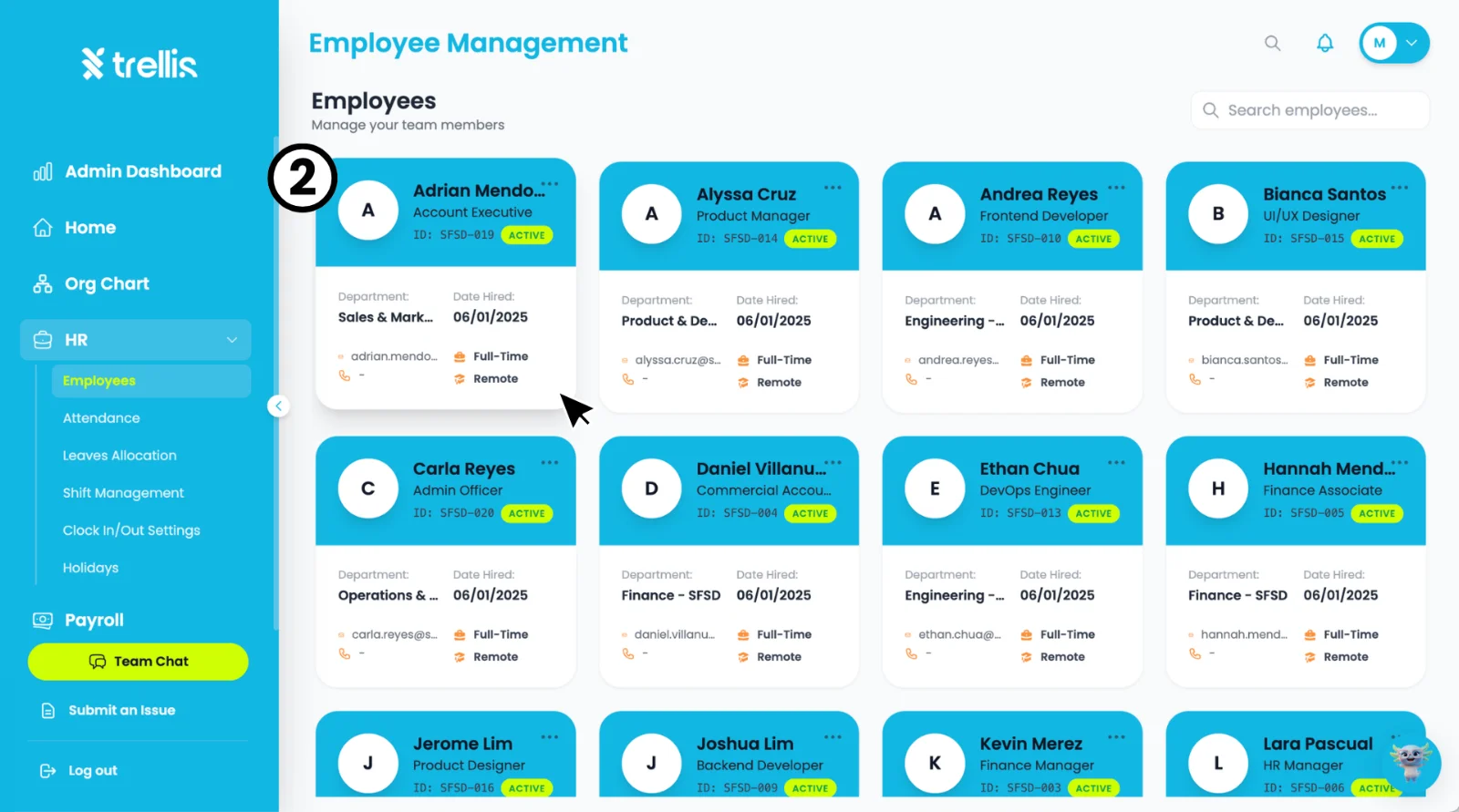
  1. On the "Employee Management” page, click on the employee card you want to view.
How to Track Employee Leave and Attendance
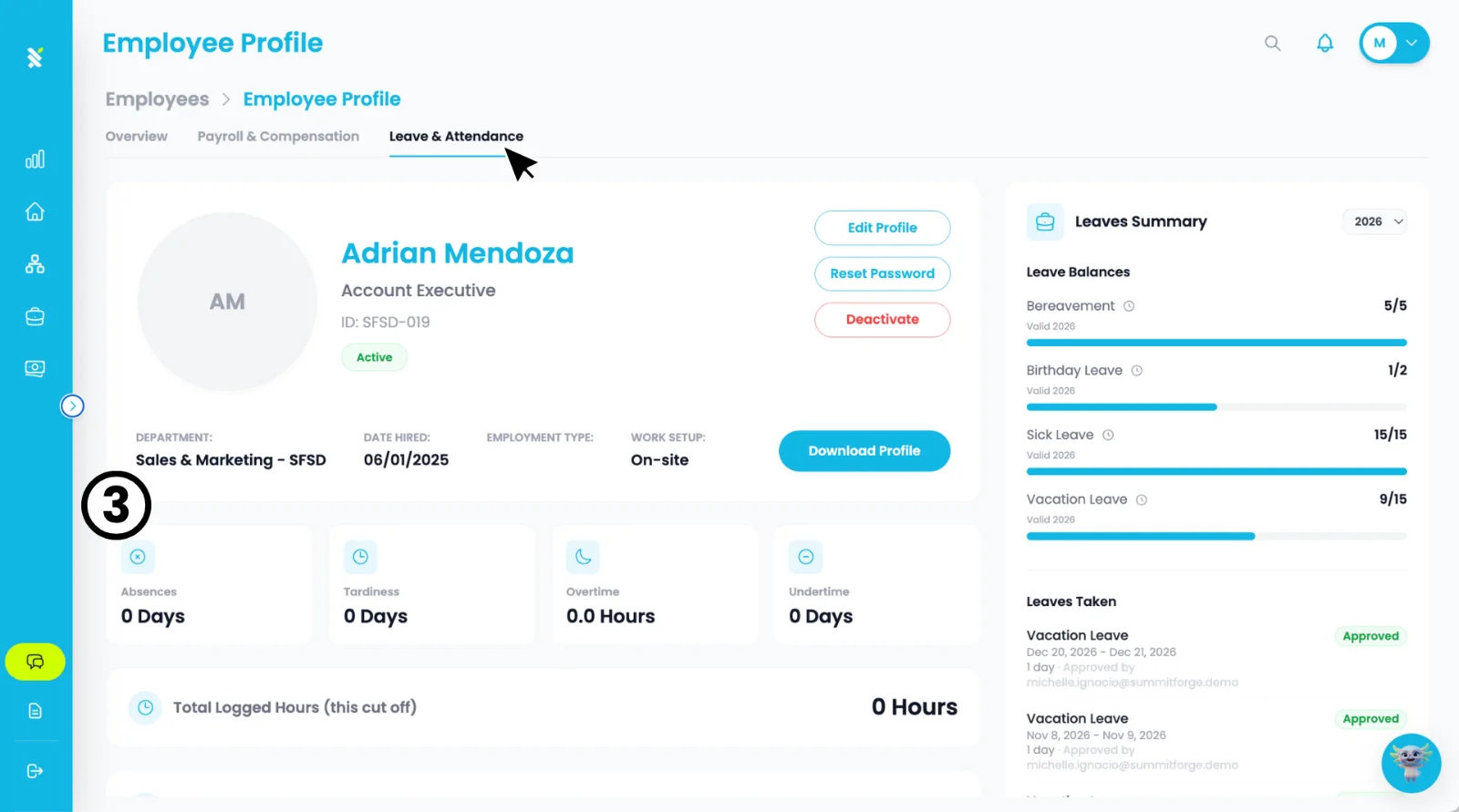
  1. On the "Employee Profile" page, click the "Leave & Attendance" tab to view the employee's attendance summary including "Absences", "Tardiness", "Overtime, Undertime", and "Total Logged Hours". On the right side, you can also see their "Leave Balances" and "Leaves Taken". Scroll down to view the employee's "Daily Time Logs" and full "Leaves Taken" history.
How to Track Employee Leave and Attendance

Other articles in this section

Where Can I View Employee Records? How to Activate an Employee's Login How to Change an Employee Login Email How to Free Up a Seat How to Attach Files to an Employee Profile How to Add an Employee and Activate Their Login
Back to Employee Management