
How to Process Payroll
Payroll runs one cut-off at a time across two pages: Payroll Analysis, where you decide what to deduct, and Computation & Payslips, where you check the pay and lock it.
Run payroll
From the sidebar, click "Payroll."
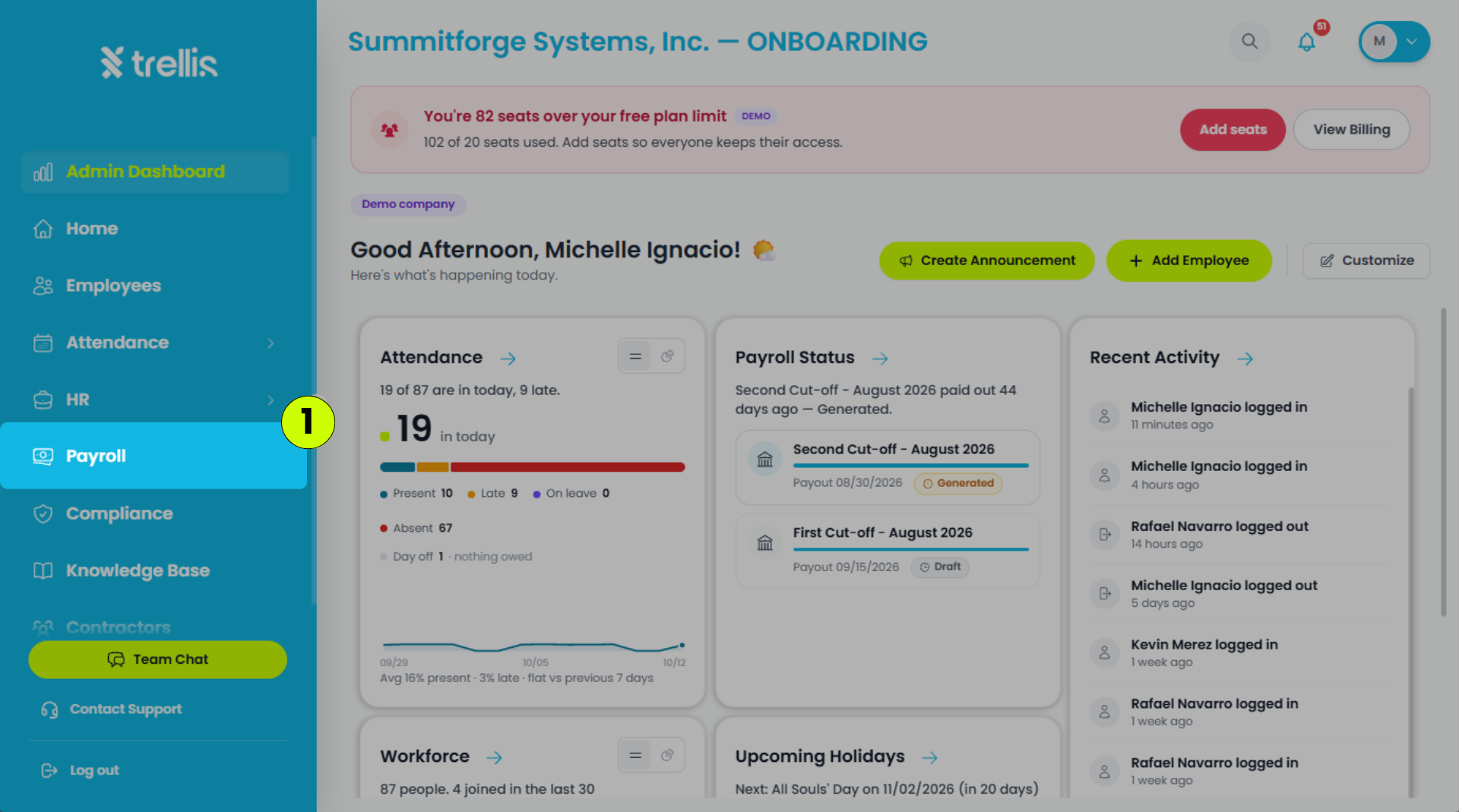
Click "Payroll Analysis." It opens on the next cut-off to run.
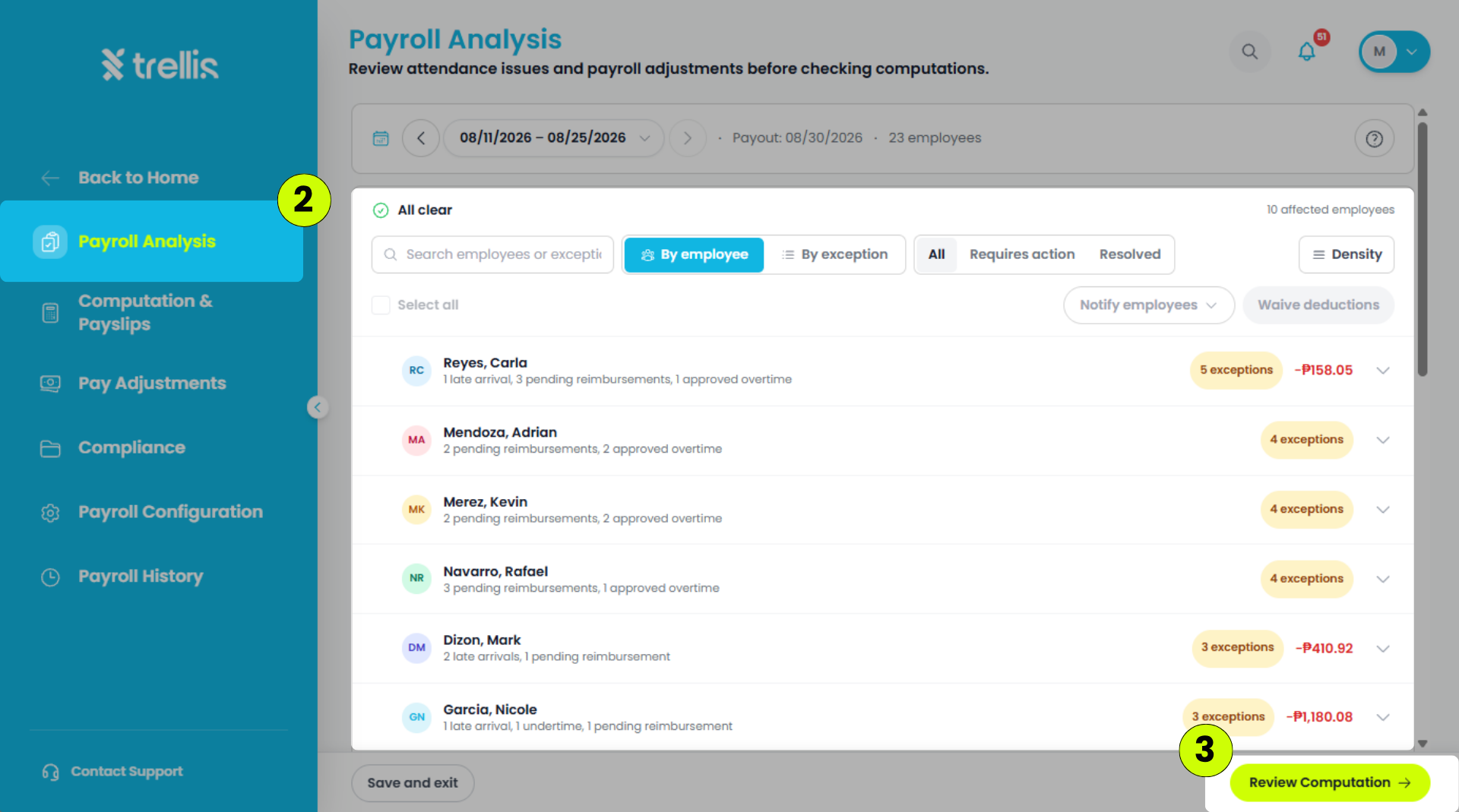
Waive or deduct each absence, late and undertime (see below), then click "Run Payroll." If the cut-off has already been run, this button reads "Review Computation."
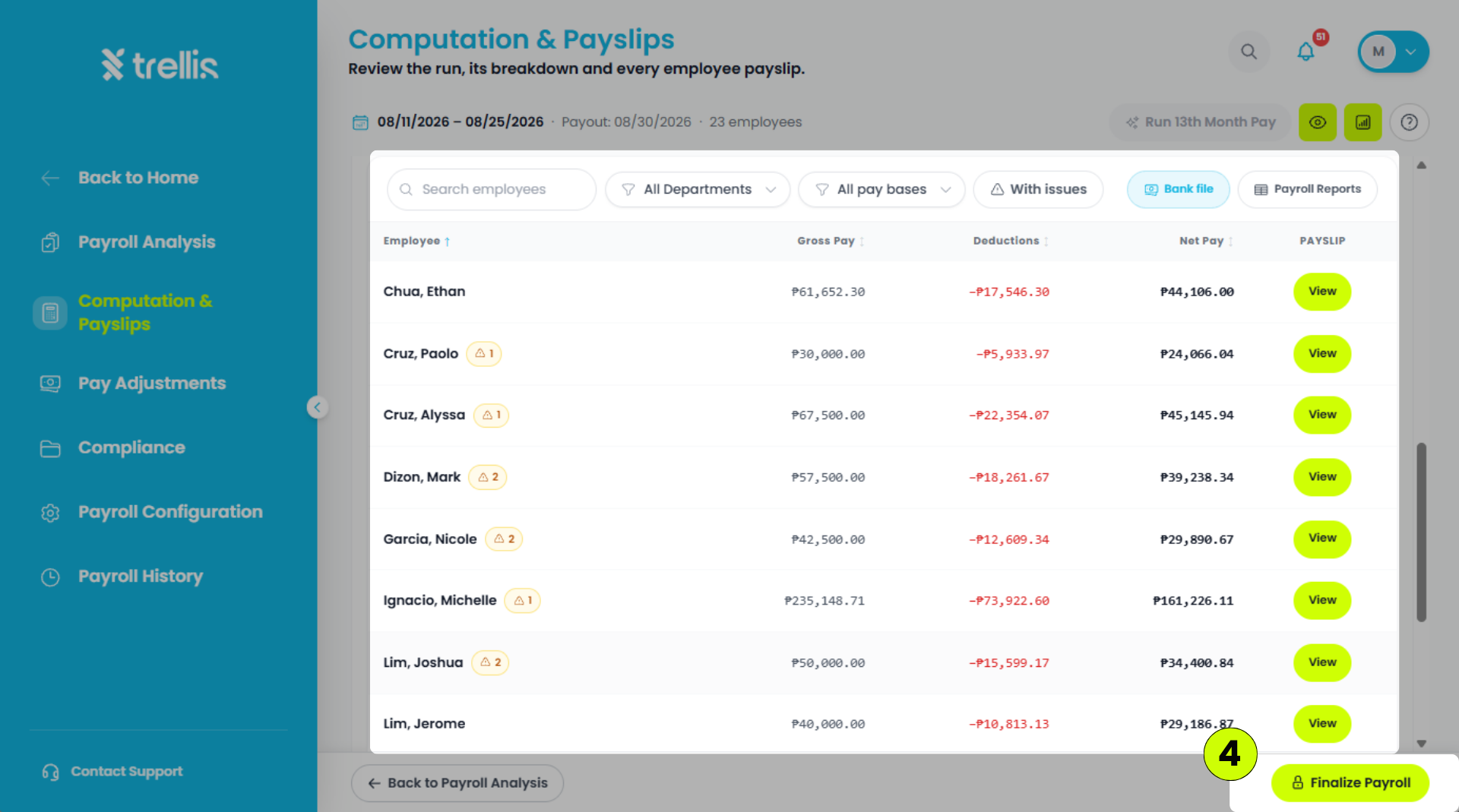
On "Computation & Payslips," check the payslips, then click "Finalize Payroll" at the bottom of the page.
Click "Lock payroll." Your employees get their payslips by email and in the app.
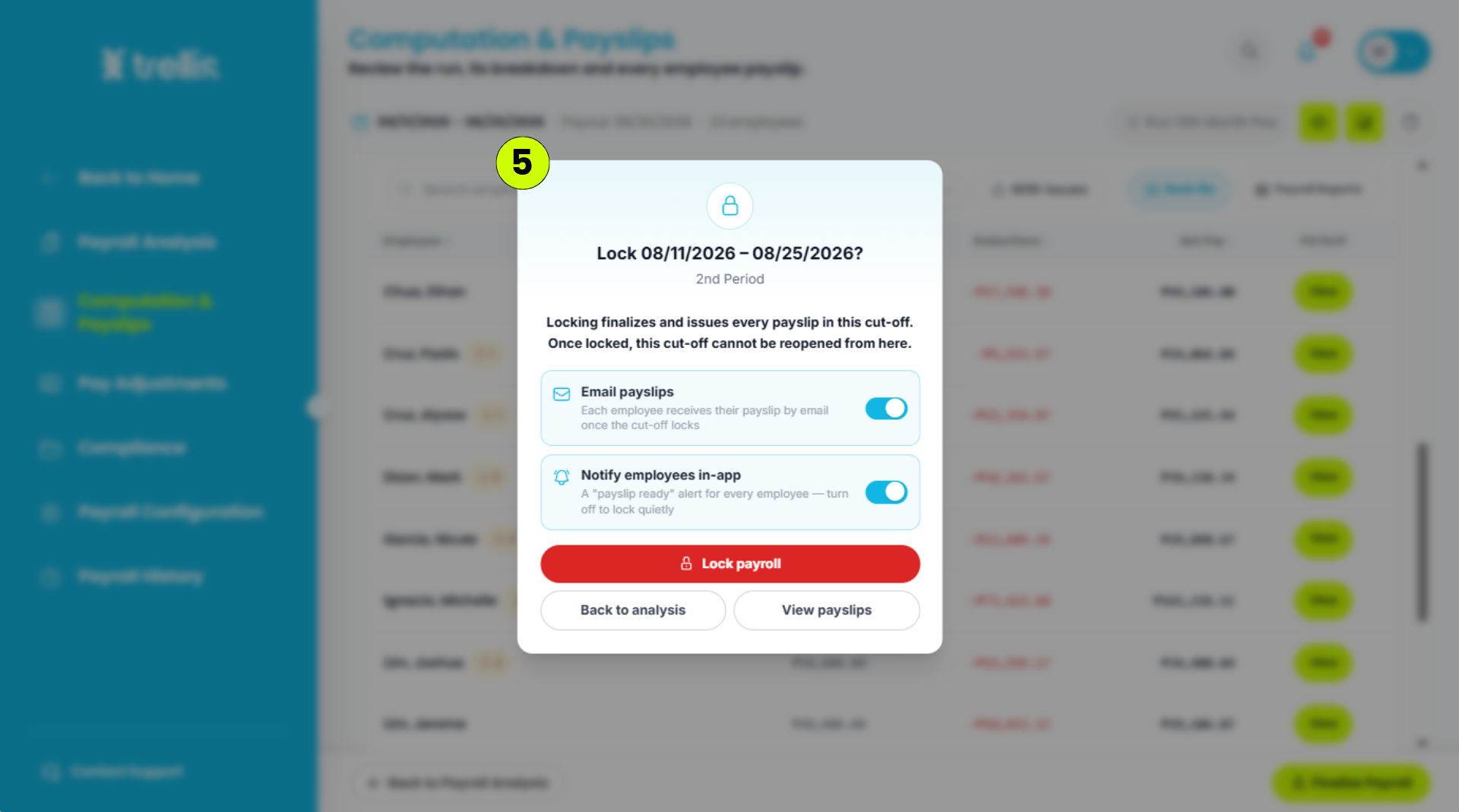
A locked cut-off can't be reopened from this screen, so check the payslips before you lock.
Waive or deduct
Payroll Analysis lists each employee's absences, lates and undertime, with the amount each one would take off their pay. You decide which ones count.
To waive (the employee keeps that pay, for example for an approved day off): tick the items, click "Waive deductions," then "Confirm, waive."
To deduct everything you didn't waive: after the run, click "Review Computation," then "Accept & recompute." The payslips update with the deductions.
"Finalize Payroll" greyed out? Some items are still undecided. Go back to "Payroll Analysis" and waive or deduct them.
Changed your mind? Until the cut-off is locked, hover over (or tap) the "Waived" or "Deducted" tag, click "Undo Deduction," then "Yes, undo."
More on this: Should I Waive or Deduct an Absence in Payroll Analysis?