
Process payroll accurately and stay compliant, every cycle.
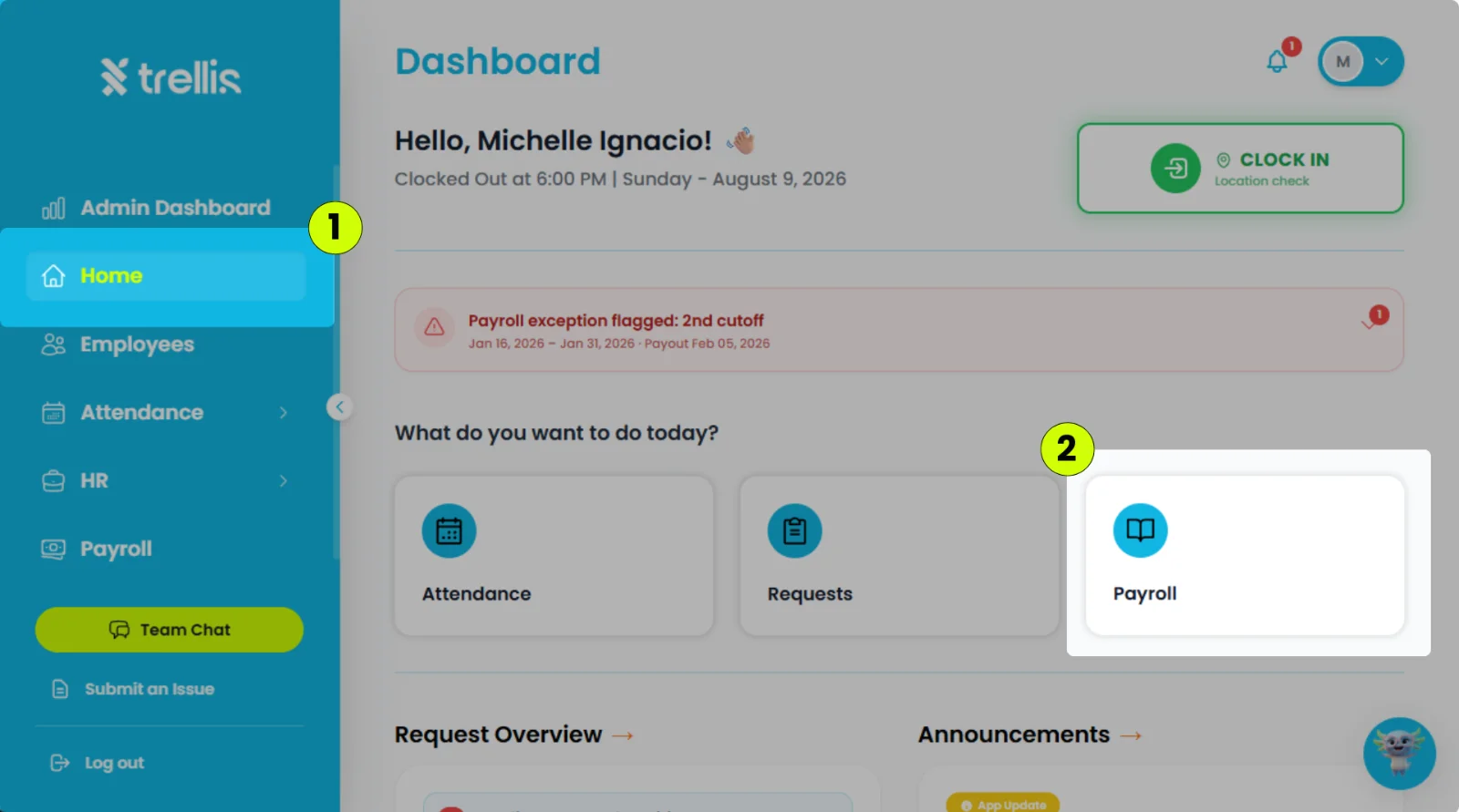
From the sidebar, click "Home."
On your Home Dashboard, click "Payroll."
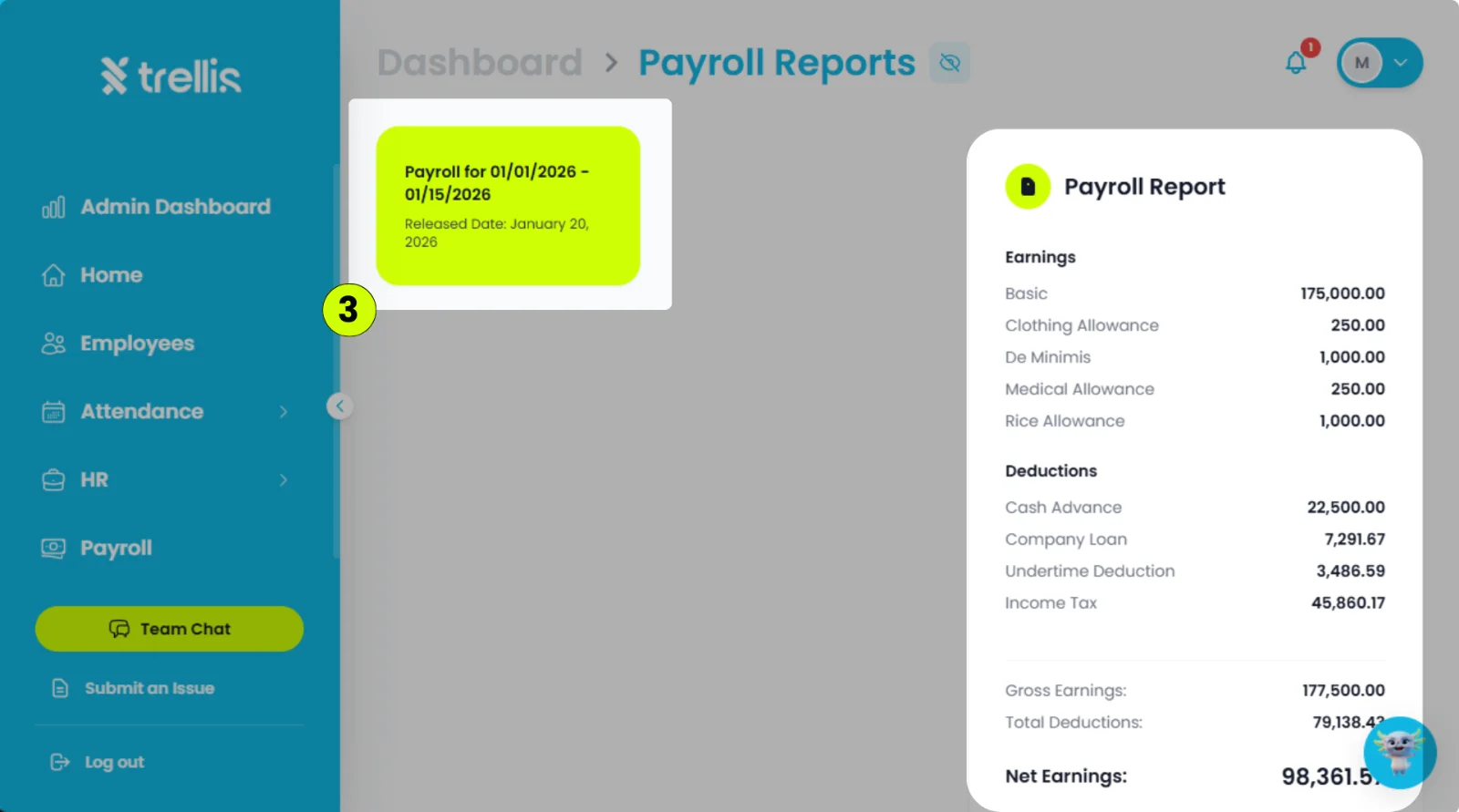
Select the payroll report containing the payslip you want to download.
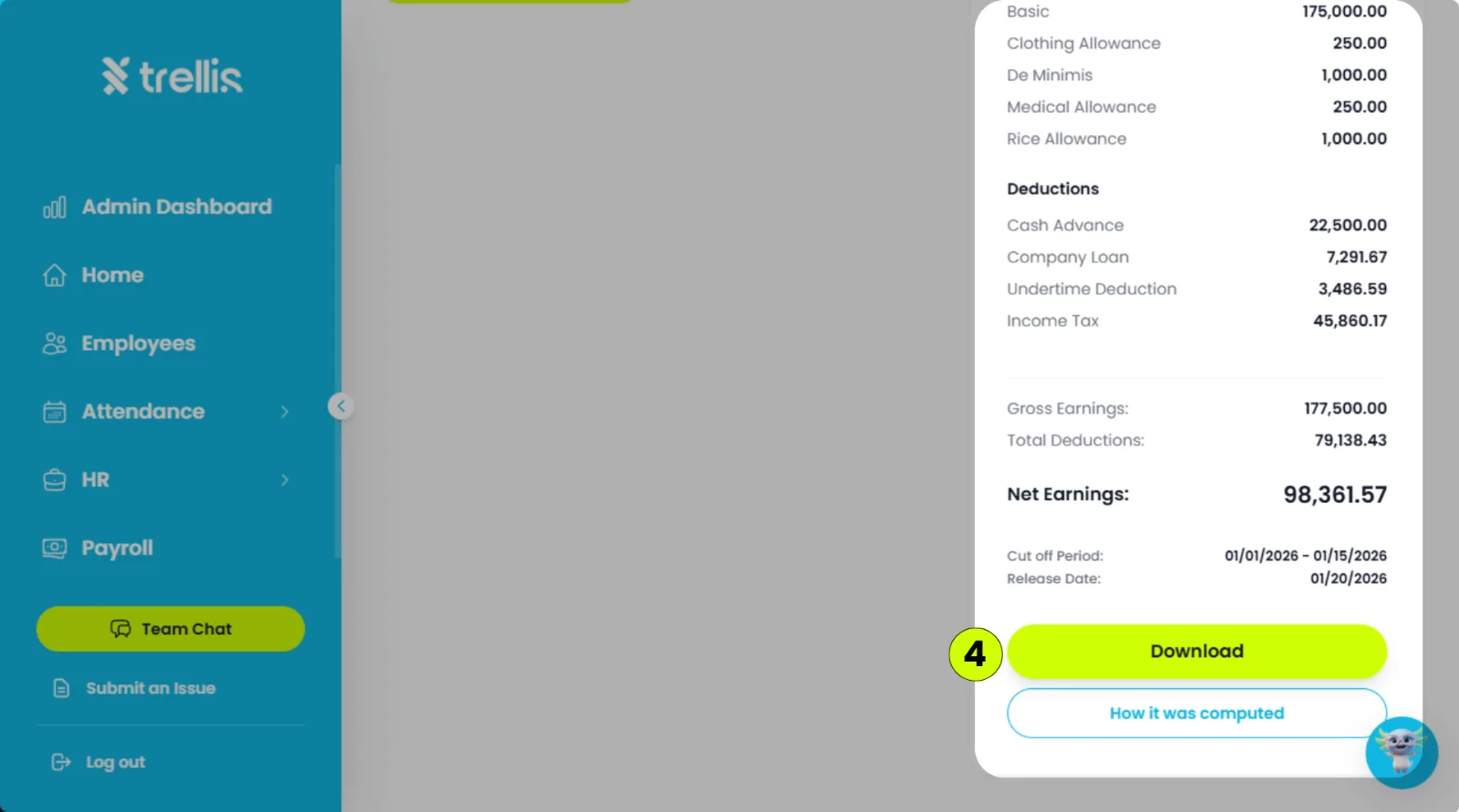
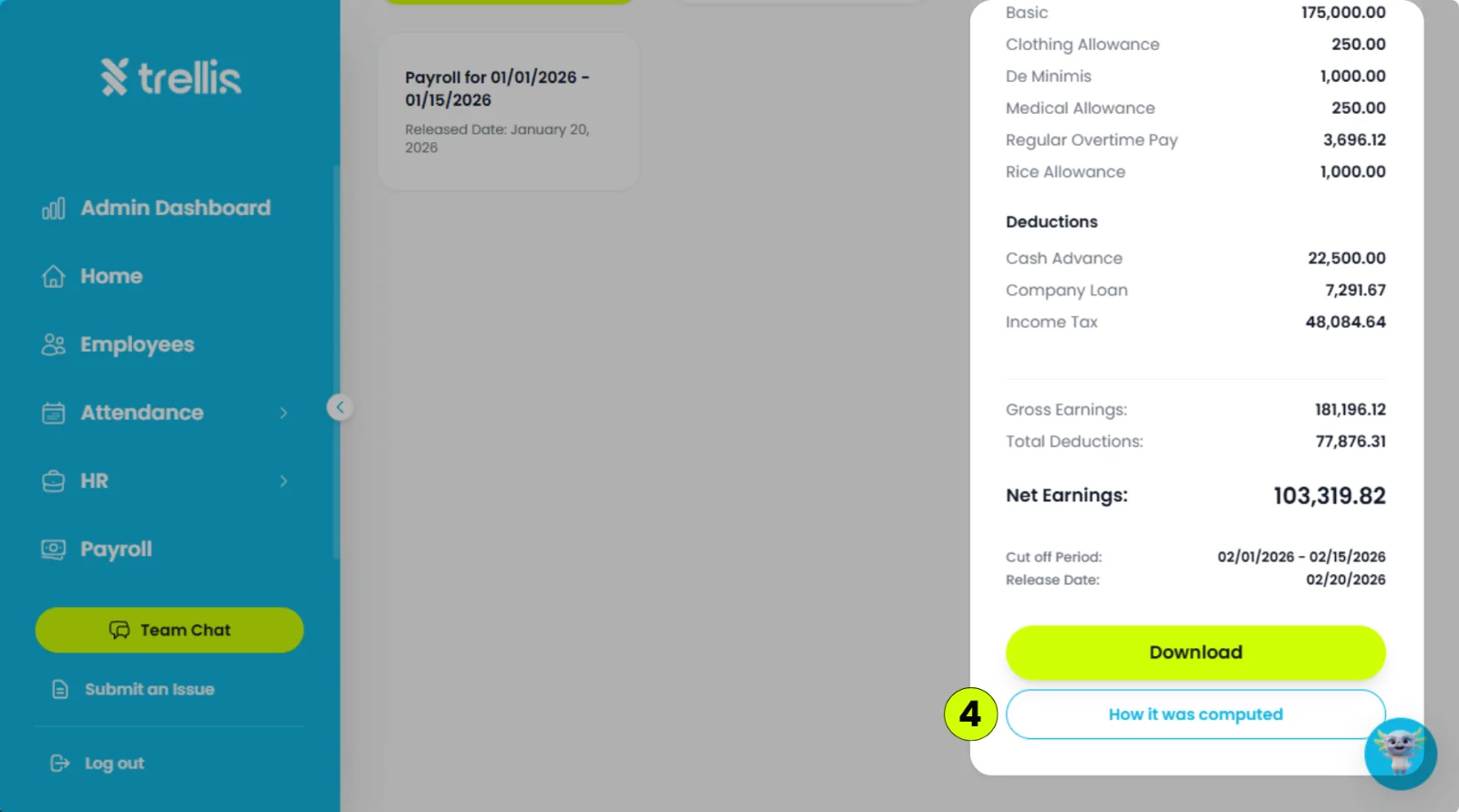
Scroll to the bottom of the payroll report, then click "Download."
 Read the full guide →
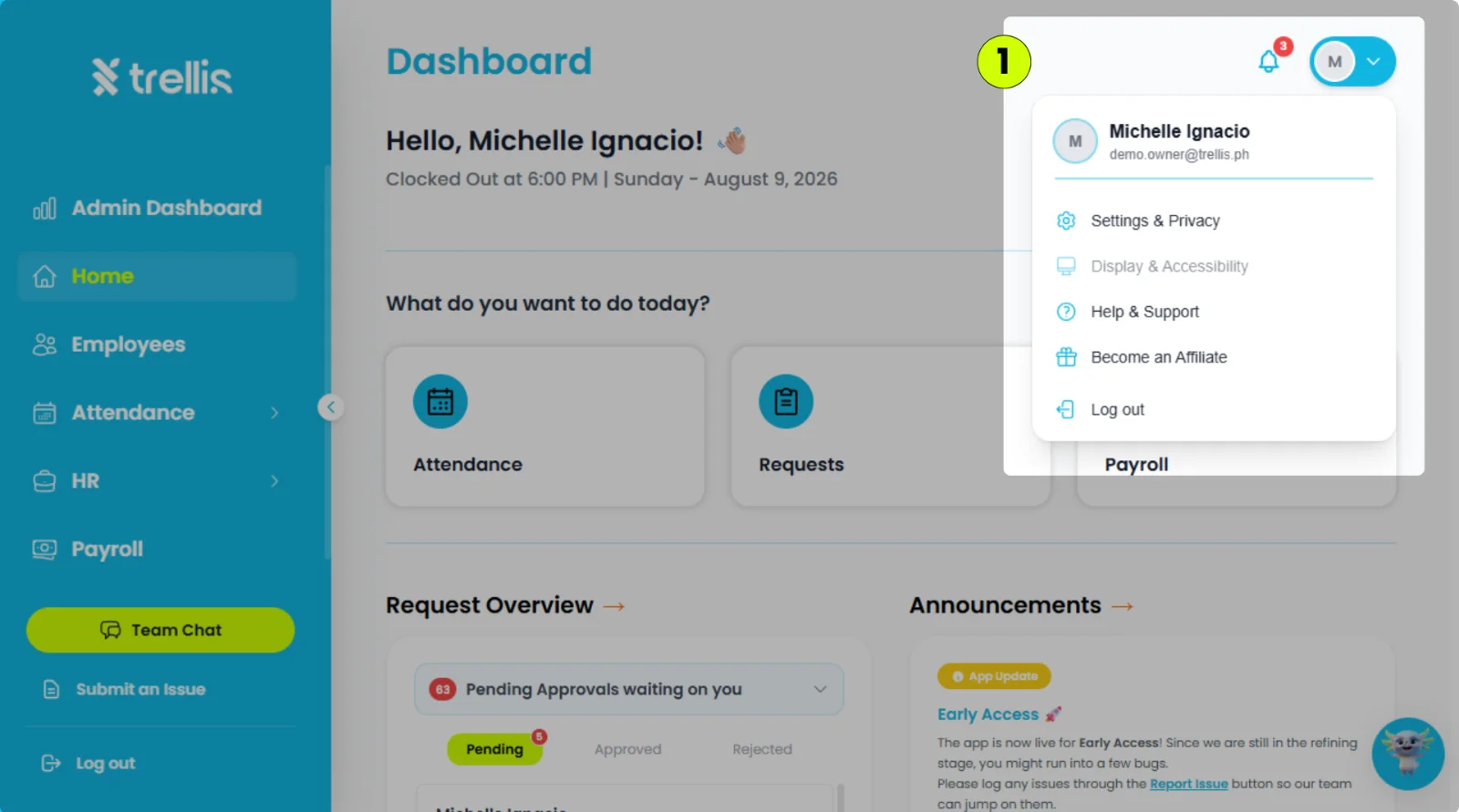
Click your profile icon in the top-right corner, then select "Settings & Privacy."
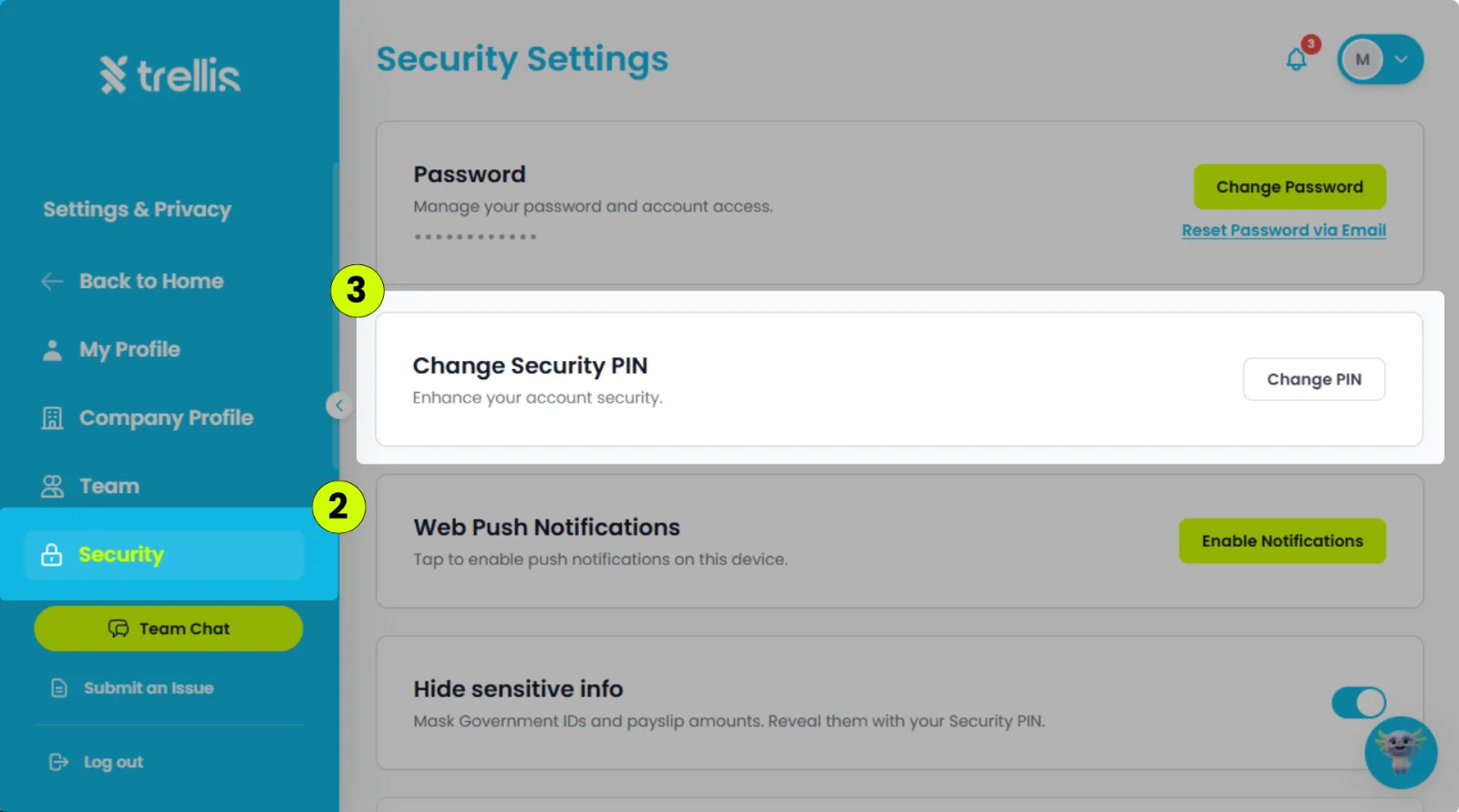
Click the "Security" tab.
In Security Settings, click "Change PIN."
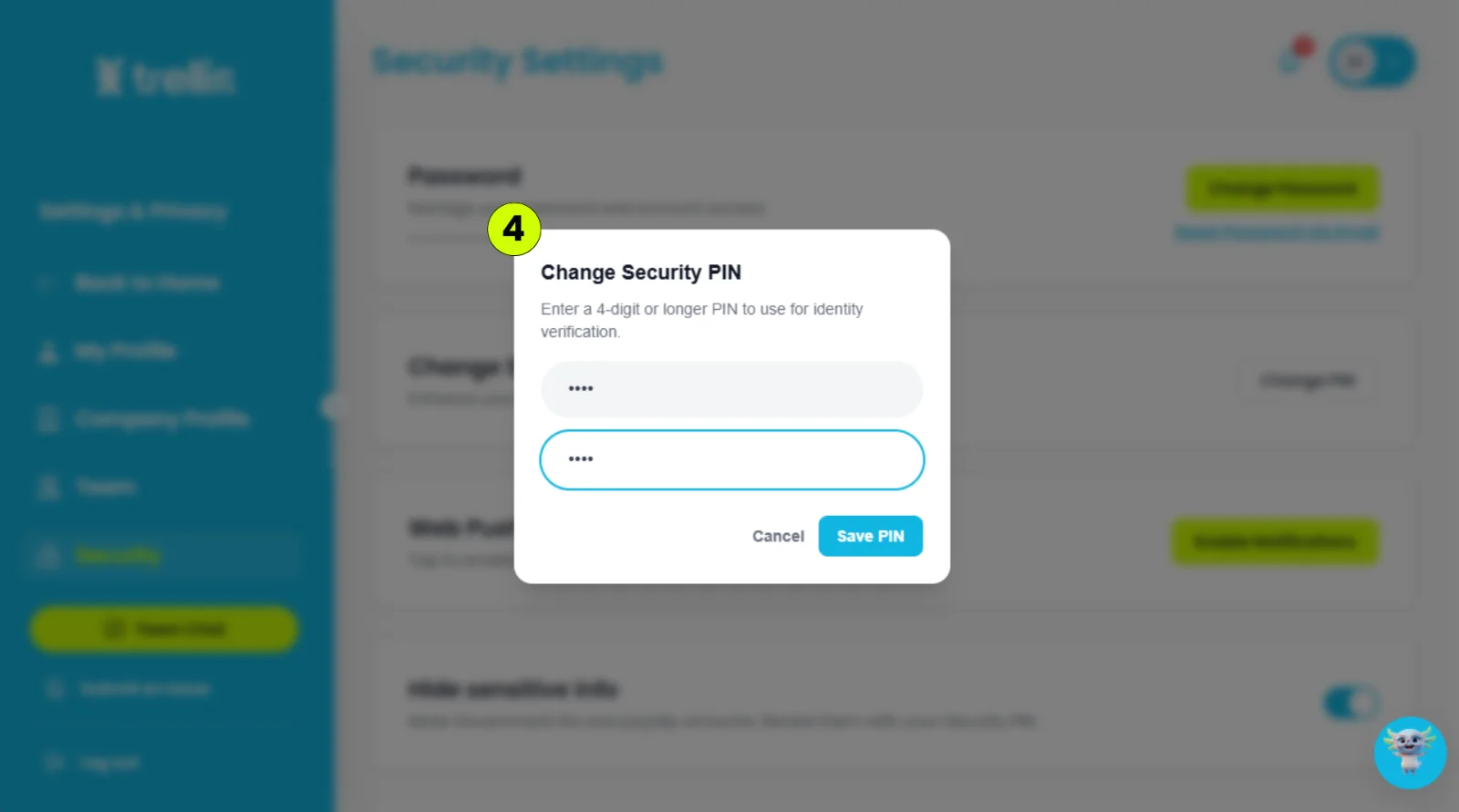
Enter a 4-digit PIN, re-enter it to confirm, then click "Save PIN."
 Read the full guide →
From the sidebar, click "Home."
On your Home Dashboard, click "Payroll."
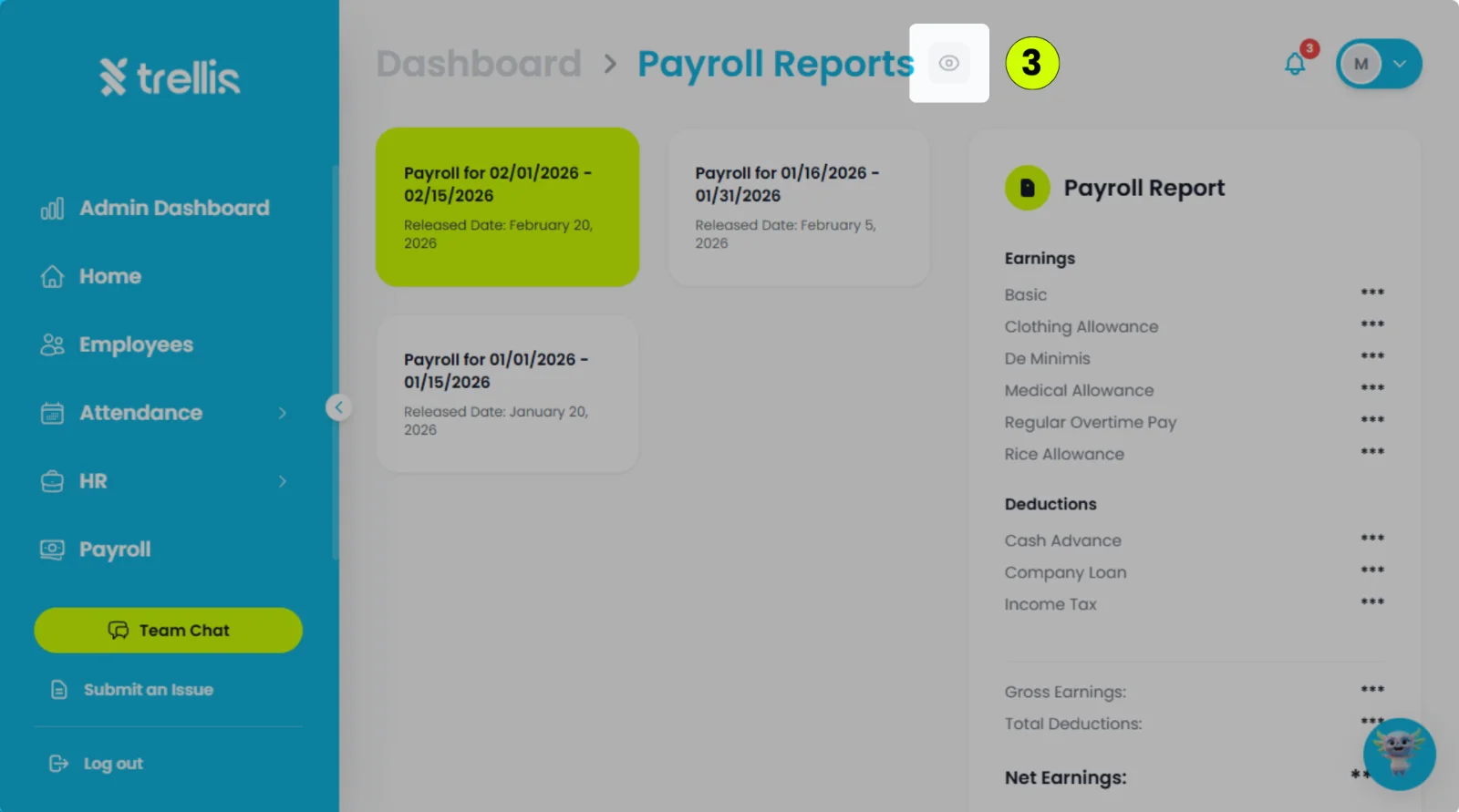
Beside the "Payroll Reports" label, click the eye icon.
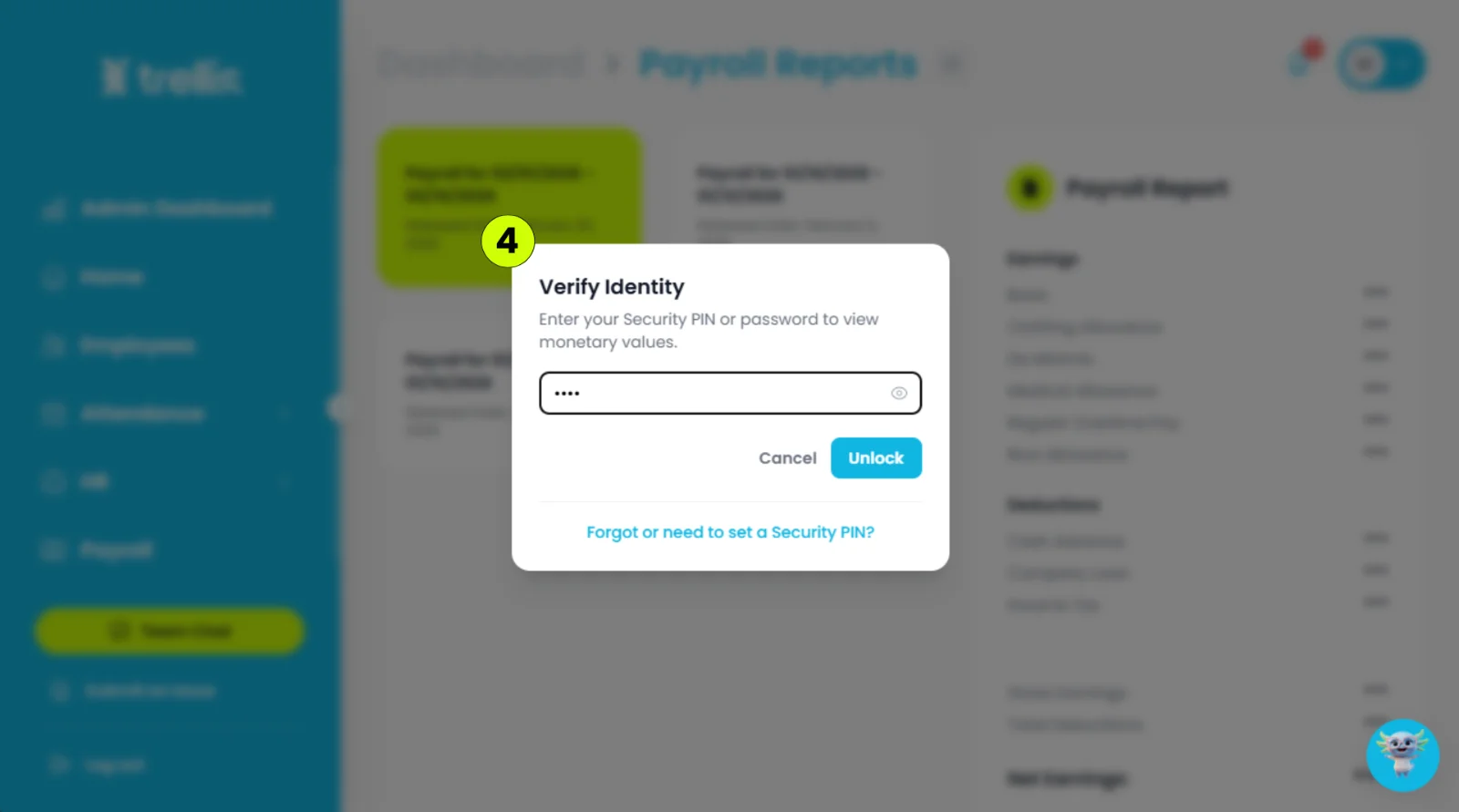
Enter your PIN or password, then click "Unlock."
 Read the full guide →
From the sidebar, click "Home."
On your Home Dashboard, click "Payroll."
Select the payroll report you want to view.
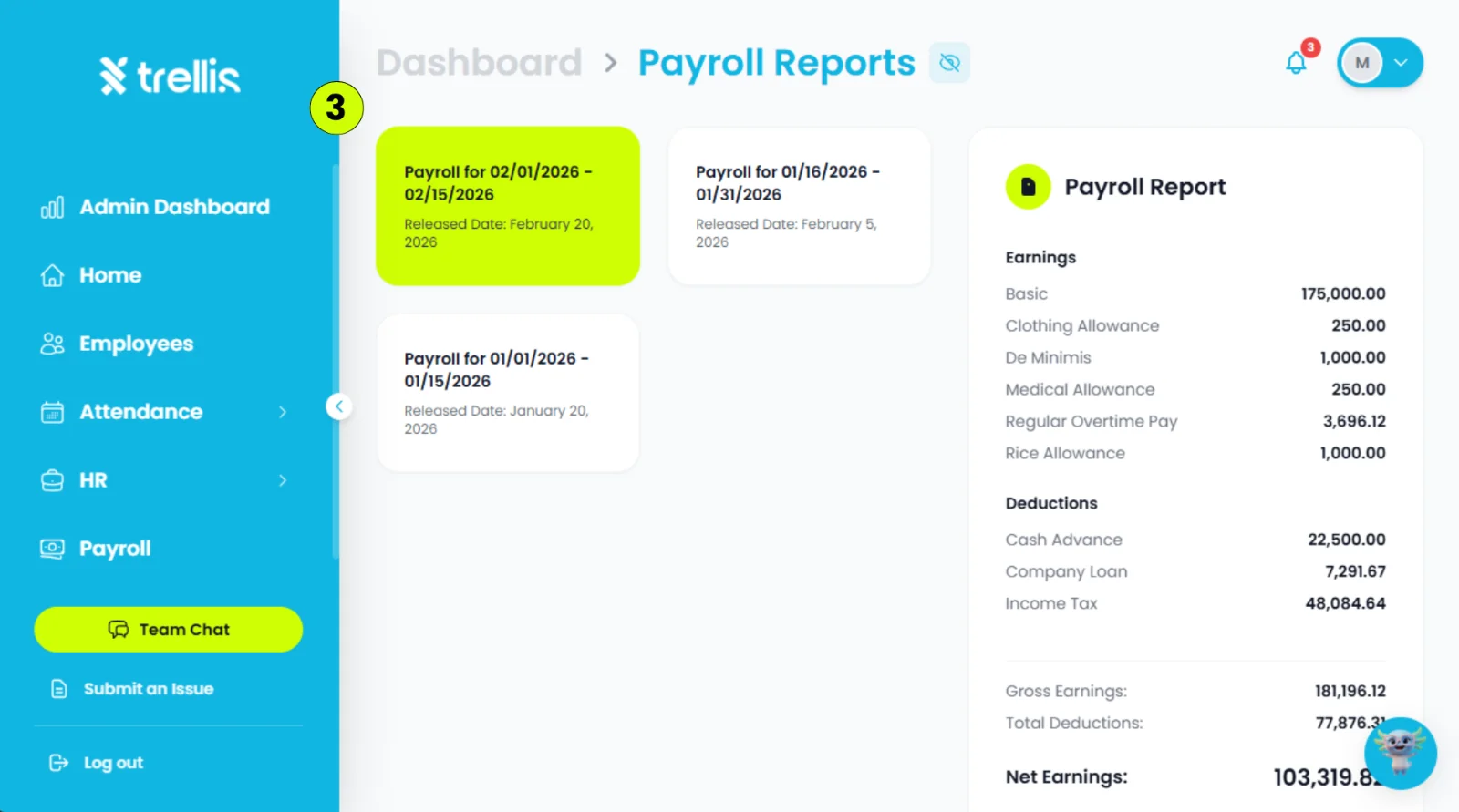
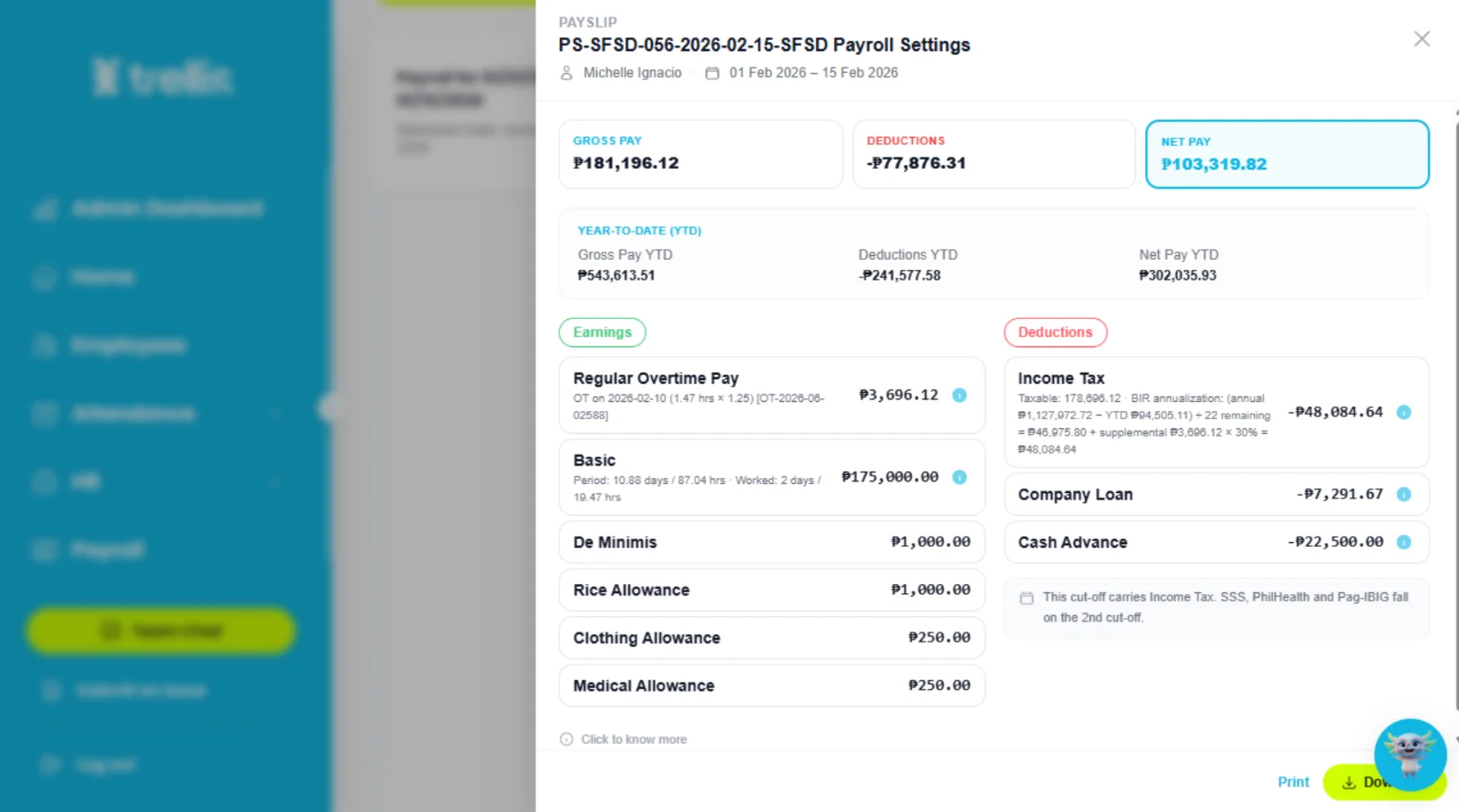
Scroll down to "How It Was Computed," then click it to view the full computation of your payslip.
 Read the full guide →
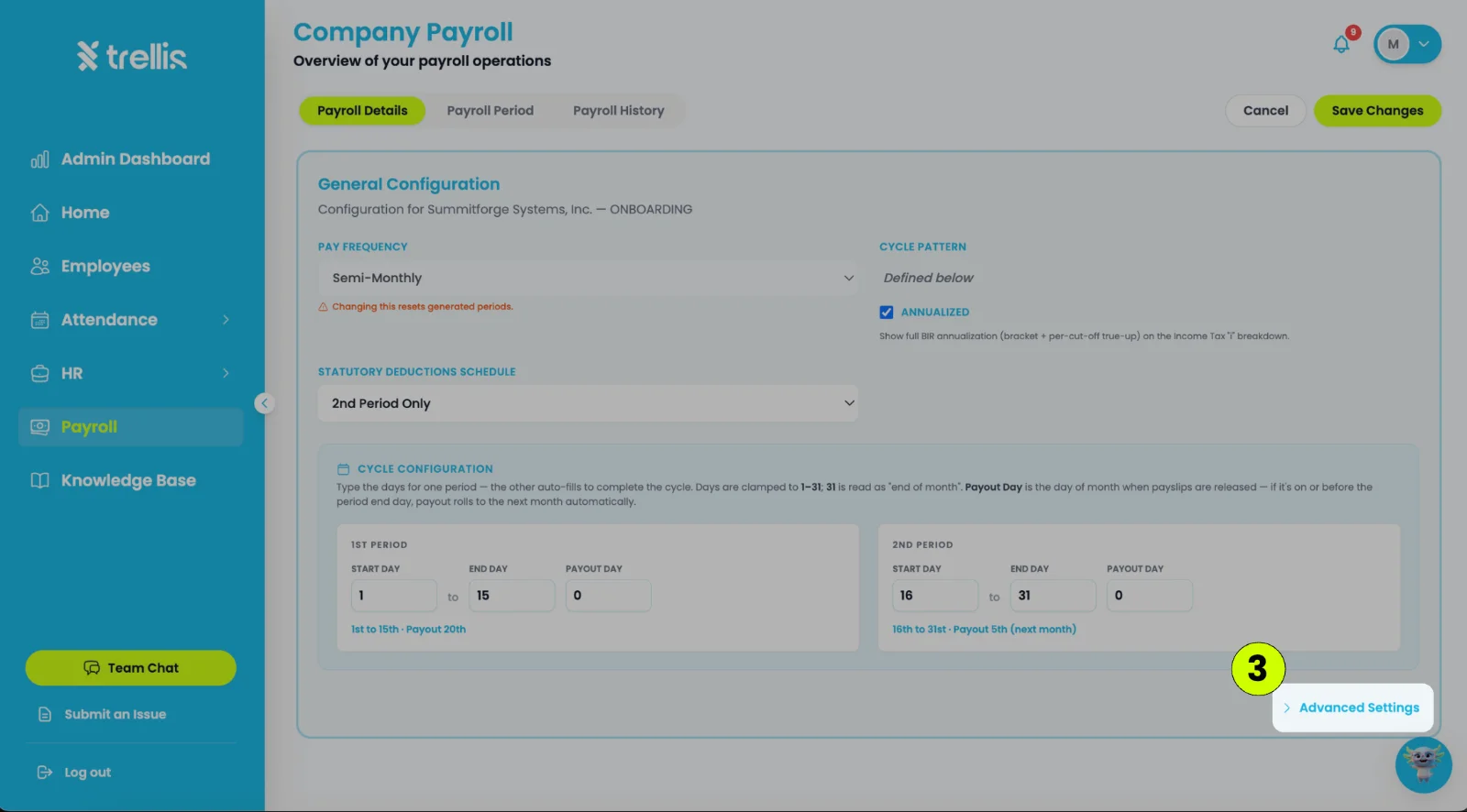
From the sidebar, click "Payroll" to open the Company Payroll page.
On the Payroll Details tab, click "Edit Configuration" and update the payroll configuration as needed.
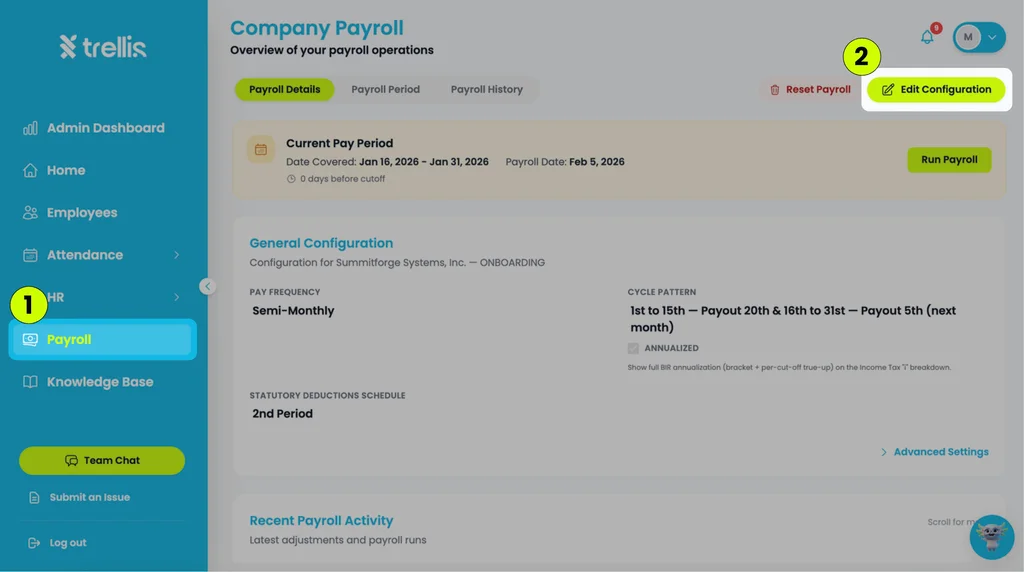
For additional customization options, click "Advanced Settings".
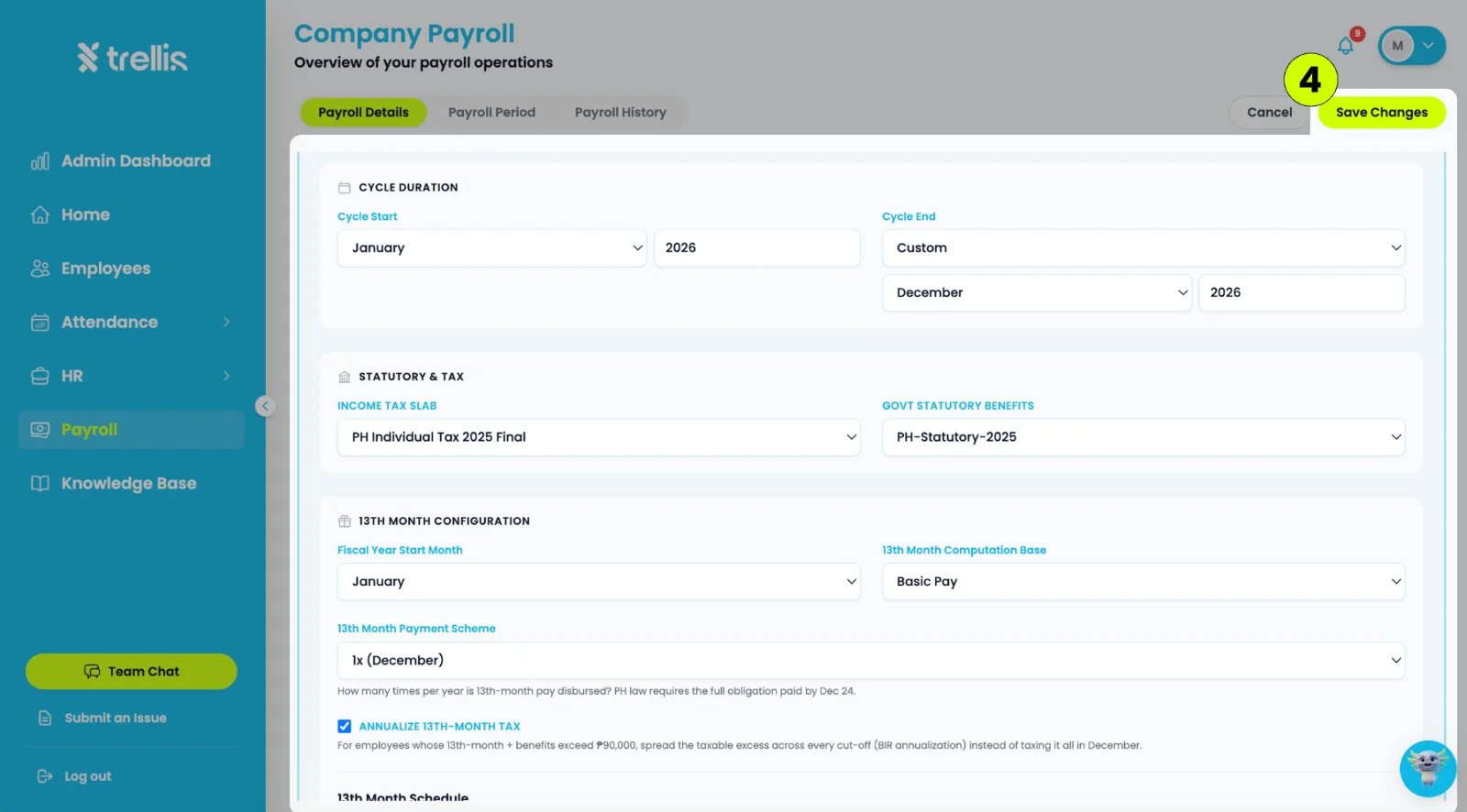
click "Save Changes" once all updates are complete.
Payroll Analysis lets you review payroll exceptions and attendance-related issues before finalizing a payroll period. It helps identify items such as absences, late records, undertime, missing clock-outs, and other payroll adjustments that may affect employee pay.
To review Payroll Analysis:
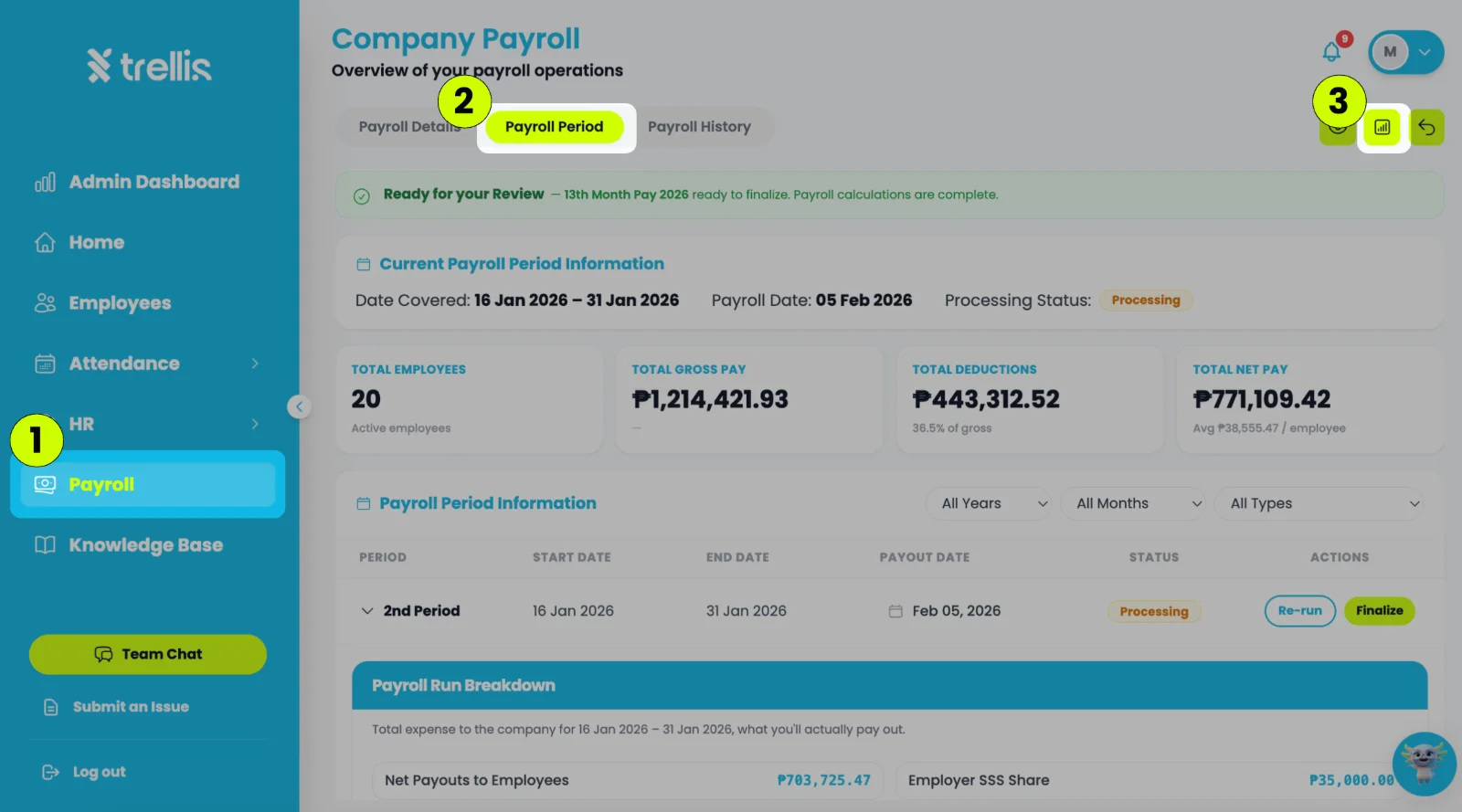
From the sidebar, click “Payroll”.
On the “Company Payroll” page, click “Payroll Period”.
Click the “Payroll Analysis” button.
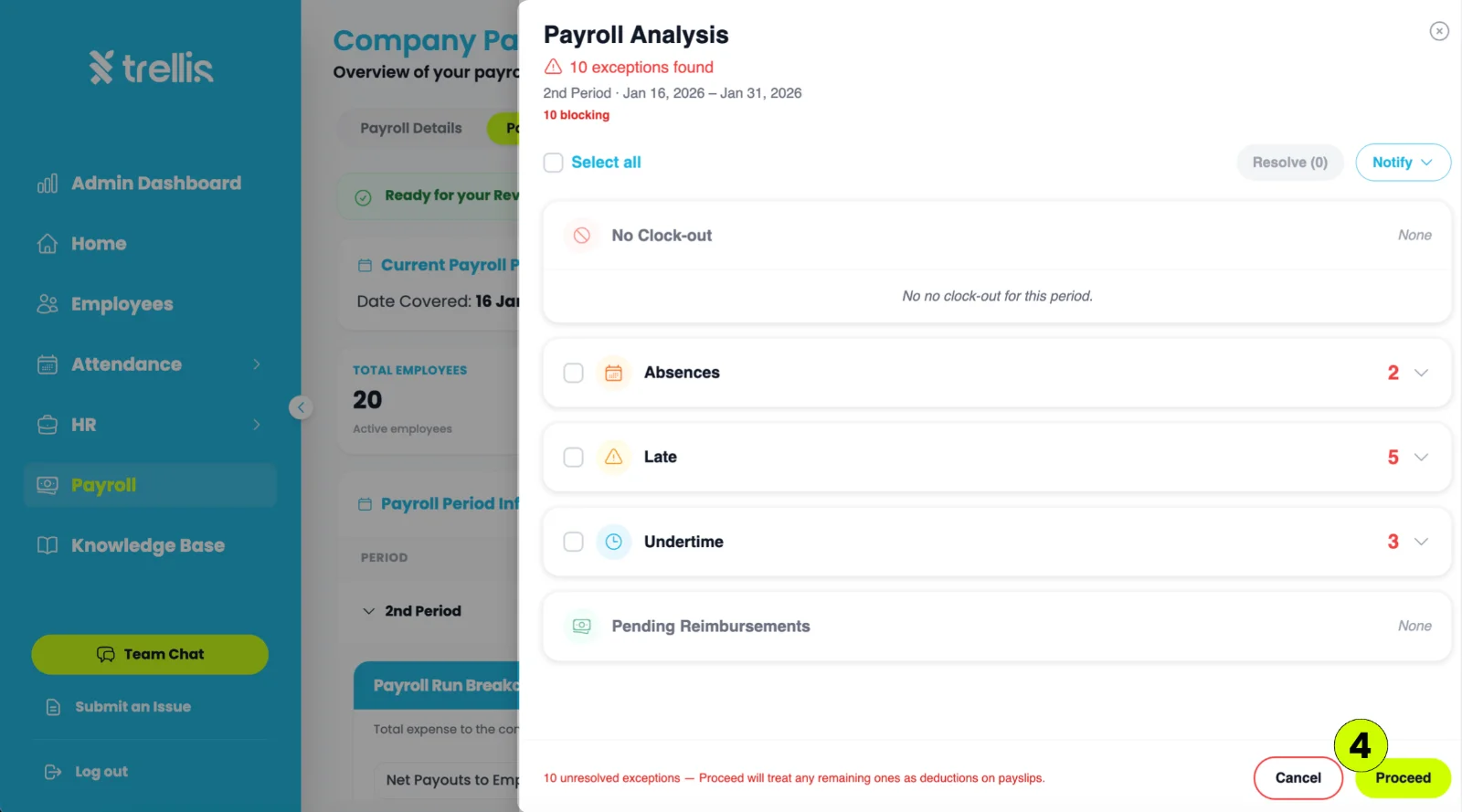
Review the listed exceptions and resolve any items as needed before proceeding with payroll.
Clock Out — identify employees with missing or incomplete clock-out records.
Absences — review employees who were absent during the payroll period.
Late — view employees who clocked in after their scheduled start time.
Undertime — track employees who worked fewer hours than required.
Pending Reimbursements — review reimbursement requests that are still awaiting processing.
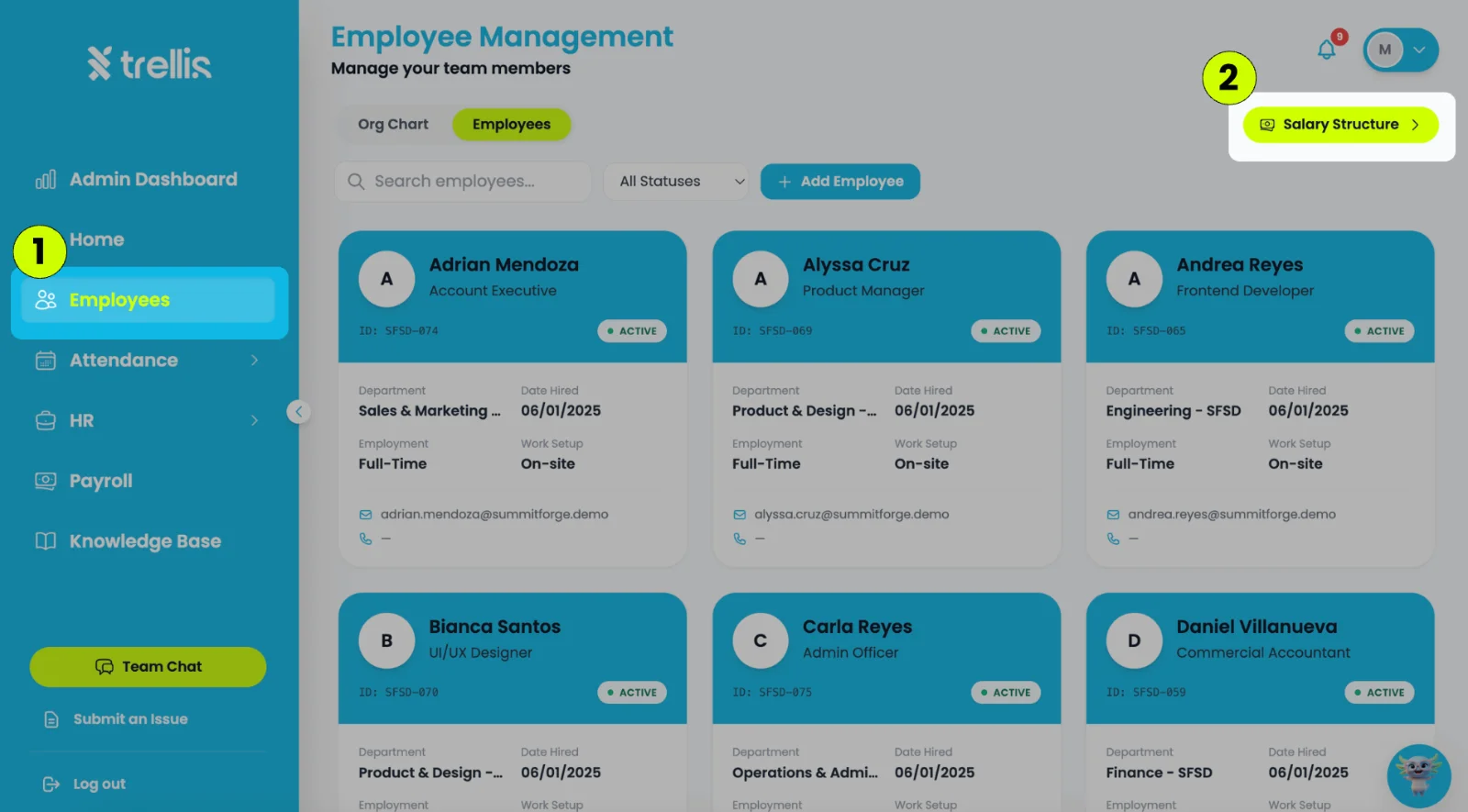
From the sidebar, click "Employees"
Click “Salary Structure”.
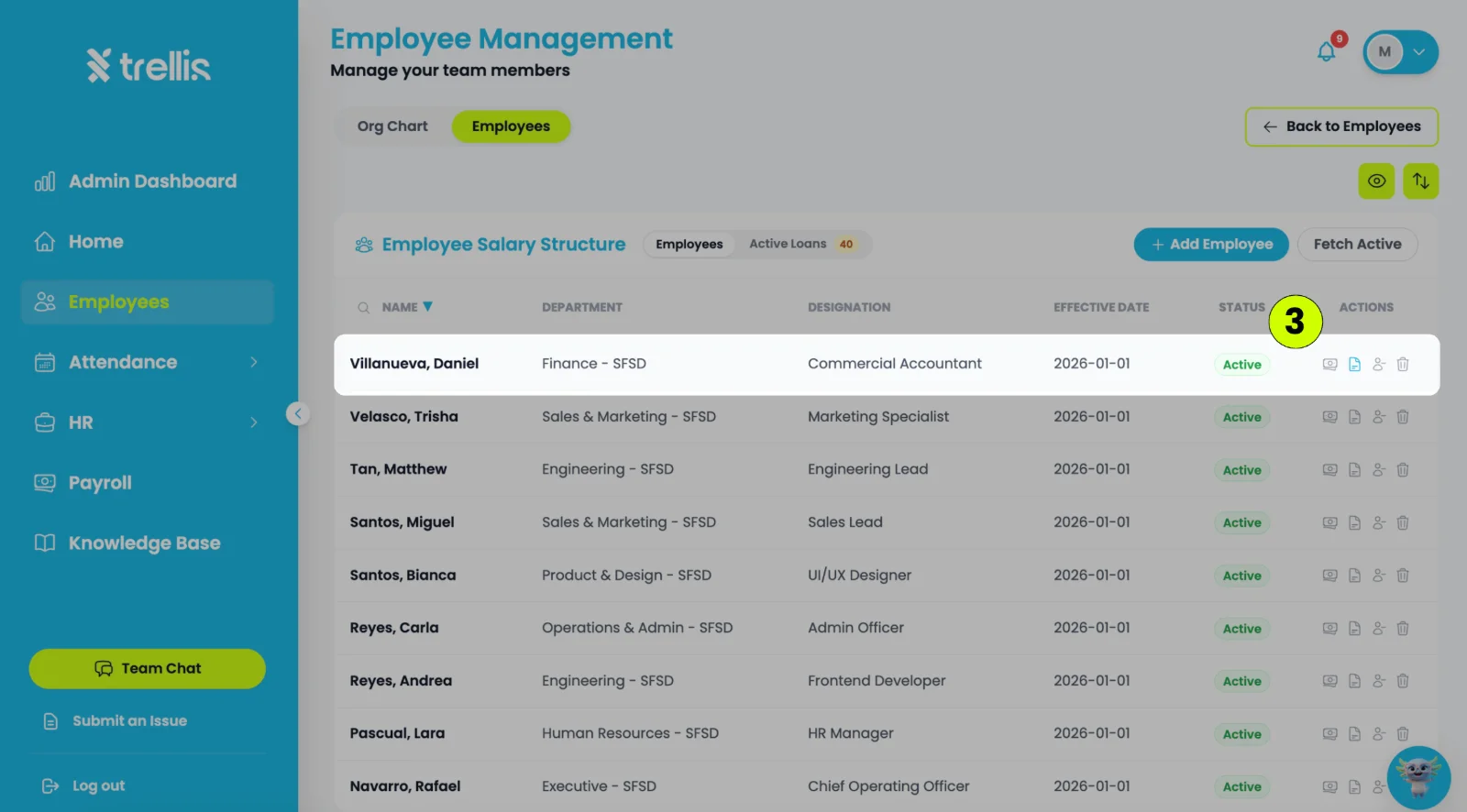
Locate the employee whose payroll information you want to configure, then click "View Salary Structure" icon.
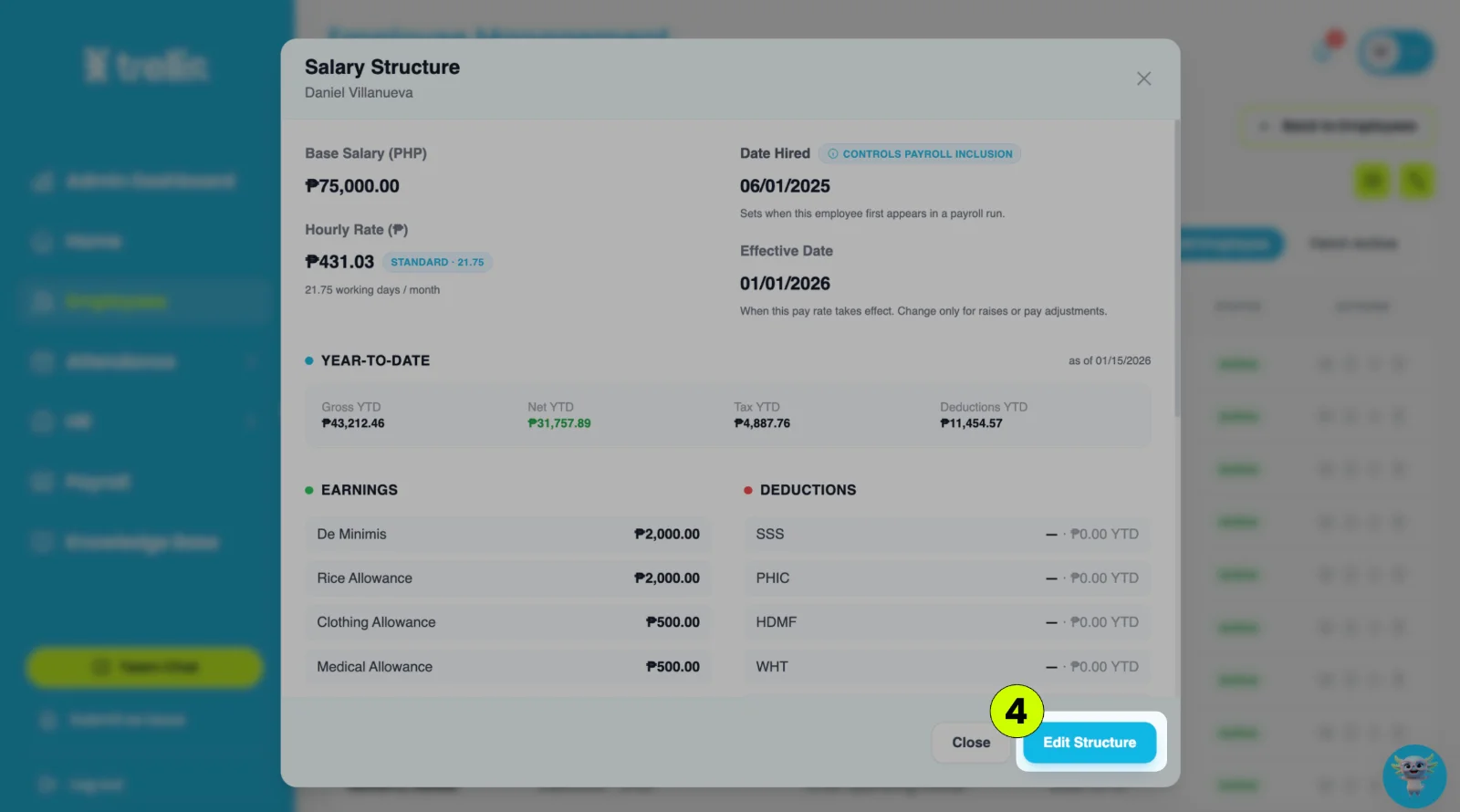
In Salary Structure, click "Edit Structure" to update the employee's payroll details as needed
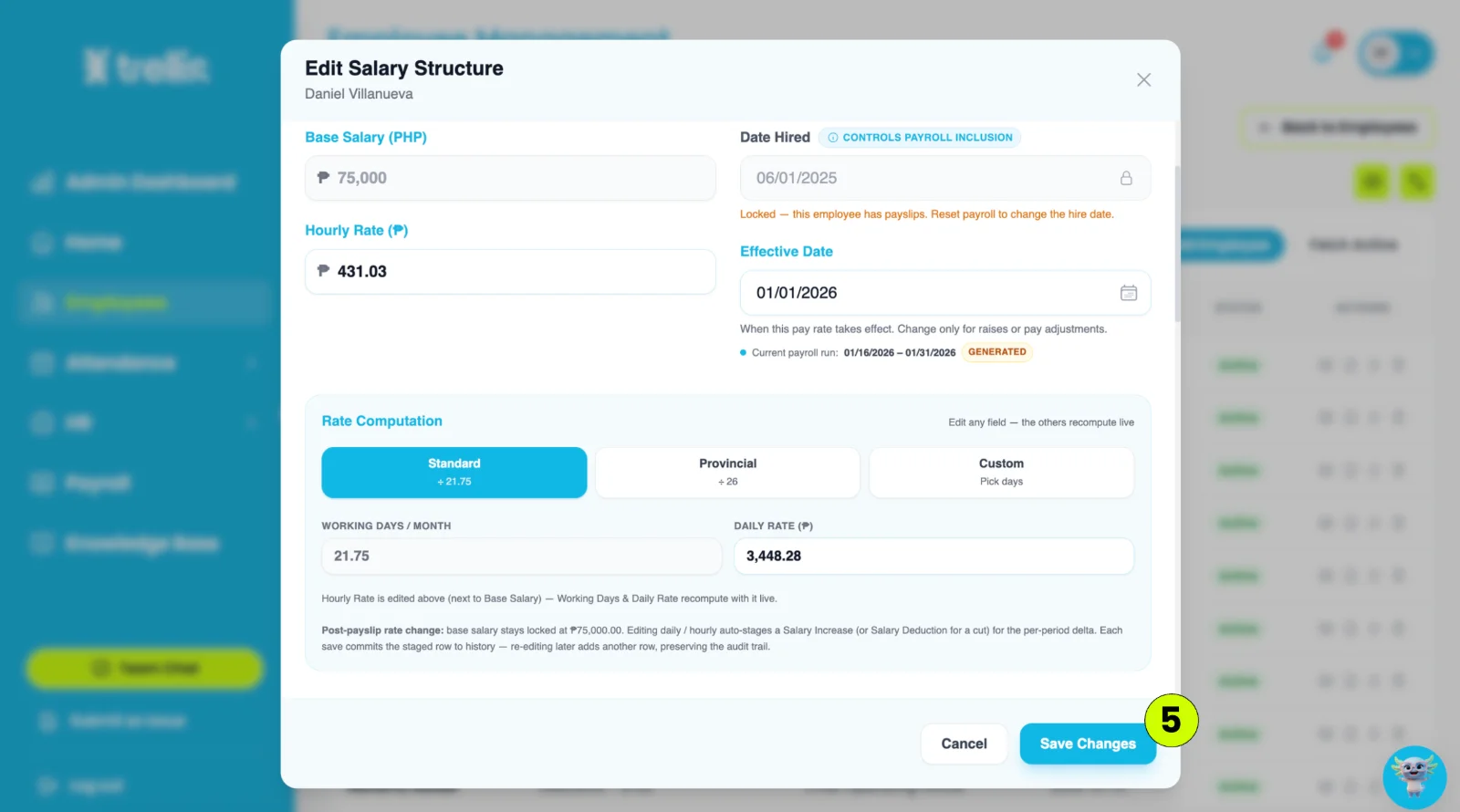
Then click "Save Changes".
From the main sidebar, click "Payroll".
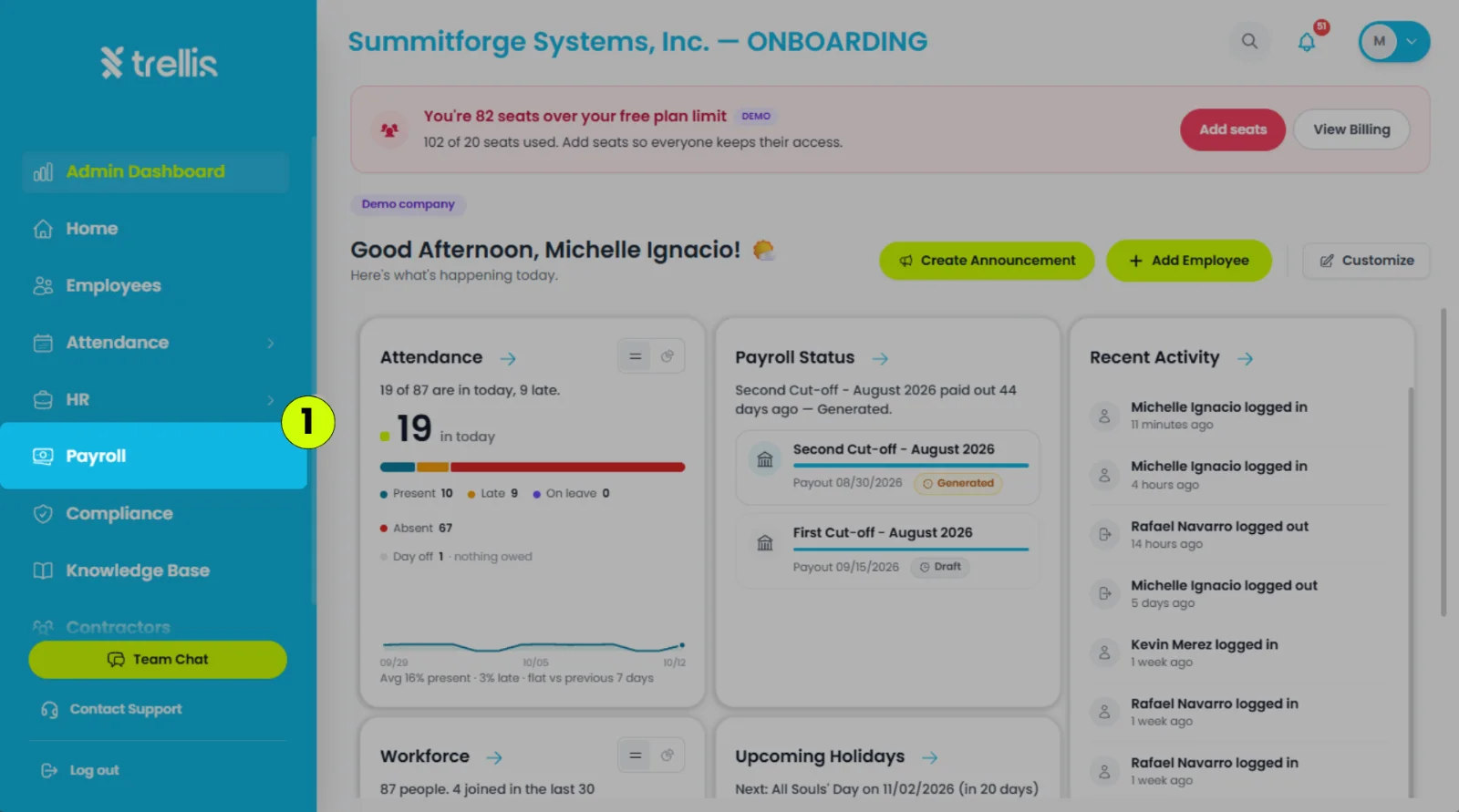
In the Payroll workspace sidebar, click "Computation & Payslips".
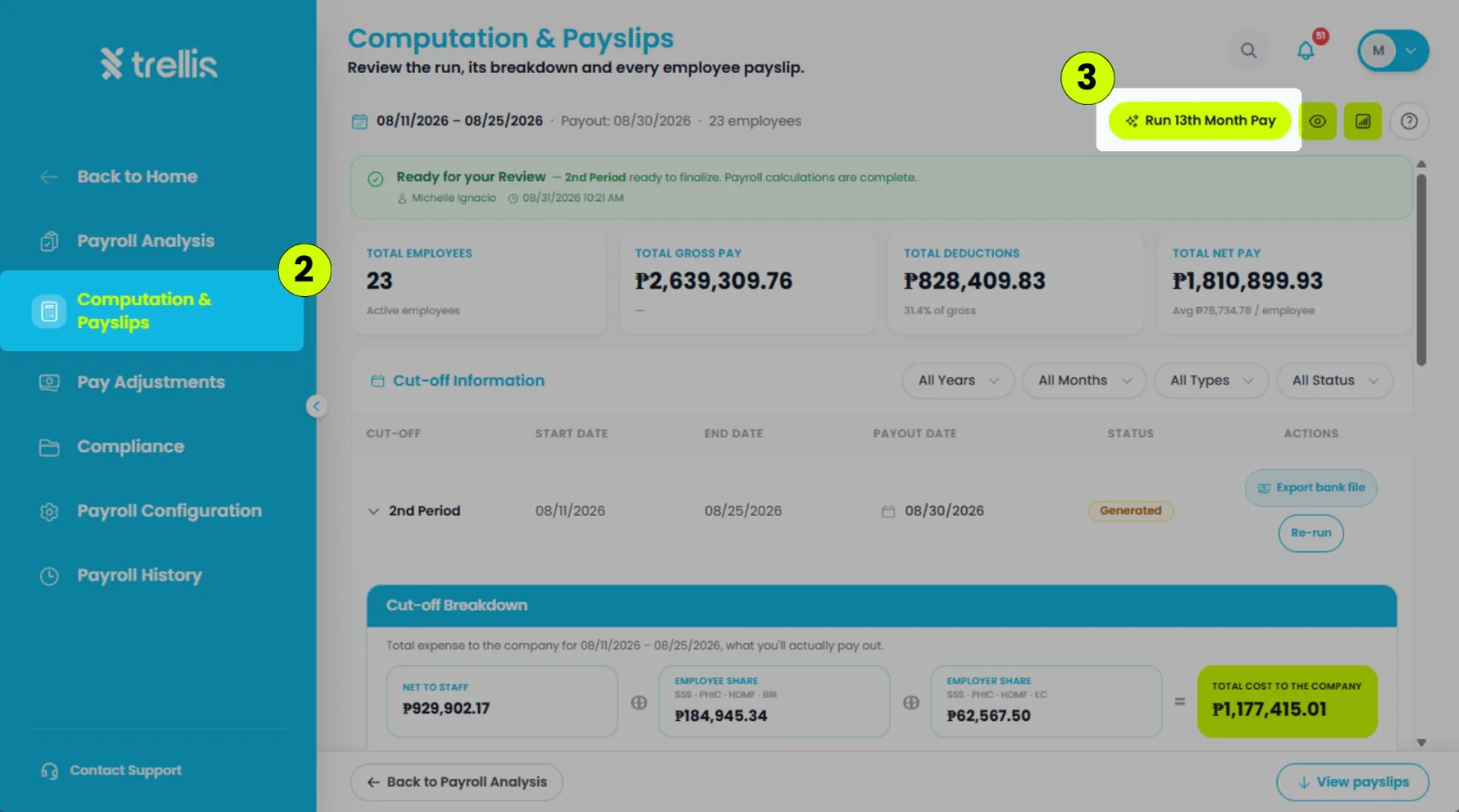
Note: Before running 13th month pay, it is recommended to review attendance issues and payroll adjustments in the "Payroll Analysis" tab to help ensure accurate computation.
In the upper-left corner of the page, click "Run 13th Month Pay".
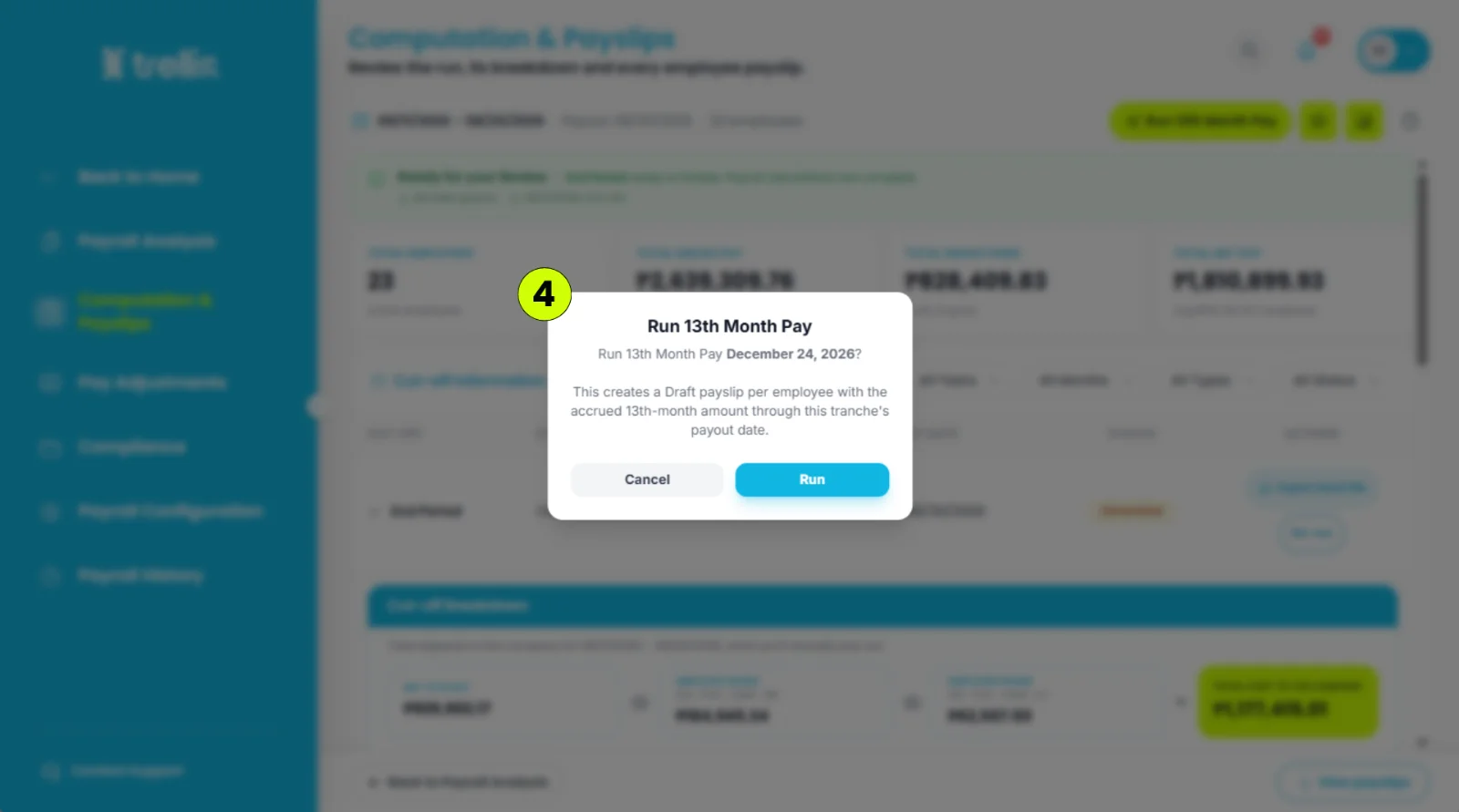
Click "Run" to confirm.
 Read the full guide →
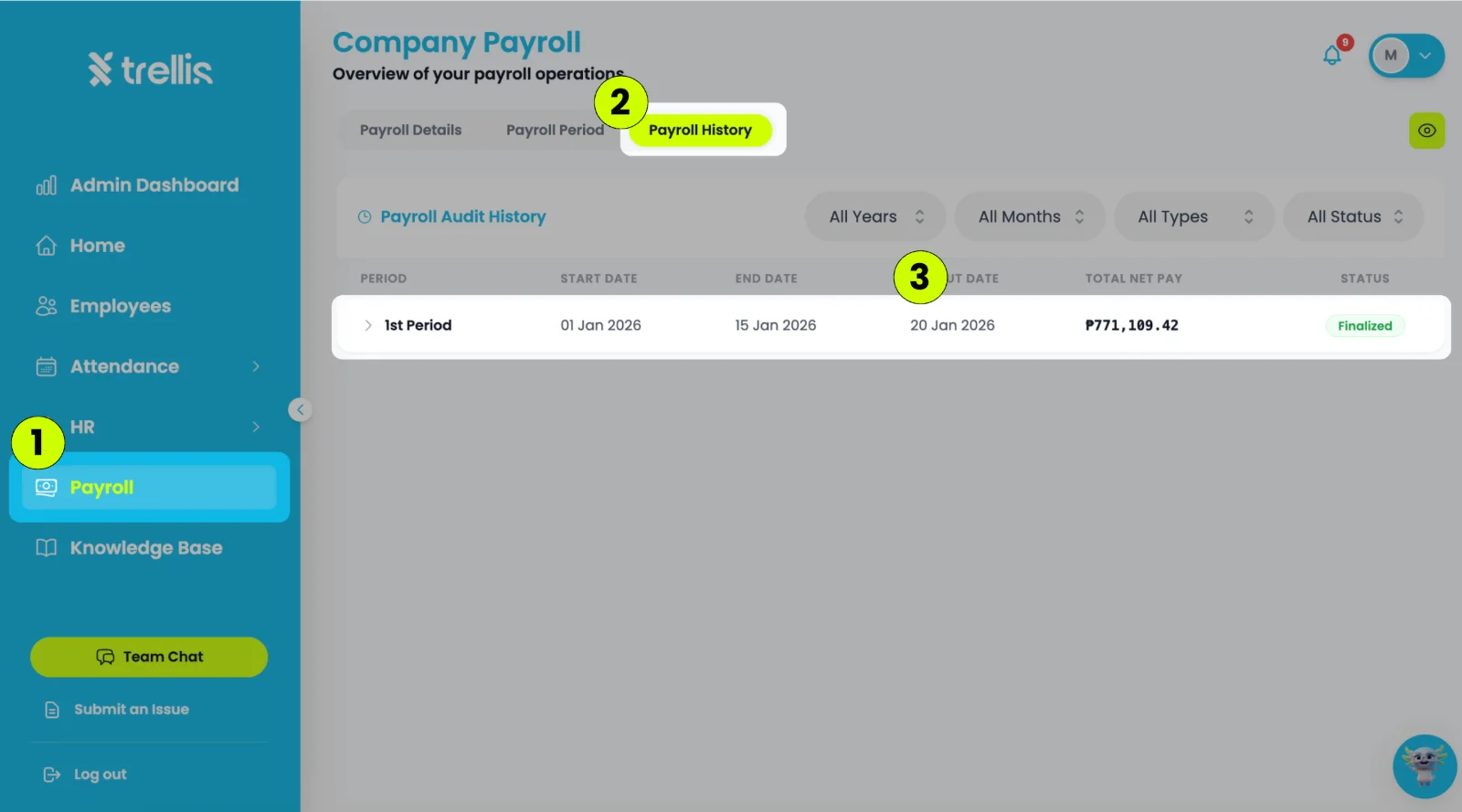
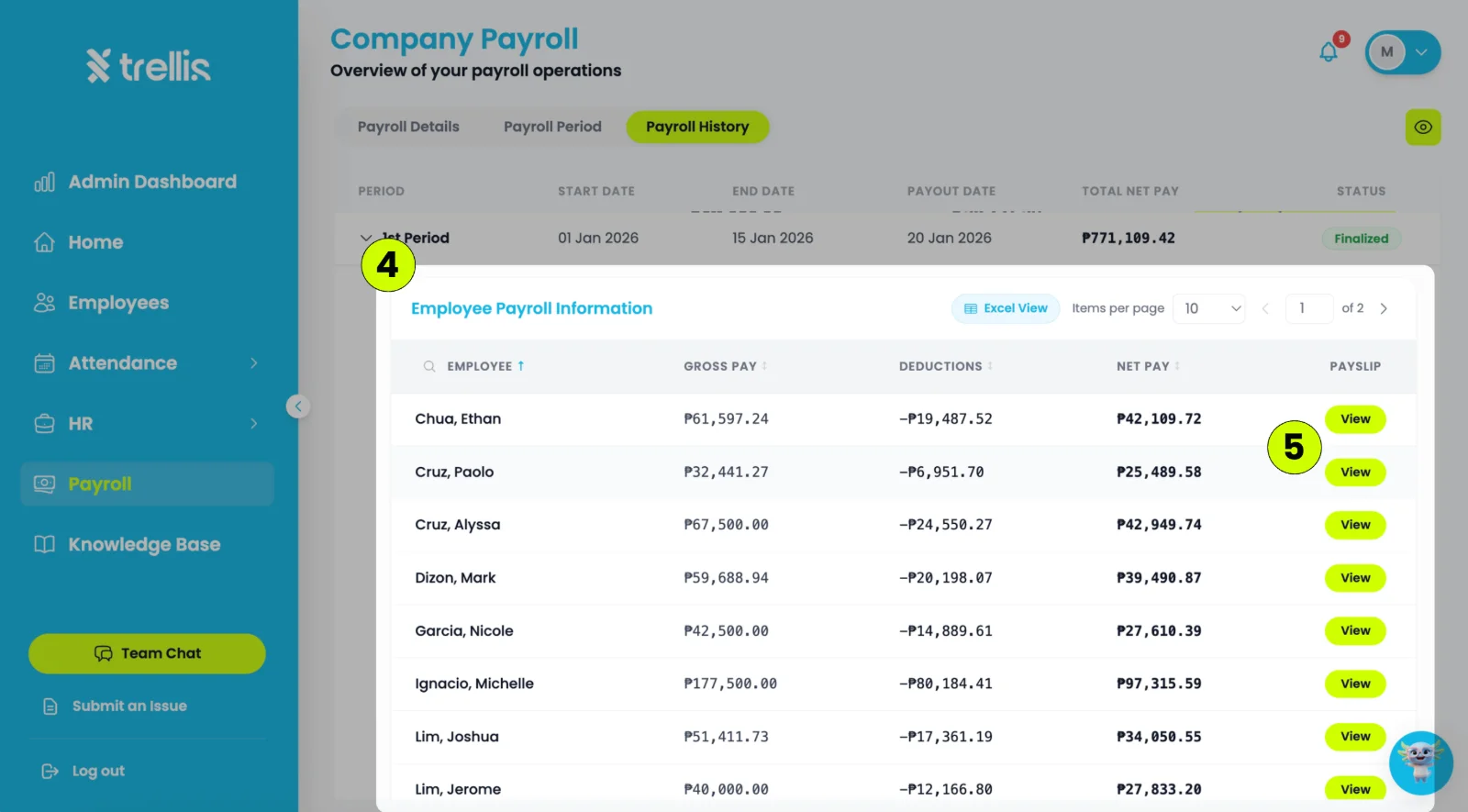
From the sidebar, click "Payroll".
Select the "Payroll History" tab.
Click the payroll period you want to review.
Scroll down to the “Employee Payroll Information” and look for the employee to view the payroll information.
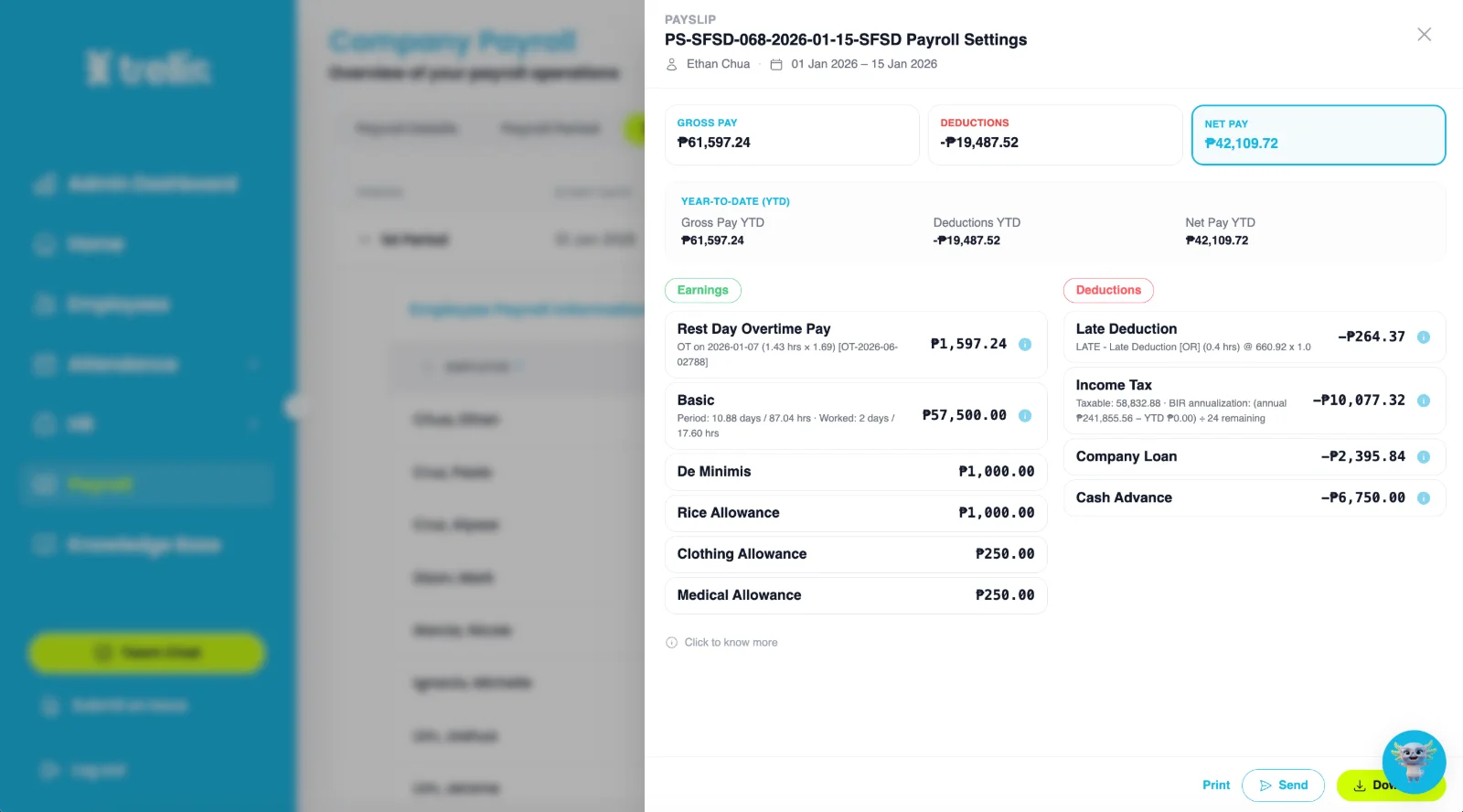
Click "View" beside the employee's name to see their detailed payroll breakdown.
You can give a raise that starts on a set date, even before you run the payroll it starts in. How you set it up depends on how the employee is paid.
Example: the daily rate goes from ₱600 to ₱645 on October 26. Choose "Per day" and type 45, which is ₱5.625 an hour. Set Effective from to 10/26/2026. The row then shows "New rate from 10/26/2026: ₱80.625 an hour (₱645.00 a day)."
Every cut-off that ends on or after the Effective from date is paid at the new rate: Basic, overtime, night differential, late and undertime. Earlier cut-offs keep the old rate, even if you re-run them. Each new raise is a new Hourly Rate Increase row, added on top of the ones before it.
Use an Hourly Rate Increase, not a Salary Increase, for an hourly employee. A Salary Increase pays the same fixed amount every cut-off, however many hours were worked.
In "Hourly rate (₱ / hour)," type the new rate. It takes up to 4 decimals, so ₱645 a day can be entered exactly as 80.625. A new rate has no date: every payroll you generate or "Re-run" after saving uses it. Lock the last payroll at the old rate before you save.
The raise is paid for the whole cut-off that holds the "Effective from" date, and every cut-off after it.
A cut-off that holds the Effective from date is paid at the new rate for the whole cut-off. To pay the new rate only from the middle, set Effective from to the first day of the next cut-off. Then add the extra for the days in between with "Add adjustment" in Payroll Analysis.
Read the full guide →Changing your cut-off days, your first payroll month or your pay frequency rebuilds your payroll calendar, so Trellis asks you to confirm with a "Confirm Schedule Reset" message before it saves.
Tip: the best time to change the dates is before you run the first payroll on them.
Read the full guide →Payroll runs one cut-off at a time across two pages: Payroll Analysis, where you decide what to deduct, and Computation & Payslips, where you check the pay and lock it.
From the sidebar, click "Payroll."
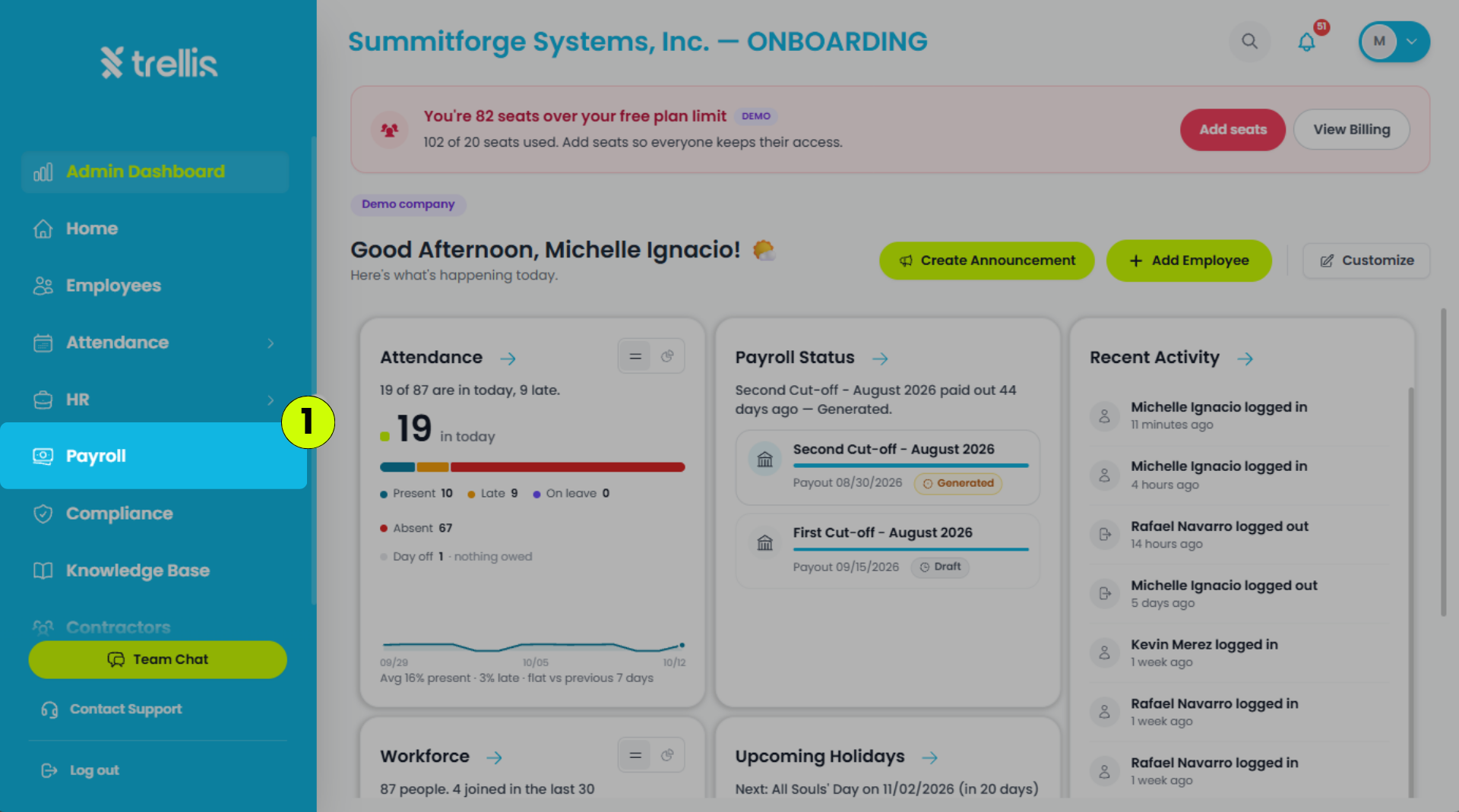
Click "Payroll Analysis." It opens on the next cut-off to run.
Waive or deduct each absence, late and undertime (see below), then click "Run Payroll." If the cut-off has already been run, this button reads "Review Computation."
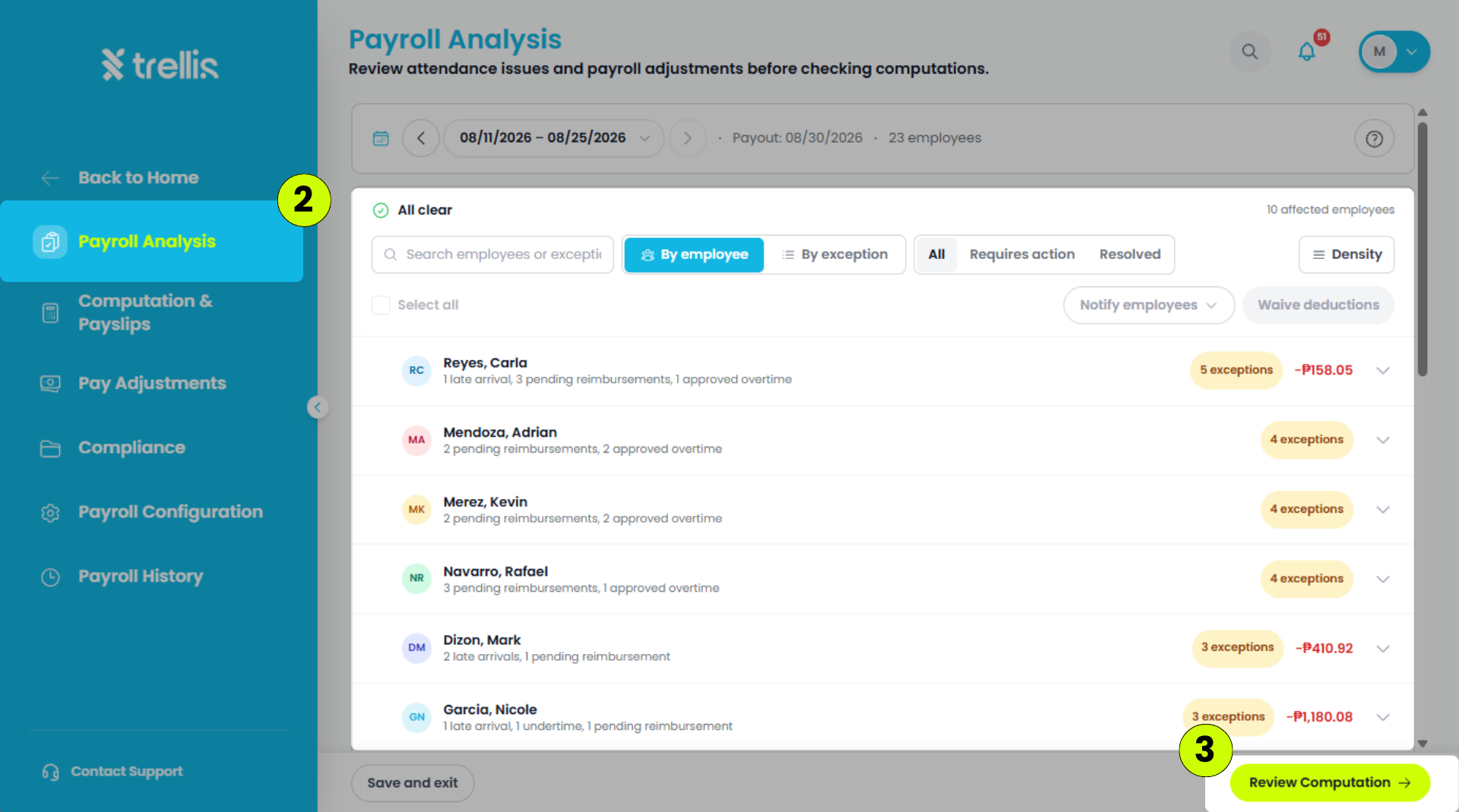
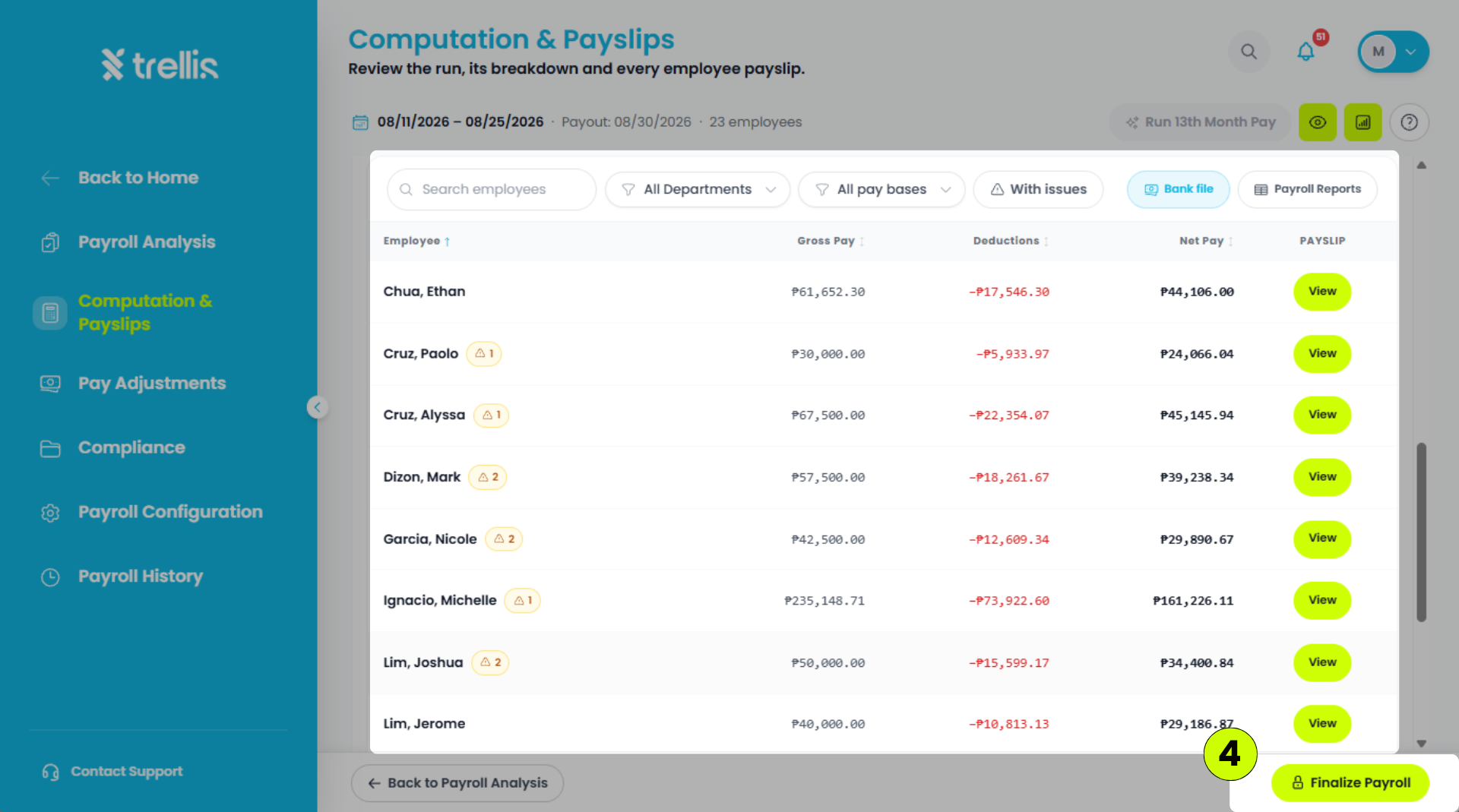
On "Computation & Payslips," check the payslips, then click "Finalize Payroll" at the bottom of the page.
Click "Lock payroll." Your employees get their payslips by email and in the app.
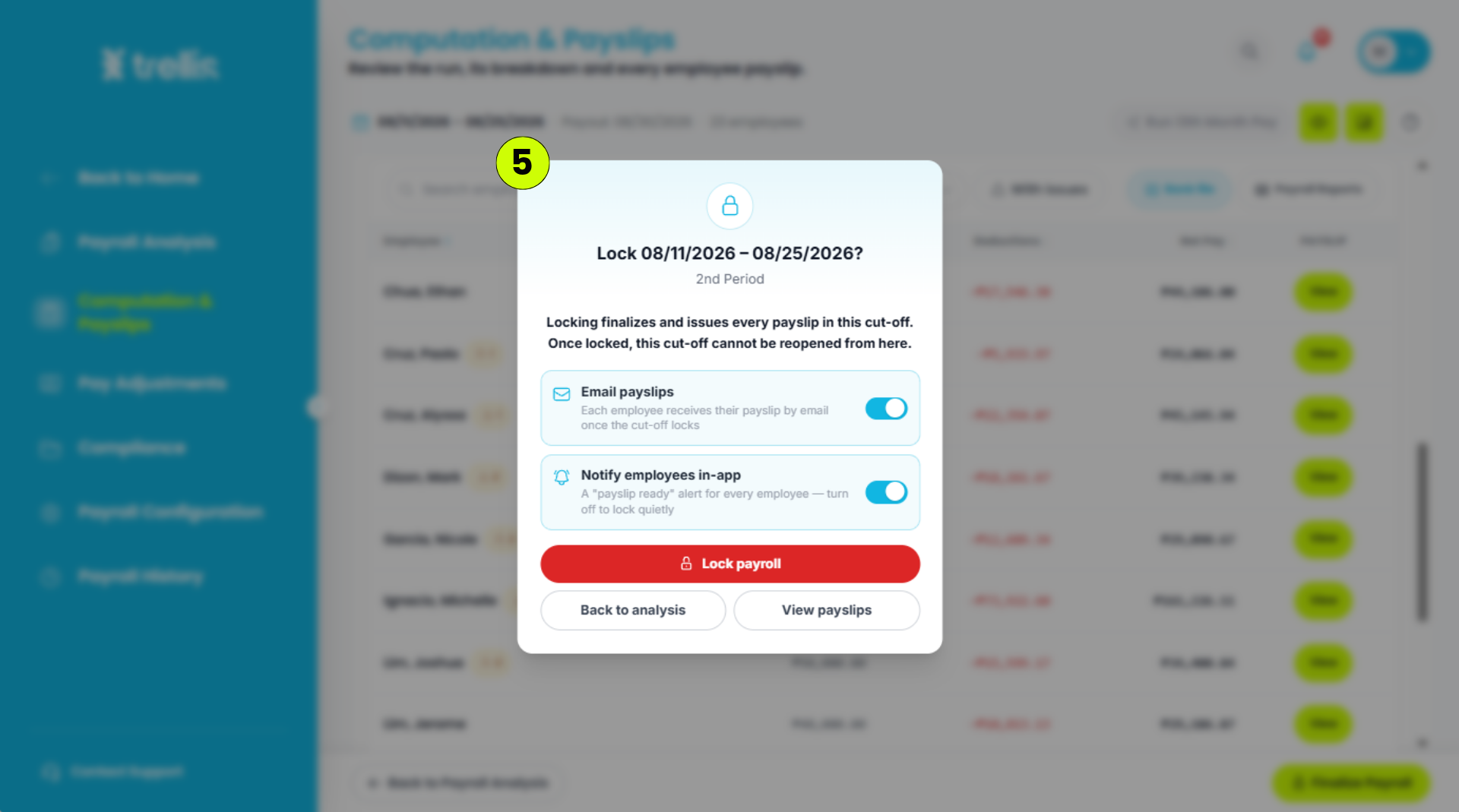
A locked cut-off can't be reopened from this screen, so check the payslips before you lock.
Payroll Analysis lists each employee's absences, lates and undertime, with the amount each one would take off their pay. You decide which ones count.
To waive (the employee keeps that pay, for example for an approved day off): tick the items, click "Waive deductions," then "Confirm, waive."
To deduct everything you didn't waive: after the run, click "Review Computation," then "Accept & recompute." The payslips update with the deductions.
"Finalize Payroll" greyed out? Some items are still undecided. Go back to "Payroll Analysis" and waive or deduct them.
Changed your mind? Until the cut-off is locked, hover over (or tap) the "Waived" or "Deducted" tag, click "Undo Deduction," then "Yes, undo."
More on this: Should I Waive or Deduct an Absence in Payroll Analysis?
Read the full guide →Yes. An employee does not need a bank account on file for payroll to run. Trellis still computes their pay and creates their payslip. They are simply left out of the bank upload file, so you pay them another way (cash, or a transfer from your own bank).
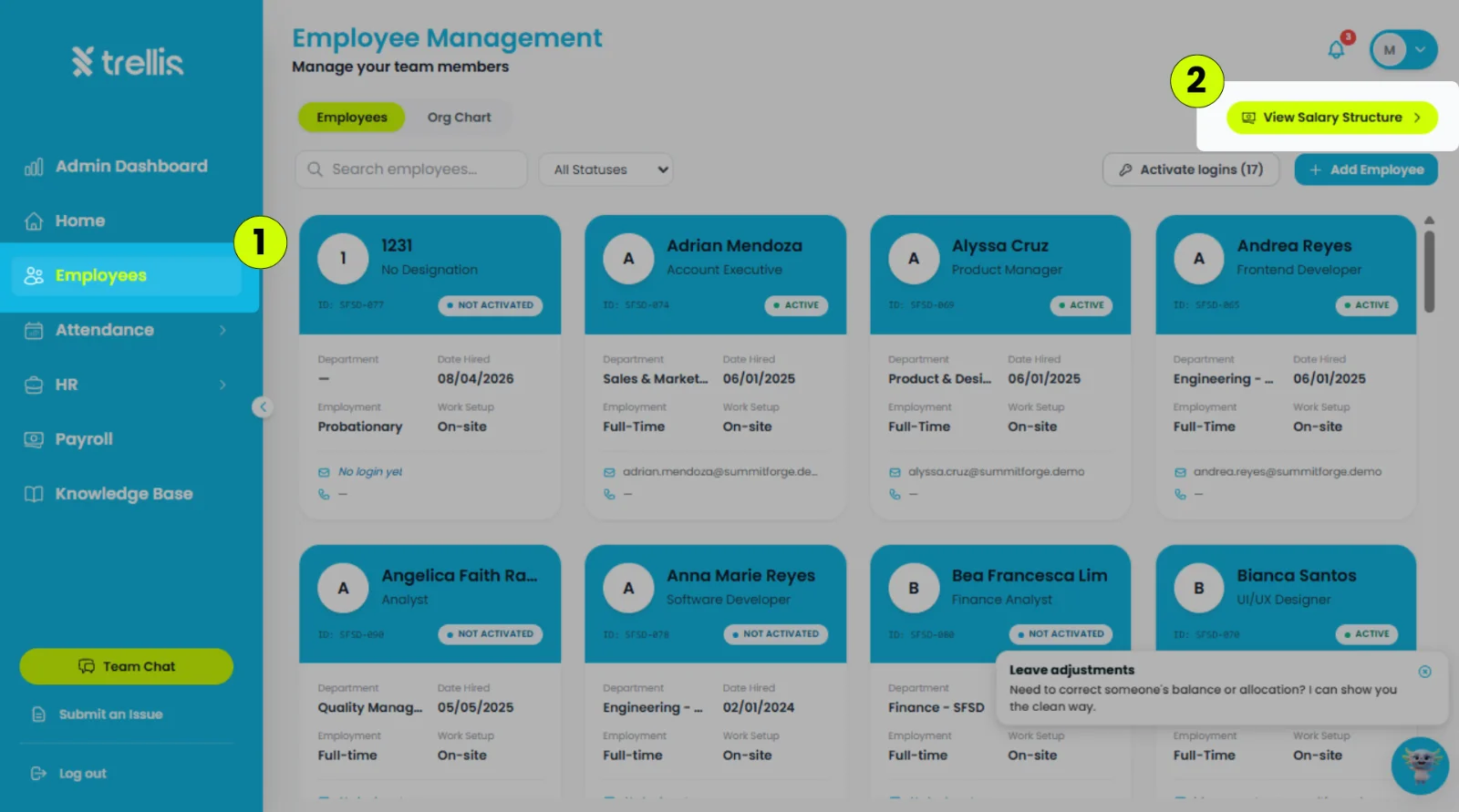
From the sidebar, click "Employees."
On the Employees page, click "View Salary Structure."
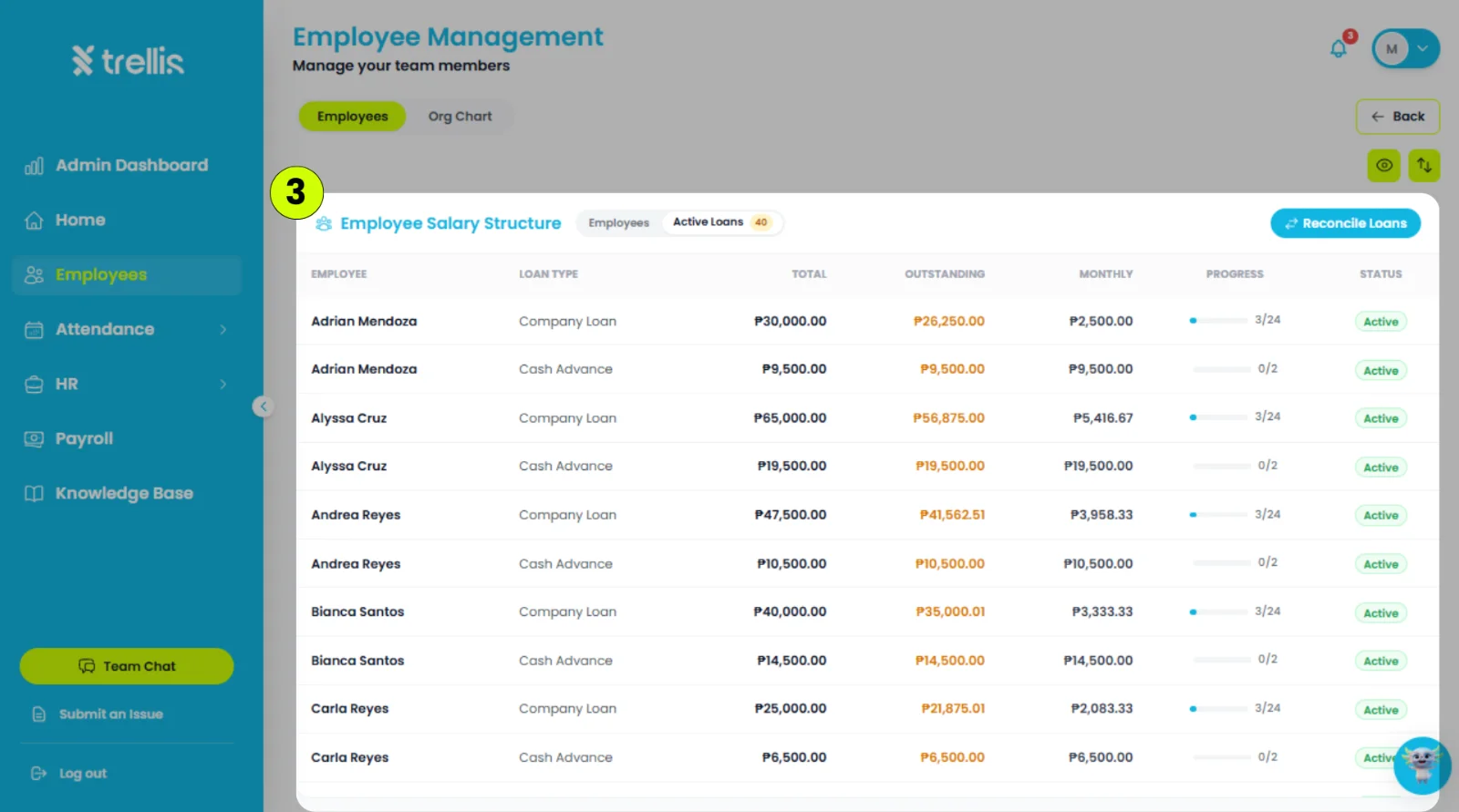
Click "Active Loans" to view the list of employees with active loans.
 Read the full guide →
From the sidebar, click "Employees."
On the Employees page, click "View Salary Structure."
On the Employee Salary Structure page, click "Add Employee."
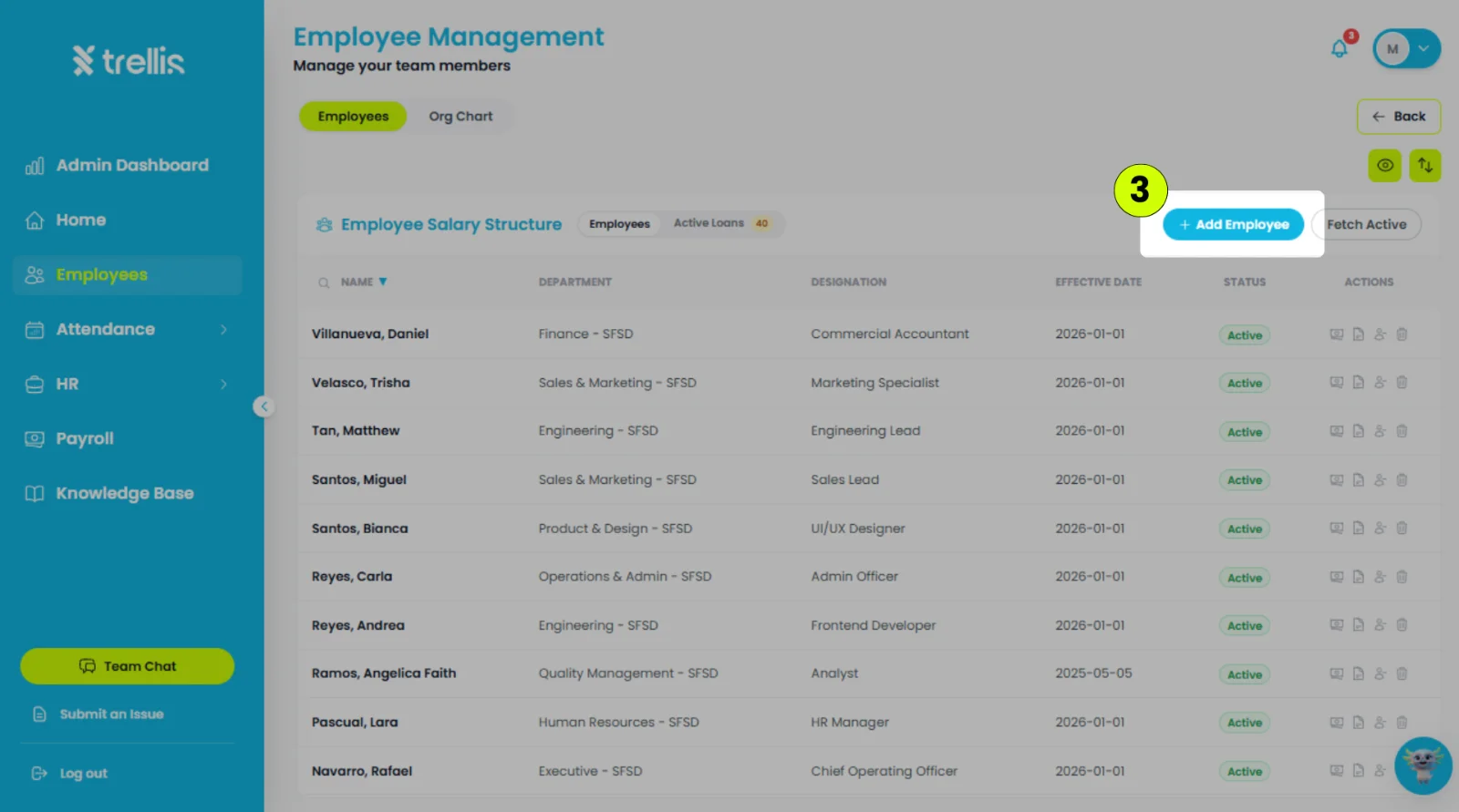
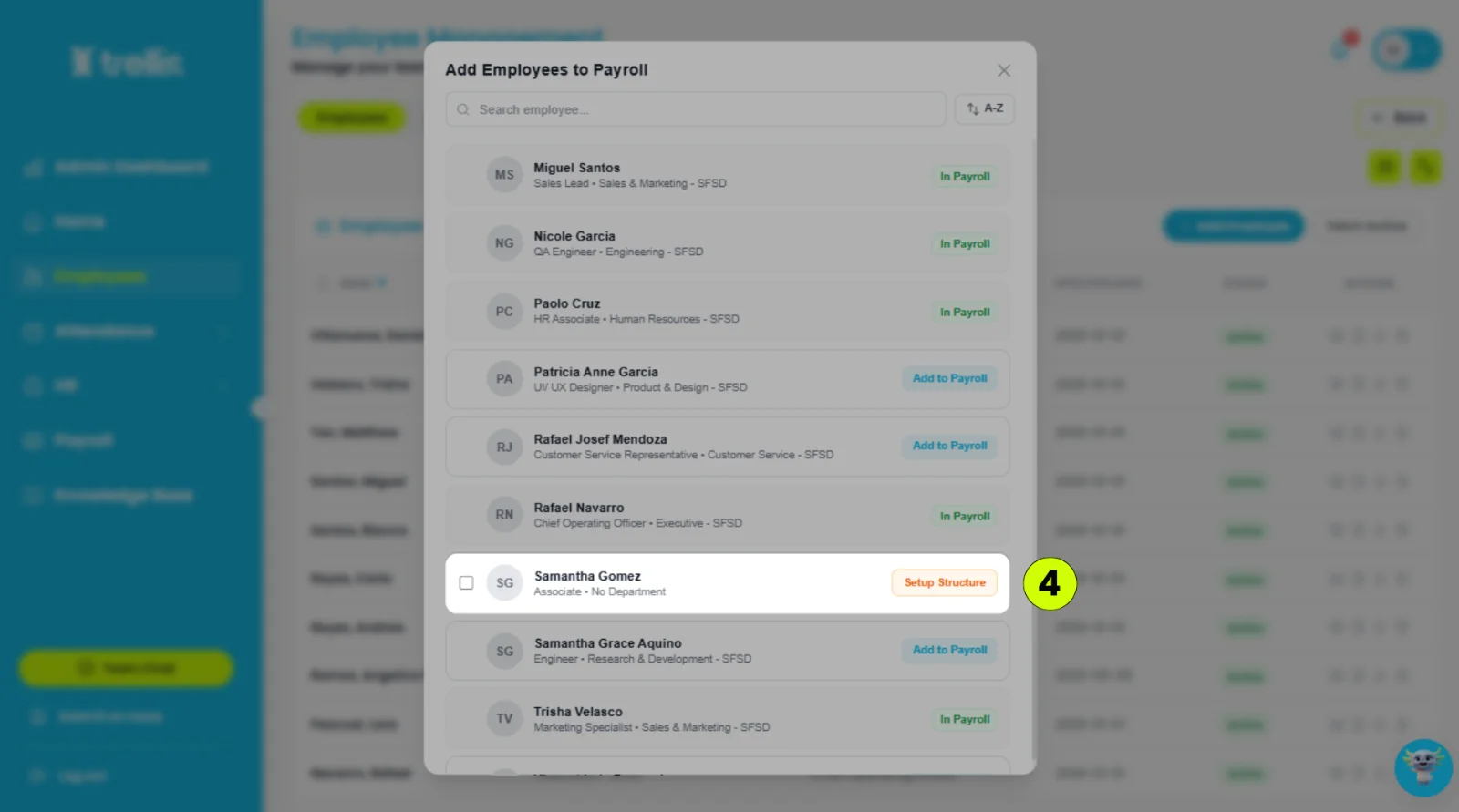
Select the employee, then click "Setup Structure."
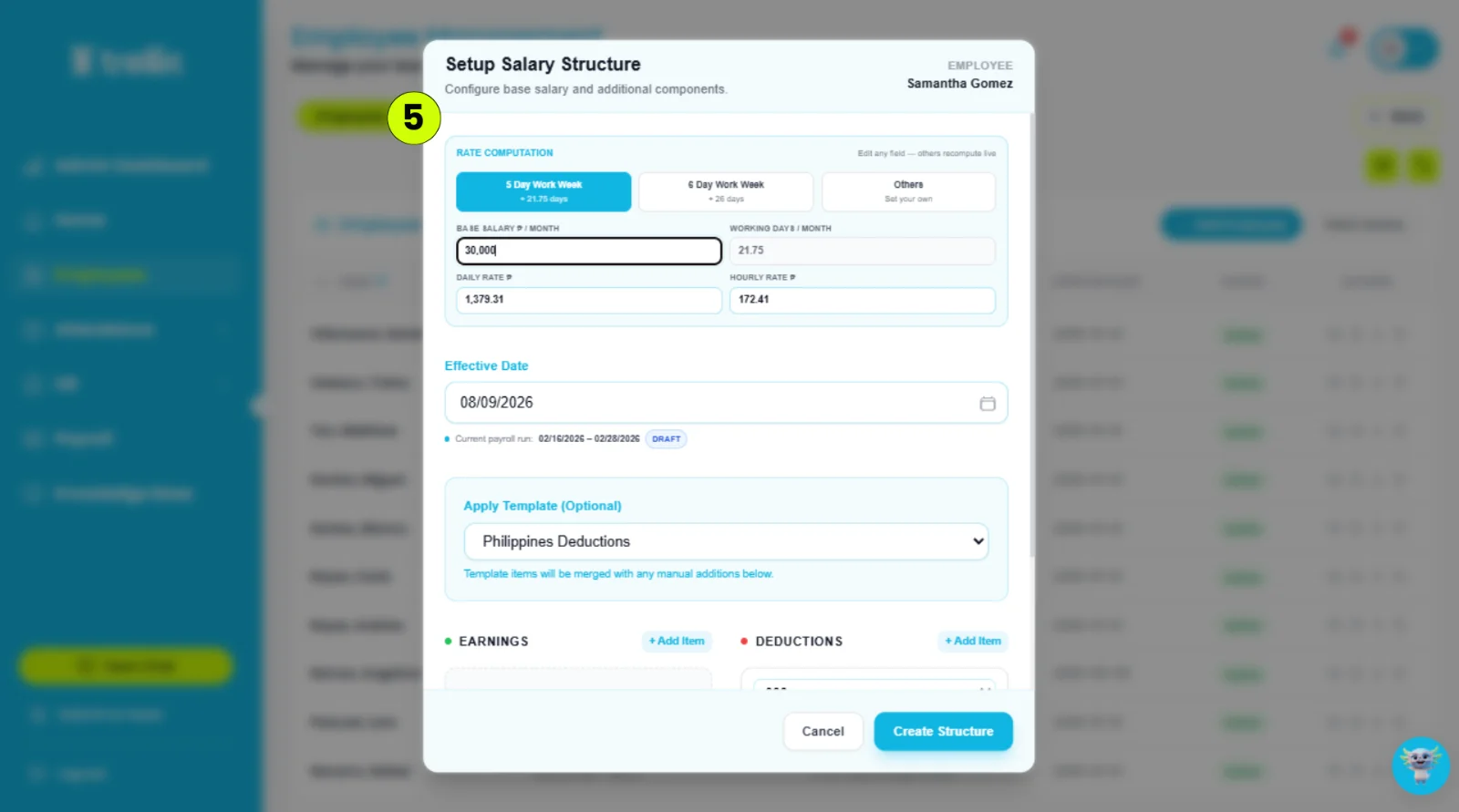
Set up the employee's salary structure, then click "Create Structure."
Rate Computation – The employee's pay rate
Effective Date – The date when the salary structure takes effect.
Apply Template – The salary deduction template to apply, such as the Philippine deduction template.
Earnings – The employee's other earnings.
Deductions – The deductions to be applied to the employee's salary.
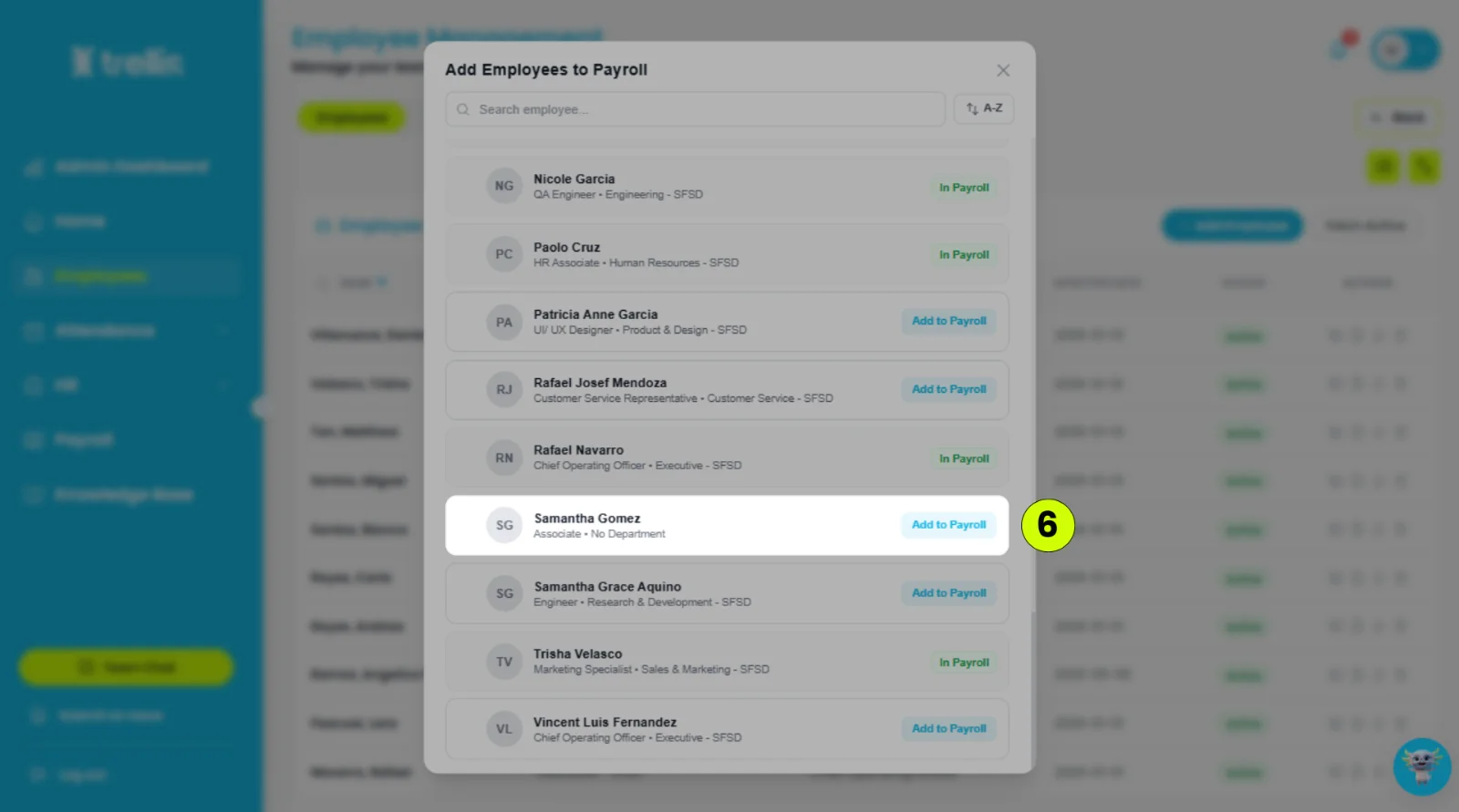
Select the employee, then click "Add to Payroll."
 Read the full guide →
From the sidebar, click "Employees".
Click "View Salary Structure".
Locate the employee, then click the "View Salary Structure" icon.
Click "Edit Structure".
Under Deductions, turn off "Withholding Tax".
Set "Effective from" to the first day of the first cut-off that should have no withholding tax.
To turn it back on automatically later, set "Back on after" to the last day it should stay off. Leave it empty to keep it off until you turn it back on.
Click "Accept". The change is saved right away.
Run payroll for the cut-off. The payslip will have no withholding tax.
Already ran payroll for that cut-off? You cannot pick a date inside it until you reset it. From the sidebar, click "Payroll", open "Payroll Configuration", click "Reset" and type RESET PAYROLL to confirm. This resets your latest cut-off only. Then follow the steps above and click "Run Payroll" on "Payroll Analysis".
To turn it back on: open the salary structure the same way, click "Edit Structure", turn on "Withholding Tax", set "Effective from", and click "Accept".
Read the full guide →When an employee has an absence, late or undertime in a cut-off, Payroll Analysis lets you decide whether it comes off their pay. Waiving means the employee keeps that pay. Anything you leave is deducted when the payroll runs.
Before the cut-off is locked, hover over the green "Waived" tag, click "Undo Deduction," then "Yes, undo." The payroll recomputes on its own.
Tip: SSS, PhilHealth and Pag-IBIG are worked out when the payroll runs. To change a payslip, change the waiver or the attendance (then click "Re-run" in "Computation & Payslips") instead of editing payslip lines. Editing a line updates the tax and totals, but not these contributions.
Read the full guide →A one-time adjustment adds an extra earning or deduction to one cut-off only, for example a bonus, an allowance or a deduction you enter by hand. You can add, change or remove them until the cut-off is locked.
Add adjustments before you click "Run Payroll." If you change one after the run, the page marks the cut-off "Re-run needed." A locked cut-off shows "Adjustments are locked for this cut-off."
More on running payroll: How to Process Payroll.
Read the full guide →Each cut-off has its own payout date, set by your payroll schedule. Change it only when this one payday is different. You can change it until the cut-off is locked.
From the sidebar, click "Payroll."
Click "Computation & Payslips."
Find the cut-off in the table. Its date is under "Payout Date." On a phone, it is under "Payout."
Click the date and pick the new one. It saves as soon as you click, so there is no Save button.
The payslips in that cut-off change to the new date too.
Read the full guide →A shift mismatch appears in Payroll Analysis when an employee paid by the hour clocked in and out mostly outside the shift assigned for that day. Because hourly pay follows the assigned shift, Trellis holds the payroll run until the schedule is corrected. A shift mismatch cannot be waived like a late or an absence.
For the assigning steps, see Where can I assign a shift?
Read the full guide →If your company started running payroll in Trellis partway through the year, Trellis only knows the pay recorded in it. Add each employee's earlier pay and tax for the year so withholding tax is computed on the whole year.
From the sidebar, click "Team".
Click "Invite Team Member".
Under "Add your team in bulk", click "Upload". The "Bulk Employee Import" page opens.
Under "Start with the template", turn on "Pre-fill with your current employees".
Click "Download the update file". The file lists your current employees, each with their Employee ID.
Open the file and find the columns under "Only if you're switching mid-year (optional)".
For each employee, fill in "Gross Pay To Date", "Taxable Income To Date" and "Withholding Tax To Date". Use the totals for the year up to the last day before your first cut-off in Trellis. Fill all three or leave all three blank.
Leave the other columns as they are. Every row left in the file updates that employee, so do not change details you want to keep.
Upload the file on the same page. Trellis checks it before anything is saved.
On the review screen, set the date beside "Some people already have pay history this year. We'll count it up to:" to the last day your figures cover.
Click "Import".
From the sidebar, click "Payroll", then open "Computation & Payslips".
Click "Re-run" on the cut-off, then click "Re-run payroll" to confirm. Lines you added to payslips by hand are kept.
To check the result: open a payslip, click the tax line under "Deductions", and read "How it was computed". The earlier pay appears as "Opening balance (before trellis)".
Cut-off already locked? A locked cut-off is not recomputed. The figures you added apply from the next cut-off you run.
Read the full guide →When you add, change or remove a payslip line by hand after a cut-off has run, Trellis asks for a rerun before you can finalize. The rerun keeps your changes and recalculates tax and totals around them.
No articles match your search.
Reach out to our support team and we'll guide you through it.
Contact Support