
Where can I assign a shift?
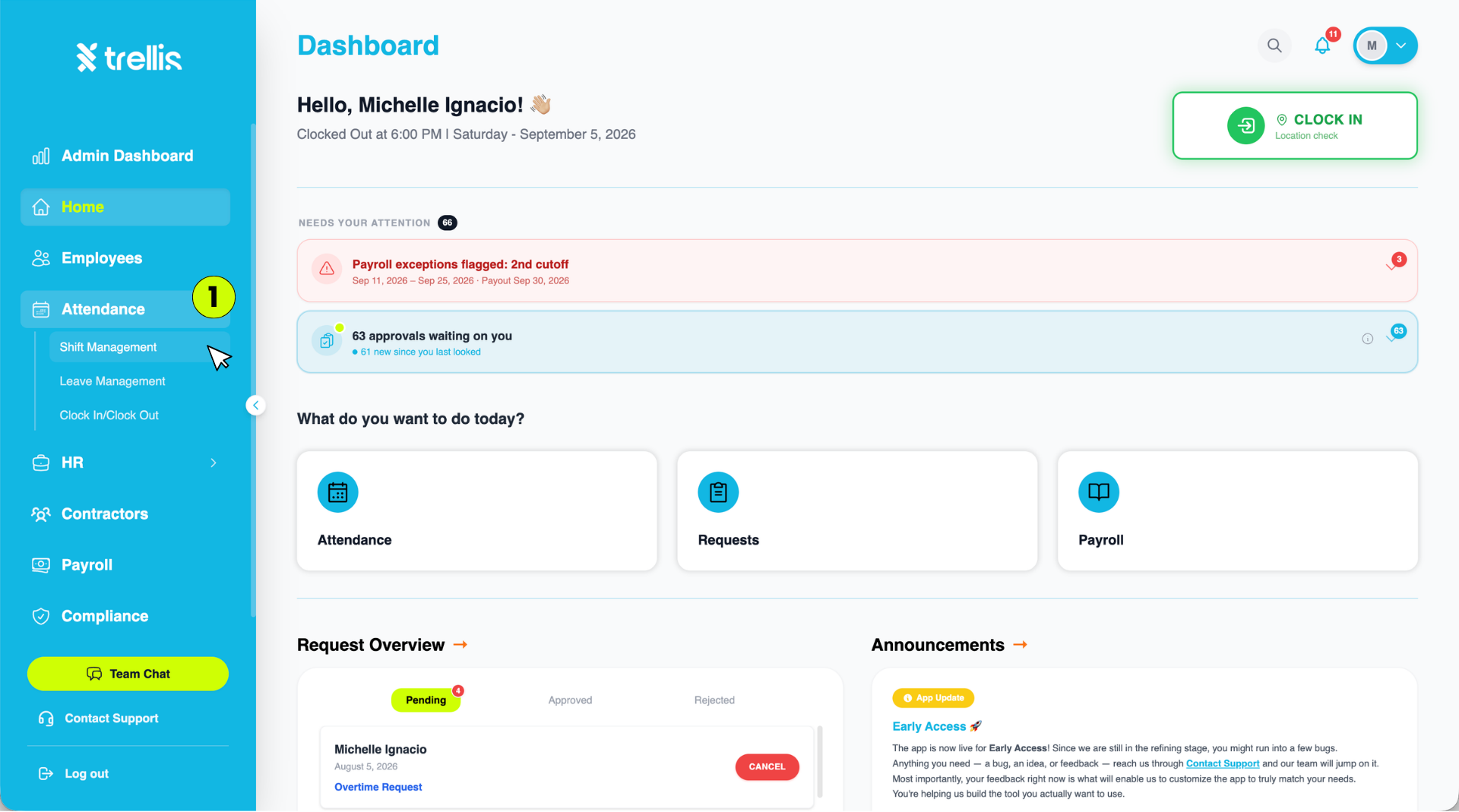
From the sidebar, click "Attendance" to expand the menu, then select "Shift Management."
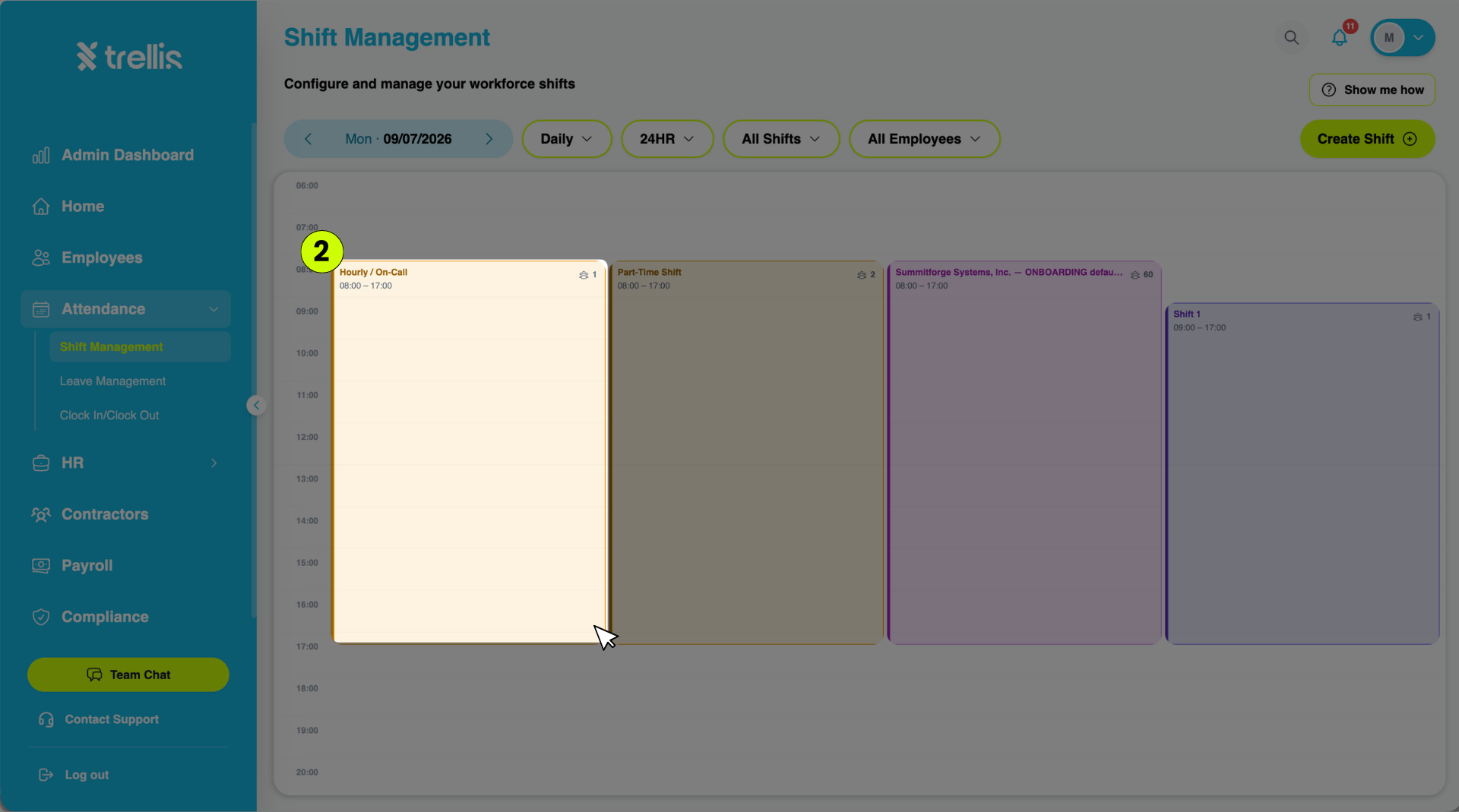
On the Shift Management page, click into the shift column you want to assign employees to (e.g., "Hourly / On-Call"). This opens a panel on the left showing that shift's details and current employees.
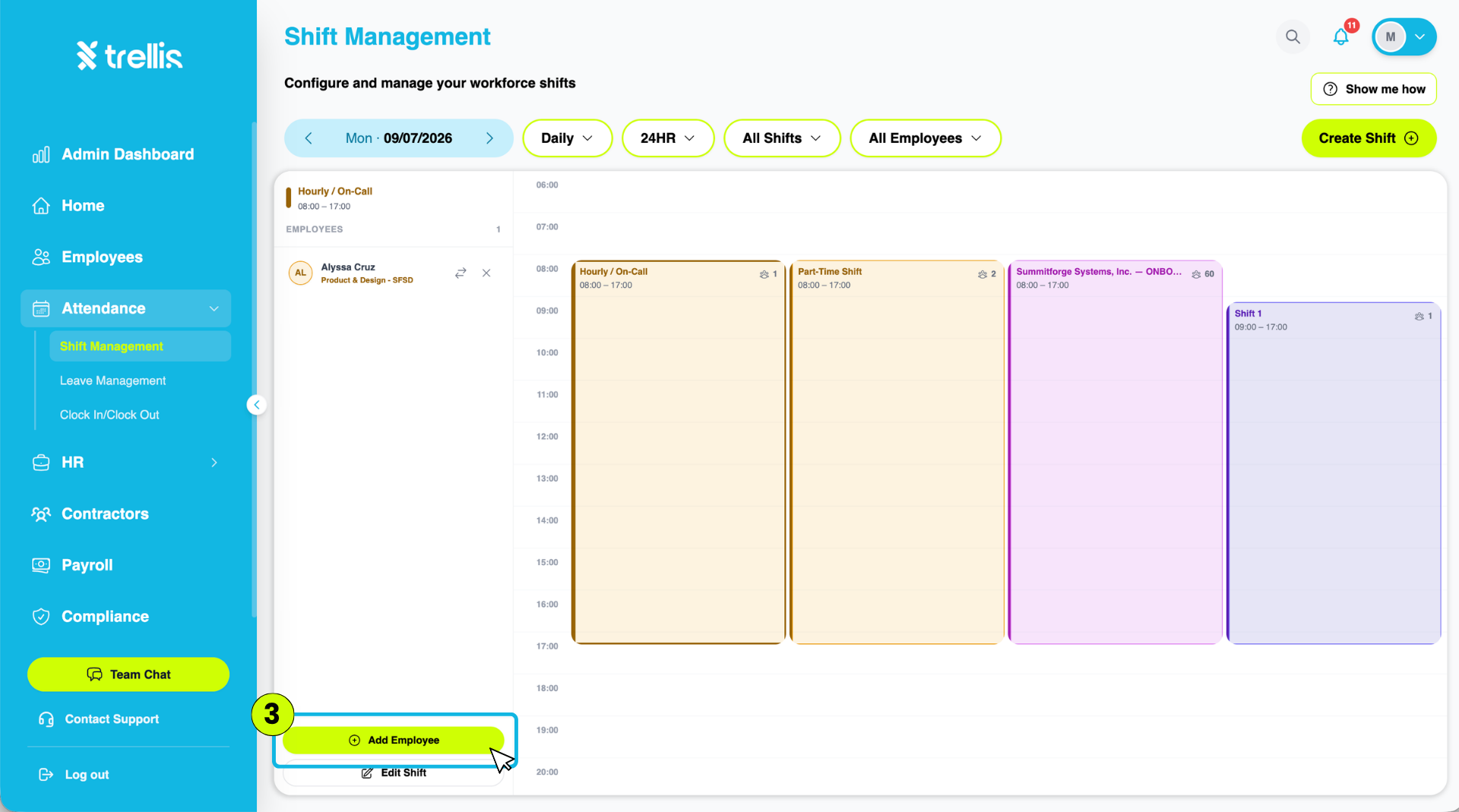
Click the "Add Employee" button at the bottom of that panel.
The "Assign Shift" window will appear on the right. Fill in the required details, then click "Assign."
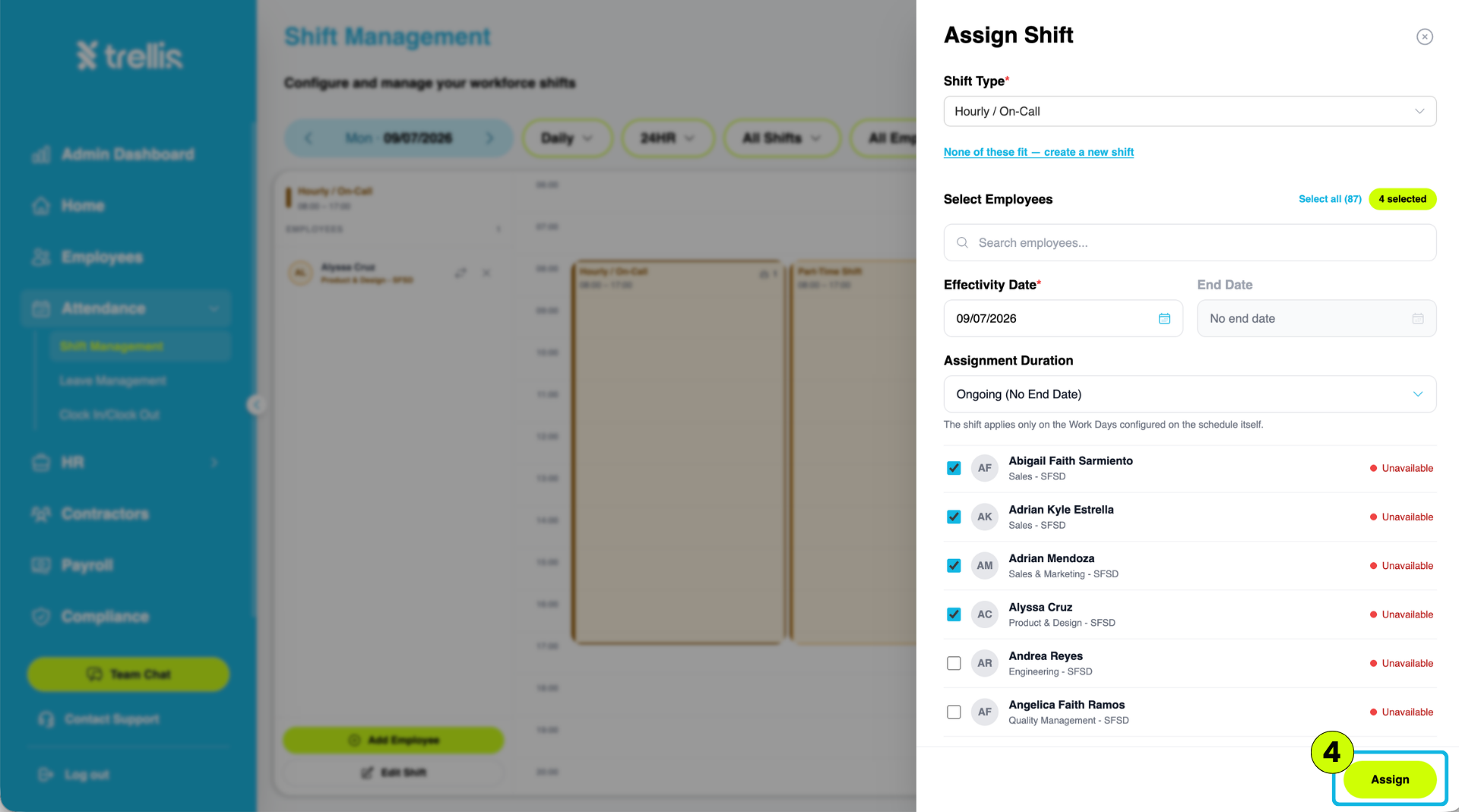
Shift Type — select the shift schedule from the dropdown (or click "None of these fit — create a new shift" if you need a new one)
Select Employees — search or check off the employee/s you want to assign to this shift; you can also click "Select all"
Effectivity Date — set the date the shift assignment begins
End Date — optional; leave as "No end date" if the assignment doesn't have a fixed end
Assignment Duration — defaults to "Ongoing (No End Date)." The shift will automatically apply only on the work days configured on the shift schedule itself.